

Application menu
The application menu sits in the top-left of the Composer Desktop window, organised into ten top-level entries that mirror the main authoring and operating workflows.
This page lists every menu item, including those nested under a parent entry or only visible in specific runtime states (Script Engine disabled, Debug mode off, etc.). Items that toggle a setting are marked (toggle); items gated by a setting are flagged where they appear.

File
Project lifecycle: create, open, save, import / export, encrypted projects, media management, exit.
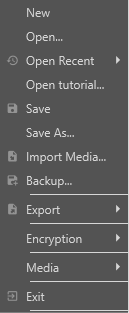
| Item | Description |
|---|---|
| New | Closes the current project and creates an empty new one. Prompts to save unsaved changes first. |
| Open… | Opens a project file (.prj) from disk via a standard file picker. |
| Open Recent | Lists recently opened projects with thumbnail previews. The list length and history retention are set in Settings → General. |
| Open tutorial… | Opens the tutorial-project picker. Tutorials are downloaded on first use; see Tutorials → Download tutorials… below. |
| Save | Writes the current project back to its source file. Disabled when the project has no associated file (use Save As…). |
| Save As… | Saves the current project to a new file. |
| Import Media… | Imports media files (video, audio, images) into the project's asset library. Accepts the same containers the Video File Input and Audio file input decode. |
| Backup… | Saves the current project plus all its media assets into a single backup archive. Useful before risky edits, version migrations, or hand-off. |
| Export ▸ | Export the project or capture-card snapshots (see below). |
| Encryption ▸ | Encrypted-project import / export (see below). |
| Media ▸ | Bulk media-asset operations (see below). |
| Exit | Closes Composer Desktop. Prompts to save unsaved changes. |
File ▸ Export
| Item | Description |
|---|---|
| Export project and all assets… | Bundles the project file and every media asset it references into a single distributable folder / archive. Same surface as File → Backup…, oriented at hand-off rather than disaster recovery. |
| Export Decklink capture snapshots… | Saves PNG snapshots of every active Blackmagic DeckLink Capture v3 input as configured. Useful for documenting signal state at a point in time. |
File ▸ Encryption
| Item | Description |
|---|---|
| Import Encrypted project… | Opens a .prjp (encrypted project) file. Composer prompts for the passphrase before loading. |
| Export Encrypted project As… | Saves the current project as an encrypted .prjp archive. Used for distributing projects to operators who shouldn't see the underlying configuration in plaintext. |
File ▸ Media
Bulk operations across every media-bearing input in the project — useful for housekeeping a long-running project that's accumulated unused or moved files.
| Item | Description |
|---|---|
| Auto rename all scene layers… | Renames every scene layer to match its underlying input's name. Useful after bulk-renaming inputs, so layer names track the new naming. |
| Auto rename inputs to short names… | Replaces input names with short, filename-derived versions (drops paths, keeps the leaf). Targets readability after a bulk import. |
| Consolidate… | Copies every referenced media asset into the project's asset folder, normalising paths so the project no longer depends on absolute paths into the host filesystem. |
| Show missing media… | Opens the missing-media report — every input whose SourceUrl couldn't be resolved on the current host. See Media management for the recovery workflow. |
| Reallocate missing media… | Starts the relink workflow for missing media: prompts for a replacement path per missing asset, or auto-relinks based on filename matches in a chosen folder. |
| Unload unused media… | Frees every imported asset that isn't currently referenced by any input. Reclaims memory in long-running projects with many import-then-discard cycles. |
Tip — Missing media
If you open a project whose media files have moved or are unavailable, Composer raises a missing-media alert with diagnostic options to relink, replace, or skip. See Media management in Getting Started for the full recovery workflow.
Edit
Application settings plus add / duplicate / delete on every project entity — scenes, inputs, operators, layers, targets, connectors. The same actions are available from each entity's right-click context menu; this menu acts as a single discoverable surface for the whole set.
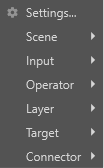
| Item | Description |
|---|---|
| Settings… | Opens the Settings window. Application-wide preferences: paths, audio devices, Web API, OpsGenie, metrics, performance options, etc. |
| Scene ▸ | Add, duplicate, or activate a scene. |
| Input ▸ | Manage inputs in the current scene. |
| Operator ▸ | Manage operators on the current layer. |
| Layer ▸ | Delete or composite the current layer. |
| Target ▸ | Delete the current target. |
| Connector ▸ | Clone or delete the current connector. |
Edit ▸ Scene
| Item | Description |
|---|---|
| Add new | Adds an empty scene to the project. Becomes the active scene if it's the first one added. |
| Duplicate | Creates a copy of the currently selected scene (with its layer stack, operators, and targets). The duplicate keeps its own scene-level audio chain and target settings. |
| Set as active | Makes the selected scene the active scene — the one feeding compositor preview and downstream targets that use Active scene as their source. |
Edit ▸ Input
Operates on the currently selected input.
| Item | Description |
|---|---|
| Add to scene | Adds the input as a new layer in the active scene. |
| Add to new scene | Creates a new scene containing just this input. Useful for building a "library" of single-input scenes. |
| Copy image | Copies the current scene preview frame to the clipboard as an image. |
| Delete | Removes the input from the project, including every scene layer that references it. Prompts before deletion. |
| Open location in Explorer… | Opens the input's source file location in Windows Explorer. File-based inputs only. |
| Rename all scene layers | Renames every layer in the project that references this input to match the input's current name. |
| Replace scene layer source | Swaps the underlying input for every layer in the project that currently references this input. Non-destructive: layer geometry, transforms, and operator stacks are preserved. |
Edit ▸ Operator
Operates on the currently selected operator on the currently selected layer.
| Item | Description |
|---|---|
| Copy operator properties | Copies the operator's full property set to the clipboard. Designed to pair with Paste below. |
| Paste operator properties | Applies the previously copied property set to the currently selected operator. Source and destination operators must be of the same type. |
| Duplicate | Adds a second instance of this operator to the same layer with identical properties. |
| Delete | Removes the operator from the layer. Prompts before deletion. |
Edit ▸ Layer
| Item | Description |
|---|---|
| Delete | Removes the currently selected layer from its scene. Prompts before deletion. |
| Add composite layer | Inserts a composite layer at the current position. Composite layers nest a stack of source layers below the composite line into a single rendered surface that the layers above blend with. |
Edit ▸ Target
| Item | Description |
|---|---|
| Delete | Removes the currently selected target. Prompts before deletion. |
Edit ▸ Connector
| Item | Description |
|---|---|
| Clone | Creates a duplicate of the selected connector (same trigger configuration, fresh ID). Useful for spawning per-input variations of a similar connector. |
| Delete | Removes the connector from the project. Prompts before deletion. |
View
Display options for the central preview pane and per-scene visual aids.
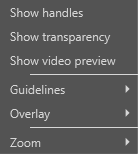
| Item | Description |
|---|---|
| Show handles (toggle) | Shows / hides the corner resize handles on the selected layer in the compositor preview. Off when you want a clean preview during a live show. |
| Show transparency (toggle) | Shows / hides the chequerboard pattern that marks transparent (alpha = 0) areas. Off when you want to see the composited output exactly as it will be rendered. |
| Show video preview (toggle) | Master toggle for the in-Desktop scene preview. Same control as the yellow eye icon next to the active scene name. Disabling stops Composer from rendering preview frames, freeing GPU budget for live targets. |
| Guidelines ▸ | Toggle layout guidelines. |
| Overlay ▸ | Overlay grids on the preview pane. |
| Zoom ▸ | Preview-pane zoom controls. |
View ▸ Guidelines
Control the alignment guides that appear while dragging a layer in the preview. See Snap to alignment guides for the full behaviour.
| Item | Description |
|---|---|
| Show guidelines (toggle) | Shows / hides the cyan guide lines drawn while dragging a layer when an edge or centre aligns with the scene edges, the scene centre, or another layer. |
| Snap to guidelines (toggle) | When on, the dragged layer snaps to a nearby guide for pixel-accurate alignment. Applies to move only — resizing is unaffected. |
View ▸ Overlay
Choose a non-rendered overlay drawn on top of the preview pane to help with composition. Overlays are visual aids only — they're not rendered into target outputs.
| Item | Description |
|---|---|
| No overlay | Removes any active overlay. |
| Center cross | Draws a thin vertical + horizontal line through the preview centre. |
| Grid 2×2 | Splits the preview into a 2×2 grid (rule-of-thirds analogue). |
| Grid 3×3 | Classic rule-of-thirds grid. |
| Grid 4×4 | 4×4 grid, useful for precise alignment of multiple inset overlays. |
| Grid 6×6 | Fine-grained 6×6 grid. |
| Grid 12×12 | Very fine 12×12 grid for pixel-level alignment work. |
View ▸ Zoom
| Item | Description |
|---|---|
| Fit to window | Zooms the preview pane so the active scene fills the available pane area. |
| Zoom in | Increases preview zoom one step. |
| Zoom out | Decreases preview zoom one step. |
Script Engine
Author, debug, and lifecycle the project's Script Engine JavaScript runtime. The whole menu is disabled when EnableScriptEngine is false in Settings → Script Engine.
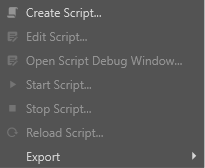
| Item | Description |
|---|---|
| Create Script… | Creates a new empty script attached to the project and opens it for editing. The first script becomes the project's default script. |
| Edit Script… | Opens the project's current script in the in-Desktop script editor with syntax highlighting and Composer-aware completions. |
| Open Script Debug Window… | Opens the Script Debug Window: engine status, per-frame execution time, severity-filtered live log, and one-click Reload / Edit / Start / Stop. |
| Start Script… | Starts the script (calls OnProjectInit if defined). Equivalent to driving /api/scriptengine/start. |
| Stop Script… | Stops the script (calls OnProjectStop if defined). Pending callbacks and timers are cleared. |
| Reload Script… | Reloads the script source from disk and restarts it — useful while iterating on script source from an external editor. |
| Export ▸ | Encrypted-script export. |
Script Engine ▸ Export
| Item | Description |
|---|---|
| Export encrypted script… | Saves the project's script as an encrypted blob the project can load at runtime without exposing the source to the operator. Pairs with the encrypted-project export under File → Encryption. |
Layout
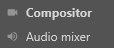
Switches between the Compositor and Audio Mixer layouts (the same toggle as Ctrl + M).
| Item | Description |
|---|---|
| Compositor | Shows the compositing layout — visual workspace, scene preview, layer stack. The default layout for video-driven workflows. |
| Audio mixer | Shows the audio mixer layout — channel strips fill the centre pane, the Channel strip inspector sits beside them. The default layout for audio-mixing-heavy workflows. |
The currently active layout is indicated with a check-mark next to the menu item.
Preview
Toggle the in-Desktop video and audio preview, plus pick the audio preview source.

| Item | Description |
|---|---|
| Video ▸ | Toggle the video preview pane. |
| Audio ▸ | Toggle audio preview and pick the audio source. |
Preview ▸ Video
| Item | Description |
|---|---|
| Toggle Video Preview On/Off | Master on/off for the in-Desktop video preview. Equivalent to clicking the yellow eye icon next to the active scene name. Disable to free GPU budget; downstream targets keep rendering. |
Preview ▸ Audio
| Item | Description |
|---|---|
| Toggle Audio Preview On/Off | Master on/off for the in-Desktop audio preview (the audio that plays through the host's audio output device). |
| Source ▸ | Pick what feeds the audio preview. |
Preview ▸ Audio ▸ Source
| Item | Description |
|---|---|
| Active scene (default) | Audio preview follows the active scene's master output — what a viewer of the active scene's audio chain hears. |
| Selected input | Audio preview follows the currently selected input regardless of scene activity — useful for soloing a specific source on the operator's headphones. |
Analysis
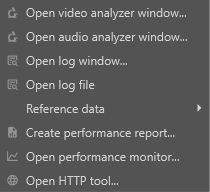
Diagnostic windows for inspecting live signal, log activity, and runtime performance.
| Item | Description |
|---|---|
| Open video analyzer window… | Opens the video analyser: waveform, vectorscope, RGB / luma parade, histogram. |
| Open audio analyzer window… | Opens the audio analyser: FFT spectrum, peak / RMS levels, follows the strip selected in the audio mixer. |
| Open log window… | Opens the Log window — a live tail of runtime messages, filterable by severity and subsystem. |
| Open log file | Opens the current Composer log file in the host's default text viewer. Faster than digging through the Composer logs folder when you just want recent activity. |
| Reference data ▸ | Capture / compare reference images and audio levels for autotest workflows. Visible only when Show debug properties is enabled. |
| Create performance report… | Generates a performance report covering frame budget, GPU / CPU load, per-component cost. See Performance Report. |
| Open performance monitor… | (debug only — visible when Show debug properties is enabled) Opens the live performance-monitor window with per-tick frame-budget telemetry. |
| Open HTTP tool… | Opens an HTTP request console for testing project connectors and any HTTP / HTTPS URL: GET / POST / PUT / DELETE / PATCH, editable headers and body, pretty-printed JSON response, cancellable send. Auto-fills the URL and dynamic-parameter placeholders for the chosen connector and pre-loads the apikey header from apikeys.json when present. |
Analysis ▸ Reference data
Used by the autotest pipeline to lock in reference images / audio levels and verify deterministic-rendering. Visible only when Show debug properties is enabled in Settings → Debug.
| Item | Description |
|---|---|
| Save project reference image | Captures the current scene preview frame and saves it as the project's reference image. |
| Open project reference image | Opens the previously saved reference image in the host's default image viewer. |
| Compare with project reference image | Compares the current scene preview against the saved reference. Mismatches are reported in the log window. |
| Copy image checksum to clipboard | Copies the perceptual-hash checksum of the current scene preview to the clipboard. Same hash format the /api/image/checksum endpoint returns. |
| Save project audio levels reference | Captures the current per-input audio peak / RMS levels as the project's reference. |
| Compare audio levels with reference | Compares current audio levels to the saved reference; mismatches go to the log. |
Misc
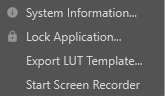
Catch-all for system-level utilities and tools that don't fit cleanly elsewhere.
| Item | Description |
|---|---|
| System Information… | Opens a system-information window showing OS version, GPU, CUDA, FFmpeg, and host hardware details. Useful when filing a support ticket. |
| Lock Application… | Locks the Composer Desktop UI behind the operator's password (see Performance Mode lock in Settings → General). Designed to keep an unattended live console safe from accidental edits. |
| Export LUT Template… | Generates a starter .cube LUT file pre-populated with the identity transform — a starting point when authoring custom colour LUTs. |
| Debug ▸ | Triggers synthetic error / warning conditions for testing the alarm and reporting pipelines. Visible only when Project.DebugMode is true; enabled only while the project is Running. |
Misc ▸ Debug
Internal-only synthetic-fault triggers — used when validating the alarm, log, and reporting pipelines without waiting for a real fault.
| Item | Description |
|---|---|
| Set Congestive | Forces the project into a congestive state (frame-budget overrun) for testing the congestion-warning UI and scripted reactions to congestion events. |
| Trigger Error | Emits a synthetic error log line through the standard logging pipeline. Tests downstream alerting (OpsGenie, Composer Monitor) without breaking anything else. |
| Trigger Warning | Same as Trigger Error but at warning severity. |
| Trigger Fatal | Emits a fatal-severity log line. Use with care — downstream tools may treat fatal as an immediate page. |
| Save application snapshot | Dumps a snapshot of Composer's runtime state (heap, threads, project config) for offline analysis. Used by Support when investigating hard-to-reproduce bugs. |
Tutorials
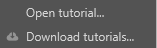
Bundled tutorial / demo projects.
| Item | Description |
|---|---|
| Open tutorial… | Opens the tutorial-project picker. Same dialog as File → Open tutorial…. |
| Download tutorials… | Downloads (or refreshes) the bundled tutorial projects from the Vindral CDN. Required on first run before tutorials are available. See Demos and tutorials in Getting Started. |
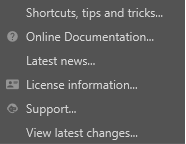
Help
Documentation entry points, news, license, and support resources.
| Item | Description |
|---|---|
| Shortcuts, tips and tricks… | Opens an in-app reference for keyboard shortcuts and workflow tips. The same content (and more) is on the Keyboard shortcuts page in this manual. |
| Online Documentation… | Opens this docs site in the host's default browser. |
| Latest news… | Opens the latest Composer news / changelog page in the host's default browser. |
| License information… | Opens the licence-information dialog: tier, expiration, hardware fingerprint, and activation status. See also Activating a license. |
| Support… | Opens the Composer support portal in the host's default browser. |
| View latest changes… | Opens the Release Notes for the current Composer version. |