

Composite layers
A Composite Layer is a special layer type that flattens every layer below it into a single image. Operators (effects) on a Composite Layer apply to that flattened result rather than to one underlying layer at a time. During rendering, when Composer encounters a Composite Layer, it consolidates the layers beneath it into one image, applies any operators on the Composite Layer, then continues rendering the layers above.
How it works
Composite Layers were added in R1 2026 and are the live equivalent of "convert layer to precomp scene" — they let you apply a single round of effects to a multi-layer assembly without making a separate scene for it.
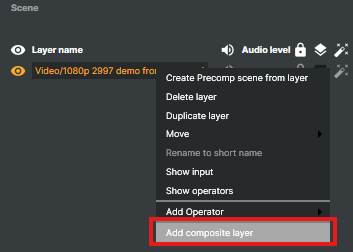
Without a Composite Layer, operators apply to individual layers only.
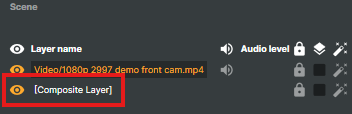
With a Composite Layer in place, operators on it process the flattened image of every layer below.
How to add a Composite Layer
- Right-click an existing input in the layer list.
- Select Add composite layer from the layer context menu.
- A new
[Composite Layer]entry appears in the stack.
When to use Composite Layers
- Apply effects across multiple layers at once (e.g. a single
Color Adjustoperator across all overlay graphics). - Create unified visual styling — colour grading, look-up tables, vignettes — applied to a group rather than per layer.
- Optimise performance: a single shared effect pass costs less than N independent per-layer effect passes.
- Build complex multi-stage post-processing chains.
- Drive selective effects with masks.
Properties
Composite Layers carry the same regular layer attributes as any other layer: visibility, opacity, transform controls, blend mode, and the operator stack on top.
Limitations
- A Composite Layer only affects layers below it in the stack.
- Multiple Composite Layers can coexist in one scene.
- Masks require Apply to next mode on the layer directly below the Composite Layer.
- Audio processing is unaffected by Composite Layers — audio still flows from each underlying layer through the audio mixer.