

BlackMagic DeckLink Capture v3
Introduction
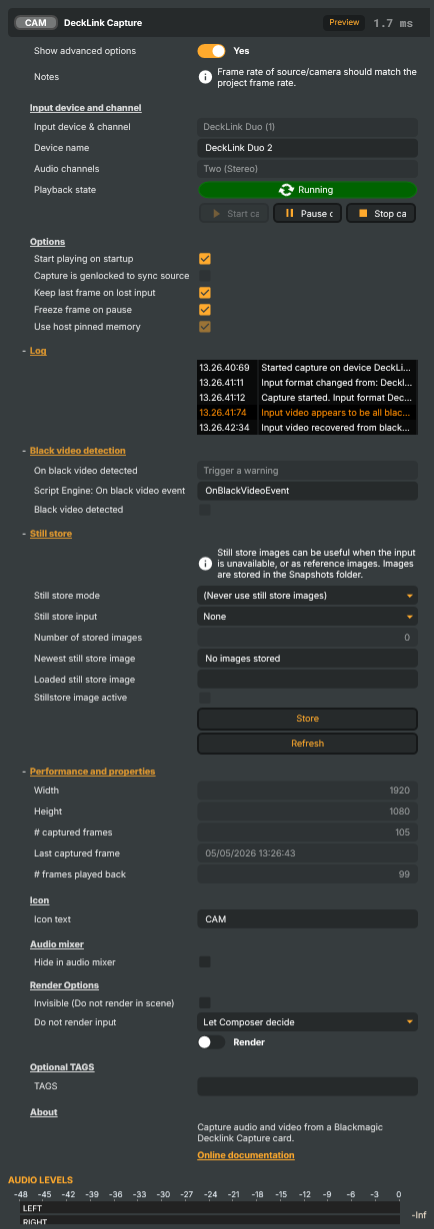
The BlackMagic DeckLink Capture v3 input pulls live video and audio from a Blackmagic DeckLink card connected over SDI or HDMI — cameras, switchers, hardware players, encoders, anything the card can receive. It sits at the head of Composer's pipeline as a standard input, mixable with file inputs, NDI sources, network streams, and software generators on the same scene.
The v3 generation supersedes the original Capture and Capture v2 components (both still ship for backwards compatibility but are hidden from the docs); new projects should always use v3.
Embedded audio: stereo or 8-channel
The input captures the SDI / HDMI signal's embedded audio alongside the video, with the channel layout selectable per input:
- Stereo (2-channel) — the default, sufficient for single-language programmes, monitoring feeds, and most camera returns.
- 8-channel — captures the full eight-channel embedded audio group, useful for multi-language broadcasts (programme bus + several language commentary mixes), discrete-mic captures from a stage feed, or any production that ships more than a stereo pair down the SDI cable. Switching to 8-channel mode unlocks the Channel Strip Inspector's MAPPING tab so each incoming channel can be routed independently into Composer's master audio bus.
The channel-count switch is a single property on the input (Audio channels) — pick the layout that matches the upstream device and Composer captures from there. Genlock and frame timing of the audio follows the host's sync source the same way the video does.
Multiple capture cards on one host
Composer fully supports running multiple Decklink cards in the same host, with as many capture inputs as the cards collectively expose channels. Each BlackMagic DeckLink Capture v3 input binds to a single (card, channel) pair selected from the dropdowns in the property panel; drop another instance on the project for each additional channel you need to ingest. Composer enumerates every Decklink-recognised channel on the host at startup, regardless of how many physical cards back them, and the per-input channel dropdown lists every available (card, channel) pair.
Practical guidance for multi-card setups:
- Mind the PCIe budget. Each capture card consumes lanes, and consumer-class CPUs can run out of lanes faster than you'd expect — a Decklink Quad 2 plus an RTX-class GPU at full lanes is already pushing a 24-lane Ryzen platform. The motherboard then silently downgrades the GPU's slot from x16 to x8, which directly cuts the bandwidth available for cudaMemcpy frame transfers and shows up as dropped frames under load. See Operations & Tuning → PCIe bandwidth considerations for the full sizing guide, lane budgets per card, and motherboard-slot-allocation advice.
- Pick a card that gives you channels per slot. A Decklink Quad 2 (4 × 3G-SDI) and a Decklink Quad HDMI Recorder (4 × HDMI 2.0) each yield four capture channels from a single card slot; multi-channel cards are a substantially better fit than four single-channel cards on a host where PCIe lanes are tight.
- Set one capture card as the sync source in the Settings → General tab when running several cards together. With genlocked cameras feeding the capture cards, taking the sync from one of those captures keeps every input on the same render tick — see the input's
Capture is genlocked to sync sourceadvanced option for the per-input switch. - Composer Runtime supports the same multi-card setup headlessly — the same project moves between Desktop and Runtime without changes. For production hosts with several cards, the Runtime host is typically the right deployment target.
Common use cases
- Multi-camera live productions — one capture input per physical camera, mixed and switched in scene logic or via the Connectors / Script Engine surfaces.
- SDI / HDMI signal monitoring — bring a downstream feed back into Composer for on-screen verification, scoping, or recording.
- Hardware-player ingest — capture from a tape deck, ProRes player, or external graphics machine without re-encoding.
- Multi-language audio ingest — the v3 input supports either stereo (2-channel) or 8-channel audio. Use 8-channel mode to capture a programme bus plus several language commentary feeds from the same SDI source.
- Reference / fallback graphics — the on-board still store can hold a reference frame or fallback graphic, automatically swapped in if the live signal disappears.
What you can control
- Device + channel selection — pick the Decklink card and channel to capture from. Composer enumerates every channel on every installed Decklink card at startup.
- Capture mode — choose how frames are transferred from the card. Classic (the default) maximizes compatibility and runs reliably across every Desktop Video driver version. Optimized uses a lighter-weight, higher-performance transfer that can lower CPU and memory use, but relies on the installed capture-card driver behaving correctly. Start with Classic; switch to Optimized only when you need the extra performance and have confirmed it is stable with your driver. The mode is applied when capture starts, so change it while the input is stopped.
- Audio channels — choose between stereo (2-channel) and full 8-channel modes; the latter unlocks the Channel Strip Inspector's MAPPING tab for per-channel routing.
- Auto-start on load — start capturing immediately when the project opens, or wait for an explicit Start command.
- Freeze-frame on pause / lost input — hold the last good frame instead of going to black during a brief signal interruption.
- Black-video detection — automatic detection with an optional Script Engine callback to react when the source goes dark (cut to a fallback scene, log the event, page operations).
- Still store — load a reference frame or fallback graphic from disk; useful as a known-good substitute when the live signal drops.
- Captured timecode — the embedded SDI / HDMI timecode (RP188 / VITC) carried by the incoming signal, surfaced as a read-only
HH:MM:SS:FFreadout at the top of the performance section and exposed to the Script Engine for logging or sync logic. It stays blank when the source carries no embedded timecode or no signal is present. - Capture statistics — frame arrival timing, queue depth, format-mismatch counters, and other diagnostic readouts; useful both during commissioning and for ongoing monitoring.
For property-by-property reference, see the auto-generated table below.
BlackMagic DeckLink Capture v3 - Settings

| Property | Description |
|---|---|
Show advanced options |
Show or hide the input's advanced settings in the editor UI. [default=false]. |
Input device and channel
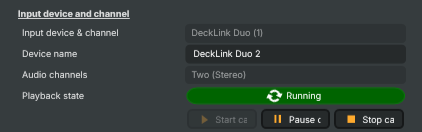
Input device and channel — pick which Decklink card and physical port to capture from.
| Property | Description |
|---|---|
Input device & channel |
Which physical Decklink input port to capture from. Picks one of the Decklink input channels detected on the system. A card may expose multiple channels (e.g. SDI 1, SDI 2, HDMI), and only one input instance can capture from each channel at a time. Must be set before capture can start. If no Decklink card is found on startup, this is empty — make sure the BMD drivers are installed and the card is recognised by the system. |
Device name |
Friendly name of the Decklink device currently in use (read-only). Reflects the model/identifier reported by the Decklink driver for the selected DecklinkCaptureChannel (for example "DeckLink 8K Pro (1)"). Useful from scripts to confirm the right card was picked when more than one Decklink device is installed. |
Audio channels |
(advanced) Number of audio channels to capture from the source. [default=Two]. Two (stereo) is the standard choice for most workflows. Eight enables 8-channel capture, used for multi-language programmes (each language pair on its own channel pair), surround sound, or split-feed productions. The selected count must be supported by both the DeckLink card and the upstream source. |
Playback state |
Current playback state of the input (read-only). Reflects whether the input is Stopped, Running, Paused, or in an error state. Driven indirectly by StartCommand, StopCommand, PauseCommand, and by AutostartCapture at load time. Read this from a script to decide whether the source is live; the value also drives the running indicator and the enabled state of the capture buttons. |
Start capture |
Start capturing from the selected Decklink input. |
Stop capture |
Stop capturing from the Decklink input. |
Pause capture |
Pause or resume capture, freezing on the last frame while paused. |
Options
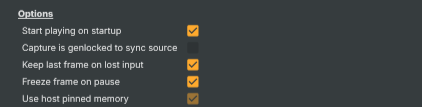
Options — capture behaviour and resilience settings.
| Property | Description |
|---|---|
Start playing on startup |
Whether capture starts automatically as soon as the project loads. [default=true]. When true, the input invokes its start logic immediately on load (equivalent to running StartCommand). Disable to require an explicit start, useful when the source should only come live on operator action or via a script trigger. |
Capture is genlocked to sync source |
(advanced) Whether the source is genlocked to a shared sync reference. [default=false]. In multi-camera productions where every camera is locked to a common sync generator (genlock), enabling this lets Composer take advantage of that shared timing for tighter inter-camera sync. Leave off when the source is free-running. |
Keep last frame on lost input |
(advanced) Whether to keep showing the last good frame when the input signal is lost. [default=true]. When true, a dropped or disconnected source freezes the picture on the most recent frame instead of going black — useful for productions where a brief signal glitch shouldn't be visible on air. Disable to show a clear "no signal" indication instead. |
Freeze frame on pause |
(advanced) Whether the picture freezes on the last frame when capture is paused. [default=true]. When true, PauseCommand holds the most recent frame on screen until capture resumes. Disable to go to black on pause instead. |
Capture mode |
How captured frames are transferred from the card into the pipeline. [default=Optimized]. Optimized uses a zero-copy path that is lighter on memory and CPU and is the default. Classic uses a copy-based path that works reliably across every Desktop Video driver version — switch to it if the installed driver misbehaves with the zero-copy path (e.g. allocator pointer-mismatch warnings or dropped frames). Changing this takes effect on the next capture start. |
Capture buffer depth |
(advanced) How many captured frames to keep buffered ahead of the render loop when this input is NOT the sync source. The default (2 frames) keeps latency minimal; selecting 3 frames adds one frame of jitter tolerance, reducing frame duplication/skipping on systems where the capture timing varies (e.g. several Blackmagic inputs contending for CPU), at the cost of one extra frame of latency. Has no effect when this input is the sync source (it then renders 1:1). |
Log
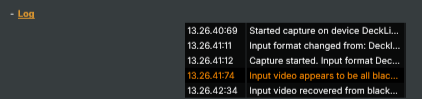
Log — recent capture events and status messages from the input.
| Property | Description |
|---|---|
ComponentLog |
Recent log lines from the input — capture events and status messages (read-only). A short history of the most recent events, useful for diagnosing why capture failed to start, why the signal dropped, or why a black-video event fired. |
Black video detection
Black video detection — react when the captured picture goes (almost) entirely black.

| Property | Description |
|---|---|
On black video detected |
What to do when the captured picture is detected as black (more than 99% black pixels). Choose how Composer reacts to a fully black input — for example logging a warning, raising an error indicator, or doing nothing. Useful for catching a disconnected camera or a misrouted feed that's still sending a valid signal but no actual picture. |
Script Engine: On black video event |
Name of a Script Engine function to call when black video is detected or recovered. The function receives a single boolean argument — true when the picture has just gone black, false when a real picture has come back. Useful for triggering automatic follow-up actions (switch to a backup feed, send an alert, log the event). Leave blank to skip the callback. |
Black video detected |
True while the captured picture is currently detected as black (read-only). true when more than 99% of the picture is black, false when a real picture is present. Useful from a script to react to the live state directly, in addition to or instead of OnBlackVideoEventFunction. |
Still store
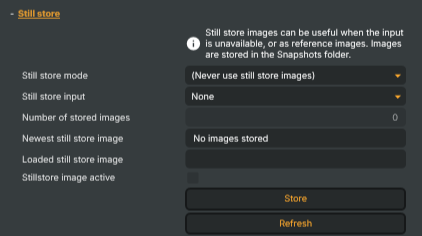
Still store — a reference image that can stand in for the live capture.
| Property | Description |
|---|---|
Still store mode |
(advanced) How the still store image is used in relation to the live capture. Choose between disabling the still store entirely, falling back to the still image only when input is lost, or always showing the still image instead of the live capture. Useful for keeping a clean reference frame on screen during cable swaps or rehearsals. |
Still store input |
Picker for which Still Image input feeds the still store. Lists all Still Image inputs in the project plus a "None" option. Selecting one copies its image into the still store, where it's used according to StillStoreMode. Selecting "None" clears the still store input link. |
Number of stored images |
Number of snapshots currently saved in the still store on disk (read-only). Counts the saved images in the project's Snapshots folder. Increases each time StoreCommand runs. |
Newest still store image |
File name of the most recent snapshot saved to the still store (read-only). |
Loaded still store image |
Information about the still store image currently loaded into memory (read-only). Typically the file name and basic dimensions. Useful for confirming which still image is actually being used right now. |
Stillstore image active |
True when the still store image is currently being shown instead of the live capture (read-only). Reflects the runtime effect of StillStoreMode — for example, true when the source has dropped and the still store is filling in. Useful from a script to react to fallback behaviour. |
Store |
Save the current captured frame as a snapshot in the still store. Writes the live frame to the project's Snapshots folder so it can be reused as a reference image or fallback graphic. |
Refresh |
Reload the still store image from the input selected in StillStoreInputSelector. Useful when the source still image has changed since it was last copied in. |
Performance and properties
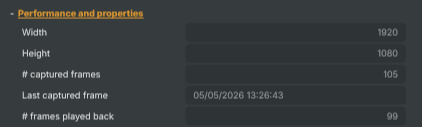
Performance and properties — runtime stats and capture diagnostics.
| Property | Description |
|---|---|
Captured timecode |
Embedded timecode (RP188/VITC) read from the most recently captured frame, formatted "HH:MM:SS:FFf" (read-only). Null when the source carries no embedded timecode or no signal is present. |
Width |
Width of the video frames currently being captured, in pixels (read-only). |
Height |
Height of the video frames currently being captured, in pixels (read-only). |
# captured frames |
Total number of frames the input has captured since it was started (read-only). Should grow steadily at the source's frame rate during healthy capture. A counter that stops moving while the input is Running is a clear sign the source has gone silent or the cable has dropped. |
Last captured frame |
Local timestamp of the most recently captured frame (read-only). Updates continuously during capture. Useful for detecting "no frames in N seconds" type stalls. |
# frames played back |
(advanced) Total number of frames Composer has rendered from this input (read-only). Compare against CapturedFrames and OnVideoFrameArriveCounter to confirm the input is keeping up with the source. |
Inherits from: AbstractInput, AbstractAudioProcessing, AbstractAudioMetering.
See also: BlackMagic DeckLink Capture v3 in Script Engine Objects.
Shared input properties
Every input — regardless of source type — exposes the following property groups. They are surfaced in the property panel only when Show advanced options is enabled on the input.
Icon
Icon text— short text shown on the input's icon in the Inputs list. Useful as a quick visual label (channel number, mic name, camera position) to tell otherwise-similar inputs apart at a glance. Empty by default; has no effect on rendering or routing.
Audio mixer
Hide in audio mixer— when on, hides the input from the audio mixer view without disabling its audio. Useful for de-cluttering the mixer while keeping the audio routed (e.g. fixed background music, ambient beds, pre-aligned playout). [default=false]
Render Options
Invisible (Do not render in scene)— when on, the input is skipped during rendering and produces no picture on any layer or scene. Audio routing is unaffected. Toggle from a script for cued-in / cued-out behaviour during a show. [default=false]Do not render input— disables the input's internal render entirely (no decode or capture work is done). Stronger than Invisible: that one renders but doesn't display; this one stops the input from doing any work at all. Useful for reducing CPU / network load on heavy sources (e.g. high-bitrate RTMP / SRT streams, large media files) when the input is temporarily not needed. Audio meters are cleared while disabled. [default=false]Do not render inputcontroller — chooses what drives the Do not render input flag.Let Composer decide(the default) hands control to the project-level Render Tuning optimiser, which automatically pauses inputs that aren't used by any active scene.Manual Configurationignores Render Tuning and lets the Do not render input toggle control the flag directly — use this to keep a network source warm even when it's currently off-air, or to take a heavy input down by hand regardless of scene activity. [default=Let Composer decide]
Optional TAGS
TAGS— one or more free-form tag words used to classify this input (typically space- or comma-separated). Picked up by Composer's Smart Search to filter or find inputs by category — e.g.camera,music,interview,sponsor. Has no effect on rendering.
Audio configuration and processing options
For inputs capable of processing audio, additional audio configuration and processing options are available through the audio mixer and the Channel Strip Inspector.
- Audio mixer — monitor levels, adjust gain and pan, mute / solo inputs, and configure auxiliary sends to
Audio Channel Stripsubmix buses, all from a centralised mixer-style interface. - Channel Strip Inspector — advanced per-strip audio processing for the selected input:
- Input trim, stereo remapping, and audio delay
- Channel mapping (8-channel mode unlocks the full MAPPING tab)
- Gate
- Low-cut filter
- Equaliser (5-band parametric)
- Compressor
- Sidechain ducking (a second compressor whose gain reduction is driven by another input's level — e.g. dipping music under a voice-over)
- Limiter
For the full audio signal flow, see Audio processing workflow.