

Video File Input
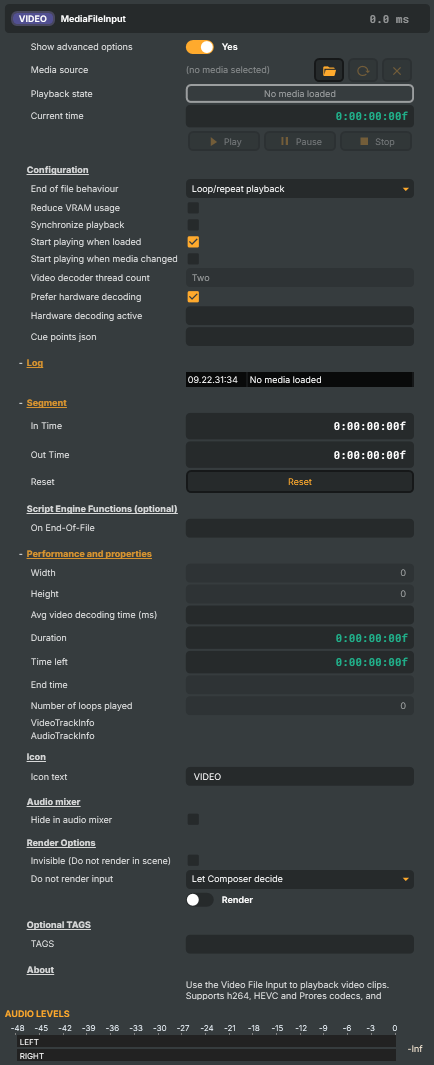
Introduction
The Video File Input plays a video file (and its audio) as a live source in your project. It accepts MP4, MOV, MKV, MXF, and other common containers carrying H.264, HEVC, or ProRes; the file is decoded continuously and presented to the rest of the engine just like any other input — chained through operators, mixed with other inputs, and routed to targets.
When the host has a supported NVIDIA GPU, the input uses NVDEC (hardware decoding) to offload work from the CPU. That keeps the per-frame cost low enough to run several files at once at high resolutions; the exact codec / resolution combinations the card can accelerate are documented in NVIDIA's compatibility matrix. For codecs the card can't accelerate, the input transparently falls back to a multi-threaded CPU decoder.
Composer only supports a 48 kHz audio sample rate; files with embedded audio at any other sample rate will be rejected.
What it's typically used for
- Pre-recorded interstitials and packages — opener stings, sponsor reels, transitions between live segments. Pair
AutoPlay = truewith a single-shot end-of-file behaviour to roll a clip the moment a scene cuts in. - Looping backgrounds — set
PlayBackEndConditionto loop and let the file run forever behind layers above it. - Cued playouts —
AutoPlay = false, drivePlayCommandfrom a script, hotkey, Stream Deck, or HTTP call to start the clip on cue. - Playlists — swap
SourceUrlfrom a script and letAutoPlayOnMediaChangestart the next clip without an extraPlayCommandround-trip. - Per-segment playback — the Segment group's
InTime/OutTimepair lets you play only a slice of a long file (e.g. one act of a recording) without re-encoding.
How playback is controlled
Three command properties drive playback: PlayCommand, PauseCommand, StopCommand. They're invokable from the property panel, from a script, from the HTTP API, or via a Connector. The property MediaPlayerState reflects the current state (NoMedia / Parsing / Playing / Paused / Stopped / error variants); CurrentTime and TimeLeft track the playhead. End-of-file behaviour (PlayBackEndCondition) decides whether the file loops, holds on the last frame, stops, or fires the PlayBackEndOfFileCallback script function.
SourceUrl is locked while playback is Playing — to swap files mid-stream from a script, call SetSourceUrl(uri) (or SetObjectProperty(input, "SourceUrl", path) from the Script Engine), which unlocks the property automatically.
For end-to-end examples — driving the input from a Script Engine script, from the HTTP API, and from the Runtime API — see the worked examples at the bottom of this page.
Video File Input - Settings
Properties marked (
Components) or (AudioMixer) broadcast a livePropertyChangedevent to clients subscribed to that WebSocket channel.
| Property | Description |
|---|---|
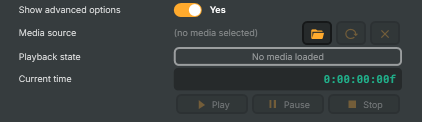
Show advanced options |
Show or hide the input's advanced settings in the editor UI. [default=false]. |
Media source (Components) |
Path or URL to the video file to play. Accepts a local file path or a remote URL pointing at any supported video format (MP4, MOV, MKV, MXF, etc.) using H.264, HEVC, or ProRes. Clearing this stops playback. Locked while playback is running — use SetSourceUrl from a script if you need to change the source mid-stream regardless of state. |
Playback state (Components) |
Current playback state of the input (read-only). Reflects whether the file is NoMedia (nothing loaded), Parsing (opening), Playing, Paused, Stopped, or in an error state. Driven indirectly by PlayCommand, PauseCommand, StopCommand, and by AutoPlay at load time. |
Current time (Components) |
Current playhead position in the file, as a time code (read-only). Updates continuously while the file is playing. Useful from a script to display the playhead, drive other components, or detect when a particular moment in the video has been reached. |
Play |
Start playing the loaded video file. |
Pause |
Pause playback at the current frame. |
Stop |
Stop playback and rewind to the beginning. |
Configuration
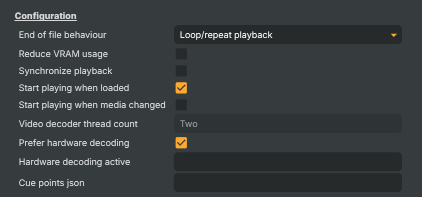
Configuration — playback options, end-of-file behaviour, and decoder settings.
| Property | Description |
|---|---|
End of file behaviour (Components) |
What to do when playback reaches the end of the file. Choose between stopping, looping back to the start, holding on the last frame, or other supported end-of-file actions. Pick the option that matches how the clip should behave in the production — looping for backgrounds, stopping for cued playouts, etc. |
Reduce VRAM usage |
(advanced) Whether to free file resources when playback stops, to save memory. [default=false]. When true, the file is fully released on stop, freeing memory at the cost of a small reload delay the next time playback starts. Disable to keep the file ready for an instant restart, at the cost of holding its memory while idle. |
Synchronize playback |
(advanced) Whether playback follows the project's master clock. [default=false]. When true, the file's playhead is locked to the project clock, keeping it in step with other synchronised inputs. Useful when several clips need to start and progress together. Leave off for a free-running playhead. |
Start playing when loaded |
Whether the file starts playing as soon as the project loads. [default=true]. When true, playback begins automatically once the source is ready. Disable to require an explicit PlayCommand, useful when playback should only start on operator action or via a script trigger. |
Start playing when media changed |
(advanced) Whether to start playing automatically when the source URL is changed at runtime. [default=false]. When true, any change to SourceUrl immediately starts playback of the new file — whether the change comes from a script, a Connector, or the HTTP API. Useful for playlist-style workflows where setting the next clip should roll it without a separate PlayCommand. |
Video decoder thread count |
(advanced) Number of CPU threads used for software video decoding. [default=Two]. Higher thread counts speed up decoding of demanding files but use more CPU. Only takes effect when UseHardwareDecoding is false (or when hardware decoding falls back to software for the chosen codec). |
Prefer hardware decoding |
Use hardware-accelerated decoding (NVDEC) when the file's codec supports it. [default=true]. When true, video decoding runs on dedicated NVIDIA decoder silicon, offloading the main system and typically reducing CPU use significantly. Falls back to software decoding for codecs the card can't accelerate. See HardwareDecodingUsed to confirm which path was actually selected for the loaded file. |
Hardware decoding active |
Which decoder is currently active for the loaded file (read-only). Reflects whether NVDEC (hardware) or a software decoder is in use. Useful from a script to confirm that hardware decoding actually engaged for the loaded codec, since UseHardwareDecoding is a preference and the actual path depends on what the card supports. |
Cue points json |
(advanced) Cue points stored in the file as a JSON string (read/write). Lets a script read out the cue points found in the loaded file, or override them with a custom set. Format follows the standard Vindral cue-point JSON layout. Leave blank to use whatever cue points the file itself contains. |
Log
Log — recent events from the input.

| Property | Description |
|---|---|
ComponentLog |
Recent log lines from the input — source loads, state changes, errors, and warnings (read-only). A short history of the most recent events, useful for diagnosing why a file failed to load, why playback stopped, or why an automatic restart was triggered. |
Segment
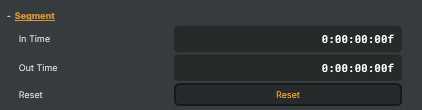
Segment — play only part of the file, defined by an in and out time code.
| Property | Description |
|---|---|
In Time (Components) |
(advanced) Start time within the file, as a time code. [default=0:00:00:00]. Defines the start of a playback segment. Playback begins here, and looping rewinds back here instead of to the start of the file. Leave at 0:00:00:00 to play from the beginning of the file. |
Out Time (Components) |
(advanced) End time within the file, as a time code. [default=0:00:00:00]. Defines the end of a playback segment. Combined with InTime, lets you play only part of the file. Leave at 0:00:00:00 to play all the way through to the end of the file. |
Reset |
(advanced) Reset InTime and OutTime so the whole file plays from start to end. |
Script Engine Functions (optional)
Script Engine Functions (optional) — names of script functions called on input events.

| Property | Description |
|---|---|
On End-Of-File |
(advanced) Name of a script function to call when the file reaches the end. Lets you react to end-of-file from a Script Engine script — for example to chain into the next clip, fire a transition, or log the event. Leave blank to skip the callback. Has no effect when PlayBackEndCondition keeps the file looping forever (the file never reaches a true end-of-file in that case). |
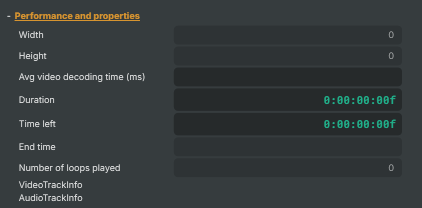
Performance and properties
Performance and properties — runtime stats and metadata about the loaded file.
| Property | Description |
|---|---|
Width |
Width of the video in the loaded file, in pixels (read-only). |
Height |
Height of the video in the loaded file, in pixels (read-only). |
Avg video decoding time (ms) |
(advanced) Average time spent decoding a video frame, formatted as a millisecond string (read-only). Should stay well below the file's frame interval for smooth playback. Persistently high values indicate the chosen decoder (CPU or hardware) is struggling with the file. |
Duration (Components) |
Total length of the loaded file, as a time code (read-only). Reflects the playable segment when InTime and OutTime are set, otherwise the file's full duration. Available once the file has finished loading. |
Time left (Components) |
Time remaining until the playhead reaches the end of the segment, as a time code (read-only). Counts down toward zero during playback. Useful for showing a "time remaining" readout or for triggering events a fixed amount of time before the end of a clip. |
Number of loops played |
How many times the file has looped since playback started (read-only). Only increments when the end-of-file behaviour is set to loop and the playhead wraps from end back to start. Useful from a script to limit the number of loops or to schedule events on every Nth repeat. |
VideoTrackInfo |
(advanced) Metadata about the video track in the loaded file (read-only). A dictionary with technical details about the video — codec, resolution, frame rate, bit rate, duration, and so on. Available once the file has finished loading. |
AudioTrackInfo |
(advanced) Metadata about the audio track in the loaded file (read-only). A dictionary with technical details about the audio — codec, sample rate, channel count, bit rate, and so on. Available once the file has finished loading. |
Inherits from: AbstractInput, AbstractAudioProcessing, AbstractAudioMetering.
See also: Video File Input in Script Engine Objects.
Shared input properties
Every input — regardless of source type — exposes the following property groups. They are surfaced in the property panel only when Show advanced options is enabled on the input.
Icon
Icon text— short text shown on the input's icon in the Inputs list. Useful as a quick visual label (channel number, mic name, camera position) to tell otherwise-similar inputs apart at a glance. Empty by default; has no effect on rendering or routing.
Audio mixer
Hide in audio mixer— when on, hides the input from the audio mixer view without disabling its audio. Useful for de-cluttering the mixer while keeping the audio routed (e.g. fixed background music, ambient beds, pre-aligned playout). [default=false]
Render Options
Invisible (Do not render in scene)— when on, the input is skipped during rendering and produces no picture on any layer or scene. Audio routing is unaffected. Toggle from a script for cued-in / cued-out behaviour during a show. [default=false]Do not render input— disables the input's internal render entirely (no decode or capture work is done). Stronger than Invisible: that one renders but doesn't display; this one stops the input from doing any work at all. Useful for reducing CPU / network load on heavy sources (e.g. high-bitrate RTMP / SRT streams, large media files) when the input is temporarily not needed. Audio meters are cleared while disabled. [default=false]Do not render inputcontroller — chooses what drives the Do not render input flag.Let Composer decide(the default) hands control to the project-level Render Tuning optimiser, which automatically pauses inputs that aren't used by any active scene.Manual Configurationignores Render Tuning and lets the Do not render input toggle control the flag directly — use this to keep a network source warm even when it's currently off-air, or to take a heavy input down by hand regardless of scene activity. [default=Let Composer decide]
Optional TAGS
TAGS— one or more free-form tag words used to classify this input (typically space- or comma-separated). Picked up by Composer's Smart Search to filter or find inputs by category — e.g.camera,music,interview,sponsor. Has no effect on rendering.
Audio configuration and processing options
For inputs capable of processing audio, additional audio configuration and processing options are available through the audio mixer and the Channel Strip Inspector.
- Audio mixer — monitor levels, adjust gain and pan, mute / solo inputs, and configure auxiliary sends to
Audio Channel Stripsubmix buses, all from a centralised mixer-style interface. - Channel Strip Inspector — advanced per-strip audio processing for the selected input:
- Input trim, stereo remapping, and audio delay
- Channel mapping (8-channel mode unlocks the full MAPPING tab)
- Gate
- Low-cut filter
- Equaliser (5-band parametric)
- Compressor
- Sidechain ducking (a second compressor whose gain reduction is driven by another input's level — e.g. dipping music under a voice-over)
- Limiter
For the full audio signal flow, see Audio processing workflow.
Converting source files for Composer
The Video File Input plays back any container FFmpeg can demux (MP4, MOV, MKV, MXF, …) carrying a supported video codec (H.264, HEVC, ProRes) and AAC or PCM audio. In practice, the format that performs best across the broadest range of hardware is H.264 in MP4, with B-frames disabled, paired with AAC audio. Disabling B-frames keeps every frame independently decodable, which makes seek and loop-rewind responsive, simplifies the decoder buffer, and avoids the rare NVDEC stall that long B-frame chains can trigger.
A canonical FFmpeg conversion command:
ffmpeg -i input.mov \
  -c:v libx264 -preset slow -crf 18 -bf 0 -pix_fmt yuv420p \
  -c:a aac -b:a 192k \
  -movflags +faststart \
  output.mp4
| Flag | Why |
|---|---|
-c:v libx264 |
H.264 video — universally NVDEC-compatible (subject to the NVIDIA codec matrix). |
-preset slow |
Encoder speed / quality trade-off. slow gives better quality at the same bitrate; speed only matters at encode time, not playback. |
-crf 18 |
Quality-targeted rate control. 18 is visually near-lossless; 23 is the libx264 default; raise the number for smaller files at the cost of detail. |
-bf 0 |
Disable B-frames — the key flag for Composer. |
-pix_fmt yuv420p |
8-bit 4:2:0 chroma — the most broadly NVDEC-supported pixel format. Use yuv420p10le for 10-bit HEVC sources the card can decode. |
-c:a aac -b:a 192k |
AAC audio at 192 kbit/s stereo. Drop to 128 kbit/s for talkback / commentary, raise to 256 kbit/s for music-heavy content. |
-movflags +faststart |
Moves MP4 metadata to the front of the file so playback can begin without buffering the trailing tail. Always-on for network-served files. |
Pre-rescale to the project's frame rate and resolution
Composer can scale and frame-rate-convert sources on the fly, but doing it on every render tick costs frame budget. When the source clip is significantly larger than the project's resolution or running at a different frame rate, pre-converting to match the project once on disk is much cheaper than asking Composer to do it 60 times per second. Add the appropriate flags:
# Resize to 1920x1080, force 50 fps, keyframes every 2 s for clean looping.
ffmpeg -i input.mov \
  -c:v libx264 -preset slow -crf 18 -bf 0 -pix_fmt yuv420p \
  -vf "scale=1920:1080" -r 50 -g 100 \
  -c:a aac -b:a 192k -ar 48000 \
  -movflags +faststart \
  output.mp4
| Extra flag | Why |
|---|---|
-vf "scale=1920:1080" |
Force output resolution. Use -vf "scale=-2:1080" to keep aspect ratio while pinning the height. |
-r 50 |
Target frame rate. Match this to the project's frame rate (50 for European broadcast, 60 / 59.94 for US, 25 / 24 for film). |
-g 100 |
Keyframe interval — at 50 fps, 100 puts a keyframe every two seconds. Loop end-of-file behaviour is smoothest when the loop length aligns with a keyframe boundary. |
-ar 48000 |
Resample audio to 48 kHz, Composer's project default. Saves a per-tick sample-rate conversion. |
For the broader performance / source-prep guidance (when to pre-convert, why mid-stream rescaling hurts, choosing CPU vs NVDEC), see Operations & Tuning → Tuning for maximum performance.
Controlling the input from a script
The Script Engine exposes a small set of dedicated Input helpers for media playback. They work for MediaFileInput (Video File Input), AudioFileInput, and CavPlayerInput interchangeably — the helper figures out the type by name.
| Helper | Purpose |
|---|---|
StartMediaPlayBack(name) |
Trigger PlayCommand on the named input. Returns true if dispatched. |
PauseMediaPlayBack(name) |
Trigger PauseCommand. Returns true if dispatched. |
StopMediaPlayBack(name) |
Trigger StopCommand. Fire-and-forget on a background task. |
MediaIsPlaying(name) |
Returns true when the input's MediaPlayerState is Playing. |
ScheduleMediaPlayBack(name, delayMs) |
Schedule a delayed start. One pending start per input; fires only while the project is Running. |
ScheduleMediaStop(name, delayMs) |
Schedule a delayed stop. Same one-pending rule, tracked independently from starts. |
ClearScheduledMediaPlayBacks() |
Cancel every pending scheduled start and stop. Auto-called on project switch. |
For setting properties (e.g. SourceUrl, InTime, PlayBackEndCondition) and reading state (CurrentTime, Duration, LoopsPlayed), use the generic property helpers: SetObjectProperty(name, prop, value), GetObjectProperty(input, prop), and GetInputByName(name) (or GetInputById(guid)).
Example — cue a clip and roll it
// Replace the source and start the next clip.
SetObjectProperty("Trailer", "SourceUrl", "C:/Media/sting-out.mp4");
StartMediaPlayBack("Trailer");

// Don't fire anything else until the previous clip is actually rolling.
if (MediaIsPlaying("Trailer")) {
    Log.Info("Trailer rolling.");
}
Example — auto-roll when the source changes
When AutoPlayOnMediaChange is enabled on the input, any change to SourceUrl rolls the new file automatically — no explicit PlayCommand follow-up needed:
// `AutoPlayOnMediaChange` is true on the "Trailer" input.
SetObjectProperty("Trailer", "SourceUrl", "C:/Media/sting-out.mp4");
// Playback begins as soon as the new file finishes parsing.
The same applies when the swap is driven by a Connector or the HTTP API (/api/setproperty?target=Trailer&property=SourceUrl&value=…).
Example — chain into the next clip on end-of-file
Set the input's PlayBackEndOfFileCallback to "OnTrailerEnd" in the property panel (or via SetObjectProperty), then define the function in your script:
// Called by the engine when the Trailer file reaches its end.
function OnTrailerEnd() {
    SetObjectProperty("Trailer", "SourceUrl", "C:/Media/segment-2-bumper.mp4");
    // Give the parser a beat to open the new file before kicking it off.
    ScheduleMediaPlayBack("Trailer", 250);
}
Example — a 5-second pre-roll countdown
// Schedule the clip to start in 5 seconds; cancel if the operator changes their mind.
ScheduleMediaPlayBack("Sting", 5000);

// Cancel everything pending if the operator hits "abort":
function OnAbort() {
    ClearScheduledMediaPlayBacks();
}
For the helper signatures, parameter ranges, and return-value details, see the Input helpers page in the Script Engine manual.
Controlling the input from the HTTP API
Two paths are available depending on what you want to do:
| Endpoint | Verb | What it does |
|---|---|---|
/api/media/videofileinput/play |
GET | Loads a file into a named Video File Input and starts playback in a single call. Stops any current playback first. |
/api/setproperty |
GET | Set any property by name — e.g. swap SourceUrl, change PlayBackEndCondition, set InTime / OutTime. |
/api/getproperty |
GET | Read any property by name — e.g. MediaPlayerState, CurrentTime, Duration, LoopsPlayed. Add format=json for structured output. |
/api/invokecommand |
GET | Trigger any Command property — PlayCommand, PauseCommand, StopCommand, ResetSegmentCmd. |
/api/inputs/get/status |
GET | Snapshot of every input on the host, including each Video File Input's MediaPlayerState and SourceUrl. Useful for dashboards. |
Example — load and play a file in one call
curl "http://localhost:44433/api/media/videofileinput/play?videofileinput=Trailer&sourceuri=C:/Media/sting-out.mp4"
The endpoint resolves the source path through Composer's assets finder (so relative paths are honoured), stops any current playback on the named input, loads the new file, and rolls it. The response body echoes the resolved path on success.
For the per-endpoint reference (parameter shapes, error codes, response payloads), see the HTTP API → Media and HTTP API → Object Management pages.
Runtime API integration
When this input is part of a project that's loaded into a headless Composer Runtime, the Runtime API gates whether the input runs at all. The Runtime API doesn't expose direct media-file controls — for those, use the project HTTP API endpoints above — but the lifecycle endpoints below decide when a Video File Input is alive and ready to receive them.
| Endpoint | Verb | Effect on a Video File Input |
|---|---|---|
/runtime/load |
GET / POST | Loads the project file. Every Video File Input in the project is constructed in Stopped state with its saved SourceUrl. |
/runtime/start |
GET / POST | Starts the project. Inputs with AutoPlay = true begin playing; others stay stopped until something dispatches PlayCommand. |
/runtime/stop |
GET / POST | Stops the project. All Video File Inputs return to Stopped; pending scheduled starts/stops are cleared. |
/runtime/reload |
GET / POST | Reloads the project from disk. Resets every Video File Input back to its saved configuration. |
/runtime/project/assets |
GET / POST | Pre-flight asset validator — reports for each SourceUrl whether the file is reachable on this host. Use before /runtime/load to catch missing media early. |
/runtime/project/validate |
GET / POST | Loads the project in a sandbox to surface schema, asset, and licence errors without affecting the live runtime. |
/runtime/status |
GET | Reports the runtime's current state, loaded project, and uptime — useful before driving project HTTP API calls against a Video File Input. |
For the full Runtime API surface (authentication, error model, lifecycle action timeouts, every endpoint's parameter table), see the Runtime API manual.