

RTMP input
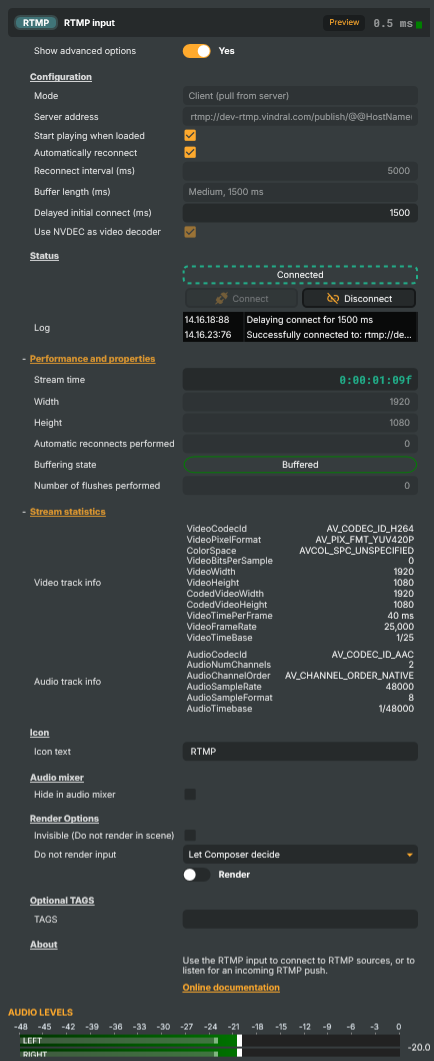
Introduction
The RTMP input receives a live video and audio stream over RTMP or RTMPS — the same transport that most encoders, contribution boxes, and software streamers (OBS, vMix, Wirecast, hardware contribution units) speak natively. The decoded scene is presented to the rest of the engine just like any other input — chained through operators, mixed with other sources, and routed to targets.
Both connection directions are supported via the Mode property:
- Client mode (default) — Composer dials a remote RTMP server (
rtmp://host:1935/app/streamkey) and consumes whatever the upstream is publishing. The standard fit for re-ingesting from a CDN, a staging server, or a managed RTMP origin. Bothrtmp://andrtmps://are supported in this direction. - Server mode — Composer binds locally (
rtmp://0.0.0.0:1935/liveto accept on every interface, or a specific IP to lock it down) and waits for an external sender to push to it. Useful for direct contribution feeds from OBS / vMix / a hardware encoder without standing up a separate RTMP server in between.
For the inverse direction — taking a Composer-rendered scene and pushing it out over RTMP to a CDN, a third-party live platform, or your own RTMP origin — see the RTMP Target. For higher-resilience IP contribution over networks Composer doesn't own (public internet, mobile uplinks, distant VPN tunnels), reach for the SRT input instead — RTMP's loss model is unforgiving on bumpy links.
Codec support and hardware decoding
The input handles H.264, HEVC, and AV1 video alongside AAC audio — the codecs RTMP carries in practice. With a supported NVIDIA GPU, NVDEC (hardware decoding) takes the per-frame load off the CPU; for codecs the card can't accelerate (or hosts without an NVENC/NVDEC GPU), the input transparently falls back to multi-threaded software decoding. AV1 NVDEC requires a card with the right silicon — Ada Lovelace / RTX 40-series and newer; older cards decode AV1 in software, which is meaningfully more CPU-expensive than H.264/HEVC.
Full-range YUV (YUVJ420P / YUVJ422P / YUVJ444P) — what OBS' H.264 encoder typically emits — is accepted alongside the TV-range siblings.
The exact codec / resolution combinations a card can accelerate are documented in NVIDIA's compatibility matrix.
Common use cases
- Cloud / CDN re-ingest (Client) — pull a live stream from a CDN or staging RTMP server back into Composer for monitoring, recompositing, or downstream re-publishing.
- Direct OBS / encoder push (Server) — point OBS / vMix / a hardware encoder at Composer's listen address and have it publish straight in, without provisioning a separate RTMP server. Best on a controlled studio LAN.
- Studio contribution feeds (Client) — pull a programme or camera feed from a contribution encoder, an OBS / vMix / Wirecast workstation, or a hardware streamer (Teradek, LiveU, AJA) that's publishing to a reachable RTMP endpoint.
- Multi-source compositions — instantiate one RTMP input per remote contributor (any mix of Client and Server modes); mix several feeds into the same Composer scene for multi-camera shows or panel discussions.
- Backup / dual-uplink ingest (Client) — run a primary and a backup RTMP input pointing at the same source via different paths; the connection-status diagnostics surface which is currently live.
- Bridge to legacy encoders (Client) — many fielded encoders only speak RTMP; this is the path of least resistance to ingest from them without provisioning SDI or NDI, provided they publish to an endpoint Composer can reach.
Resilience
Connection management is built in: AutoConnect brings the input live when the project loads (connecting out in Client mode, starting to listen in Server mode); AutoReconnect retries on signal loss with a configurable interval — in Server mode this means re-binding and listening for a new sender after the current one disconnects. The RtmpBufferLength property (Very Short / Short / Medium / Long / Very Long) trades latency against jitter tolerance. Connection-state, reconnect counter, and a per-input log are surfaced as readable properties for dashboards and the HTTP API.
Security and authentication
Server mode has no protocol-level authentication and does not support rtmps://. Any sender that can reach the bound port can publish to it; the bind URL's app/streamkey path is decorative on the listening side. The realistic ways to harden a server-mode input:
- Bind to a specific NIC — set the address to a private interface (
rtmp://10.0.0.5:1935/live) so only hosts on that segment can reach it. - Firewall the port — restrict TCP 1935 (or whichever port the URL uses) to known sender IPs.
- Front Composer with a dedicated RTMP server — nginx-rtmp or MediaMTX provide per-stream keys, IP allow-lists, on-publish callbacks, HMAC tokens, recording, and TLS termination. Run one of those at the edge and pull from it in Client mode — this is the standard production pattern and the only way to get real authentication and encryption end-to-end.
In Client mode the security model is the upstream's responsibility — paste the stream key into the URL and Composer dials out exactly like any other client.
RTMP input - Settings

| Property | Description |
|---|---|
Show advanced options |
Show or hide the input's advanced settings in the editor UI. [default=false]. |
Configuration
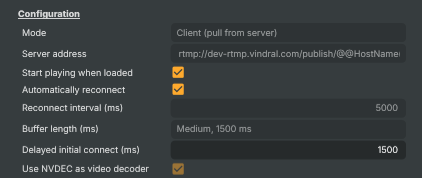
Configuration — server URL, auto-connect, reconnect, and buffer settings.
| Property | Description |
|---|---|
Mode |
Whether the input pulls from a remote RTMP server or listens locally for an incoming push. [default=Client]. Client connects out to an existing RTMP server and pulls the stream — use this for CDNs, restream services, and any source that exposes a public ingest URL. Server binds the URL's host/port locally and waits for an external RTMP sender (OBS, vMix, hardware encoder, FFmpeg push, etc.) to connect to it — useful for direct contribution feeds without a separate RTMP server in between. Note: Server mode has no protocol-level authentication and no rtmps:// support. Any sender that can reach the port can publish. For per-stream auth, transport encryption, recording or multi-publisher fan-out, front Composer with nginx-rtmp / MediaMTX and pull from it in Client mode. |
Server address |
RTMP / RTMPS URL the input uses. In Client mode this is the URL of the existing RTMP source to pull from, e.g. rtmp://host/app/streamkey. Both rtmp:// and rtmps:// are supported in client mode. In Server mode this is the local rtmp:// bind address the input listens on, e.g. rtmp://0.0.0.0:1935/live (use 0.0.0.0 to accept on all interfaces — narrow it to a specific NIC to restrict access). Server mode does not support rtmps://. Supports the @@HostName() macro, replaced with the machine's hostname at connect time (note the parentheses — bare @@HOSTNAME is not recognised here). Security: RTMP listen mode has no protocol-level authentication — any sender that can reach the port can publish. For real auth (per-stream keys, IP allow-lists, recording, transcoding) front Composer with a dedicated RTMP server such as nginx-rtmp or MediaMTX and pull from it in Client mode. |
Start playing when loaded |
Whether the input starts automatically as soon as the project loads. [default=true]. When true, the input invokes its connect logic immediately on load (equivalent to running ConnectCommand) — connecting out in Client mode, starting to listen in Server mode. Disable to require an explicit start, useful when the input should only come live on operator action or via a script trigger. |
Automatically reconnect |
Whether the input automatically recovers after the stream ends. [default=true]. In Client mode: keeps retrying the source every ReconnectInterval until it comes back. In Server mode: re-binds and listens for a new sender after the current one disconnects. Useful for long-running productions where the stream may briefly drop. Disable for one-shot sessions that should not auto-recover. |
Reconnect interval (ms) |
(advanced) Delay between automatic reconnect or re-listen attempts, in milliseconds. [min=1000, max=10000, default=5000]. Only used when AutoReconnect is true. Shorter intervals recover faster from transient blips at the cost of more retry churn; longer intervals reduce the retry rate. Applies equally to Client-mode reconnects and Server-mode re-listens. |
Buffer length (ms) |
(advanced) How much video and audio is buffered ahead of playback. [default=Medium]. Choose between Short, Medium, and Long. A longer buffer absorbs more network jitter and keeps playback steady on bumpy links, at the cost of more added latency. A shorter buffer is tighter on latency but more sensitive to network hiccups. |
Delayed initial connect (ms) |
(advanced) Wait this long before the input first starts, in milliseconds. [min=0, max=10000, default=0]. In Client mode: staggers several inputs so they don't all hit the source server at the same instant when the project loads. In Server mode: delays opening the listen socket on load — useful if you also need to stagger port binding. Only affects the very first attempt — subsequent reconnects / re-listens use ReconnectInterval. |
Use NVDEC as video decoder |
(advanced) Whether to use NVIDIA's NVDEC GPU decoder instead of the libavcodec CPU decoder. [default=false]. NVDEC offloads H.264, HEVC, and AV1 decoding to dedicated silicon on the GPU, freeing CPU and typically sustaining higher resolutions and frame counts than software decoding. Applies only to incoming H.264, HEVC, and AV1 streams — other codecs always fall back to software decoding regardless of this setting. AV1 hardware decode requires a GPU that supports it (Ada Lovelace / RTX 40-series and newer); on older GPUs the connect will fail for AV1 streams while NVDEC is enabled. Requires a CUDA-capable NVIDIA GPU. The change takes effect on the next connect. |
Status
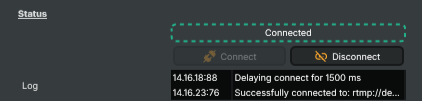
Status — current connection state, the connect/disconnect commands, and the most recent message.
| Property | Description |
|---|---|
ConnectionStatus |
Current connection state of the input (read-only). Reflects whether the input is Disconnected, Connecting, Connected, Reconnecting, or in an error state. Driven indirectly by ConnectCommand, DisconnectCommand, and AutoConnect at load time. Read this from a script to decide whether the stream is live; the value also drives the running indicator and the enabled state of the connect buttons. |
Connect |
Start the input — connect to the configured RTMP source (Client mode) or begin listening for an incoming push (Server mode). |
Disconnect |
Stop the input — disconnect from the source (Client mode) or stop listening / drop the current sender (Server mode). |
Log |
Recent log lines from the input — connect, disconnect, reconnect, and error events (read-only). A short history of the most recent RTMP events, useful for diagnosing why a connection failed or why the input reconnected. |
Performance and properties
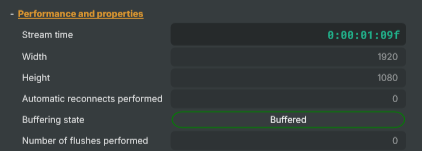
Performance and properties — runtime stats from the live stream.
| Property | Description |
|---|---|
Stream time |
Time elapsed since the stream started, as a time code (read-only). Counts up from 0:00:00:00 when the connection becomes live and resets on each new connection. Useful for displaying the stream's running duration. |
Width |
Width of the video frames currently being received, in pixels (read-only). |
Height |
Height of the video frames currently being received, in pixels (read-only). |
Automatic reconnects performed |
Total number of automatic reconnects performed since the input was started (read-only). A rapidly growing counter is a strong signal that the network path or source is unstable. Resets only on full input dispose / re-create. |
Buffering state |
Whether the input is currently filling its receive buffer (read-only). Buffering means the input is waiting for enough data before it starts producing frames; Streaming means it's running normally. Sustained buffering states indicate the network can't keep up with the configured RtmpBufferLength. |
Number of flushes performed |
Number of times the input has dropped its accumulated buffer to recover from drift (read-only). Buffer flushes happen when the input falls too far behind the source and needs to resync. A non-zero value usually indicates network jitter or a slow downstream consumer. |
Stream statistics
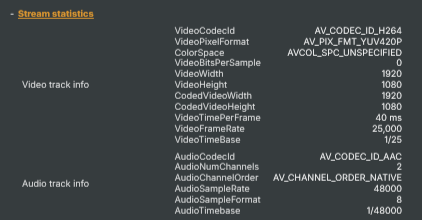
Stream statistics — metadata about the incoming video and audio streams.
| Property | Description |
|---|---|
Video track info |
Metadata about the incoming video stream (read-only). A dictionary with technical details about the video — codec, resolution, frame rate, bit rate, and so on. Available once the source has been negotiated. |
Audio track info |
Metadata about the incoming audio stream (read-only). A dictionary with technical details about the audio — codec, sample rate, channel count, bit rate, and so on. Available once the source has been negotiated. |
Inherits from: AbstractInput, AbstractAudioProcessing, AbstractAudioMetering.
See also: RTMP input in Script Engine Objects.
Shared input properties
Every input — regardless of source type — exposes the following property groups. They are surfaced in the property panel only when Show advanced options is enabled on the input.
Icon
Icon text— short text shown on the input's icon in the Inputs list. Useful as a quick visual label (channel number, mic name, camera position) to tell otherwise-similar inputs apart at a glance. Empty by default; has no effect on rendering or routing.
Audio mixer
Hide in audio mixer— when on, hides the input from the audio mixer view without disabling its audio. Useful for de-cluttering the mixer while keeping the audio routed (e.g. fixed background music, ambient beds, pre-aligned playout). [default=false]
Render Options
Invisible (Do not render in scene)— when on, the input is skipped during rendering and produces no picture on any layer or scene. Audio routing is unaffected. Toggle from a script for cued-in / cued-out behaviour during a show. [default=false]Do not render input— disables the input's internal render entirely (no decode or capture work is done). Stronger than Invisible: that one renders but doesn't display; this one stops the input from doing any work at all. Useful for reducing CPU / network load on heavy sources (e.g. high-bitrate RTMP / SRT streams, large media files) when the input is temporarily not needed. Audio meters are cleared while disabled. [default=false]Do not render inputcontroller — chooses what drives the Do not render input flag.Let Composer decide(the default) hands control to the project-level Render Tuning optimiser, which automatically pauses inputs that aren't used by any active scene.Manual Configurationignores Render Tuning and lets the Do not render input toggle control the flag directly — use this to keep a network source warm even when it's currently off-air, or to take a heavy input down by hand regardless of scene activity. [default=Let Composer decide]
Optional TAGS
TAGS— one or more free-form tag words used to classify this input (typically space- or comma-separated). Picked up by Composer's Smart Search to filter or find inputs by category — e.g.camera,music,interview,sponsor. Has no effect on rendering.
Audio configuration and processing options
For inputs capable of processing audio, additional audio configuration and processing options are available through the audio mixer and the Channel Strip Inspector.
- Audio mixer — monitor levels, adjust gain and pan, mute / solo inputs, and configure auxiliary sends to
Audio Channel Stripsubmix buses, all from a centralised mixer-style interface. - Channel Strip Inspector — advanced per-strip audio processing for the selected input:
- Input trim, stereo remapping, and audio delay
- Channel mapping (8-channel mode unlocks the full MAPPING tab)
- Gate
- Low-cut filter
- Equaliser (5-band parametric)
- Compressor
- Sidechain ducking (a second compressor whose gain reduction is driven by another input's level — e.g. dipping music under a voice-over)
- Limiter
For the full audio signal flow, see Audio processing workflow.
Related components
- RTMP Target — the sender-side counterpart. Use it when Composer is the source of an RTMP stream rather than the receiver.
- SRT input — pick this for IP contribution over unmanaged networks; SRT layers loss recovery and bounded latency on top of UDP, surviving conditions that drop an RTMP stream.
- SRT Target — the SRT sender-side. Use it to push a Composer scene out over an unmanaged network with loss recovery and bounded latency.
- MoQ input — pick this for sub-second-latency contribution from a Vindral CDN channel or other MoQ-native source; QUIC-based, designed to replace RTMP / HLS in modern pipelines.
- MoQ Target — the MoQ sender-side. Use it when publishing a Composer scene into the Vindral CDN over MoQ rather than to an RTMP ingest.
- NDI input — for LAN-only IP contribution where mDNS auto-discovery and very low latency matter; not internet-traversable.
- NDI Target — the NDI sender-side. Use it to publish a Composer scene to other NDI-aware tools on the same studio LAN.