

Render Tuning
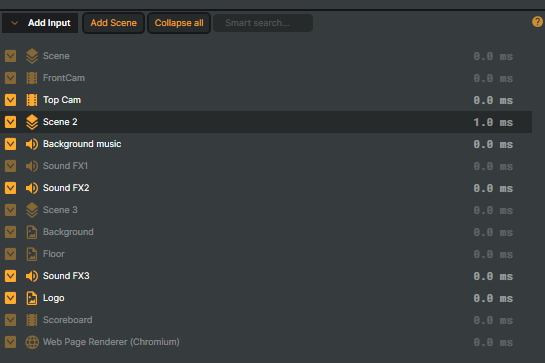
Render Tuning automatically disables rendering for inputs that aren't currently used by any active scene, freeing CPU / GPU cycles. In a project with many inputs but only a few in use at a time, this is the single biggest free performance gain you can flip on. Inactive inputs render dimmed in the Inputs list so you can see at a glance which ones the optimiser has paused.
The toggle lives in the Project Options panel in Composer Desktop — see Performance and project options for the surface-level UI walkthrough. This page covers the underlying mechanics, the per-input override, and the on-disk representation in the .prj file.
How it works
Render Tuning runs once per video frame, recomputed from the current scene state. The pass walks every scene in the project, builds a set of "used inputs" by following the rules below, then for each input in the project sets its DoNotRenderInput flag — false when the input is in the used set, true when it isn't. Concretely, an input that's no longer needed has its decode / capture / processing skipped on the very next frame, and an input that just became needed is brought back online on the very next frame too — there is no warmup gap.
A scene counts as active for the purposes of this pass when at least one of these is true:
- It is the currently previewed scene in Composer Desktop (
Preview Videois on and the scene is the active scene), or - It has at least one running target attached (a
RunningorRunning with warning / errorindicator). A scene whose targets are all stopped is treated as inactive — there's nothing consuming its output, so its inputs don't need to render.
Within an active scene, an input is used when:
- It is referenced by a layer whose opacity > 0 and visibility is on, or by a layer whose audio is audible, or
- It is the destination of a
Switcherinput that is itself used (so the switcher's pre-roll inputs stay warm and a switch lands without a re-init), or - It is referenced by a nested scene that is itself active (scene-as-layer is followed recursively).
The internal Live Preview scene is excluded from this walk — that's why Render Tuning is incompatible with Live Preview (see callout below).
A scene with Disable render ticked on the scene itself overrides Render Tuning for that scene — its inputs are treated as if the scene weren't active, regardless of attached targets.
Per-input override
Each input has a Do not render input controller (under Render Options when Show advanced options is enabled) that decides whether Render Tuning is allowed to manage that input:
- Let Composer decide (the default) — the input is governed by the per-frame pass above. This is what almost every input should be set to.
- Manual Configuration — the input opts out of the pass entirely. Render Tuning never touches its
DoNotRenderInputflag; the toggle next to the controller wins. Use this for a slow-to-warm network source you want to keep alive even when off-air, or to take a heavy input down by hand regardless of scene activity.
When you turn Render Tuning off at the project level, every Let Composer decide input is immediately re-enabled (DoNotRenderInput = false); Manual Configuration inputs keep whatever value they had.
Setting name in the project file
Render Tuning is a project-level setting and lives inside the .prj file as the XML element <UseOptimizedRenderer> — the on-disk name predates the user-facing Render Tuning label, but they refer to the same flag. A project with Render Tuning enabled saves as:
<Project>
  ...
  <UseOptimizedRenderer>True</UseOptimizedRenderer>
  ...
</Project>
The same name is used by the HTTP API /api/project/setproperty endpoint and the Composer Runtime project-property surface, so a script or remote-control client toggles the flag with propertyName=UseOptimizedRenderer and a True / False value. Diff-checking a project file across edits, or grepping a fleet of .prj files to audit which projects have Render Tuning on, is a matter of looking for <UseOptimizedRenderer>True</UseOptimizedRenderer>.
The setting is not in settings.xml — settings.xml only carries the UI panel's collapsed / expanded state (IsExpandedPanelRenderTuning), not the feature toggle itself. Render Tuning travels with the project, so the same .prj loaded by Composer Desktop on one host and by Composer Runtime on another both honour the same value.
Live Preview compatibility
Render Tuning is incompatible with Live Preview — enabling Render Tuning disables Live Preview, and vice versa. Pick one for any given session. (The Live Preview's internal scene is deliberately excluded from the used-inputs walk, so leaving Render Tuning on alongside Live Preview would cause every input to be paused.)