

Audio Channel Strip
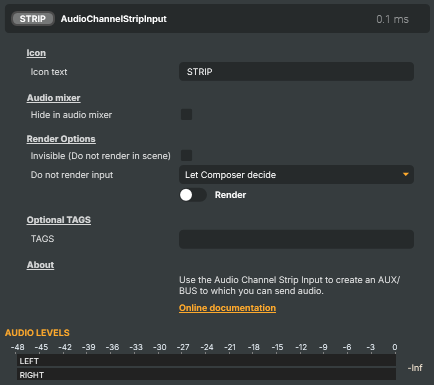
Introduction
The Audio Channel Strip is a virtual, audio-only input that acts as an internal AUX / bus for your project. It carries no video and produces no sound of its own — instead, you route audio into it from other layers and inputs, and it becomes a single place to mix and process that combined signal.
If you've used an audio mixing desk, it's the familiar "group" or "aux bus" idea: rather than putting the same compressor or noise-cleanup on five separate microphones, you send all five to one strip and process them together, once. It shows up in the input list with a STRIP icon under the Virtual category.
How it works
A channel strip starts out silent — audio reaches it only when you route something to it. You can do that from any input or layer that carries audio:
- Add an Audio Channel Strip to your project. Give it a clear name (e.g. "Mic Bus" or "FX Send") — that name is how you'll pick it as a send destination.
- On any input or layer, add a Send that targets the strip. Choose the strip as the send's target, set the send level, and pick whether the send is pre-fader or post-fader (see below). Several sources can target the same strip — their audio is summed on it, which is what makes it a bus.
- Process the strip. Because the strip is itself an input, you can add the normal audio operators to it — Compressor / Compressor V2, EBU R128, Crystal Speech, Delay, Gain, and so on. The processing is applied once, to the whole sub-mix.
- Send the strip onward to wherever it needs to go — into a target, or mapped to specific output channels.
Pre-fader vs post-fader sends
Each send to a strip can be tapped at one of two points:
- Pre-fader — the audio is tapped before the source's own volume fader, so moving that source's main fader (or muting it in the programme) doesn't change what it sends to the strip. This is the classic aux-send behaviour: the bus level is independent of the on-air level, so you can keep a clean copy of every microphone flowing to a "record", IFB, or processing strip even while you ride their levels in the main mix.
- Post-fader — the audio is tapped after the source's fader, so the send follows the on-air balance. Use this when the sub-mix should track exactly what the audience hears.
Pre-fader sends are the more common choice for independent processing and monitoring buses, because they stay stable regardless of what you do with the source's main level.
Common use cases
- Group / sub-mix bus — route all of your microphones (or all of your music sources) to one strip and control the whole group's level and dynamics together, instead of touching each source individually.
- Shared effects (aux send) — apply a single Crystal Speech cleanup, compressor, or other effect chain to several sources at once by sending them all to one strip. One operator instead of one-per-source.
- Feeding an audio-only target — build a dedicated audio mix on a strip and route it to a target without having to produce any video for it.
- Routing a sub-mix to specific output channels — assemble a sub-mix on a strip and place it on particular output channels (e.g. a separate language or commentary feed).
Notes
- A channel strip has no input of its own — if nothing sends to it, it stays silent. If a strip is unexpectedly quiet, check that the intended sources have an active send pointing at it (and that the send level isn't at zero).
- It is audio only: it never carries or produces video.
- Operators that introduce latency on a strip (for example Crystal Speech, which adds a few frames of processing delay) will shift that strip's timing relative to other audio paths. If you need the paths to stay aligned, compensate with a matching Delay on the branches that don't go through the latency-adding operator.
Audio Channel Strip - Settings
(No properties documented for this component.)
Inherits from: AbstractInput, AbstractAudioProcessing, AbstractAudioMetering.
See also: Audio Channel Strip in Script Engine Objects.
Shared input properties
Every input — regardless of source type — exposes the following property groups. They are surfaced in the property panel only when Show advanced options is enabled on the input.
Icon
Icon text— short text shown on the input's icon in the Inputs list. Useful as a quick visual label (channel number, mic name, camera position) to tell otherwise-similar inputs apart at a glance. Empty by default; has no effect on rendering or routing.
Audio mixer
Hide in audio mixer— when on, hides the input from the audio mixer view without disabling its audio. Useful for de-cluttering the mixer while keeping the audio routed (e.g. fixed background music, ambient beds, pre-aligned playout). [default=false]
Render Options
Invisible (Do not render in scene)— when on, the input is skipped during rendering and produces no picture on any layer or scene. Audio routing is unaffected. Toggle from a script for cued-in / cued-out behaviour during a show. [default=false]Do not render input— disables the input's internal render entirely (no decode or capture work is done). Stronger than Invisible: that one renders but doesn't display; this one stops the input from doing any work at all. Useful for reducing CPU / network load on heavy sources (e.g. high-bitrate RTMP / SRT streams, large media files) when the input is temporarily not needed. Audio meters are cleared while disabled. [default=false]Do not render inputcontroller — chooses what drives the Do not render input flag.Let Composer decide(the default) hands control to the project-level Render Tuning optimiser, which automatically pauses inputs that aren't used by any active scene.Manual Configurationignores Render Tuning and lets the Do not render input toggle control the flag directly — use this to keep a network source warm even when it's currently off-air, or to take a heavy input down by hand regardless of scene activity. [default=Let Composer decide]
Optional TAGS
TAGS— one or more free-form tag words used to classify this input (typically space- or comma-separated). Picked up by Composer's Smart Search to filter or find inputs by category — e.g.camera,music,interview,sponsor. Has no effect on rendering.
Audio configuration and processing options
For inputs capable of processing audio, additional audio configuration and processing options are available through the audio mixer and the Channel Strip Inspector.
- Audio mixer — monitor levels, adjust gain and pan, mute / solo inputs, and configure auxiliary sends to
Audio Channel Stripsubmix buses, all from a centralised mixer-style interface. - Channel Strip Inspector — advanced per-strip audio processing for the selected input:
- Input trim, stereo remapping, and audio delay
- Channel mapping (8-channel mode unlocks the full MAPPING tab)
- Gate
- Low-cut filter
- Equaliser (5-band parametric)
- Compressor
- Sidechain ducking (a second compressor whose gain reduction is driven by another input's level — e.g. dipping music under a voice-over)
- Limiter
For the full audio signal flow, see Audio processing workflow.