

Panasonic PTZ
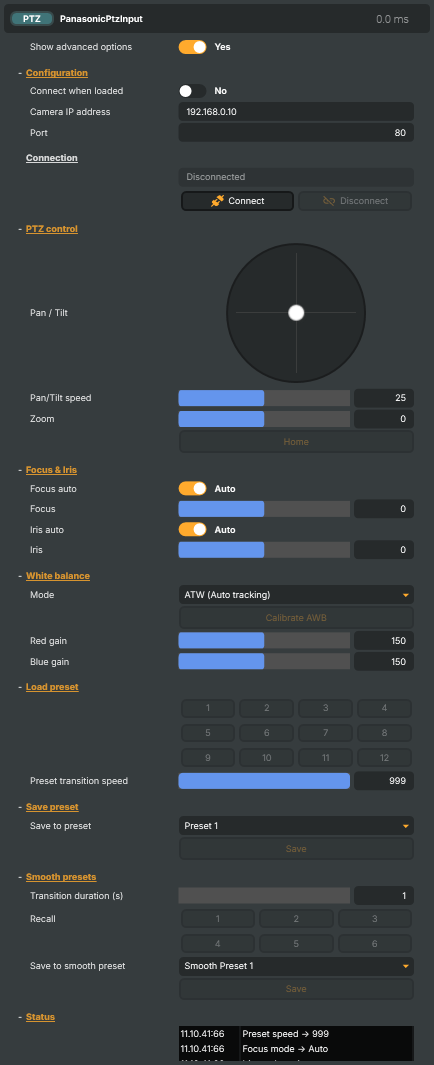
Remote control surface for Panasonic PTZ cameras (AW-UE160, AW-UE4, AW-HE40, etc.) over the network. Useful for live event camera operation, recalling framed shots from numbered presets during a show, driving smooth animated camera moves between framings, or setting white balance and iris from a script. This input sends pan/tilt/zoom/focus/iris commands and manages presets — it does not capture the camera's video or audio. To bring the picture into Composer, pair it with a separate video input (NDI, SRT, RTMP, Decklink, etc.) connected to the same camera.
Panasonic PTZ - Settings

| Property | Description |
|---|---|
Show advanced options |
Reveal seldom-used properties in the editor. [default=false]. Turn on to expose advanced/optional fields hidden from the default view. |
Configuration
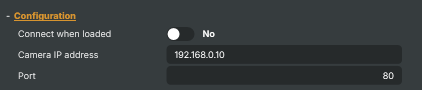
Configuration — network address of the camera.
| Property | Description |
|---|---|
Connect when loaded |
Connect to the camera automatically when the project is loaded. [default=false]. Turn on for unattended setups where the input should always come up controlling the camera. |
Camera IP address |
IP address of the Panasonic PTZ camera. [default="192.168.0.10"]. Use the address shown in the camera's network configuration. Use @@LocalIP() macro if you need to substitute the local machine. |
Port |
HTTP port the camera listens on. [default=80]. Most Panasonic models use port 80; change only if the camera was reconfigured. |
Connection
Connection — current connection state and connect/disconnect actions.

| Property | Description |
|---|---|
ConnectionStatusText |
Human-readable connection status (read-only). Shows "Disconnected", "Connecting...", "Connected to |
PTZ control
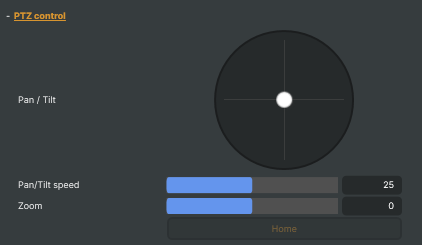
PTZ control — pan, tilt, zoom and home.
| Property | Description |
|---|---|
Pan / Tilt |
Joystick control for live pan/tilt. Drag the puck to pan/tilt; release to stop. Speed is scaled by PanTiltSpeed. Not stored in the project — only meaningful at the operator's desk. |
Pan/Tilt speed |
Maximum pan/tilt speed when the joystick is fully deflected. [min=1, max=49, default=25]. Lower values give finer control for tight framing; higher values make repositioning fast for live operation. |
Zoom |
Continuous zoom speed and direction. [min=-49, max=49, default=0]. Negative values zoom out (Wide), positive values zoom in (Tele). 0 stops the zoom. The slider snaps back to 0 on release. Not saved with the project. |
Home |
Move the camera to its mechanical home position (centered pan/tilt). Useful as a quick "reset to known framing" button between scenes. |
Focus & Iris
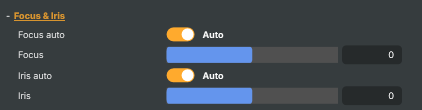
Focus and Iris — manual or automatic control of focus and aperture.
| Property | Description |
|---|---|
Focus auto |
Let the camera control focus automatically. [default=true]. On: focus tracks the scene; the manual FocusSpeed slider is locked. Off: use FocusSpeed to drive focus by hand. |
Focus |
Continuous manual focus speed and direction. [min=-49, max=49, default=0]. Negative values pull focus closer (Near), positive values push focus further (Far). 0 stops focus motion. The slider snaps back to 0 on release. Has no effect when FocusAuto is on. Not saved with the project. |
Iris auto |
Let the camera control iris (aperture) automatically. [default=true]. On: exposure is held automatically; the manual IrisSpeed slider is locked. Off: drive iris by hand with IrisSpeed. |
Iris |
Continuous manual iris speed and direction. [min=-49, max=49, default=0]. Negative values close the iris (darker), positive values open it (brighter). 0 stops iris motion. The slider snaps back to 0 on release. Has no effect when IrisAuto is on. Not saved with the project. |
White balance
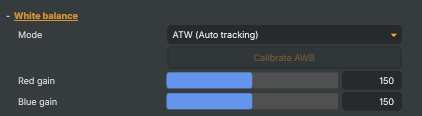
White balance — color-temperature mode and red/blue gain trim.
| Property | Description |
|---|---|
Mode |
White balance mode used by the camera. [default=ATW]. ATW tracks the scene continuously; AWB A/B store calibrated values from AutoWhiteBalanceCommand; 3200K and 5600K are fixed presets for tungsten and daylight; VAR uses the manual red/blue gains. |
Calibrate AWB |
Trigger an automatic white balance calibration on the camera. Aim a white card at the camera, then run this command — the result is stored in the active AWB A or AWB B memory. |
Red gain |
Red gain offset for white balance trim. [min=0, max=300, default=150]. 150 is neutral; lower values cool the image (less red), higher values warm it (more red). |
Blue gain |
Blue gain offset for white balance trim. [min=0, max=300, default=150]. 150 is neutral; lower values warm the image (less blue), higher values cool it (more blue). |
Load preset
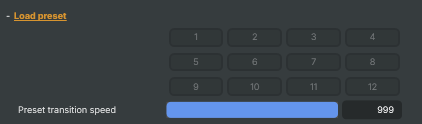
Load preset — recall stored pan/tilt/zoom positions on the camera.
| Property | Description |
|---|---|
Preset transition speed |
Speed used by the camera when moving to a recalled preset. [min=1, max=999, default=999]. Lower values produce slow, on-air-friendly transitions; high values snap to the preset as fast as the camera allows. |
Save preset
Save preset — store the current pan/tilt/zoom into one of the camera's preset slots.

| Property | Description |
|---|---|
Save to preset |
Preset slot to overwrite when SavePresetCommand is executed. [default=Preset1]. |
Save |
Save the camera's current pan/tilt/zoom into the preset selected by SavePresetNumber. Asks for confirmation before overwriting an existing preset on the camera. |
Smooth presets
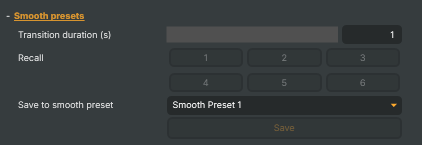
Smooth presets — Composer-side animated transitions between framings, with eased pan/tilt/zoom/focus.
| Property | Description |
|---|---|
Transition duration (s) |
Length of a smooth-preset transition, in seconds. [min=1, max=10, default=1]. Use longer values for cinematic moves between framings; shorter for snappier on-air recalls. |
Save to smooth preset |
Smooth-preset slot to overwrite when SmoothSavePresetCommand is executed. [default=Preset1]. |
Save |
Save the camera's current pan/tilt/zoom/focus position into the smooth preset selected by SmoothSavePresetNumber. Asks for confirmation before overwriting. |
Status
Status — recent log messages from the camera link.

| Property | Description |
|---|---|
Log |
Recent control and connection log messages (read-only). Useful for diagnosing connection issues, watching command flow, or confirming preset save/recall events. |
Inherits from: AbstractInput, AbstractAudioProcessing, AbstractAudioMetering.
See also: Panasonic PTZ in Script Engine Objects.
Shared input properties
Every input — regardless of source type — exposes the following property groups. They are surfaced in the property panel only when Show advanced options is enabled on the input.
Icon
Icon text— short text shown on the input's icon in the Inputs list. Useful as a quick visual label (channel number, mic name, camera position) to tell otherwise-similar inputs apart at a glance. Empty by default; has no effect on rendering or routing.
Audio mixer
Hide in audio mixer— when on, hides the input from the audio mixer view without disabling its audio. Useful for de-cluttering the mixer while keeping the audio routed (e.g. fixed background music, ambient beds, pre-aligned playout). [default=false]
Render Options
Invisible (Do not render in scene)— when on, the input is skipped during rendering and produces no picture on any layer or scene. Audio routing is unaffected. Toggle from a script for cued-in / cued-out behaviour during a show. [default=false]Do not render input— disables the input's internal render entirely (no decode or capture work is done). Stronger than Invisible: that one renders but doesn't display; this one stops the input from doing any work at all. Useful for reducing CPU / network load on heavy sources (e.g. high-bitrate RTMP / SRT streams, large media files) when the input is temporarily not needed. Audio meters are cleared while disabled. [default=false]Do not render inputcontroller — chooses what drives the Do not render input flag.Let Composer decide(the default) hands control to the project-level Render Tuning optimiser, which automatically pauses inputs that aren't used by any active scene.Manual Configurationignores Render Tuning and lets the Do not render input toggle control the flag directly — use this to keep a network source warm even when it's currently off-air, or to take a heavy input down by hand regardless of scene activity. [default=Let Composer decide]
Optional TAGS
TAGS— one or more free-form tag words used to classify this input (typically space- or comma-separated). Picked up by Composer's Smart Search to filter or find inputs by category — e.g.camera,music,interview,sponsor. Has no effect on rendering.