

ASIO Device Capture
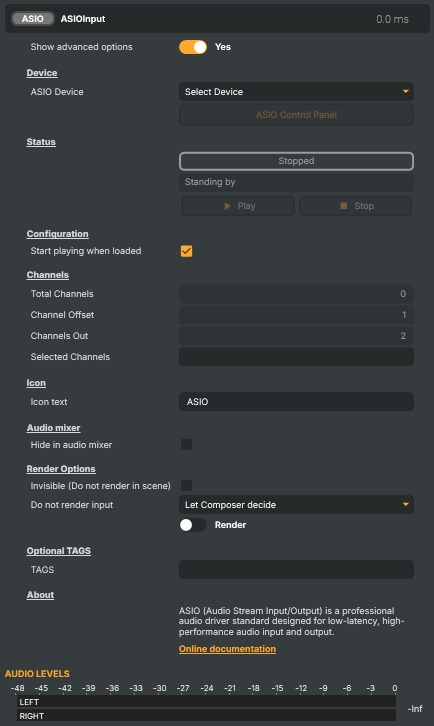
Introduction
The ASIO Device Capture input brings live audio from a professional sound device — an audio interface, mixing console, or Dante / MADI card — straight into Composer over its ASIO driver. Pick one of the ASIO devices installed on the host, choose how many channels to capture and which channel to start from, and those channels feed into Composer's audio pipeline like any other input: metered in the audio mixer, processed through the Channel Strip Inspector, and routed on to your targets.
It is an audio-only input — it carries no picture. Place it on a layer for routing and mixing purposes; the sound is what matters.
Windows only — ASIO is a Windows driver standard, so this input is available on Composer Desktop / Runtime for Windows. On Linux, capture audio through a different input (for example a network source) instead.
What is ASIO?
ASIO (Audio Stream Input/Output) is Steinberg's professional audio-driver standard. Where the generic Windows audio stack (WASAPI / DirectSound) is built for general-purpose playback, ASIO bypasses it to talk to the hardware almost directly — which is why it is the standard interface for studio and live-sound work.
What that buys you in a Composer studio:
- Low latency — ASIO keeps the round trip between the hardware and the application in the low-millisecond range, so captured audio stays tightly in sync with video.
- High channel counts — a single ASIO device commonly exposes 8, 16, 32, or more inputs (mic pre-amps, line inputs, Dante / MADI channels), all addressable at once. Composer can capture a contiguous range of them in one input.
- Vendor control panel — most ASIO drivers ship a vendor-specific control panel for buffer size, sample rate, and on-device routing. The input's ASIO Control Panel command opens it without leaving Composer.
- Industry-standard hardware — interfaces from RME, MOTU, Universal Audio, Focusrite, and similar manufacturers all expose an ASIO driver, so the input works with the gear already in most production environments.
Only one application can hold an ASIO device at a time. If the device is already open in a DAW or another tool, Composer reports the conflict in the input's status rather than capturing silently.
Common use cases
- Multi-mic live show — capture a block of channels from a stage mixer or interface (presenter mics, guest mics, an ambient pair) and mix them in Composer's audio mixer alongside playout and stingers.
- Dante / MADI ingest — bring a contiguous range of networked audio channels into Composer through the interface's ASIO driver for a multi-language or multi-track production.
- External hardware processing — route audio out to outboard gear and back in through the same interface, capturing the processed return as an ASIO input.
- Studio with a dedicated audio desk — let the audio engineer ride levels on a physical console while Composer captures the console's output channels for streaming.
Driving from outside
Every command (Start, Stop) is invokable from the property panel, the HTTP API (/api/invokecommand?targetname=ASIO+Device+Capture&command=StartCommand), a Connector, or the Script Engine via ExecuteCommand / ExecuteCommandById. The selected device, the captured channel range, and the current capture state are surfaced as readable properties — plus a detailed device-level status message — so a dashboard or script can confirm the feed is live and spot driver problems (device in use, driver not installed) without touching the hardware directly.
ASIO Device Capture - Settings

| Property | Description |
|---|---|
Show advanced options |
Show or hide the input's advanced settings in the editor UI. [default=false]. |
Device
Device — pick which ASIO device to capture from.

| Property | Description |
|---|---|
ASIO Device |
Picker listing the ASIO devices installed on the host machine. Populated automatically from the available ASIO drivers on startup. Pick one to capture from. The list always begins with Select Device as a placeholder — no audio is captured until a real device is chosen. If the expected device isn't listed, make sure its ASIO driver is correctly installed on Windows. |
ASIO Control Panel |
Open the selected device's own ASIO control panel. Most ASIO drivers ship with a vendor-specific control panel for setting buffer size, sample rate, channel routing, and other device-level options. This command launches it so you can adjust those settings without leaving Composer. Only works when an ASIO device is currently selected. |
Status
Status — current playback state, device-level status, and the start/stop commands.
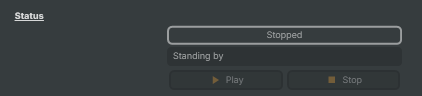
| Property | Description |
|---|---|
AsioStatus |
Current playback state of the input (read-only). Reflects whether the input is NoMedia (no device selected), Playing (capturing audio), Stopped, or in an error state. Driven indirectly by StartCommand / StopCommand, by AutoStart at load time, and by the device selection. |
StatusMessage |
Detailed status of the selected ASIO device (read-only). More specific than AsioStatus — describes what the device itself reports (driver loaded, ready, capturing, error, etc.). Useful for surfacing device-level problems such as "driver not installed" or "device in use by another application". |
Play |
Start capturing audio from the selected ASIO device. |
Stop |
Stop capturing audio from the ASIO device. |
Configuration
Configuration — load-time auto-start.

| Property | Description |
|---|---|
Start playing when loaded |
Whether the input starts capturing as soon as the project loads. [default=false]. When true, the input invokes its start logic immediately on load (equivalent to running StartCommand). Auto-start is suppressed for the first few seconds after the input is added to a project, so you can finish configuring the device before it goes live. |
Channels
Channels — pick how many of the device's input channels to capture and where to start.
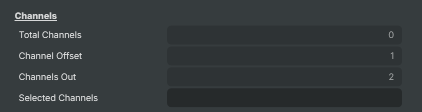
| Property | Description |
|---|---|
Total Channels |
Total number of audio channels the selected device exposes (read-only). Reported by the device's ASIO driver when a device is selected. Sets the upper bound for ChannelOffset and ChannelsOut — for example, an 8-channel interface gives a value of 8. |
Channel Offset |
First channel to capture, counting from 1. [min=1, max=TotalChannels, default=1]. Set to 1 to start from the device's first input. Increase to skip past channels you don't want — for example, on a 16-channel interface set this to 9 to capture from inputs 9 onward. Combined with ChannelsOut to define the captured range. |
Channels Out |
How many consecutive channels to capture, starting from ChannelOffset. 1 captures a single channel (mono); 2 captures two consecutive channels (stereo); higher values capture multiple channels for surround or multi-track productions. The value is automatically clamped so ChannelOffset + ChannelsOut - 1 never exceeds TotalChannels. Updating this also refreshes SelectedChannels for display. |
Selected Channels |
Human-readable description of the captured channel range (read-only). Updated automatically when ChannelOffset or ChannelsOut changes — for example "channel 1" for a single channel, or "channel 1 to 8" for a multi-channel range. Useful for confirming the configured capture range at a glance. |
Inherits from: AbstractInput, AbstractAudioProcessing, AbstractAudioMetering.
See also: ASIO Device Capture in Script Engine Objects.
Shared input properties
Every input — regardless of source type — exposes the following property groups. They are surfaced in the property panel only when Show advanced options is enabled on the input.
Icon
Icon text— short text shown on the input's icon in the Inputs list. Useful as a quick visual label (channel number, mic name, camera position) to tell otherwise-similar inputs apart at a glance. Empty by default; has no effect on rendering or routing.
Audio mixer
Hide in audio mixer— when on, hides the input from the audio mixer view without disabling its audio. Useful for de-cluttering the mixer while keeping the audio routed (e.g. fixed background music, ambient beds, pre-aligned playout). [default=false]
Render Options
Invisible (Do not render in scene)— when on, the input is skipped during rendering and produces no picture on any layer or scene. Audio routing is unaffected. Toggle from a script for cued-in / cued-out behaviour during a show. [default=false]Do not render input— disables the input's internal render entirely (no decode or capture work is done). Stronger than Invisible: that one renders but doesn't display; this one stops the input from doing any work at all. Useful for reducing CPU / network load on heavy sources (e.g. high-bitrate RTMP / SRT streams, large media files) when the input is temporarily not needed. Audio meters are cleared while disabled. [default=false]Do not render inputcontroller — chooses what drives the Do not render input flag.Let Composer decide(the default) hands control to the project-level Render Tuning optimiser, which automatically pauses inputs that aren't used by any active scene.Manual Configurationignores Render Tuning and lets the Do not render input toggle control the flag directly — use this to keep a network source warm even when it's currently off-air, or to take a heavy input down by hand regardless of scene activity. [default=Let Composer decide]
Optional TAGS
TAGS— one or more free-form tag words used to classify this input (typically space- or comma-separated). Picked up by Composer's Smart Search to filter or find inputs by category — e.g.camera,music,interview,sponsor. Has no effect on rendering.
Audio configuration and processing options
For inputs capable of processing audio, additional audio configuration and processing options are available through the audio mixer and the Channel Strip Inspector.
- Audio mixer — monitor levels, adjust gain and pan, mute / solo inputs, and configure auxiliary sends to
Audio Channel Stripsubmix buses, all from a centralised mixer-style interface. - Channel Strip Inspector — advanced per-strip audio processing for the selected input:
- Input trim, stereo remapping, and audio delay
- Channel mapping (8-channel mode unlocks the full MAPPING tab)
- Gate
- Low-cut filter
- Equaliser (5-band parametric)
- Compressor
- Sidechain ducking (a second compressor whose gain reduction is driven by another input's level — e.g. dipping music under a voice-over)
- Limiter
For the full audio signal flow, see Audio processing workflow.