

Text To Speech (ElevenLabs)
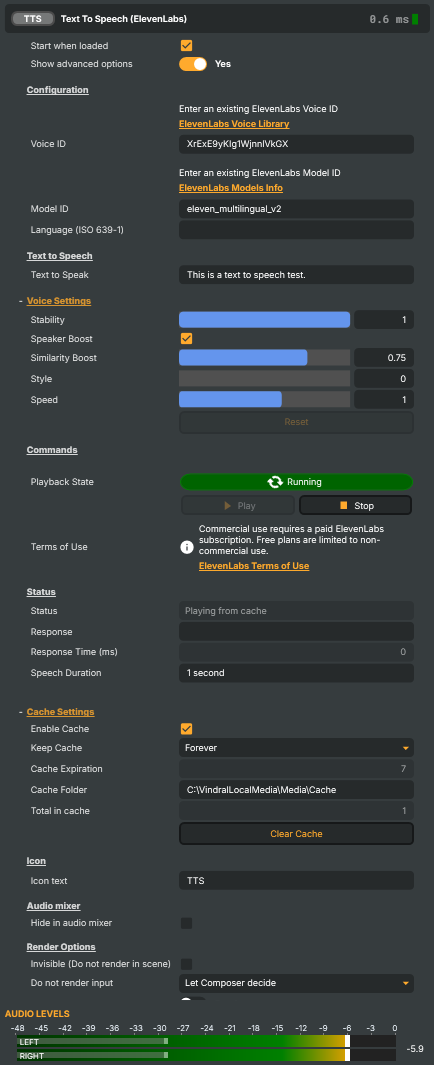
The Text to Speech input lets you turn written text into natural, spoken audio. Instead of recording a voice yourself, you simply enter the text you want to hear, and Composer generates realistic speech automatically using ElevenLabs — a high-quality voice generation service known for clear, expressive voices.
Whether you need narration, voice prompts, or spoken messages, Text to Speech lets you generate clear, natural-sounding audio directly from text.
What you can use it for
Text-to-Speech is useful in many situations, for example:
- Creating voice narration for videos or presentations
- Adding spoken feedback or messages to applications
- Improving accessibility by offering audio versions of text
- Generating placeholder or prototype voice content quickly
- Because the voice is generated from text, you can easily update or reuse it without recording anything again.
Requirements
To use the Text to Speech input, you need:
- An active ElevenLabs subscription (required for commercial use).
- A valid ElevenLabs API key.
Responsibility
We provide a technical integration with ElevenLabs. Users supply their own API key and are responsible for complying with ElevenLabs' licensing and use policies.
💡 ElevenLabs credits
Usage is based on a credit system, which limits how much speech you can generate. The available credits and limits depend on the plan you choose.
For more information, please visit ElevenLabs.
Troubleshooting
Known ElevenLabs issues may occasionally affect Text to Speech output. These can include audio glitches, sharp breaths between paragraphs, pronunciation issues, unexpected audio artifacts, or small variations in voice quality. These behaviors originate from ElevenLabs' voice generation system and are outside of Composer's control.
If audio sounds distorted or unexpected, regenerating the affected or previous paragraph usually resolves the issue.
For more details, known limitations, and recommended workarounds, refer to ElevenLabs' official troubleshooting documentation.
Configuration
To allow Composer to use ElevenLabs, you must provide your ElevenLabs API key as a system environment variable. Composer reads this key automatically when it starts.
Step 1: Get your ElevenLabs API key
- Sign in to your ElevenLabs account.
- Go to your account or profile settings.
- Create and copy your API key. Keep this key private.
Step 2: Set API Key Permission
- In your ElevenLabs account, make sure to give your API key permission to read Text to Speech.

Step 3: Set the environment variable
Create a system environment variable:
- Name:
COMPOSER_ELEVENLABS_APIKEY - Value: your ElevenLabs API key
Windows
- Open Start and search for Environment Variables.
- Select Edit the system environment variables.
- Click Environment Variables.
- Under User variables, click New.
- Set:
- Name:
COMPOSER_ELEVENLABS_APIKEY - Value: your ElevenLabs API key
- Name:
- Click OK to save.
- Reboot your system.
Linux
To make the environment variable permanent, you need to add it to your shell configuration file. This ensures it is available every time you log in.
- Open a terminal.
- Open your shell configuration file (for most systems, this is
~/.bashrcor~/.zshrc). - Add the following line at the end of the file:
export COMPOSER_ELEVENLABS_APIKEY=your_api_key_here - Save the file.
- Restart your terminal, or log out and log back in.
- Restart Composer.
The API key will now be available automatically every time the system starts.
💡 Important notes
- Composer only reads environment variables when it starts.
- If you change API key, you must restart your computer.
- Keep your API key private and do not share it.
Related components
- Speech To Text — the inverse direction: transcribe spoken audio into text in real time using Whisper, with optional on-screen subtitles and Script Engine triggers.
- Crystal Speech — AI-powered denoiser for live mic input; useful when capturing the human side of a Text To Speech-driven dialogue.
- LLM (Ollama) — pair with Text To Speech to build an AI presenter pipeline: an LLM generates the script, ElevenLabs speaks it.
Text To Speech (ElevenLabs) - Settings

| Property | Description |
|---|---|
Start when loaded |
Whether to start playback automatically when the project loads. [default=true]. Saves a manual click when the project is loaded fresh; turn off if you want to trigger speech only on demand from a script or Play command. |
Show advanced options |
Whether to reveal advanced configuration in the editor. [default=false]. |
Configuration
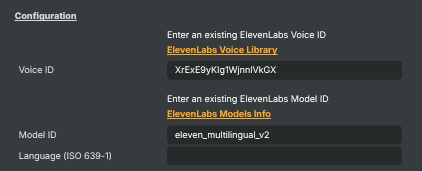
Configuration — pick the ElevenLabs voice, model, and language.
| Property | Description |
|---|---|
Voice ID |
ElevenLabs voice ID that generates the speech. Must match a voice your ElevenLabs account has access to. Browse the ElevenLabs Voice Library to find IDs for cloned voices, voices you've designed, or pre-made voices. |
Model ID |
ElevenLabs model ID used for generating speech. Different models trade off quality, latency, multilingual support, and credit cost. Pick a "flash" model for low-latency live use, a higher-quality model for prerecorded content. See the ElevenLabs models documentation for the current options. |
Language (ISO 639-1) |
Language code (ISO 639-1) for the generated speech (for example "en", "sv", "es"). Leave empty to use the model's default language. Useful when the same model is used for multiple languages and you want to force a specific one. |
Text to Speech
Text to Speech — the text the operator will read aloud on the next Play.

| Property | Description |
|---|---|
Text to Speak |
The text the model will read aloud on the next Play command. Set from a script for fully automated speech, or type into the field for interactive use. Long text blocks generate longer audio clips and use more ElevenLabs credits. |
Voice Settings
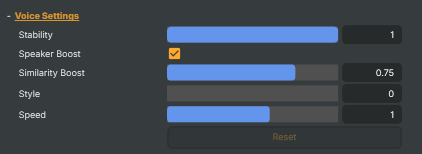
Voice Settings — fine-tune the character of the generated voice.
| Property | Description |
|---|---|
Stability |
How stable and consistent the voice sounds. [min=0, max=1, default=1]. Lower values give more emotional, varied delivery — good for character voices and performances. Higher values sound calmer and more monotone — good for narration and announcements where consistency matters. |
Speaker Boost |
Whether to boost similarity to the original speaker. [default=true]. Helps the synthesised voice stay closer to the cloned source. Slightly increases generation time and latency. |
Similarity Boost |
How closely the synthesised voice matches the original. [min=0, max=1, default=0.75]. Higher values stick more tightly to the source voice. Lower values let the model improvise more, which can sound more natural but less recognisable. |
Style |
How much the speaker's vocal style is exaggerated. [min=0, max=1, default=0]. Higher values amplify the speaker's natural style — useful for character voices. May increase generation latency. Stick close to 0 for neutral narration. |
Speed |
Speech playback speed. [min=0.7, max=1.2, default=1.0]. Values below 1.0 slow the speech down; above 1.0 speed it up. Useful for matching timing to a specific cue or making content easier to follow. |
Reset |
Reset voice settings to their defaults (stability, speaker boost, similarity, style, speed). |
Commands
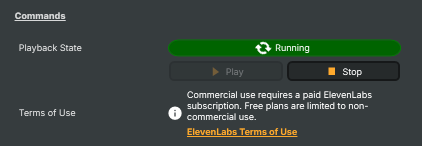
Commands — Play, Stop, and the playback state.
| Property | Description |
|---|---|
Playback State |
Current playback state of the input — Running or Stopped (read-only). |
Play |
Send the current Text to ElevenLabs and play the resulting speech audio. If caching is on and the same text/voice/model has been generated before, audio is played from disk instead of making a new request. |
Stop |
Stop the current speech playback and cancel any in-flight ElevenLabs request. |
Status
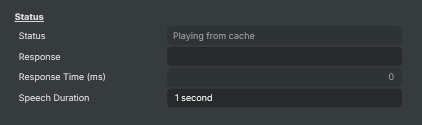
Status — what the input is doing right now and how long the latest request took.
| Property | Description |
|---|---|
Status |
Current state of the request (read-only). Reports whether the input is standing by, sending, receiving audio, speaking, playing from cache, finished, or in an error state. Useful from a script to wait for speech to finish before triggering the next cue. |
Response |
Latest HTTP response message from the ElevenLabs API (read-only). Shows the status code and any error text. Useful for diagnosing failures (invalid API key, exhausted credits, voice not available) without checking the log. |
Response Time (ms) |
Time taken until the first audio chunk arrived from ElevenLabs, in milliseconds (read-only). Useful for monitoring service responsiveness. Zero before the first chunk and when playing from cache. |
Speech Duration |
Length of the generated speech, formatted as seconds or mm:ss (read-only). Populated once the full response has been received (or loaded from cache). |
Cache Settings
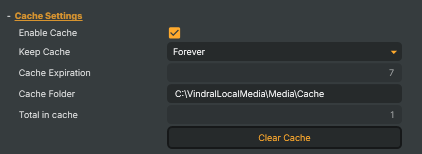
Cache Settings — cache generated audio on disk to avoid repeated ElevenLabs charges.
| Property | Description |
|---|---|
Enable Cache |
Whether to cache generated audio so repeated playback doesn't hit ElevenLabs again. [default=true]. On is recommended for any workflow that replays the same lines (announcements, jingles, scripted Q&A) — you only pay the API cost once. Cache key is text\|voice\|model\|language, so changing any of those generates fresh audio. |
Keep Cache |
Time unit used together with CacheRetentionDuration to compute cache expiry. Pick Forever to keep cached audio indefinitely. Pick Minutes/Hours/Days/Months to auto- expire entries older than the chosen interval. |
Cache Expiration |
How long cached files are kept before they expire, in units of CacheRetentionUnit. [min=1, max=10000]. Ignored when CacheRetentionUnit is Forever. |
Cache Folder |
Folder where cached audio files are written (read-only). Resolved automatically based on the project location and the Composer media directory. |
Total in cache |
Number of cached audio files currently on disk (read-only). Useful for monitoring cache growth. |
Clear Cache |
Delete all cached audio files. Asks for confirmation first; cannot be undone. Useful when voice settings change and you want to force fresh audio everywhere. |
Inherits from: AbstractInput, AbstractAudioProcessing, AbstractAudioMetering.
See also: Text To Speech (ElevenLabs) in Script Engine Objects.
Shared input properties
Every input — regardless of source type — exposes the following property groups. They are surfaced in the property panel only when Show advanced options is enabled on the input.
Icon
Icon text— short text shown on the input's icon in the Inputs list. Useful as a quick visual label (channel number, mic name, camera position) to tell otherwise-similar inputs apart at a glance. Empty by default; has no effect on rendering or routing.
Audio mixer
Hide in audio mixer— when on, hides the input from the audio mixer view without disabling its audio. Useful for de-cluttering the mixer while keeping the audio routed (e.g. fixed background music, ambient beds, pre-aligned playout). [default=false]
Render Options
Invisible (Do not render in scene)— when on, the input is skipped during rendering and produces no picture on any layer or scene. Audio routing is unaffected. Toggle from a script for cued-in / cued-out behaviour during a show. [default=false]Do not render input— disables the input's internal render entirely (no decode or capture work is done). Stronger than Invisible: that one renders but doesn't display; this one stops the input from doing any work at all. Useful for reducing CPU / network load on heavy sources (e.g. high-bitrate RTMP / SRT streams, large media files) when the input is temporarily not needed. Audio meters are cleared while disabled. [default=false]Do not render inputcontroller — chooses what drives the Do not render input flag.Let Composer decide(the default) hands control to the project-level Render Tuning optimiser, which automatically pauses inputs that aren't used by any active scene.Manual Configurationignores Render Tuning and lets the Do not render input toggle control the flag directly — use this to keep a network source warm even when it's currently off-air, or to take a heavy input down by hand regardless of scene activity. [default=Let Composer decide]
Optional TAGS
TAGS— one or more free-form tag words used to classify this input (typically space- or comma-separated). Picked up by Composer's Smart Search to filter or find inputs by category — e.g.camera,music,interview,sponsor. Has no effect on rendering.
Audio configuration and processing options
For inputs capable of processing audio, additional audio configuration and processing options are available through the audio mixer and the Channel Strip Inspector.
- Audio mixer — monitor levels, adjust gain and pan, mute / solo inputs, and configure auxiliary sends to
Audio Channel Stripsubmix buses, all from a centralised mixer-style interface. - Channel Strip Inspector — advanced per-strip audio processing for the selected input:
- Input trim, stereo remapping, and audio delay
- Channel mapping (8-channel mode unlocks the full MAPPING tab)
- Gate
- Low-cut filter
- Equaliser (5-band parametric)
- Compressor
- Sidechain ducking (a second compressor whose gain reduction is driven by another input's level — e.g. dipping music under a voice-over)
- Limiter
For the full audio signal flow, see Audio processing workflow.