

Text input
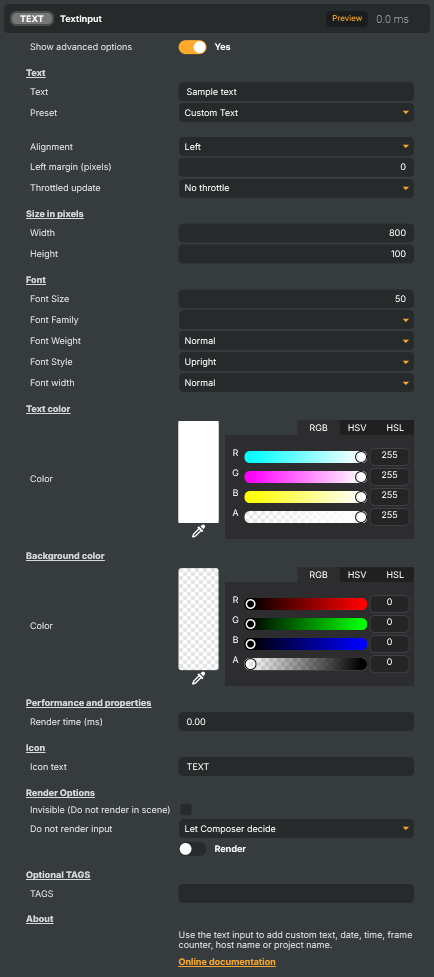
Generates a video layer containing text — either a fixed string you type in, or a dynamic value such as the current time, UTC time, frame counter, host name, project name, or text pulled from another component's property. Includes full control over font, size, weight, slant, alignment, margins, and foreground/background colours.
Text input - Settings

| Property | Description |
|---|---|
Show advanced options |
Show or hide the input's advanced settings in the editor UI. [default=false]. |
Text
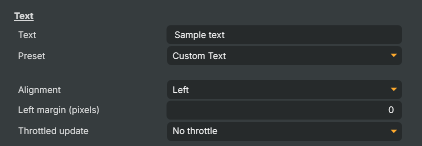
Text — the text to display and how it's positioned.
| Property | Description |
|---|---|
Text |
The text shown on the layer. [default="Sample text"]. Only used when TextType is CustomText — for the dynamic presets (time, frame counter, host name, etc.) the value here is ignored and the displayed string is generated automatically. Set from a script to update the on-air text live. |
Preset |
What kind of text to display. [default=CustomText]. CustomText shows the value of Text verbatim. The other presets generate the text automatically: short or long current time, UTC time, frame counter, host name, project name, or — when used with a media file input — the file's name, time code, or remaining time. ObjectProperty displays the live value of a property on another component. |
Alignment |
Horizontal alignment of the text within the layer. [default=Left]. Left, Center, or Right. The text is positioned inside the configured Width and Height, respecting LeftMargin when aligned to the left. |
Left margin (pixels) |
Empty space (in pixels) on the left side of the text. [min=0, max=200, default=0]. Use to nudge the text inward from the left edge of the layer. Most relevant when TextAlign is Left; for centred or right-aligned text it has little visible effect. |
Throttled update |
(advanced) How often the text is redrawn. [default=Every frame]. At the default setting the text is updated on every frame, which is needed for fast-moving content like a frame counter or time code. Pick a slower interval to reduce processing cost when the text changes infrequently (e.g. a static label or a clock that only needs to refresh once per second). |
Size in pixels
Size in pixels — width and height of the text layer.

| Property | Description |
|---|---|
Width |
Width of the text layer in pixels. [min=1, max=4096, default=800]. Defines the horizontal size of the area the text is drawn into. Text that runs longer than this width is clipped, so size the layer to fit the longest expected string. |
Height |
Height of the text layer in pixels. [min=1, max=4096, default=100]. Defines the vertical size of the area the text is drawn into. Should be tall enough to fit the chosen FontSize comfortably — a value roughly 1.5–2× the font size is a safe rule of thumb. |
Font
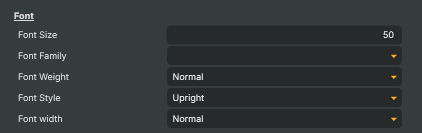
Font — typeface and how the letters are drawn.
| Property | Description |
|---|---|
Font Size |
Size of the text in pixels. [min=6, max=256, default=50]. Larger values produce taller letters; make sure the layer's Height is big enough to fit the chosen size. |
Font Family |
Which font to use for the text. Picks the typeface from the fonts installed on the system (e.g. Arial, Verdana, Roboto). Only fonts that include the actual font file will render correctly on a different machine — when sharing a project, make sure the chosen font is also available there. |
Font Weight |
How thick the strokes of the letters are. [default=Normal]. Ranges from Thin and Light through Normal and Medium up to Bold, ExtraBold, and Black. Note that not every font ships with every weight — picking a weight the font doesn't include will fall back to the closest available one. |
Font Style |
Whether the text is upright or italic. [default=Upright]. Upright is regular, non-slanted text. Italic slants the letters in the font's designed italic style. Oblique is a synthetic slant the renderer applies when the font has no dedicated italic. |
Font width |
How wide or narrow the letters are drawn. [default=Normal]. Ranges from UltraCondensed and Condensed (narrower letters) through Normal to Expanded and UltraExpanded (wider letters). Like font weight, this only takes effect when the chosen font ships with the requested width — otherwise the closest available width is used. |
Text color
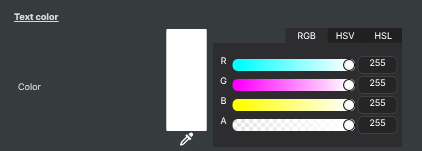
Text color — colour of the letters.
| Property | Description |
|---|---|
Color |
Combined colour picker for the text foreground. Lets you pick the text colour from a colour wheel / palette in the editor. Internally updates the Red, Green, Blue, and Alpha channel values together. Scripts can read or set those channels directly if they need numeric control. |
Background color
Background color — colour drawn behind the text.
| Property | Description |
|---|---|
Color |
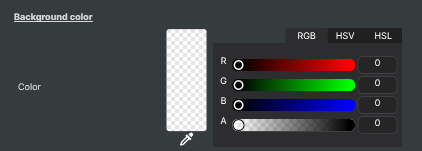
Combined colour picker for the background behind the text. Lets you pick the background colour from a colour wheel / palette in the editor. Internally updates the BgRed, BgGreen, BgBlue, and BgAlpha channel values together. Set the alpha to 0 (the default) for a fully transparent background. |
Performance and properties
Performance and properties — runtime stats from the input.

| Property | Description |
|---|---|
Render time (ms) |
Time taken to draw the text on the most recent frame, in milliseconds (read-only). Useful as a sanity check while tuning fonts, sizes, or ThrottledUpdate — a steadily high value indicates the text layer is expensive enough that throttling the update rate would help. |
Inherits from: AbstractInput, AbstractAudioProcessing, AbstractAudioMetering.
See also: Text input in Script Engine Objects.
Shared input properties
Every input — regardless of source type — exposes the following property groups. They are surfaced in the property panel only when Show advanced options is enabled on the input.
Icon
Icon text— short text shown on the input's icon in the Inputs list. Useful as a quick visual label (channel number, mic name, camera position) to tell otherwise-similar inputs apart at a glance. Empty by default; has no effect on rendering or routing.
Audio mixer
Hide in audio mixer— when on, hides the input from the audio mixer view without disabling its audio. Useful for de-cluttering the mixer while keeping the audio routed (e.g. fixed background music, ambient beds, pre-aligned playout). [default=false]
Render Options
Invisible (Do not render in scene)— when on, the input is skipped during rendering and produces no picture on any layer or scene. Audio routing is unaffected. Toggle from a script for cued-in / cued-out behaviour during a show. [default=false]Do not render input— disables the input's internal render entirely (no decode or capture work is done). Stronger than Invisible: that one renders but doesn't display; this one stops the input from doing any work at all. Useful for reducing CPU / network load on heavy sources (e.g. high-bitrate RTMP / SRT streams, large media files) when the input is temporarily not needed. Audio meters are cleared while disabled. [default=false]Do not render inputcontroller — chooses what drives the Do not render input flag.Let Composer decide(the default) hands control to the project-level Render Tuning optimiser, which automatically pauses inputs that aren't used by any active scene.Manual Configurationignores Render Tuning and lets the Do not render input toggle control the flag directly — use this to keep a network source warm even when it's currently off-air, or to take a heavy input down by hand regardless of scene activity. [default=Let Composer decide]
Optional TAGS
TAGS— one or more free-form tag words used to classify this input (typically space- or comma-separated). Picked up by Composer's Smart Search to filter or find inputs by category — e.g.camera,music,interview,sponsor. Has no effect on rendering.