

LLM (Ollama)
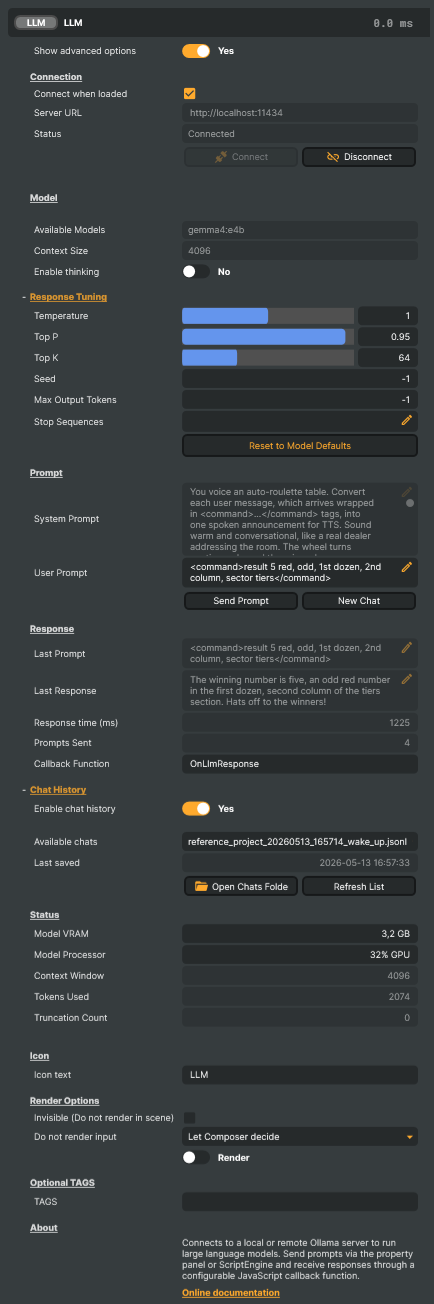
Introduction
The LLM (Ollama) input integrates Composer with a self-hosted Ollama server, letting a large language model generate text on demand for on-screen graphics — subtitles, lower-thirds, tickers, captions, commentary. Drive it from the property panel or from ScriptEngine; read responses as a property or via a JavaScript callback.
Quick start
- Install Ollama and pull a chat/instruct model — see Installing Ollama and pulling a model below.
- In Composer, add the LLM (Ollama) input from the AI category.
- Set Server URL to the address of your Ollama server (default:
http://localhost:11434). - Click Connect. The Available Models dropdown is populated from the server.
- Select a model from Available Models, type a prompt in User Prompt, and click Send Prompt.
- The response appears in Last Response and is delivered to the Callback Function if one is defined.
Installing Ollama and pulling a model
Ollama is a free, open-source runtime for large language models. It runs on Windows and Linux, uses the GPU automatically when one is available, and exposes a small HTTP API on localhost:11434. Install it from ollama.com/download — for OS-specific install steps, configuration, networking, GPU pinning, and Modelfile authoring, follow the upstream docs at docs.ollama.com.
The LLM Input requires a chat or instruct model — most Ollama models qualify. Avoid pure embedding models (typically with embed in the name); they produce numeric vectors, not text. Pull the model from a terminal:
ollama pull <name>:<tag>                 # from ollama.com/search
ollama pull hf.co/<user>/<repo>:<tag>    # from huggingface.co/models (GGUF builds)
Composer does not bundle or redistribute any model — Ollama and the model are obtained directly by the user, so the licence relationship is between the model vendor and the user. Licences vary across the ecosystem (some permissive, some with usage restrictions); always read the LICENSE on the model's page before deploying it in a commercial project.
API key authentication
The open-source ollama serve binary accepts every incoming request regardless of any Authorization header — there is no API key, password, or token mechanism in the local server. Setting OLLAMA_API_KEY on the Ollama machine does not enable inbound authentication; that variable is consumed by Ollama's own CLI when it talks outbound to Ollama Cloud. Any Ollama server reachable beyond localhost should be protected at the network layer (Tailscale, VPN, firewall) or with a reverse proxy in front of it (nginx, Caddy, Traefik). See Connecting to Ollama on a different machine for the recommended setup.
Composer can still send a Bearer token when the endpoint requires one. Set the COMPOSER_OLLAMA_APIKEY environment variable on the Composer machine and the LLM Input attaches it to every request as Authorization: Bearer <value>. Three situations where this matters:
- Ollama Cloud —
https://ollama.comrequires a key. Use the Ollama Cloud key here. - A self-hosted Ollama behind a reverse proxy that's been configured to validate a Bearer token before forwarding to Ollama on
localhost. The key value is whatever the proxy expects. - Any Ollama-API-compatible service that does Bearer authentication.
Leave the variable unset when connecting to a plain local ollama serve — no key is needed and none would be checked.
Windows — from an Administrator PowerShell:
setx COMPOSER_OLLAMA_APIKEY "your-secret-key"
Then open a fresh window (or sign out and back in) so the variable is visible to new processes. Alternatively use System Properties → Environment Variables.
Linux — for an interactive shell, add this line to ~/.bashrc (or ~/.profile) and reload it:
export COMPOSER_OLLAMA_APIKEY=your-secret-key
For Composer launched as a systemd service, add the variable to the unit file instead:
Environment=COMPOSER_OLLAMA_APIKEY=your-secret-key
Reload (systemctl daemon-reload) and restart the service.
Restart Composer after changing the variable — it's read once at startup.
Why self-hosted AI
All inference runs on hardware you control. Practical advantages over hosted cloud services:
- Privacy — prompts and responses never leave the local network.
- No per-token cost — inference runs on existing hardware.
- Low latency — no round-trip to a cloud provider.
- Offline operation — no internet dependency once the model is pulled.
- Resource isolation — run Ollama on a dedicated AI box to keep CPU/GPU cycles available for Composer's video pipeline.
- Version control — pin a model version per project; updates are explicit, never silent.
On-premise AI presenter pipeline
Combined with the Text-to-Speech input, the LLM Input completes a fully on-premise AI presenter pipeline:
prompt → text response → synthesised speech → on-screen graphics
A short System Prompt (e.g. "You are an energetic stadium announcer.") keeps voice and tone consistent across a show.
Common use cases
- AI presenter and voice-over — chain the response into Text-to-Speech for an on-screen narrator, analyst, or commentator.
- Creative on-screen copy — walk-on intros, goal celebrations, sponsor reads, segment hooks, stadium-style PA announcements.
- Live graphics copy — lower-thirds, tickers, callouts, news crawls, score-bug text — driven from the property panel or from scripts triggered by game state, scene transitions, or Animator events.
- Live text augmentation — translate, summarise, or rephrase incoming wire copy, social-media posts, or viewer questions before they hit the screen.
- Pre-show prep — generate teasers, lower-third copy, and segment lead-ins for the operator to schedule into the rundown.
Things to keep in mind
LLMs are powerful but probabilistic — plan around these realities when deploying them in broadcast:
- Always editorially review. Treat generated text as copy that needs an operator's eye before it goes on air, not as verified fact.
- Hallucinations happen. Models can produce confidently-wrong names, numbers, dates, and quotations. Verify against the source for anything fact-sensitive.
- Identical prompts can produce different outputs. That's by design — sampling adds variety. Use the System Prompt to constrain tone and length, and the Seed setting to lock outputs reproducibly during testing.
LLM (Ollama) - Settings

| Property | Description |
|---|---|
Show advanced options |
Whether to reveal advanced configuration in the editor. [default=false]. |
Connection
Connection — where the Ollama server lives and how to authenticate against it.
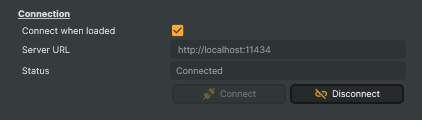
| Property | Description |
|---|---|
Connect when loaded |
Whether to connect to the Ollama server automatically when the project loads. [default=true]. Saves a manual click when the project is loaded fresh; turn off if you want to connect only on demand from a script or button press. |
Server URL |
Address of the Ollama server to connect to, for example the local address on port 11434 (Ollama's default port). A local Ollama server speaks plain HTTP, so use an HTTP address for direct connections. Use an HTTPS address for Ollama Cloud, or for a self-hosted Ollama behind a reverse proxy that handles encryption. A plain local Ollama server has no built-in authentication and accepts every request, so it needs no token. For servers that do require a bearer token, such as Ollama Cloud, a secured reverse proxy, or another Ollama-compatible service, set the COMPOSER_OLLAMA_APIKEY environment variable on the Composer machine. |
Status |
Current state of the LLM input (read-only). Reports whether the input is disconnected, connecting, connected, receiving a response, thinking, or in an error state. |
Connect |
Connect to the Ollama server using the current ServerUrl. |
Disconnect |
Disconnect from the Ollama server and cancel any in-flight response. |
Model
Model — pick which installed Ollama model handles the conversation.
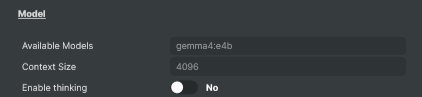
| Property | Description |
|---|---|
Available Models |
List of every model installed on the connected Ollama server. Populated after connecting. Pick the one you want to chat with — text models for conversations, embedding-only or image-only models won't accept prompts and the Send button will be disabled. Changing the selection resets the current chat history. |
Context Size |
Controls how much of the chat conversation the model can remember. A larger context size lets the model keep track of longer conversations, but it also uses more GPU memory. Leave it on ModelDefault to use the model's Modelfile value (often a small 2048-4096 floor), or pick a larger value when you need it to remember more of a long chat. Locked while a chat is active — start a New Chat to change it. |
Enable thinking |
Enable the reasoning phase on thinking-capable models. Ignored on models without a thinking capability. |
Response Tuning
Response Tuning — per-request sampling knobs. Auto-populated from the selected model's Modelfile (where it overrides) or Ollama's hardcoded floor (where it does not). Edit any value to override for the next prompt.
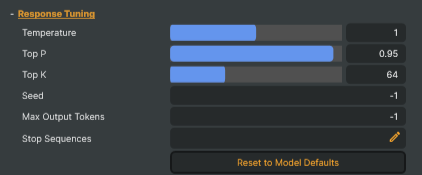
| Property | Description |
|---|---|
Temperature |
Controls how creative or predictable the model's responses are [min=0.0, max=2.0]. Lower values make the model pick the most expected words — best for code, math, and factual answers. Higher values make it take more chances and pick less obvious words — best for creative writing and brainstorming. 0.0 always picks the single most likely word (predictable but boring). |
Top P |
Probability threshold for filtering word choices [min=0.0, max=1.0]. At each step, the model gathers the most-likely words until their combined probability reaches Top P; those words become the eligible pool. The pool size adapts to the model's confidence — fewer words when one choice dominates, more when probabilities spread evenly. Counterintuitively, lower Top P often keeps fewer words, not more (Top P = 0.5 may end up with just one word). Useful range: 0.9–1.0; below 0.5 is effectively greedy. Lower it if responses contain odd or surprising words. |
Top K |
Hard cap on how many word choices the model considers at each step [min=0, max=200]. 0 = disabled (no Top K filter; only Top P narrows the pool); 1 = always picks the single most likely word (fully predictable, equivalent to Temperature 0.0); 200 = effectively no cap. Applies before Top P in the sampling pipeline: Top K caps the candidate count first, then Top P narrows further within those K words. The smaller pool always wins — a low Top K can prevent Top P from gathering as many words as it would like. |
Seed |
(advanced) Controls the randomness used when picking words [default=-1]. -1 picks a fresh random number every request, so the same prompt produces a different response each time (normal chat behaviour). Setting a specific number (e.g. 42) makes the output reproducible: same seed + same prompt + same options gives the exact same response every time. Useful for regression tests ("did my prompt change actually improve things, or was the difference just random?"), debugging weird responses (reproduce them to investigate), or demos that need consistent output. |
Max Output Tokens |
Maximum length of the model's response, measured in tokens (~0.75 words per token, so 100 tokens ≈ 75 words ≈ a short paragraph) [default=-1, unlimited]. -1 = no limit; the model stops when it is naturally done. Set a positive value (e.g. 100) to enforce a hard cap on response length — useful for bounding latency or cost in automated pipelines. This is a guillotine, not a polite request: the model is unaware of the cap and will be cut off mid-sentence. For "respond briefly" behaviour, instruct the model in the System Prompt instead, and use this only as a safety ceiling. |
Stop Sequences |
Custom stop sequences, one per line. The model halts immediately when it produces any of these strings (the matched string is excluded from the response). Empty lines are ignored. The model's own chat-template end-of-turn tokens (e.g. <|eot_id|>, <end_of_turn>) are applied automatically and are not shown here — you don't need to add them. Use this field for your own stops, e.g. "User:" to prevent the model from roleplaying both sides of a conversation, or a marker like "---" to halt at a specific boundary. |
Reset to Model Defaults |
Resets the six Response Tuning options to the selected model's effective defaults (Modelfile values where present, Ollama floor otherwise). Requires an active connection; disabled otherwise. |
Prompt
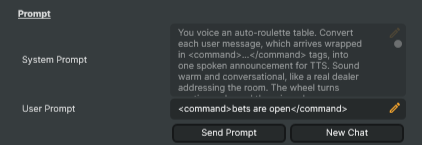
Prompt — the system prompt and the user prompt that shape each request.
| Property | Description |
|---|---|
System Prompt |
Optional system prompt that frames every request the model receives. Leave empty to use whatever system prompt the model ships with. Set it to give the model a persona, restrict it to a topic, or override the default. Changes apply immediately to the next prompt. Useful for "act as a sports commentator", "always reply in JSON", or strict moderation rules. |
User Prompt |
The user message to send to the model on the next Send Prompt. Set this from a script for fully automated chat flows, or type into the field for interactive use. Cleared on each successful send. |
Send Prompt |
Send the current UserPrompt to the connected model. Requires an active connection and a model that supports text completion. Replies are streamed into LastResponseText and surfaced through the script callback if one is configured. |
New Chat |
Start a new chat — cancels any in-flight response and resets chat history, token counters, and the last response. |
Response
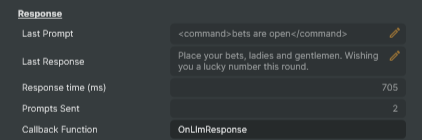
Response — what came back from the model on the latest exchange.
| Property | Description |
|---|---|
Last Prompt |
The user prompt from the most recent exchange (read-only). Mirrors what was sent to the model so a script can correlate prompt and response. |
Last Response |
The full text of the most recent response from the model (read-only). Updated as the response streams in. Read this from a script to forward AI-generated text to overlays, captions, or external systems. |
Response time (ms) |
Time taken to receive the most recent response, in milliseconds (read-only). Useful for monitoring server load and detecting slow responses. |
Prompts Sent |
Number of prompts sent in the current chat session (read-only). Resets on New Chat, model change, or disconnect. |
Callback Function |
Name of a Script Engine function to call each time a response is received. The function receives an object with prompt, response, model, and messageCount fields. Leave empty to disable. Useful for forwarding AI replies to chat overlays, triggering scene changes, or feeding generated text into other components. |
Chat History
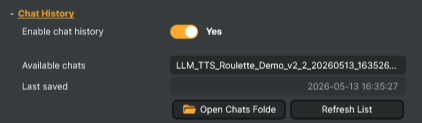
Chat History — save and load chat conversations to disk so they survive between sessions.
| Property | Description |
|---|---|
Enable chat history |
Whether to auto-save each exchange to a chat file under Documents/Composer/LLM Chats/. [default=false]. On preserves conversations across sessions so you can resume them later. Files are compacted automatically so size stays bounded by the selected model's context window. |
Available chats |
List of saved chats found in the chats folder. Pick an entry to load it immediately; the active chat is pre-selected. Refreshed when chat history is enabled and after each auto-save. The top entry is empty — picking it starts a fresh chat. |
Last saved |
Timestamp of the last disk write for the current chat (read-only). Empty until the first auto-save or load. |
Open Chats Folder |
Open the chats folder in the operating system's file manager. Useful for backing up, renaming, or deleting chat files outside of Composer. |
Refresh List |
Rescan the chats folder. Use after renaming or deleting chat files outside of Composer to refresh AvailableChats. |
Status
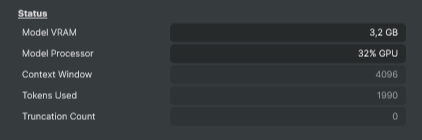
Status — what the input is doing right now and how full the chat context is.
| Property | Description |
|---|---|
Model VRAM |
Memory consumed by the model currently loaded in Ollama (read-only). |
Model Processor |
How much of the model is running on the GPU vs the CPU (read-only). Format like "100% GPU" or "60% GPU/40% CPU". Lower GPU percentages mean slower responses — Ollama spills layers to CPU when the model doesn't fit in VRAM. |
Context Window |
How much text (in tokens) the model can hold in context (read-only). Populated after the first prompt is sent. Compare with TokensUsed to gauge how full the chat is. |
Tokens Used |
Tokens consumed by the chat history on the most recent request (read-only). Compare with ModelContextLength to see how full the chat history is — click New Chat to reset when getting close to the limit. Reset by New Chat, model change, or disconnect. |
Truncation Count |
Number of times Ollama has silently truncated the chat history this session (read-only). Non-zero means the model has lost earlier context and responses may be degraded (shorter or less detailed) — click New Chat to reset, or raise Context Size to give the model more room (this can also be configured server-side in Ollama). |
Inherits from: AbstractInput, AbstractAudioProcessing, AbstractAudioMetering.
See also: LLM (Ollama) in Script Engine Objects.
Shared input properties
Every input — regardless of source type — exposes the following property groups. They are surfaced in the property panel only when Show advanced options is enabled on the input.
Icon
Icon text— short text shown on the input's icon in the Inputs list. Useful as a quick visual label (channel number, mic name, camera position) to tell otherwise-similar inputs apart at a glance. Empty by default; has no effect on rendering or routing.
Audio mixer
Hide in audio mixer— when on, hides the input from the audio mixer view without disabling its audio. Useful for de-cluttering the mixer while keeping the audio routed (e.g. fixed background music, ambient beds, pre-aligned playout). [default=false]
Render Options
Invisible (Do not render in scene)— when on, the input is skipped during rendering and produces no picture on any layer or scene. Audio routing is unaffected. Toggle from a script for cued-in / cued-out behaviour during a show. [default=false]Do not render input— disables the input's internal render entirely (no decode or capture work is done). Stronger than Invisible: that one renders but doesn't display; this one stops the input from doing any work at all. Useful for reducing CPU / network load on heavy sources (e.g. high-bitrate RTMP / SRT streams, large media files) when the input is temporarily not needed. Audio meters are cleared while disabled. [default=false]Do not render inputcontroller — chooses what drives the Do not render input flag.Let Composer decide(the default) hands control to the project-level Render Tuning optimiser, which automatically pauses inputs that aren't used by any active scene.Manual Configurationignores Render Tuning and lets the Do not render input toggle control the flag directly — use this to keep a network source warm even when it's currently off-air, or to take a heavy input down by hand regardless of scene activity. [default=Let Composer decide]
Optional TAGS
TAGS— one or more free-form tag words used to classify this input (typically space- or comma-separated). Picked up by Composer's Smart Search to filter or find inputs by category — e.g.camera,music,interview,sponsor. Has no effect on rendering.
Connecting to Ollama on a different machine
ollama serve has no built-in authentication. Binding it to 0.0.0.0 makes the API reachable to every device on the LAN with no key, no password, and no rate limit. For anything beyond a trusted, segmented network, either restrict access at the network layer (Tailscale, VPN, firewall) or front Ollama with a reverse proxy that adds authentication. See Securing Ollama with a reverse proxy below.
- On the Ollama machine, set the
OLLAMA_HOSTenvironment variable to0.0.0.0:11434so the server binds to all interfaces (by default it listens only on localhost). - Restart Ollama.
- In Composer, set Server URL to
http://<ollama-machine-ip>:11434. - Ensure port 11434 is open in any firewall between the two machines.
Securing Ollama with a reverse proxy
The standard pattern for adding TLS, authentication, or both to a self-hosted Ollama is to put a reverse proxy in front of it. Ollama keeps listening on localhost:11434; clients talk only to the proxy:
  Client  ──https──▶  Reverse Proxy  ──http──▶  Ollama
 (Composer)        (nginx / Caddy)         (localhost:11434)
The proxy handles two jobs Ollama can't do itself: TLS termination, and Bearer-token validation. Configure either, both, or neither depending on what the deployment needs.
nginx — TLS only
server {
    listen 443 ssl;
    server_name ollama.example.com;

    ssl_certificate     /path/to/fullchain.pem;
    ssl_certificate_key /path/to/privkey.pem;

    location / {
        proxy_pass http://localhost:11434;
        proxy_buffering off;
        proxy_read_timeout 300s;
    }
}
proxy_buffering off keeps streamed responses flowing smoothly; proxy_read_timeout 300s prevents long generations from timing out on large models.
nginx — TLS plus Bearer-token authentication
Reject any request that doesn't carry the expected Bearer token before forwarding to Ollama:
server {
    listen 443 ssl;
    server_name ollama.example.com;

    ssl_certificate     /path/to/fullchain.pem;
    ssl_certificate_key /path/to/privkey.pem;

    location / {
        if ($http_authorization != "Bearer your-secret-key") { return 401; }

        proxy_pass http://localhost:11434;
        proxy_buffering off;
        proxy_read_timeout 300s;
    }
}
On the Composer machine, set COMPOSER_OLLAMA_APIKEY=your-secret-key so the LLM Input sends the matching Authorization: Bearer your-secret-key header. See API key authentication above for per-OS env-var setup.
Caddy — TLS only
A minimal Caddy configuration auto-provisions a Let's Encrypt certificate on first request:
ollama.example.com {
    reverse_proxy localhost:11434
}
Caddy — TLS plus Bearer-token authentication
ollama.example.com {
    @authorized header Authorization "Bearer your-secret-key"
    handle @authorized { reverse_proxy localhost:11434 }
    respond 401
}
In Composer, set Server URL to https://ollama.example.com with either proxy. The TLS handshake is handled transparently by the underlying HTTP client.
Things to keep in mind
Large language models vary considerably from one to the next, and the same model can produce different answers to the same prompt across runs.
Model size and hardware requirements
Model size is measured in parameters, abbreviated B for billion. Size correlates with the model's reasoning capacity and the breadth of its general knowledge, but also with VRAM requirements and per-token latency.
| Size | Strengths | Trade-offs |
|---|---|---|
| Tiny (1B–3B) | Very fast, low VRAM (1–3 GB). Suitable for structured extraction and simple rewrites. | Limited general knowledge, weaker reasoning, prone to repetition and confident hallucination. |
| Small / Mid (4B–9B) | Coherent prose, sound reasoning on most tasks, runs on consumer GPUs (8–12 GB VRAM), low latency. The recommended tier for live graphics. | Occasionally misses nuance on complex tasks. |
| Large (12B–34B) | Noticeably stronger reasoning and writing quality; handles long contexts well. | Requires 24 GB+ VRAM, slower per-token, may not coexist with the rest of a GPU video pipeline. |
| Huge (70B+) | Near-frontier quality. | Requires multi-GPU or 80 GB+ VRAM; slow; usually beyond the needs of live broadcast. |
For most live broadcast use-cases, a Small / Mid (4B–9B) model strikes the best balance of latency, output quality, and VRAM headroom alongside Composer's video pipeline.
For the list of supported GPUs (NVIDIA, AMD, Apple Metal), see docs.ollama.com/gpu. To pin Ollama to a specific GPU on a multi-GPU host, see GPU selection on the same page.
Quantization
Most models are published in multiple quantizations (Q4, Q5, Q8, FP16, …). Lower numbers mean smaller files and lower VRAM usage at a small cost in output quality. Ollama defaults to a sensible quantization per model — typically Q4_K_M, which balances size and quality well. The default is appropriate for nearly all workflows; switch only with a specific reason.
System prompts
A precise System Prompt ("You are a sports commentator. Reply in one sentence, present tense, no emojis.") substantially improves consistency of tone, length, and format. Adherence varies by model: mid-size and larger models tend to follow system prompts reliably, while tiny models often revert to their default style. Validate the system prompt against representative user prompts before going live.
Stateless inference and chat history
Ollama is stateless: the server retains no information about previous prompts or replies — each request arrives at the model without context.
Conversational behaviour is reconstructed entirely on the Composer side. The LLM Input maintains the chat history locally and resends the full conversation with every request: system prompt, every prior user message, every prior assistant reply, followed by the new user message. The model reads the complete transcript fresh, generates the next response, and the cycle repeats.
Because Ollama is stateless, the conversation only exists for as long as it fits inside a single request to the model. Long histories cost more tokens, take longer to process, and increase the likelihood of the model latching onto irrelevant earlier content — for independent prompts, prefer New Chat between requests.
Language coverage
Most models perform best in English. Multilingual capability varies considerably — some models support only a handful of languages well, while others cover dozens. For non-English use, evaluate several candidate models with realistic prompts before committing.
Prompt specificity
Output quality is shaped directly by prompt quality. Vague prompts produce vague answers. Specify format, length, tone, and constraints explicitly. Compare:
- "Write something about football." — unpredictable.
- "Write one sentence of energetic match commentary for a goal scored by Player X in the 87th minute." — consistent, usable.
Saving and loading chats
Turn Enable chat history on and every exchange is saved automatically to <Documents>/Composer/LLM Chats/. Files are created and rewritten for you — there is no Save button.
- To resume a previous chat, pick it from Available chats. The full session is restored, and the next prompt continues the conversation.
- To start fresh, click New Chat (or pick the empty top entry in Available chats). Your model and System Prompt are preserved; only the conversation resets.
- To browse, rename, or delete saved chats, click Open Chats Folder.
If a saved chat references a model that's no longer installed on the server, the load is refused with a warning above the dropdown — ollama pull the missing model (or pick a different chat) to recover.
Token usage and context
LLMs have a fixed context window — the maximum number of tokens that can be considered in a single request. A token is roughly ¾ of an English word (1000 tokens ≈ 750 words). The chat history is sent in full on every request and grows with each exchange.
Typical context-window sizes:
- 4K–8K tokens — older or compact models; fills quickly in extended conversations.
- 32K–128K tokens — most modern mid-size models.
- 1M+ tokens — a small number of cutting-edge models.
How to read the Status panel:
- Tokens Used is the size of the most recent request — that is, the size of the chat history — not the length of the reply.
- Context Window is the model's maximum.
- When Tokens Used approaches Context Window, start a New Chat to avoid imminent truncation.
When the history exceeds the context window, Ollama silently drops the oldest user and assistant messages before the request reaches the model; the System Prompt is preserved. The Truncation Count field increments on each occurrence — once it has, earlier turns are gone for good.
Overriding the context window
Each Ollama model ships with a Modelfile-defined default context window — often 2048 or 4096 tokens — which is frequently smaller than what the underlying model can actually attend over (a model trained for 32K tokens may still default to 4096 in its Modelfile). The Context size dropdown in the Model section lets the project override this per-request without touching the Ollama CLI or building a derived model:
Model default(default) — Composer omits the override; Ollama uses the Modelfile value.2048…131072— Composer attachesoptions.num_ctx = <selected>to every chat request. Ollama allocates a KV cache of that size and reloads the model on the first request after the value changes.
Trade-offs: larger contexts allow longer chats and more in-context material before truncation, but VRAM usage scales linearly with num_ctx. Setting a value larger than the model's compiled context length is allowed but does not improve quality — the model can still only meaningfully attend over its trained window. The selected value is locked once a chat is active; a change takes effect on the next prompt sent after a New Chat.
Response Tuning
Six properties under Response Tuning shape how the model picks each next word. Five are visible by default; Seed is hidden behind Composer's Show Advanced Options toggle since it's only useful for development and testing.
For most projects, the defaults are correct. When you select a model, the LLM Input reads the model's Modelfile and pre-fills the six fields with the model author's recommended values (falling back to Ollama's defaults for anything the Modelfile doesn't specify). Adjust them only when you have a specific reason — most changes make output worse.
The six options are per-request — they are not locked while a chat is active and may be changed mid-conversation. Switching models replaces five of them (Temperature, Top P, Top K, Seed, Max Output Tokens) with the new model's defaults; Stop Sequences are preserved across model changes since they're your custom stops, not the model's.
When to adjust
| Goal | Knob |
|---|---|
| More creative, varied responses | Raise Temperature |
| More predictable, factual responses | Lower Temperature |
| The same answer every time | Set Seed to a specific number; lower Temperature |
| Cap response length | Set Max Output Tokens to a positive value |
| Halt generation at a specific phrase | Add the phrase to Stop Sequences |
Stop sequences
The Stop Sequences field is for your own stop strings only — for example User: to prevent the model from roleplaying both sides of a conversation, or a marker like --- to halt at a specific boundary. Add one per line. The model halts the moment it produces any of them.
Each model also has its own internal "I'm done speaking" signals — special tokens that look something like <|eot_id|>, <end_of_turn>, or <|im_end|>, depending on how the model was trained. The LLM Input applies these automatically in the background — you don't see them, you don't need to add them, and you can't accidentally remove them.
When to lock the Seed
For typical broadcast use, leave Seed at -1 — variety is what you want when copy is going on air. Lock it to a specific number only during development and testing, when you need reproducible output: comparing prompts, debugging odd responses, A/B testing other knobs, or recording a demo. Switch back to -1 once the prompt is finalised and going on air.
The seed value is a label, not a magnitude. Seed = 42 isn't "more random" than Seed = 1,000,000 — they just produce different deterministic outputs. Any positive integer works equally well; the only practical concern is writing down the value so you can reproduce the same output later.
How Top P and Top K actually work
Top P is NOT a fraction of words — it's a probability threshold.
How it works:
- The model assigns a probability to every word in its vocabulary (~50,000 words). Most are tiny; a handful carry most of the probability. They sum to 1.
- Sort the probabilities highest-first.
- Walk down the list, adding each probability to a running total.
- Stop the moment the running total reaches or exceeds the Top P value.
- The words gathered so far = the eligible pool.
Top P doesn't pick the final word — it just gathers the most-likely words until the threshold is hit. The actual picking happens later, after Temperature scaling and the Seed-driven random draw.
Example: after "The capital of Sweden is", the model assigns Stockholm probability 0.85, Göteborg 0.08, and tiny values to everything else. With Top P = 0.3, the running total hits 0.85 in one step — already past 0.3 — so the pool is just {Stockholm}. Counterintuitively, lower Top P often means fewer words, not more. That's why useful values cluster in 0.9–1.0 — below that, the pool collapses to one or two words and the model has almost no choice in what to say next.
Top K is the same idea with a different stopping rule: "stop when I've gathered K words." Always exactly K candidates, regardless of how confident the model is. Top P adapts to the probability shape; Top K doesn't. Top K = 0 disables the filter entirely — the pool is then determined by Top P alone.
The two knobs use opposite conventions for "no filter":
- Top K = 0 disables Top K (no cap on candidates).
- Top P = 1.0 disables Top P (gather words until 100% — i.e. all of them).
Setting both to 0 does NOT disable both filters. Top K = 0 disables Top K, but Top P = 0 forces the cumulative threshold to zero — collapsing the pool to a single word (greedy decoding). To genuinely disable both filters and let Temperature alone shape output, use Top K = 0 + Top P = 1.0.
When both are set, they compose: Top K gathers first (the top K words), then Top P gathers further within that K-word subset until its threshold is hit. The smaller of the two pools wins.
Both gather words highest-probability-first, with different stopping rules:
- Top P — stops when the cumulative sum reaches or exceeds the Top P value.
- Top K — stops when K words have been gathered.
Pipeline order
The six options have three distinct roles when the model picks each word:
- Top P / Top K → gather the candidate pool.
- Temperature → reshape the weighting within that pool (more peaked = predictable; flatter = creative).
- Seed → pick a word from the pool, weighted by the reshaped odds.
After each new word is added to the response, two halt conditions are checked:
- Stop Sequences — if the response so far ends with any of your stop strings, halt immediately.
- Max Output Tokens — if the response has reached the token limit, halt immediately.
Practical consequence: Temperature = 0.0 collapses the pool to a single word — making Top P, Top K, and Seed irrelevant. That's why Temperature 0 always gives the same answer.
Thinking / reasoning models
Reasoning-capable models — those that advertise a thinking capability — perform an internal reasoning phase before producing the final answer.
- Enable thinking: Yes — the reasoning phase streams separately. The Status field shows Thinking during this phase, then Receiving when the final answer begins. Reasoning tokens are not included in Last Response.
- Enable thinking: No — the reasoning phase is skipped where the model permits. Faster responses, lower quality on tasks that benefit from reasoning.
- On models without a thinking capability, the setting is ignored.
ScriptEngine examples
These examples assume the standard Composer script boilerplate at the top of the file:
var VindralEngine = importNamespace('VindralEngine');
var Project = VindralEngine.Project.RunningInstance;
See Script Engine — Overview for the full host API.
Feed responses to a Text input
When a response is received, the input invokes the JavaScript function named in Callback Function with a single argument — a JSON string with prompt, response, model, and messageCount fields:
function onLlmResponse(payload) {
    var data = JSON.parse(payload);
    Project.SetObjectProperty("Subtitle", "Text", data.response);
}
Set Callback Function to onLlmResponse. "Subtitle" is the name of a Text input that displays the reply on screen.
Drive the input from a script
The Send Prompt and New Chat commands are scriptable. Set the User Prompt and execute the command:
function askModel(question) {
    var llm = Project.GetInputByName("LLM (Ollama)");
    llm.UserPrompt = question;
    llm.SendPromptCommand.Execute();
}
Load a specific saved chat
var llm = Project.GetInputByName("LLM (Ollama)");
llm.AvailableChats.SelectedValue = "MyProject_20260423_142000_Greetings.jsonl";
The filename must match the entry under <Documents>/Composer/LLM Chats/ exactly (no directory path). Missing files or missing models surface a warning via the property-panel note rather than throwing an exception.
Troubleshooting
| Problem | Solution |
|---|---|
| "Invalid server URL" | The URL must start with http:// or https:// and include the port, e.g. http://localhost:11434. |
| "Connection failed" | The Ollama service is not running, or the host/port is unreachable. Run ollama list on the Ollama machine to verify the service. |
| Connected but Available Models is empty | No models are installed on the server. Run ollama pull <name>:<tag> on the Ollama machine. |
| Send Prompt is disabled | Either the input is not connected, or the selected model lacks the completion capability (e.g. an embedding-only model). Select a completion model. |
| Response is cut off or incoherent | Check Truncation Count — a non-zero value indicates Ollama truncated the history. Start a New Chat and try again. |
| Response is cut off mid-sentence | Max Output Tokens is set too low. Set it to -1 (unlimited) or raise the value. For "be brief" behaviour, prefer the System Prompt instead. |
Response includes <think>…</think> tags |
A thinking-capable model was used with Enable thinking: No, on a model that does not honour the disable flag. Either set it to Yes or strip the tags in the callback. |
| "401 Unauthorized" / "403 Forbidden" | The endpoint requires a Bearer token. This applies to Ollama Cloud, a reverse-proxied Ollama with auth, or another Ollama-API-compatible service. Set COMPOSER_OLLAMA_APIKEY on the Composer machine to the expected value and restart Composer. Vanilla ollama serve never returns 401/403 by itself — if you're hitting one and don't expect to, something else is in front of Ollama. |
| TLS / certificate errors | Ollama itself only speaks plain HTTP — TLS errors come from the reverse proxy in front of it (nginx, Caddy, Traefik). Check that the proxy presents a certificate from a trusted CA, or install your internal CA on the Composer machine. For direct connections to Ollama, use http:// in the Server URL. |
| First prompt after idle is slow | Ollama unloads models after approximately five minutes of inactivity and reloads them on the next request. This is expected; subsequent prompts are immediate. Send a warm-up prompt before going live. |
| Same prompt always gives the same answer | Seed is set to a specific value, or Temperature is 0.0. Set Seed to -1 for variety; raise Temperature for more creativity. |
| Model VRAM / Context Window show the "wrong" model's stats | If you've created a custom model whose Modelfile starts with FROM another-model, Ollama shares the weight blob between both tags. Only the first-loaded tag appears in ollama ps, even when the other tag is being used. The component falls back to the sole running model's stats — they are the real numbers for the shared instance, just reported under the base tag's name. See Shared-weight custom models below. |
Technical notes
- Responses stream token-by-token from the server. The Last Response property is updated once at the end of the stream with the full text.
- Changing the selected model mid-session resets the chat history because different models tokenize and interpret conversations differently. To prevent accidental loss, the model dropdown is locked while a chat is active — start a New Chat to unlock it.
- The System Prompt is locked for the same consistency reason: changing it mid-conversation would let earlier turns and later turns operate under different instructions, producing inconsistent behaviour. New Chat preserves the existing System Prompt text and re-enables editing.
- The Context size dropdown is locked while a chat is active for two reasons: lowering it mid-chat would force Ollama to truncate older history to fit the smaller cache (silent context loss), and raising it would force Ollama to unload and reload the model with a larger KV cache (slow first prompt, possible CPU offload, possible VRAM exhaustion). New Chat preserves the selection and re-enables editing.
- Saved chat files use a compact JSONL format under
<Documents>/Composer/LLM Chats/and are rewritten automatically when older exchanges drop out of the model's context window — file size stays bounded by the context window, no matter how long the session runs. A.jsonl.locksidecar prevents two Composer instances from writing to the same chat at once and is removed automatically when the chat is closed. - Callback Function runs synchronously when the response arrives — route the text to the appropriate operator and return; defer any heavy work.
- The component produces no video or audio frames — it is a data-only input that exposes text via ScriptEngine and the Last Response property.
Shared-weight custom models
When you build a custom model with a Modelfile that starts with FROM some-base-model — e.g. a custom assistant with a baked-in system prompt — Ollama does not duplicate the underlying weight blob on disk or in VRAM. Both tags point at the same bytes. The first one you chat with triggers the load; a subsequent chat against the other tag is served from the same VRAM instantly.
The side effect: Ollama's /api/ps endpoint lists the blob only under the name that triggered the load. If you created my-assistant from a base model, sent one prompt to the base, and then switched to my-assistant, /api/ps keeps reporting the base name as the running model — even though your next prompt is being answered by my-assistant.
The LLM Input handles this transparently: when the exact tag-name match fails but exactly one model is listed as running, the panel shows that model's VRAM / Processor / Context stats. Those numbers correctly describe what your chat is actually running on. The only visible cue that this happened is a Debug-level log line.
Related components
Text to Speech— chain the LLM response into Text to Speech for a fully on-premise AI presenter pipeline: prompt → text → synthesised speech → on-screen graphics.Speech To Text— the inverse direction: capture spoken audio, transcribe to text, and feed the transcripts back into the LLM Input as prompts. Useful for live Q&A bots, automated commentary based on audio cues, and voice-driven graphics workflows.