

Speech To Text
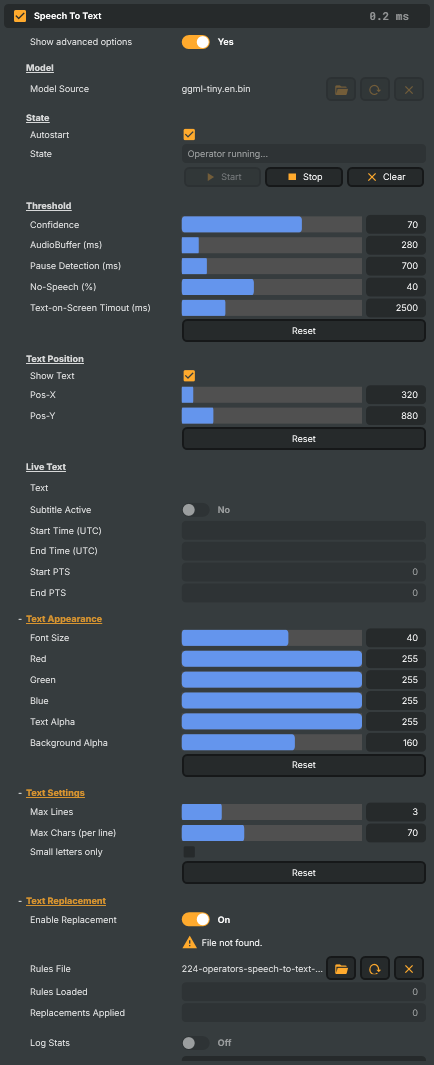
The Speech To Text Operator transcribes audio from your input source into text in real time and can optionally display it as on-screen subtitles. It also integrates with Composer's Script Engine, enabling actions to be triggered based on specific words or phrases, allowing for voice-command functionality.
Powered by Whisper
Speech To Text is built on Whisper, an open-source automatic speech recognition (ASR) model originally released by OpenAI in 2022. Whisper is a transformer-based encoder-decoder network trained on a very large corpus of audio paired with text, which gives it strong robustness to accents, background noise, and varying microphone quality compared with smaller hand-engineered ASR pipelines.
Whisper ships in several sizes — tiny, base, small, medium, and large — that trade off speed against transcription accuracy. Smaller models deliver low latency and modest VRAM use (well suited to a real-time live-stream pipeline) while larger models give the best accuracy at the cost of more GPU memory and per-frame compute time.
Tips for the best results
Whisper is robust, but transcription quality still depends heavily on what reaches the model. A few practical guidelines:
- Use clear, close-mic audio. A directional or lavalier microphone close to the speaker gives much better results than a far-field room mic. Background noise, music beds, and reverberant rooms all hurt accuracy — when in doubt, clean the input chain before reaching for a bigger model.
- Aim for natural, unhurried speech. Speakers who talk very fast, slur words, or over-articulate produce more errors than someone speaking at a normal conversational pace. Encourage on-air talent to leave short pauses between sentences — Whisper segments better when speech has natural breath points.
- Mind the accent. The bundled English model is trained primarily on broadly North American and British English. Heavy regional dialects, strong non-native accents, and rapid code-switching between languages can degrade output. For challenging speakers, switch to a larger Whisper model (
base.en,small.en, ormedium.en) — the accuracy gain is usually worth the extra latency. - Keep input levels healthy. Audio that is too quiet hides phonemes from the model; audio that is clipping injects distortion that looks nothing like speech. Aim for a normal broadcast level (peaks well below 0 dBFS).
- Avoid overlapping speech. Whisper transcribes the loudest single voice; cross-talk and two-people-at-once dialogue will be partially dropped or merged. Where possible, run separate Speech To Text operators on isolated mic feeds.
- Match the model to the workload.
tiny.enis fastest and works well for clean studio voice. Step up tobase.en/small.enfor noisy locations, multiple speakers, or unfamiliar vocabulary;medium.enfor the highest fidelity at the cost of more VRAM and a few hundred extra milliseconds of latency.
Requirements
CUDA Toolkit v13.0 For instructions on installing the CUDA Toolkit, please follow the installation guide for your Windows or Linux platform.
Model Requirements Composer supports Whisper models from OpenAI in the ggml format (General-purpose GPU-optimized Machine Learning) with a
.binextension. These models are specifically designed for efficient and fast processing.- Supported Language — Currently, Composer supports only English for speech-to-text processing.
- Included Model — Composer comes with the ggml-tiny.en.bin. This is the smallest and fastest model, ideal for applications where speed and low resource usage are a priority.
- Additional Models — If you require other Whisper models in the ggml format, you can find them on HuggingFace. Models with the en abbreviation are optimized for English-only transcription.
Related components
- Crystal Speech — a higher-accuracy AI speech operator for situations where Whisper's offline transcription isn't precise enough.
- Text To Speech (ElevenLabs) — the inverse direction: turn scripted text into spoken audio in real time, useful for AI-driven announcements and presenter pipelines.
Speech To Text - Settings

| Property | Description |
|---|---|
Show advanced options |
Whether to reveal advanced configuration in the editor. [default=false]. Toggle on to show options like the script callback fields. |
Model
Model — pick the speech recognition model that gets loaded.

| Property | Description |
|---|---|
Model Source |
Path to the speech recognition model file (.bin) used for transcription. Larger models give more accurate recognition but cost more processing time per second of audio. Loading a new model reinitialises the operator. |
State
State — operator running state and start/stop controls.
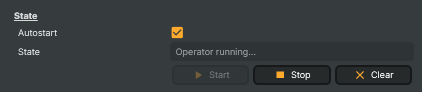
| Property | Description |
|---|---|
Autostart |
Whether to start listening automatically once the model finishes loading. [default=true]. Saves a manual click when the project is loaded fresh; turn off if you want to start transcription only on demand. |
State |
Current state of the operator (read-only). Reports whether the model is loading, ready, running, stopped, or in an error state. |
StartCommand |
Begin transcribing the layer's audio. Available once a valid model is loaded. |
StopCommand |
Stop transcribing audio. |
Clear |
Clear the on-screen captions and reset the audio context so previous speech doesn't bleed back in. |
Threshold
Threshold — accuracy/sensitivity controls for transcription.
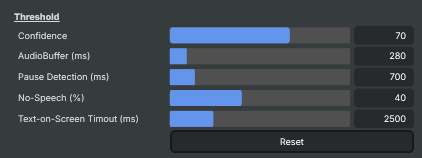
| Property | Description |
|---|---|
Confidence |
Minimum confidence (in percent) a recognised word must score to appear on screen. [min=10, max=100, default=70]. Raise to suppress weak guesses — fewer words appear, but the ones that do are more likely correct. Lower to surface more text, at the cost of occasional misheard words. |
AudioBuffer (ms) |
How much audio is collected before each transcription pass, in milliseconds. [min=100, max=2000, default=300]. Lower values give snappier captions at the cost of accuracy — there's less context for the model to reason from. Higher values give better accuracy but captions appear with more delay. |
Pause Detection (ms) |
How long the speaker must be silent before a new subtitle card is started, in milliseconds. [min=0, max=5000, default=750]. Shorter values break the captions into smaller chunks more often. Longer values let long sentences flow as one block but cards stay on screen longer between sentences. |
No-Speech (%) |
How aggressively to filter audio segments that probably contain no speech, as a percentage. [min=0, max=100, default=60]. Lower values filter more aggressively — good for noisy environments where the model hears phantom words during silence. Raise if quiet speech is being missed. |
Text-on-Screen Timout (ms) |
How long captions stay on screen after the speaker stops talking, in milliseconds. [min=100, max=10000, default=5000]. Longer values give the audience more reading time. Shorter values keep the screen uncluttered between sentences. |
ResetThresholdValuesCommand |
Reset all threshold values to their defaults (confidence, audio buffer, pause detection, no-speech, screen timeout). |
Text Position
Text Position — where captions appear on screen.
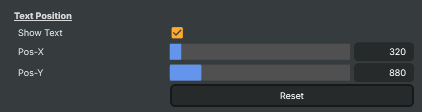
| Property | Description |
|---|---|
Show Text |
Whether to draw captions on the output image. [default=true]. Turn off if you only want to use the recognised text from a script (via RecentText and the callback) without on-screen captions. |
Pos-X |
Horizontal position of the caption block, in pixels from the left edge. [min=0, max=4096]. |
Pos-Y |
Vertical position of the caption block, in pixels from the top edge. [min=0, max=4096]. |
ResetTextPositionCommand |
Reset caption position to the default location. |
Live Text
Live Text — the text the operator has just transcribed, plus subtitle timing.
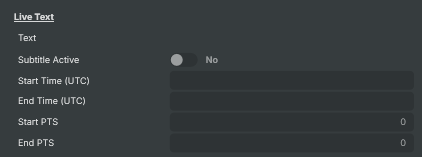
| Property | Description |
|---|---|
Text |
Most recently transcribed text (read-only). Updates every time the speech recognition engine produces a new result. Read this from a script to forward the live transcript to chat overlays, captions widgets, or any external system. |
Subtitle Active |
True while a caption is currently being shown (read-only). Resets when the text-on-screen timeout expires or the operator is cleared. Useful for scripts that need to react when speech starts or ends. |
Start Time (UTC) |
UTC timestamp when the current subtitle segment started (read-only). Updated on each new speech segment. Useful for tagging subtitles with absolute time when feeding them to external systems. |
End Time (UTC) |
UTC timestamp when the current subtitle segment ended (read-only). Empty while the speaker is still talking; populated once the segment closes. |
Start PTS |
Video stream timestamp marking when the current subtitle segment started (read-only). Zero if the input does not provide a presentation timestamp. Useful for matching captions to specific frames when post-processing recordings. |
End PTS |
Video stream timestamp marking when the current subtitle segment ended (read-only). Zero while speech is still active, or if the input does not provide a presentation timestamp. |
Text Appearance
Text Appearance — caption font size, colour and background.
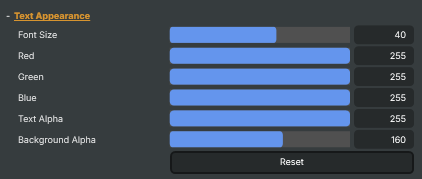
| Property | Description |
|---|---|
Font Size |
Caption font size, in pixels. [min=11, max=60, default=32]. |
Red |
Red component of the caption text colour. [min=0, max=255, default=255]. |
Green |
Green component of the caption text colour. [min=0, max=255, default=255]. |
Blue |
Blue component of the caption text colour. [min=0, max=255, default=255]. |
Text Alpha |
Caption text opacity. [min=0, max=255, default=255]. 0 is fully transparent, 255 is fully solid. |
Background Alpha |
Caption background opacity. [min=0, max=255, default=90]. 0 hides the background, 255 makes it fully solid. A subtle dark background helps readability over busy footage. |
ResetTextAppearanceCommand |
Reset all text appearance settings (font size, colour, alpha, background) to their defaults. |
Text Settings
Text Settings — line limits, wrapping and case behaviour.
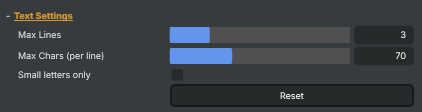
| Property | Description |
|---|---|
Max Lines |
Maximum number of caption lines on screen at once. [min=1, max=10]. When the limit is reached the oldest line scrolls away. Lower values keep the screen uncluttered; higher values give more reading time across longer monologues. |
Max Chars (per line) |
Maximum characters per caption line before wrapping. [min=1, max=200]. |
Small letters only |
Whether all captions are forced to lower-case. [default=false]. "I" and a few common contractions are still kept capitalised for readability. |
ResetTextSettingsCommand |
Reset text settings (max lines, max chars per line, lower-case mode) to their defaults. |
Text Replacement
Text Replacement — find-and-replace rules to fix common misrecognitions or filter words.
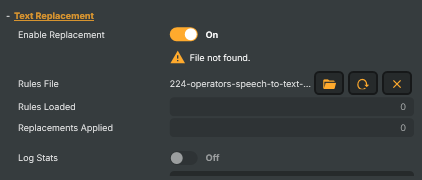
| Property | Description |
|---|---|
Enable Replacement |
Whether to apply find-and-replace rules to the recognised text. [default=false]. Useful for fixing recurring misheard words ("Hugh" → "you"), expanding domain abbreviations, or filtering profanity. Pair with a rules file via TextReplacementFileUrl. |
Rules File |
Path to a JSON file containing find-and-replace rules. Each rule is a key/value pair where the key is the pattern to find and the value is the replacement. Supports exact matches and wildcard patterns (* for any characters, ? for one character). Reload Media re-reads the file if it changes on disk. |
Rules Loaded |
Number of rules successfully loaded from the rules file (read-only). |
Replacements Applied |
Total number of replacements applied since the rules file was loaded (read-only). |
Log Stats |
Whether to log replacement statistics to a file in the Reports folder. [default=false]. Records which rules fired and how often, written to a file next to the executable and updated periodically while running. Useful for tuning the rules file by seeing what's actually being matched. |
File |
Path of the current replacement-stats file (read-only). |
Status |
Status of the replacement-stats logger (read-only). |
Transcription
Transcription — write the recognised text to a transcript file alongside the project.
| Property | Description |
|---|---|
Enable Transcription |
Whether to write all recognised speech to a transcript file in the Reports folder. [default=false]. Each speech segment is written as a timestamped line. Useful for archiving live shows and for accessibility post-production. The project must be saved first, since the transcript filename is based on the project name. |
File |
Path of the current transcript file (read-only). |
Script callback function (optional)
Script callback function — invoke a Script Engine function whenever transcription updates.
| Property | Description |
|---|---|
Function name |
(advanced) Name of a Script Engine function to call each time the transcription updates. Receives a JSON payload with the recognised text and PTS timing. Leave empty to disable. Useful for forwarding live captions to chat overlays, third-party caption systems, or moderation pipelines. |
Inherits from: AbstractOperator, AbstractAudioMetering.
See also: Speech To Text in Script Engine Objects.
Automatic text replacement
Whisper is robust, but real-world audio still produces recurring misrecognitions: a name the model has never seen, a domain term it consistently mishears, a homophone that flips meaning. The Speech To Text operator includes a built-in text replacement stage that runs after transcription and before the recognised text is published — every recognised line is filtered through a list of find-and-replace rules loaded from a JSON file.
It also doubles as a profanity filter: replacing a word with an empty string (or with a string of asterisks) removes it from the output before subtitles are drawn or scripts are notified.
Turning it on
| Property | What it does |
|---|---|
EnableTextReplacement |
Master switch. When off, the file is ignored and recognised text is published verbatim. |
TextReplacementFileUrl |
Path (or asset URI) to the JSON rules file. Resolved through Composer's asset finder, so a bare filename will be located inside the project folder, the project's Media folder, or the global media directory. |
When the file path changes, the rules are reloaded immediately. To edit the file in place and pick up changes without re-selecting it, use Reload Media on the project — the operator re-reads the URL and rebuilds its rule table.
File format
The rules file is a flat JSON object — keys are patterns to find, values are the replacements:
{
  "find this": "replace with this",
  "another pattern": "another replacement"
}
Constraints worth knowing:
- Top-level must be a JSON object. Arrays, nested objects, and other shapes are rejected with an "Invalid JSON" error.
- Keys and values are strings. Numbers, booleans, and
nullare not accepted. - Empty or whitespace-only keys are skipped silently. Invalid regex-escaping or other malformed patterns cause the individual rule to be skipped — the rest of the file still loads, and a status note reports how many rules were skipped.
- JSON forbids duplicate keys — the parser keeps only the last occurrence. If you need several variants pointing to the same target, give each variant a slightly different key.
- The file is parsed once when loaded; it is not watched for changes. Edit and Reload Media to refresh.
Comments are not part of the JSON spec. The convention used in Composer's bundled template is to use bogus "//" keys for human-readable notes — they are ignored at runtime because subsequent "//" entries overwrite the previous one. Strip them before going to production if you want a clean file.
How rules are applied
For every transcribed line, the operator runs the loaded rules in this order:
- Sort all rules by key length, longest first. A rule like
"no more beds please"is tried before"beds". - Match each rule against the current line, case-insensitively, using whole-word boundaries. A rule for
"bet"will not match inside"better". - Replace the match. Any region of text that has already been replaced by an earlier (longer) rule is protected — later rules cannot touch it. This is what makes the longest-first ordering meaningful: once
"no more beds please"has been corrected to"no more bets please", the standalone"beds" → "bets"rule won't run again on top of the same span. - Mirror case of the original first letter onto the replacement. A rule
"beds" → "bets"applied to"Beds"produces"Bets", and applied to"beds"produces"bets". Mid-word casing is left as written in the rule. - Normalise whitespace at the end. Empty replacements (the profanity-filter case) leave double spaces behind; these are collapsed and the line is trimmed.
The operator exposes per-rule statistics — hit counts and the most recent matched text — useful when tuning a rules file against a live source.
Wildcards
Two wildcard characters are supported. They are context-sensitive — the meaning of * depends on whether it sits inside a word or stands alone as its own token:
| Pattern | Meaning | Example match |
|---|---|---|
* inside a word |
Any run of non-whitespace characters (zero or more), including punctuation, apostrophes, hyphens. | "b*ds" matches beds, bids, bands. "That*" matches That, That's, Thats!. |
* as a standalone token (separated by spaces) |
One or more whole words, possibly with attached punctuation. | "no more * please" matches no more beds please, no more chips on the table please. |
? |
Exactly one non-whitespace character. | "b?t" matches bat, bet, bit, b't. |
Notes on matching:
- Matching is case-insensitive.
- Wildcards never cross sentence boundaries because the operator processes one transcribed line at a time.
- Word boundaries (
\b) are applied at the start and end of every pattern, so a rule for"bet"will not match insidebettingorbets. - Whitespace inside a multi-word pattern is treated flexibly — one or more spaces in the input all count.
Punctuation in patterns
Whisper's output is post-processed by the operator before replacement runs. Commas, semicolons, and colons are stripped from the recognised text. Your patterns must therefore not contain those characters either. Periods, apostrophes, question marks, and exclamation marks are preserved and can appear in patterns.
If in doubt, write the pattern without trailing punctuation and use a wildcard:
{
  "good morning everyone": "Good morning, team!"
}
— the strict input phrase becomes the polished output, including the comma and exclamation mark.
A worked example
Suppose your show needs the model to:
- always render the host's surname
"Åström"correctly even when Whisper hears"oastrom","o-strom", or"awesome"after the first name - normalise three different misheard variants of the catchphrase
"no more bets please"into the canonical form - expand the abbreviation
"OB van"to"outside-broadcast van" - bleep two profanities
A rules file that does all of that:
{
  "no more beds please":              "no more bets please",
  "no more breads please":            "no more bets please",
  "no more * please":                 "no more bets please",

  "niclas o*":                        "Niclas Åström",
  "niclas awesome":                   "Niclas Åström",
  "niclas a-strom":                   "Niclas Åström",

  "OB van":                           "outside-broadcast van",
  "ob van":                           "outside-broadcast van",

  "b?ds":                             "bets",

  "damn":                             "****",
  "shit":                             "****"
}
What happens, line by line, on this hypothetical transcript:
Welcome back. Niclas awesome is reporting from the OB van.
Place your beds — no more breads please.
Damn, that was close.
| Step | Effect |
|---|---|
| Sort by length | "no more breads please" (21) sorts above "no more * please" (16), which sorts above "niclas awesome" (14), … "damn" (4), "shit" (4). |
| Line 1 | "niclas awesome" matches and becomes "Niclas Åström" (case mirrored from the input's leading capital). The protected range covers the new span, so the standalone rule "niclas o*" cannot then re-run on top of it. "OB van" matches and expands. |
| Line 2 | "no more breads please" matches first and rewrites the whole tail of the line. The standalone "no more * please" would have matched too, but the longer rule already protected the span. "b?ds" (the "beds" correction) would have matched "beds" earlier in the line — and it does, fixing "Place your beds" to "Place your bets". |
| Line 3 | "damn" is replaced by "****". Whitespace normalisation runs at the end; the line is trimmed. |
Final published transcript:
Welcome back. Niclas Åström is reporting from the outside-broadcast van.
Place your bets — no more bets please.
****, that was close.
Authoring tips
- Start specific, then generalise. Write the longest, most exact phrasing you've actually heard the model emit, then add wildcard fallbacks below it. Longest-first ordering means the strict rules win when they match, and the wildcards catch anything else.
- Test against real transcripts, not your imagination. Misrecognitions rarely look the way you'd guess. Run the source through Speech To Text once with replacement off, capture the raw output, and write rules against what's actually there.
- Mind word boundaries. A rule for
"bet"will not match inside"better", but"b*"definitely will. Use?when you mean exactly one character; reach for*only when you need it. - Empty replacements remove the match entirely. Useful for stripping filler words (
"um","uh") or as a profanity filter — the surrounding whitespace is cleaned up automatically. - Watch the per-rule stats panel while tuning. A rule with zero hits over a long broadcast is dead weight; a rule that fires on the wrong content shows up as an unexpected
LastMatchvalue. - Keep one rules file per project. The file path is project-relative through Composer's asset finder, so checking it in next to the
.prjmakes the project portable.