

Test Signal Generator
Introduction
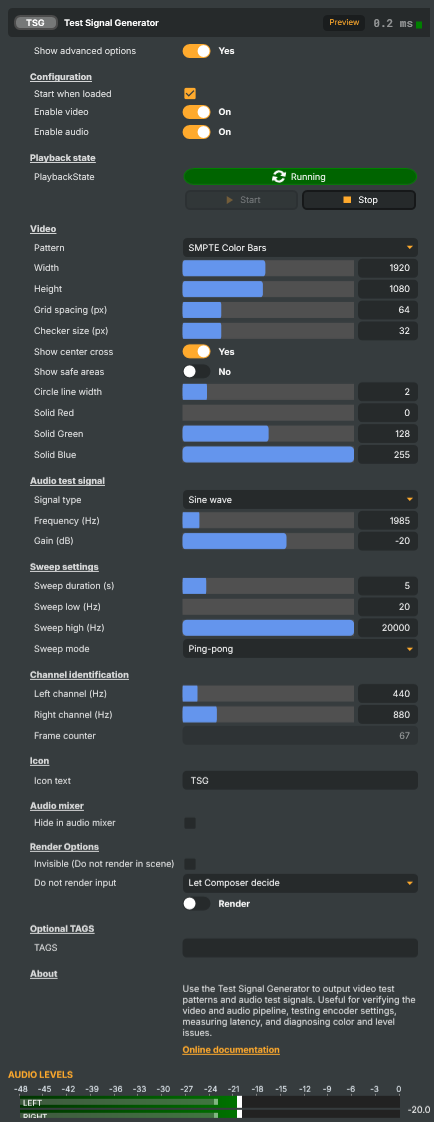
The Test Signal Generator is a synthesised reference source. It produces a configurable video test pattern paired with an audio test signal, both generated in the engine — no file, no capture card, no live signal needed. Drop it on a layer in any scene and the rest of the pipeline (operators, mixer, target encoders, downstream decoders) sees a known-good source it can be measured and aligned against.
Reach for this component when you need a reference signal that's repeatable, immediately available, and free of the artefacts a live capture introduces. It's the single most useful input for commissioning a host, debugging a target, or rehearsing a show.
Common use cases
- Colour and signal-level alignment — feed SMPTE / EBU / 100% colour bars through the project to a target and verify the downstream decoder's vectorscope and waveform monitor read the expected reference values. Standard broadcast practice for end-to-end colour pipeline check.
- Encoder tuning and visual quality assessment — colour-bar and grayscale-ramp patterns expose chroma sub-sampling artefacts, banding, and posterisation that camera footage hides. Switch a target encoder's bitrate / preset / GOP settings while watching the result on a downstream player to find the floor.
- Round-trip latency measurement — the Frame Counter pattern overlays an animated frame-tick number on the generated frame; compare the displayed number against a downstream player's display to read out end-to-end latency in frames.
- Aspect-ratio and crop verification — the Grid / Crosshatch and Circle / Aspect Ratio patterns make scaling, cropping, and aspect-ratio errors immediately obvious anywhere in the pipeline. A circle that's no longer round on the receiving end tells you exactly where the pipeline's geometry is wrong.
- Audio routing verification — switch the audio signal to L/R channel-ID tones to confirm the left / right channels arrive on the correct outputs in a multi-channel target. The Sine / Square / Sawtooth options are the right choice for level alignment (1 kHz sine at −18 dBFS is the broadcast reference); Frequency sweep characterises an EQ chain end-to-end; White / Pink noise drives noise-floor measurement and ducking-operator rehearsals.
- Show-rehearsal placeholder — drop the generator on the scene during project authoring or rehearsal, switch to the live source on show day. Same shape and audio structure, no rights / talent / studio setup needed in advance.
- Producing a reference loop for downstream debugging — render a recording of the generator through one of the file-recording targets to produce a known-good test clip you can hand to a downstream team.
Driving from outside
Every command and property is reachable from:
- The property panel in Composer Desktop.
- The HTTP API —
/api/setpropertyto swap pattern or signal mid-show,/api/invokecommandto start / stop. - A Connector — bundle "switch to bars + 1 kHz sine" into a single named endpoint so an operator hits one button to replace the live source with a reference for a quick sanity check.
- The Script Engine via
SetObjectProperty/ExecuteCommand— handy in autotests where the project's own state should drive the test sources.
Related components
- Oscillator — audio-only signal generator (sine / square / triangle / sawtooth / white noise). Use the Oscillator when only the audio half is needed; use the Test Signal Generator when a paired video pattern is also wanted.
Test Signal Generator - Settings

| Property | Description |
|---|---|
Show advanced options |
Show or hide the input's advanced settings in the editor UI. [default=false]. |
Configuration
Configuration — top-level on/off toggles for the generator.

| Property | Description |
|---|---|
Start when loaded |
Whether the generator starts producing output as soon as the project loads. [default=true]. When true, StartCommand is invoked automatically during input initialisation, so the input goes straight to Running. Disable to require an explicit start (useful when the signal should only begin on operator action or via a script trigger). |
Enable video |
(advanced) Whether the video pattern is rendered each frame. [default=true]. When false, no video pattern is produced — useful when this input is only being used as an audio source. Re-enabling redraws the pattern on the next frame. |
Enable audio |
(advanced) Whether the audio test signal is produced each frame. [default=true]. When false, the input outputs silence on all channels instead of the configured AudioSignalType. Use this when only the video pattern is needed, or to mute the test tone temporarily without changing the selected signal type. |
Playback state
Playback state — start/stop control and the current running state of the generator.

| Property | Description |
|---|---|
PlaybackState |
Current playback state of the generator (read-only). Reflects whether the input is Stopped or Running. Set indirectly via StartCommand / StopCommand (or AutoStart at load time). Scripts should read this to decide whether the signal is live; the property also drives the running indicator and the enabled state of the Start/Stop buttons. |
Start |
Begin generating the configured video pattern and audio signal. Invokable command. Transitions PlaybackState to Running and starts output from a clean state — frame counter, sweep, and noise are all reset, and the first video frame is drawn fresh from the current settings. No-op if already running. |
Stop |
Stop generating video and audio output. Invokable command. Transitions PlaybackState to Stopped, silences the audio output, and resets the audio meters. Video output is no longer produced until StartCommand is invoked again. No-op if already stopped. |
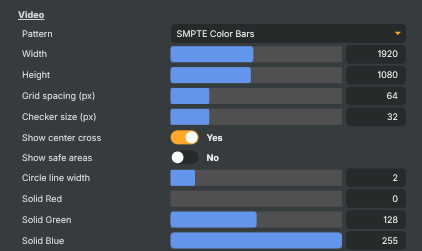
Video
Video — the test pattern and its appearance.
| Property | Description |
|---|---|
Pattern |
Which video test pattern to render. [default=SmpteColorBars]. Selects the pattern produced each frame. Most patterns are static and only redrawn when settings change; FrameCounter is animated and updates every frame (it also drives a flash marker for latency measurement). Pattern-specific properties only take effect for the matching pattern (e.g. GridSpacing for Grid, CheckerSize for Checkerboard, SolidColorRed/Green/Blue for SolidColor). |
Width |
(advanced) Output frame width in pixels. [min=128, max=3840, default=1920]. Controls the horizontal resolution of the generated video pattern. Combine with OutputHeight to test specific aspect ratios (e.g. 1920x1080 for 16:9, 3840x2160 for UHD). |
Height |
(advanced) Output frame height in pixels. [min=128, max=2160, default=1080]. Controls the vertical resolution of the generated video pattern. See OutputWidth for typical resolution pairings. |
Grid spacing (px) |
(advanced) Spacing between grid lines, in pixels. [min=8, max=256, default=64]. Only used by the Grid pattern. Smaller values produce a denser crosshatch (useful for inspecting fine geometric distortion or scaler artefacts); larger values give a sparser grid suitable for general framing checks. The outer frame border is always drawn regardless. |
Checker size (px) |
(advanced) Side length of one checkerboard square, in pixels. [min=4, max=128, default=32]. Only used by the Checkerboard pattern. Small sizes are useful for stressing scalers, chroma subsampling, and codec block boundaries; large sizes are easier to read for level and contrast verification. |
Show center cross |
(advanced) Whether to overlay a small red centre cross on the rendered pattern. [default=true]. Drawn on top of every pattern after generation. Useful for confirming framing, centring, and pixel-aspect handling through downstream operators and encoders. Disable for clean test patterns when you don't want the overlay to interfere with measurement. |
Show safe areas |
(advanced) Whether to overlay the broadcast title-safe and action-safe markers. [default=false]. When enabled, draws two dashed rectangles on top of the pattern: a yellow action-safe boundary at 90% of the frame and a green title-safe boundary at 80% of the frame. Use to verify that graphics, captions, and key visuals stay within the expected safe areas after downstream scaling or cropping. |
Circle line width |
(advanced) Line thickness for the circle/aspect-ratio pattern, in pixels. [min=1, max=8, default=2]. Only used by the Circle pattern. Controls how thick the concentric reference circles and the horizontal/vertical/diagonal centre lines are drawn. Increase for higher-resolution outputs so the lines remain visible after downscaling or compression. |
Solid Red |
(advanced) Red channel of the solid-fill colour, 0–255. [min=0, max=255, default=0]. Only used by the SolidColor pattern. Combined with SolidColorGreen and SolidColorBlue to produce an arbitrary 8-bit-per-channel BGRA fill. Useful for level checks (e.g. pure 255 red to inspect chroma clipping) or for driving chroma keyers with a known backdrop. |
Solid Green |
(advanced) Green channel of the solid-fill colour, 0–255. [min=0, max=255, default=128]. Only used by the SolidColor pattern. See SolidColorRed for general usage; pure 255 green is the standard chroma-key reference colour. |
Solid Blue |
(advanced) Blue channel of the solid-fill colour, 0–255. [min=0, max=255, default=255]. Only used by the SolidColor pattern. See SolidColorRed for general usage. |
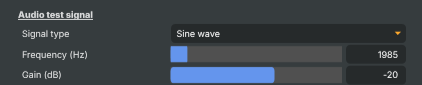
Audio test signal
Audio test signal — pick the test tone or noise to generate, and set its level.
| Property | Description |
|---|---|
Signal type |
Which audio test signal to generate. [default=Sine]. Silence outputs nothing (level reference). Sine/Square/Sawtooth produce a tone at AudioFrequency with AudioGainDB applied. WhiteNoise outputs flat-spectrum noise. PinkNoise outputs noise with the perceptually flat (−3 dB/octave) slope used for room and system tuning. Sweep is a logarithmic frequency sweep between SweepLowFrequency and SweepHighFrequency over SweepDurationSeconds, repeating per AudioSweepMode. ChannelId plays ChannelIdFrequencyLeft and ChannelIdFrequencyRight alternately on each channel every half-second to confirm L/R routing. |
Frequency (Hz) |
Tone frequency for the periodic audio signals, in Hz. [min=20, max=20000, default=1000]. Applies to Sine, Square, and Sawtooth signal types only (ignored by noise, sweep, and channel-ID modes). 1000 Hz is the standard EBU/SMPTE reference tone; 440 Hz is musical A4. The range covers the full audible band — values above ~20 kHz are clamped, and frequencies near the Nyquist of the 48 kHz output may alias for non-sine waveforms. |
Gain (dB) |
Output level for the audio signal, in decibels relative to full-scale. [min=-60, max=6, default=-20]. Applies to all audio signal types. −20 dBFS matches the common EBU/SMPTE alignment level and is safe against clipping when downstream stages add gain. Values above 0 dBFS will clip in fixed-point targets — only use the positive headroom for deliberate overload tests. |
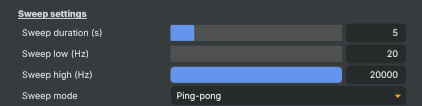
Sweep settings
Sweep settings — parameters for the frequency-sweep audio signal.
| Property | Description |
|---|---|
Sweep duration (s) |
(advanced) Length of one full low→high frequency sweep, in seconds. [min=1, max=30, default=5]. Only used when AudioSignalType is Sweep. Shorter durations are useful for quick spectrum checks; longer durations reveal frequency-dependent issues (resonances, comb filtering, codec artefacts) with finer resolution. Combine with AudioSweepMode to control whether the sweep stops, repeats, or ping-pongs at the end. |
Sweep low (Hz) |
(advanced) Lower bound of the frequency sweep, in Hz. [min=20, max=1000, default=20]. Only used when AudioSignalType is Sweep. Sets the starting (and, in PingPong mode, returning) frequency of the logarithmic sweep. Must be less than SweepHighFrequency for the sweep to run in the expected direction. |
Sweep high (Hz) |
(advanced) Upper bound of the frequency sweep, in Hz. [min=1000, max=20000, default=20000]. Only used when AudioSignalType is Sweep. Sets the peak frequency of the logarithmic sweep. Keep below the Nyquist limit (24 kHz at 48 kHz sample rate) to avoid aliasing — 20 kHz covers the full audible band. |
Sweep mode |
(advanced) How the frequency sweep behaves at the end of one pass. [default=PingPong]. Only used when AudioSignalType is Sweep. OneShot sweeps once from low to high and then holds at the high frequency. Repeat snaps back to the low frequency and runs again (audible discontinuity). PingPong reverses direction at each end for a continuous low↔high motion with no jumps — usually the most pleasant for spectrum-by-ear inspection. |
Channel identification
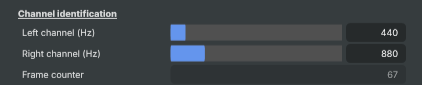
Channel identification — frequencies for the L/R channel-ID test signal.
| Property | Description |
|---|---|
Left channel (Hz) |
(advanced) Tone frequency played on the left channel during channel identification, in Hz. [min=100, max=4000, default=440]. Only used when AudioSignalType is ChannelId. Left and right take turns every half-second: during the left half the right channel is silent, and vice versa. Pick a frequency clearly distinct from ChannelIdFrequencyRight so you can tell them apart by ear (e.g. 440 vs 880 Hz — musical A4 and A5). |
Right channel (Hz) |
(advanced) Tone frequency played on the right channel during channel identification, in Hz. [min=100, max=4000, default=880]. Only used when AudioSignalType is ChannelId. See ChannelIdFrequencyLeft for full behaviour — keep this distinct from the left frequency so the channels are unambiguous by ear. |
Frame counter |
(advanced) Number of video frames rendered since the last StartCommand (read-only). Increments by one per rendered frame while PlaybackState is Running, and resets to 0 when the generator is restarted. Drives the binary visualisation in the FrameCounter pattern, and can be polled from scripts to gate timing-sensitive logic or measure throughput. |
Inherits from: AbstractInput, AbstractAudioProcessing, AbstractAudioMetering.
See also: Test Signal Generator in Script Engine Objects.
Shared input properties
Every input — regardless of source type — exposes the following property groups. They are surfaced in the property panel only when Show advanced options is enabled on the input.
Icon
Icon text— short text shown on the input's icon in the Inputs list. Useful as a quick visual label (channel number, mic name, camera position) to tell otherwise-similar inputs apart at a glance. Empty by default; has no effect on rendering or routing.
Audio mixer
Hide in audio mixer— when on, hides the input from the audio mixer view without disabling its audio. Useful for de-cluttering the mixer while keeping the audio routed (e.g. fixed background music, ambient beds, pre-aligned playout). [default=false]
Render Options
Invisible (Do not render in scene)— when on, the input is skipped during rendering and produces no picture on any layer or scene. Audio routing is unaffected. Toggle from a script for cued-in / cued-out behaviour during a show. [default=false]Do not render input— disables the input's internal render entirely (no decode or capture work is done). Stronger than Invisible: that one renders but doesn't display; this one stops the input from doing any work at all. Useful for reducing CPU / network load on heavy sources (e.g. high-bitrate RTMP / SRT streams, large media files) when the input is temporarily not needed. Audio meters are cleared while disabled. [default=false]Do not render inputcontroller — chooses what drives the Do not render input flag.Let Composer decide(the default) hands control to the project-level Render Tuning optimiser, which automatically pauses inputs that aren't used by any active scene.Manual Configurationignores Render Tuning and lets the Do not render input toggle control the flag directly — use this to keep a network source warm even when it's currently off-air, or to take a heavy input down by hand regardless of scene activity. [default=Let Composer decide]
Optional TAGS
TAGS— one or more free-form tag words used to classify this input (typically space- or comma-separated). Picked up by Composer's Smart Search to filter or find inputs by category — e.g.camera,music,interview,sponsor. Has no effect on rendering.
Audio configuration and processing options
For inputs capable of processing audio, additional audio configuration and processing options are available through the audio mixer and the Channel Strip Inspector.
- Audio mixer — monitor levels, adjust gain and pan, mute / solo inputs, and configure auxiliary sends to
Audio Channel Stripsubmix buses, all from a centralised mixer-style interface. - Channel Strip Inspector — advanced per-strip audio processing for the selected input:
- Input trim, stereo remapping, and audio delay
- Channel mapping (8-channel mode unlocks the full MAPPING tab)
- Gate
- Low-cut filter
- Equaliser (5-band parametric)
- Compressor
- Sidechain ducking (a second compressor whose gain reduction is driven by another input's level — e.g. dipping music under a voice-over)
- Limiter
For the full audio signal flow, see Audio processing workflow.