

Switcher
Introduction
The Switcher is a virtual input that does the job of a small video-mixing console — it picks two sources (PGM "on air" and Preview "next"), switches between them on cue with either a hard cut or a timed crossfade, and offers a fade-to-black for clean show transitions. It also doubles as the host for Composer's Multiviewer, a side-by-side monitor grid showing PGM, Preview, and up to 13 input thumbnails with tally lights, VU meters, and overlay graphics.
Drop a Switcher input on a layer in any scene and target it like any other input. The same Switcher can drive both a clean PGM output (to a streaming target) and a separately-rendered multiviewer (to a confidence monitor) at the same time.
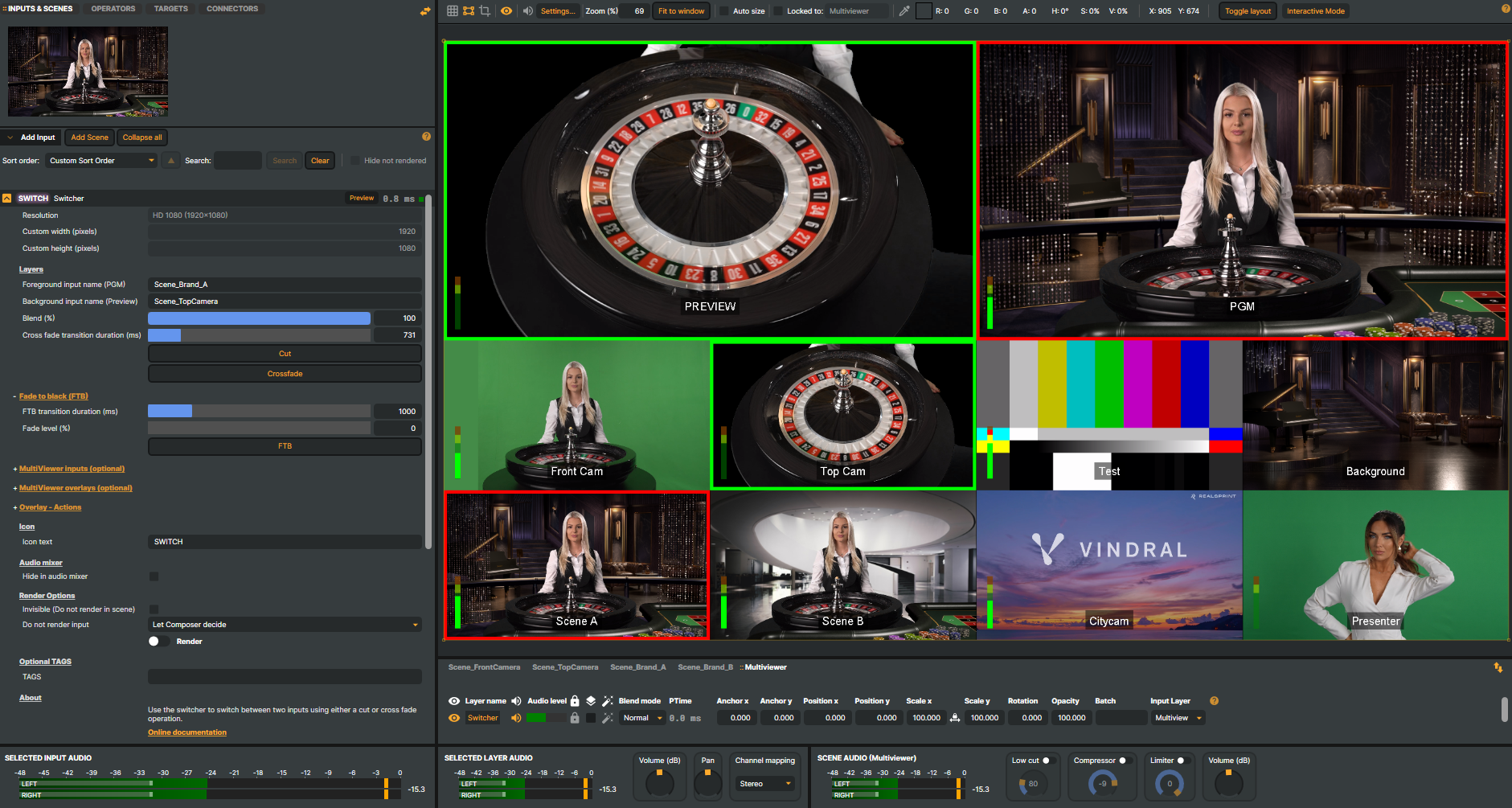
PGM / Preview switching
The classic two-bus broadcast switcher pattern:
- Pick any input or scene as the foreground (PGM) — what's currently on air.
- Pick another as the background (Preview) — what's queued up next.
- Hit Cut for an instant change, or Crossfade for a timed dissolve over a configurable duration (0–5000 ms).
- The blend slider exposes the same transition manually, so an operator can drive the dissolve by hand if needed.
- A separate Fade to black command takes the whole output to (or back from) black, useful for show-open / show-close transitions and emergency-cover situations where the PGM source can't be cut to cleanly.
Because the PGM and Preview sources can be scenes as well as raw inputs, you can pre-build complex compositions on the Preview bus (graphics + camera + lower-third + audio mix) and cut to the whole package as one move.
Multiviewer
When Create Multi View is on, the Switcher renders a separate side-by-side monitor grid in addition to its PGM output — useful as a producer / director surface for keeping every source in eye-line during a show. Briefly:
- Choose a layout — 4-input, 8-input (2 + 8 grid with prominent PGM / Preview tiles), or 13-input (adds a third row).
- Tally indicators — color each tile red for Program and green for Preview.
- VU meters — overlay per-tile audio levels; a configurable PGM VU source feeds the master meter.
- Tile aliases — the
Camera1|CAM 1syntax lets a tile show a friendly label different from the source name. - Up to 4 overlays — bug logos, lower thirds, count-down timers — each with independent fade-in / fade-out timing.
For the full Multiviewer authoring workflow (tile assignment, overlay rules, latency note when a tile sources a scene rather than an input), see User Guide → Multiviewer.
Common use cases
- Two-source live show — a single Switcher drives a clean PGM target plus a Multiviewer monitor; the operator cuts between cameras and pre-built graphics scenes.
- Studio in a box — pair the Switcher's PGM bus with an SRT Target or RTMP Target for a contribution feed; the Multiviewer goes to a confidence monitor.
- Show-open / show-close — fade to black covers the seam between the start of a feed and the first cued shot, and the seam at end of show.
- Multi-camera production with a director surface — the Multiviewer tile labels and tally indicators give a non-Composer-trained director a familiar visual layout.
- Remote producer review — render the Multiviewer to a separate streaming target so a producer at a distant location sees every source the local operator does.
Switcher - Settings
Properties marked (
Components) or (AudioMixer) broadcast a livePropertyChangedevent to clients subscribed to that WebSocket channel.

| Property | Description |
|---|---|
Show advanced options |
Show or hide the input's advanced settings in the editor UI. [default=false]. |
Resolution |
Output resolution of the switcher. [default=HD 1080]. Pick a standard preset (720, HD 1080, UHD 4K, DCI 4K, 8K) and Width / Height follow automatically. Choose Custom to set Width and Height to any values you like. |
Custom width (pixels) |
Output width in pixels. [min=32, max=8192, default=1920]. Set automatically when Resolution is one of the standard presets. Only freely editable when Resolution is Custom. |
Custom height (pixels) |
Output height in pixels. [min=32, max=8192, default=1080]. Set automatically when Resolution is one of the standard presets. Only freely editable when Resolution is Custom. |
Layers
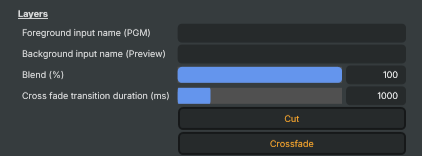
Layers — pick the foreground (PGM) and background (Preview) sources and switch between them.
| Property | Description |
|---|---|
Foreground input name (PGM) (Components) |
Name of the input or scene used as the foreground (PGM, "on-air") layer. Set this to swap the live source. Use the input/scene's name as it appears in the project. Combined with BackgroundInputName, these two are the sources the switcher transitions between. |
Background input name (Preview) (Components) |
Name of the input or scene used as the background (Preview, "next") layer. This is the source that will be cut or faded to when CutCommand or CrossfadeCommand runs. A typical workflow is to point Preview at the next clip, then trigger a transition to bring it on air. |
Blend (%) (Components) |
How much of the foreground vs. background is shown, as a percentage. [min=0, max=100, default=100]. 100% shows the foreground (PGM) only; 0% shows the background (Preview) only; values in between fade between the two. The transition commands animate this value automatically, but you can also drive it directly from a script for a manual mix. |
Cross fade transition duration (ms) (Components) |
Length of a crossfade transition, in milliseconds. [min=0, max=5000, default=1000]. Used by CrossfadeCommand. 0 ms is essentially the same as a hard cut; 1000 ms (one second) is a typical TV-style mix. Longer values produce a slower, more cinematic dissolve. |
Cut |
Cut instantly between foreground and background. |
Crossfade |
Crossfade between foreground and background over CrossfadeTransitionDuration. |
Fade to black (FTB)
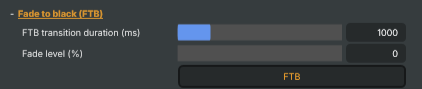
Fade to black (FTB) — fade the output to or from black.
| Property | Description |
|---|---|
FTB transition duration (ms) (Components) |
Length of a fade-to-black transition, in milliseconds. [min=0, max=5000, default=1000]. Used by FadeToBlackCommand. Each invocation animates the fade either down to black or back up, taking this long either way. |
Fade level (%) (Components) |
How much black is currently mixed over the output, as a percentage. [min=0, max=100, default=0]. 0% is a normal picture; 100% is fully black. The fade-to-black command animates this value, but you can also drive it directly from a script for a manual fade. |
FTB |
Fade the output to or from black over FTBTransitionDurationMs. |
MultiViewer inputs (optional)
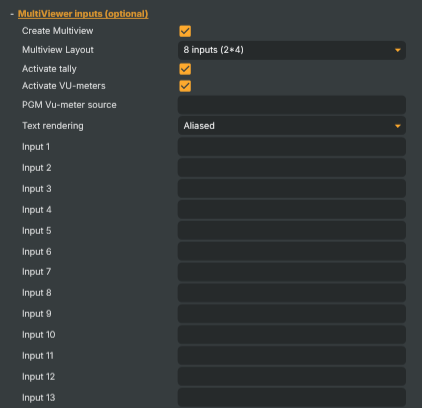
MultiViewer inputs — produce a separate multiviewer image with PGM, Preview, and up to 13 thumbnails.
| Property | Description |
|---|---|
Create Multiview |
Whether to also produce a multiviewer image. [default=true]. When true, the switcher composites a separate output showing Preview, PGM, and the MvInput* thumbnails in the layout chosen by MultiViewLayout. Disable to skip the multiviewer entirely when you only need the main PGM output. |
Multiview Layout |
Grid layout used for the multiviewer image. [default=EightInputs]. FourInputs is a compact 1×4 strip below Preview/PGM, EightInputs is a 2×4 grid, and ThirteenInputs is a denser 5+4+(2×2) layout for very busy productions. Pick the layout that matches how many sources you actually want to monitor. |
Activate tally |
Whether the multiviewer draws coloured tally borders and labels. [default=true]. When enabled, the cell that's currently on PGM gets a red border and the cell that's queued in Preview gets a green border, with the source name shown as a label. Useful for operators monitoring the multiview image. |
Activate VU-meters |
Whether the multiviewer draws audio level meters per cell. [default=true]. When enabled, each cell shows a small VU-style level meter so operators can see audio activity at a glance. Disable to keep the multiview cleaner or to save a bit of processing time. |
PGM Vu-meter source |
Source name for the PGM VU meter. Leave blank to use the switcher's PGM output. By default the meter shows the audio levels of whatever is currently on air. Set this to the name of another input or scene if you'd rather meter that source instead — handy when the on-air audio comes from a separate audio mix. |
Text rendering |
(advanced) How tally label text is drawn — smooth, sharp, or pixelated. Choose between anti-aliased (smooth, the usual choice), aliased (sharper but jagged), or other rendering styles. Mostly a cosmetic preference; the readable defaults work for most projects. |
Input 1 (Components) |
Name of the input or scene shown in multiviewer cell 1. Cells with no name are left empty in the layout. Only the cells used by the chosen MultiViewLayout are visible (4 in FourInputs, 8 in EightInputs, 13 in ThirteenInputs). |
Input 2 (Components) |
Name of the input or scene shown in multiviewer cell 2. |
Input 3 (Components) |
Name of the input or scene shown in multiviewer cell 3. |
Input 4 (Components) |
Name of the input or scene shown in multiviewer cell 4. |
Input 5 (Components) |
Name of the input or scene shown in multiviewer cell 5. |
Input 6 (Components) |
Name of the input or scene shown in multiviewer cell 6. |
Input 7 (Components) |
Name of the input or scene shown in multiviewer cell 7. |
Input 8 (Components) |
Name of the input or scene shown in multiviewer cell 8. |
Input 9 (Components) |
Name of the input or scene shown in multiviewer cell 9. |
Input 10 (Components) |
Name of the input or scene shown in multiviewer cell 10. Only used by ThirteenInputs layout. |
Input 11 (Components) |
Name of the input or scene shown in multiviewer cell 11. Only used by ThirteenInputs layout. |
Input 12 (Components) |
Name of the input or scene shown in multiviewer cell 12. Only used by ThirteenInputs layout. |
Input 13 (Components) |
Name of the input or scene shown in multiviewer cell 13. Only used by ThirteenInputs layout. |
MultiViewer overlays (optional)
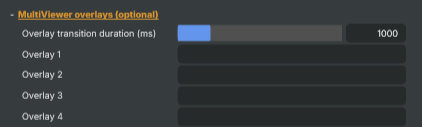
MultiViewer overlays — up to four overlay layers composited on top of the main output.
| Property | Description |
|---|---|
Overlay transition duration (ms) (Components) |
Length of an overlay fade in or fade out, in milliseconds. [min=0, max=5000, default=1000]. Applies to every OverlayN fade-in/out command. 0 ms is essentially instant; 1000 ms is a typical one-second fade. |
Overlay 1 (Components) |
Name of the input or scene used as overlay 1. Overlays sit on top of the PGM output and can be faded in and out with the matching Overlay1*Command. Use for lower thirds, logos, score graphics, or any other element that needs to come and go independently of the main switching. |
Overlay 2 (Components) |
Name of the input or scene used as overlay 2. |
Overlay 3 (Components) |
Name of the input or scene used as overlay 3. |
Overlay 4 (Components) |
Name of the input or scene used as overlay 4. |
Overlay - Actions
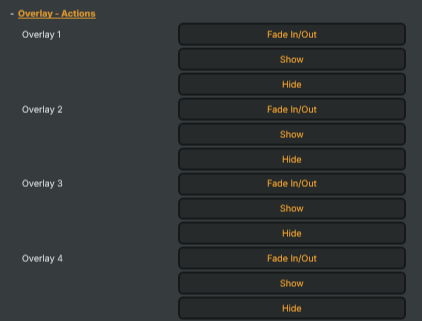
Overlay actions — fade in, fade out, or toggle each overlay.
| Property | Description |
|---|---|
Overlay 1 |
Toggle overlay 1 — fade it in if it's hidden, fade it out if it's visible. |
Show |
Fade overlay 1 in. |
Hide |
Fade overlay 1 out. |
Overlay 2 |
Toggle overlay 2 — fade it in if it's hidden, fade it out if it's visible. |
Show |
Fade overlay 2 in. |
Hide |
Fade overlay 2 out. |
Overlay 3 |
Toggle overlay 3 — fade it in if it's hidden, fade it out if it's visible. |
Show |
Fade overlay 3 in. |
Hide |
Fade overlay 3 out. |
Overlay 4 |
Toggle overlay 4 — fade it in if it's hidden, fade it out if it's visible. |
Show |
Fade overlay 4 in. |
Hide |
Fade overlay 4 out. |
Inherits from: AbstractInput, AbstractAudioProcessing, AbstractAudioMetering.
See also: Switcher in Script Engine Objects.
Shared input properties
Every input — regardless of source type — exposes the following property groups. They are surfaced in the property panel only when Show advanced options is enabled on the input.
Icon
Icon text— short text shown on the input's icon in the Inputs list. Useful as a quick visual label (channel number, mic name, camera position) to tell otherwise-similar inputs apart at a glance. Empty by default; has no effect on rendering or routing.
Audio mixer
Hide in audio mixer— when on, hides the input from the audio mixer view without disabling its audio. Useful for de-cluttering the mixer while keeping the audio routed (e.g. fixed background music, ambient beds, pre-aligned playout). [default=false]
Render Options
Invisible (Do not render in scene)— when on, the input is skipped during rendering and produces no picture on any layer or scene. Audio routing is unaffected. Toggle from a script for cued-in / cued-out behaviour during a show. [default=false]Do not render input— disables the input's internal render entirely (no decode or capture work is done). Stronger than Invisible: that one renders but doesn't display; this one stops the input from doing any work at all. Useful for reducing CPU / network load on heavy sources (e.g. high-bitrate RTMP / SRT streams, large media files) when the input is temporarily not needed. Audio meters are cleared while disabled. [default=false]Do not render inputcontroller — chooses what drives the Do not render input flag.Let Composer decide(the default) hands control to the project-level Render Tuning optimiser, which automatically pauses inputs that aren't used by any active scene.Manual Configurationignores Render Tuning and lets the Do not render input toggle control the flag directly — use this to keep a network source warm even when it's currently off-air, or to take a heavy input down by hand regardless of scene activity. [default=Let Composer decide]
Optional TAGS
TAGS— one or more free-form tag words used to classify this input (typically space- or comma-separated). Picked up by Composer's Smart Search to filter or find inputs by category — e.g.camera,music,interview,sponsor. Has no effect on rendering.
Audio configuration and processing options
For inputs capable of processing audio, additional audio configuration and processing options are available through the audio mixer and the Channel Strip Inspector.
- Audio mixer — monitor levels, adjust gain and pan, mute / solo inputs, and configure auxiliary sends to
Audio Channel Stripsubmix buses, all from a centralised mixer-style interface. - Channel Strip Inspector — advanced per-strip audio processing for the selected input:
- Input trim, stereo remapping, and audio delay
- Channel mapping (8-channel mode unlocks the full MAPPING tab)
- Gate
- Low-cut filter
- Equaliser (5-band parametric)
- Compressor
- Sidechain ducking (a second compressor whose gain reduction is driven by another input's level — e.g. dipping music under a voice-over)
- Limiter
For the full audio signal flow, see Audio processing workflow.
Driving the Switcher from outside
The PGM / Preview source selection and every command (Cut, Crossfade, Fade to black, Show / Hide / Fade for each overlay) can be driven from outside Composer:
- The property panel.
- The dedicated Switcher API — purpose-built, switcher-shaped routes:
/api/switcher/programand/api/switcher/previewpick the on-air and next sources, while/api/switcher/cut,/api/switcher/crossfade, and/api/switcher/fadetoblacktake Preview to air (crossfade and fade-to-black accept an optionaldurationmsthat overrides the configured duration). With a single switcher in the project you can omit the target; otherwise name one withtargetname. - The generic HTTP API —
/api/invokecommand?targetname=Switcher&command=CutCommandfor the commands, or/api/setpropertyfor the sources. The dedicated routes above are simply a convenience over exactly these. - A Connector — bundle a Cut + an audio-bus change + a graphics-trigger into a single named endpoint.
- The Script Engine via
ExecuteCommand/ExecuteCommandById. - The Companion app + Stream Deck — see User Guide → Multiviewer for the operator-surface workflow.
Whichever route you use, the resulting state change is observable in real time via the switcher SSE topic or the dedicated WebSocket Switcher subscription.