

Still image input
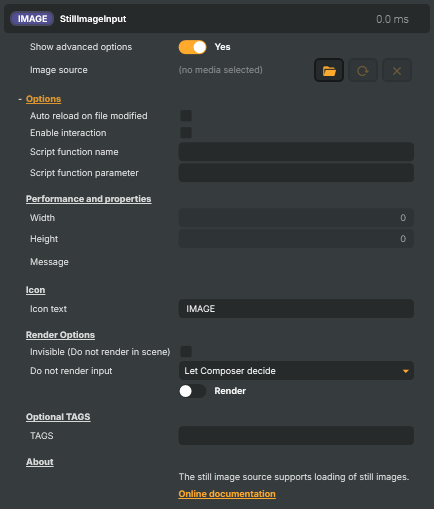
Loads a single still image (PNG, JPEG, BMP, etc.) and presents it as a video source. Supports auto-reloading when the file is changed on disk and can act as a clickable element when the project is running in Interactive Mode, calling a Script Engine function on click.
Still image input - Settings

| Property | Description |
|---|---|
Show advanced options |
Show or hide the input's advanced settings in the editor UI. [default=false]. |
Image source |
Path or URL to the image file to display. Accepts a local file path or a remote URL pointing at any common image format (PNG, JPEG, BMP, GIF, TIFF, etc.). Clearing this leaves the input blank. Set this from a script to swap the displayed image at runtime. |
Options
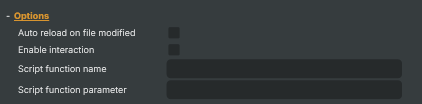
Options — auto-reload on file change and click-to-script interaction.
| Property | Description |
|---|---|
Auto reload on file modified |
Whether the image is automatically reloaded when the source file changes on disk. [default=false]. When true, the input checks the file roughly every 5 seconds and refreshes the picture if it has been modified. Useful when the image is being edited live in another tool, or when the file is updated by an external process — for example a scoreboard graphic that's re-saved on every change. |
Enable interaction |
Whether the image becomes a clickable element. [default=false]. When enabled, and the project is running in Interactive Mode, clicking the image fires the Script Engine function named in OnClickFunction, optionally with ScriptParameter. Disable for a normal, non-interactive image. |
Script function name |
Name of the Script Engine function to call when the image is clicked. Only used when IsInteractive is true. Set this to the exact name of a function defined in your Script Engine project. Leave blank to skip the callback. |
Script function parameter |
Optional value passed to the click-handler function as an argument. Only used when IsInteractive is true and OnClickFunction is set. Useful for reusing the same handler across several still-image inputs and telling them apart by parameter (for example, the name of the button that was clicked). |
Performance and properties
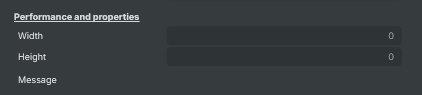
Performance and properties — image dimensions and the most recent status message.
| Property | Description |
|---|---|
Width |
Width of the loaded image, in pixels (read-only). |
Height |
Height of the loaded image, in pixels (read-only). |
Message |
Most recent status, info, or error message from the input (read-only). The input writes here when an image loads, when auto-reload picks up a change, or when the file can't be found. Read this from a script to surface the latest event. |
Inherits from: AbstractInput, AbstractAudioProcessing, AbstractAudioMetering.
See also: Still image input in Script Engine Objects.
Shared input properties
Every input — regardless of source type — exposes the following property groups. They are surfaced in the property panel only when Show advanced options is enabled on the input.
Icon
Icon text— short text shown on the input's icon in the Inputs list. Useful as a quick visual label (channel number, mic name, camera position) to tell otherwise-similar inputs apart at a glance. Empty by default; has no effect on rendering or routing.
Audio mixer
Hide in audio mixer— when on, hides the input from the audio mixer view without disabling its audio. Useful for de-cluttering the mixer while keeping the audio routed (e.g. fixed background music, ambient beds, pre-aligned playout). [default=false]
Render Options
Invisible (Do not render in scene)— when on, the input is skipped during rendering and produces no picture on any layer or scene. Audio routing is unaffected. Toggle from a script for cued-in / cued-out behaviour during a show. [default=false]Do not render input— disables the input's internal render entirely (no decode or capture work is done). Stronger than Invisible: that one renders but doesn't display; this one stops the input from doing any work at all. Useful for reducing CPU / network load on heavy sources (e.g. high-bitrate RTMP / SRT streams, large media files) when the input is temporarily not needed. Audio meters are cleared while disabled. [default=false]Do not render inputcontroller — chooses what drives the Do not render input flag.Let Composer decide(the default) hands control to the project-level Render Tuning optimiser, which automatically pauses inputs that aren't used by any active scene.Manual Configurationignores Render Tuning and lets the Do not render input toggle control the flag directly — use this to keep a network source warm even when it's currently off-air, or to take a heavy input down by hand regardless of scene activity. [default=Let Composer decide]
Optional TAGS
TAGS— one or more free-form tag words used to classify this input (typically space- or comma-separated). Picked up by Composer's Smart Search to filter or find inputs by category — e.g.camera,music,interview,sponsor. Has no effect on rendering.