

Seamless audio file input
Introduction
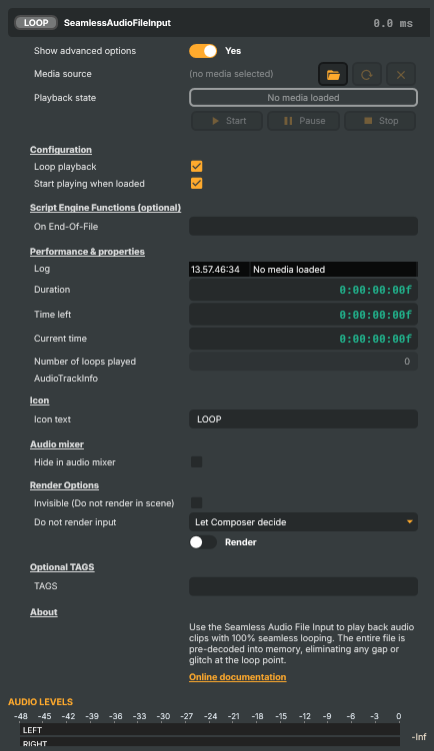
The Seamless audio file input plays an audio file as a live audio source with completely gapless, click-free looping. The entire file is pre-decoded into memory when it loads; on every loop the input simply rewinds the read pointer through that decoded buffer, so there is no re-parse, no codec startup latency, and no audible seam where the file wraps. For a music bed, ambient loop, or short cue that has to repeat without any glitch, this is the right tool.
Supported formats are WAV, MP3, FLAC, OGG, and OPUS — the same set the regular Audio file input accepts, decoded once at load and held in memory for the lifetime of the project.
Composer only supports a 48 kHz audio sample rate; files at any other sample rate will be rejected.
When to use this vs the Audio file input
The seamless input trades memory for loop quality:
- Memory cost — roughly 1.5 MB per second of audio (a 5-minute clip occupies around 440 MB of RAM). The buffer lives for as long as the source URL stays the same; clearing or swapping the URL releases it.
- Best for short-to-medium clips — beds and stings up to a few minutes. For a 30-second jingle the cost is trivial; for a 30-minute background track it adds up fast.
- For long files, prefer the regular Audio file input — it streams audio off disk continuously, so memory stays bounded regardless of duration. The trade-off is a small audible gap at the loop point.
- Initial load is heavier — the file is fully decoded into memory before playback can start. The
Load & decode timedebug property surfaces how long this took, so a project loading a large clip can be inspected for excessive startup delay.
If you don't need a perfect loop point, use the regular Audio file input. If you do, this is what to reach for.
Common use cases
- Music beds and ambient loops — programme music or background ambience that has to play continuously without an audible click at the wrap-around.
- Stings and idents — short branded cues fired from a hotkey or script, looped during a hold-frame, or cycled while a graphic is on screen.
- Hold music / waiting-state audio — pre-show or interstitial loops that run silently across an entire production until they're cut away from.
- Game-style ambience — environmental loops (rain, room tone, machinery) where a perfect loop is the difference between immersive and obviously-tiled audio.
- Reference / calibration tones — short measurement signals (sine sweeps, pink noise) that need to repeat accurately for sustained metering or operator monitoring.
- Loopable musical phrases — production music shipped with explicit loop points; this input preserves those points exactly.
How the loop is detected
LoopPlayback defaults to true — the input loops indefinitely, incrementing LoopsPlayed each time the buffer wraps. Set LoopPlayback to false to play the file once and stop at the end; the PlayBackEndOfFileCallback fires either way (on every wrap when looping, or once at the end when not), so a Script Engine function can react to the boundary — chain into the next clip, log the event, or cycle a counter.
Unlike the regular Audio file input, stop / play is instant — the decoded buffer stays resident, so a StopCommand followed by a PlayCommand resumes from frame 0 immediately with no re-decode delay. The buffer is only freed when the input is disposed or the source URL is cleared.
Seamless audio file input - Settings
Properties marked (
Components) or (AudioMixer) broadcast a livePropertyChangedevent to clients subscribed to that WebSocket channel.
| Property | Description |
|---|---|
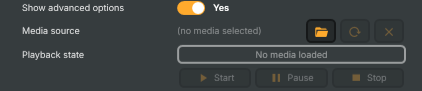
Show advanced options |
Show or hide the input's advanced settings in the editor UI. [default=false]. |
Media source |
Path or URL to the audio file to play. Accepts a local file path or a remote URL pointing at a supported audio format (WAV, MP3, FLAC, OGG, OPUS). Changing this triggers an automatic reload on the next render — the new file is fully decoded into memory before playback begins. Clear the value to stop playback and release the buffer. |
Playback state (Components) |
Current playback state of the input (read-only). Reflects whether the file is NoMedia (nothing loaded), Parsing (decoding into memory), Playing, Paused, Stopped, or in an error state. Driven indirectly by PlayCommand, PauseCommand, StopCommand, and by AutoPlay at load time. |
Start |
Start playing the loaded audio file. |
Pause |
Pause playback at the current position. |
Stop |
Stop playback and rewind to the beginning. |
Configuration
Configuration — looping and load-time auto-play.

| Property | Description |
|---|---|
Loop playback |
Whether the file restarts seamlessly when it reaches the end. [default=true]. When true, the file plays in a continuous, gapless loop — the main reason to use this input. When false, playback stops at the end and the end-of-file callback (if set) is invoked. |
Start playing when loaded |
Whether the file starts playing as soon as the project loads. [default=true]. When true, playback begins automatically once the source has been decoded into memory. Disable to require an explicit PlayCommand, useful when audio should only start on operator action or via a script trigger. |
Script Engine Functions (optional)
Script Engine Functions (optional) — names of script functions called on input events.

| Property | Description |
|---|---|
On End-Of-File |
(advanced) Name of a script function to call when the file reaches the end. Lets you react to end-of-file from a Script Engine script — for example to chain into the next clip, fire a transition, or log the event. Leave blank to skip the callback. Has no effect when LoopPlayback is true (the file never reaches a true end-of-file in that case). |
Performance & properties
Performance & properties — runtime stats and metadata about the loaded audio.
| Property | Description |
|---|---|
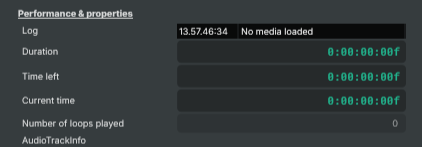
Log |
Recent log lines from the input — load, decode, state changes, and errors (read-only). A short history of the most recent events, useful for diagnosing why a file failed to load or why playback stopped. |
Duration |
Total length of the loaded audio file, as a time code (read-only). Available once the file has finished decoding into memory. |
Time left |
Time remaining until the playhead reaches the end of the file, as a time code (read-only). Counts down toward zero during playback; resets on every loop. Useful for showing a "time remaining" readout or for triggering events shortly before the loop point. |
Current time |
(advanced) Current playhead position, as a time code (read-only). Updates continuously while the file is playing. Useful from a script to display the playhead, drive other components, or detect when a particular moment in the audio has been reached. |
Number of loops played |
(advanced) How many times the file has looped since playback started (read-only). Only increments when LoopPlayback is true and the file wraps from end back to start. Useful from a script to limit the number of loops or to schedule events on every Nth repeat. |
AudioTrackInfo |
(advanced) Metadata about the loaded audio track (read-only). A dictionary with technical details about the audio — codec, sample rate, channel count, bit rate, duration, and so on. Available once the file has finished loading. |
Inherits from: AbstractInput, AbstractAudioProcessing, AbstractAudioMetering.
See also: Seamless audio file input in Script Engine Objects.
Shared input properties
Every input — regardless of source type — exposes the following property groups. They are surfaced in the property panel only when Show advanced options is enabled on the input.
Icon
Icon text— short text shown on the input's icon in the Inputs list. Useful as a quick visual label (channel number, mic name, camera position) to tell otherwise-similar inputs apart at a glance. Empty by default; has no effect on rendering or routing.
Audio mixer
Hide in audio mixer— when on, hides the input from the audio mixer view without disabling its audio. Useful for de-cluttering the mixer while keeping the audio routed (e.g. fixed background music, ambient beds, pre-aligned playout). [default=false]
Render Options
Invisible (Do not render in scene)— when on, the input is skipped during rendering and produces no picture on any layer or scene. Audio routing is unaffected. Toggle from a script for cued-in / cued-out behaviour during a show. [default=false]Do not render input— disables the input's internal render entirely (no decode or capture work is done). Stronger than Invisible: that one renders but doesn't display; this one stops the input from doing any work at all. Useful for reducing CPU / network load on heavy sources (e.g. high-bitrate RTMP / SRT streams, large media files) when the input is temporarily not needed. Audio meters are cleared while disabled. [default=false]Do not render inputcontroller — chooses what drives the Do not render input flag.Let Composer decide(the default) hands control to the project-level Render Tuning optimiser, which automatically pauses inputs that aren't used by any active scene.Manual Configurationignores Render Tuning and lets the Do not render input toggle control the flag directly — use this to keep a network source warm even when it's currently off-air, or to take a heavy input down by hand regardless of scene activity. [default=Let Composer decide]
Optional TAGS
TAGS— one or more free-form tag words used to classify this input (typically space- or comma-separated). Picked up by Composer's Smart Search to filter or find inputs by category — e.g.camera,music,interview,sponsor. Has no effect on rendering.
Audio configuration and processing options
For inputs capable of processing audio, additional audio configuration and processing options are available through the audio mixer and the Channel Strip Inspector.
- Audio mixer — monitor levels, adjust gain and pan, mute / solo inputs, and configure auxiliary sends to
Audio Channel Stripsubmix buses, all from a centralised mixer-style interface. - Channel Strip Inspector — advanced per-strip audio processing for the selected input:
- Input trim, stereo remapping, and audio delay
- Channel mapping (8-channel mode unlocks the full MAPPING tab)
- Gate
- Low-cut filter
- Equaliser (5-band parametric)
- Compressor
- Sidechain ducking (a second compressor whose gain reduction is driven by another input's level — e.g. dipping music under a voice-over)
- Limiter
For the full audio signal flow, see Audio processing workflow.
Related components
- Audio file input — same family, streams audio off disk rather than pre-decoding. Use it for long clips where memory cost matters more than loop perfection.
- Video File Input — for files that carry video alongside audio. Audio loops there are not gapless — the codec re-keyframes at the loop point.
- Cav file input — Composer's frame-accurate playback container; reach for it when video clips need exact loop / cue / seek timing the standard parsers don't guarantee.
- Oscillator — synthesised audio (sine / square / saw / noise) when you need a generated reference signal rather than a recorded file.