

Cav file input
Introduction
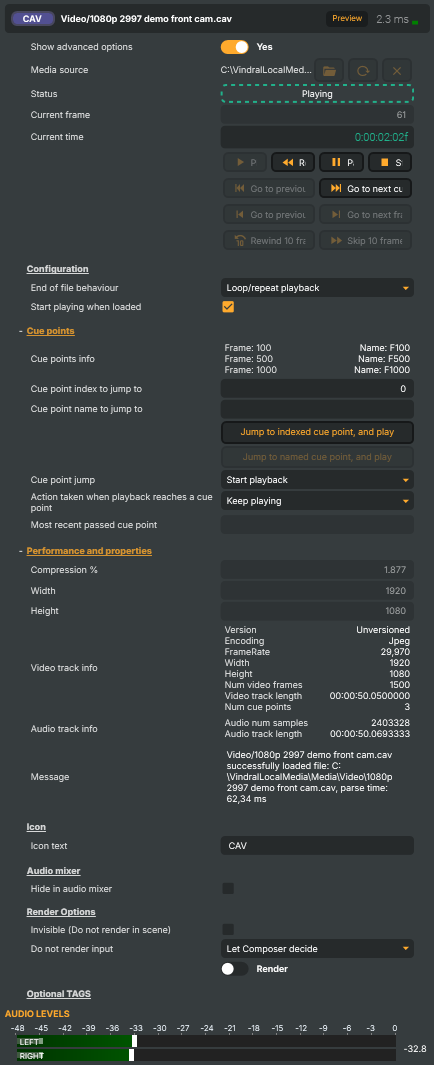
The Cav file input plays a Composer-native .cav file as a video and audio source. CAV (Composer Animated Video) is RealSprint's own container, designed for frame-accurate, scrub-friendly playback with cue points and an alpha channel — the things conventional H.264 / HEVC don't do well.
If you need looping background plates, animated overlays, motion-graphics interstitials with transparent areas, or any clip where you'll be jumping to specific frames or named cue points from a script, CAV is the format. For straight pre-recorded video without alpha, the Video File Input playing an MP4 is the simpler choice.
What is a .cav file?
CAV is an all-keyframe container — each frame is encoded independently of every other frame (typically as JPEG, optionally with alpha), wrapped in Composer's own header that carries audio, an embedded cue-point table, and per-frame timing. The all-keyframe design is what gives CAV its useful properties:
- Frame-accurate seek and scrub — jump directly to any frame number with no decode-buffer dependency on neighbouring frames. Stepping a frame at a time, jumping to a named cue, or looping a sub-range all happen instantly.
- Per-frame alpha channel — CAV is the right (and currently only) format Composer ships for animated overlays with transparency. Lower-thirds, animated logos, branded transitions, frame-perfect mattes — anything where you'd otherwise have to fall back to a frame-sequence on disk. Use the
alphaparameter when transcoding to retain the source's alpha channel. - Embedded cue points — named markers stored inside the file. Read out via
CuePointJson, jumped-to viaJumpToCuePointByName/JumpToCuePointByIndex, or addressed by index from a script. Handy for synchronising graphics to specific moments without hard-coding frame numbers. - Predictable per-frame cost — every frame decodes in roughly the same time. Useful when a project's frame budget is tight and you can't afford the variable cost of a long GOP.
The trade-off is size and decode CPU load. Because every frame is a keyframe, a CAV file is several times larger than the equivalent H.264 MP4, and software JPEG decode for a 1080p file at 60 fps eats more CPU than NVDEC-accelerated H.264. Reach for CAV when you need its capabilities — frame-accurate cueing, alpha — and use Video File Input with H.264 for the cases where you don't.
For the conversion workflow — turning a source MP4 / MOV / image sequence into a .cav file with optional cue points — see the Creating a .cav file section at the bottom of this page.
What you can control on the input
- Media source — path or URL to the
.cavfile. Locked while playback is running; stop the input before changing it. - Playback commands — Play, Pause, Stop, Rewind, Step Frame Backward / Forward, Skip 10 Frames, Jump To Cue Point By Index / By Name, Previous / Next Cue Point.
- Cue-point readout —
CuePointJsonexposes the embedded cue-point table to scripts;FrameIsCuePointreports whether the current frame is itself a cue point;PassedCuePointfires as each cue point is passed in playback. - End-of-file behaviour — stop, loop, hold last frame, or fire a script callback. Same options as the Video File Input.
- Position read-outs — current frame number, current time-code, time remaining; updated every render tick.
For per-property reference and the full command set, see the auto-generated table below.
Cav file input - Settings
Properties marked (
Components) or (AudioMixer) broadcast a livePropertyChangedevent to clients subscribed to that WebSocket channel.
| Property | Description |
|---|---|
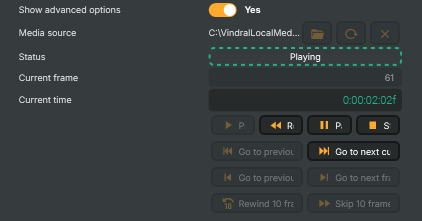
Show advanced options |
Show or hide the input's advanced settings in the editor UI. [default=false]. |
Media source |
Path or URL to the CAV file to play. Accepts a local file path or a remote URL pointing at a Vindral CAV file. Clearing this stops playback. While playback is running, this property is locked — stop the input before changing the source. |
Status (Components) |
Current playback state of the input (read-only). Reflects whether the file is NoMedia (nothing loaded), Playing, Paused, Stopped, or in an error state. Driven indirectly by PlayCommand, PauseCommand, StopCommand, and AutoPlay at load time. |
Current frame |
Current playhead position, as a frame number (read-only). Counts from 0 at the start of the file. Useful from a script for frame-accurate timing or to detect when a specific frame has been reached. |
Current time |
Current playhead position, as a time code in hours:minutes:seconds:frames (read-only). Updates continuously while the file is playing. Useful for displaying the playhead in a UI or for triggering events at specific points in the file. |
Play |
Start playing the loaded CAV file. |
Rewind |
Jump back to the start of the file. |
Pause |
Pause playback at the current frame. |
Stop |
Stop playback and rewind to the beginning. |
Go to previous cue point |
(advanced) Jump to the cue point before the most recently passed one. Note: this skips backwards past the cue point you just played through, not back to it. |
Go to next cue point |
(advanced) Jump to the next cue point in the file. |
Go to previous frame |
Step one frame backward. Playback must be paused. |
Go to next frame |
Step one frame forward. Playback must be paused. |
Rewind 10 frames |
(advanced) Jump 10 frames backward. |
Skip 10 frames |
(advanced) Jump 10 frames forward. |
Configuration
Configuration — end-of-file behaviour and load-time auto-play.

| Property | Description |
|---|---|
End of file behaviour |
What to do when playback reaches the end of the file. Choose between stopping, looping back to the start, holding on the last frame, or other supported end-of-file actions. Pick the option that matches how the clip should behave in the production — looping for backgrounds, stopping for cued playouts, etc. |
Start playing when loaded |
Whether the file starts playing as soon as the project loads. [default=true]. When true, playback begins automatically once the source is ready. Disable to require an explicit PlayCommand, useful when playback should only start on operator action or via a script trigger. |
Cue points
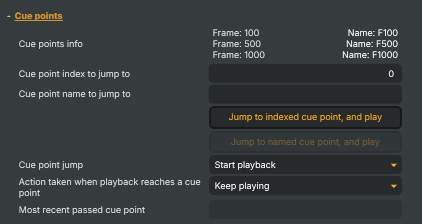
Cue points — jump to named or numbered anchor points in the file, and react when the playhead crosses one.
| Property | Description |
|---|---|
Cue points info |
(advanced) Information about all cue points found in the loaded CAV file (read-only). A dictionary listing each cue point's name and frame position. Use this from a script to discover what's available in the file before jumping to a particular point. |
Cue point index to jump to |
(advanced) Index of the cue point to jump to when JumpToIndexedCuePointCommand runs. [min=0]. Cue points are numbered from 0 in the order they appear in the file. See CuePointsTrackInfo to discover which indexes are available. |
Cue point name to jump to |
(advanced) Name of the cue point to jump to when JumpToNamedCuePointCommand runs. Set to the exact name of a cue point as defined in the CAV file. The name-based jump command is only enabled when this matches a cue point that actually exists in the file. |
Jump to indexed cue point, and play |
(advanced) Jump to the cue point with the index in JumpToCuePointIndex. |
Jump to named cue point, and play |
(advanced) Jump to the cue point with the name in JumpToCuePointName. |
Cue point jump |
(advanced) Whether the file plays or pauses after a jump to a cue point. Controls what happens immediately after JumpToIndexedCuePointCommand, JumpToNamedCuePointCommand, NextCuePointCommand, or PreviousCuePointCommand runs — for example "start playing from there" vs. "land on the cue point and stay paused". |
Action taken when playback reaches a cue point |
(advanced) What happens automatically when playback reaches a cue point. Choose between continuing through the cue point, pausing on it, or looping back to the previous cue point. Useful for building interactive playback flows where the file pauses at known anchor points and only resumes on operator action. |
Most recent passed cue point |
(advanced) The cue point that playback most recently passed (read-only). Updated each time the playhead crosses a cue point. Read this from a script to know where in the file you are in cue-point terms — for example to drive UI labels or trigger follow-up actions. |
Performance and properties
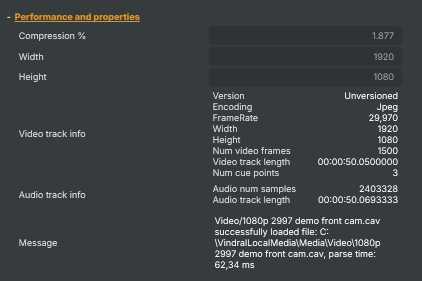
Performance and properties — file dimensions, metadata, and runtime stats.
| Property | Description |
|---|---|
Compression % |
Size of the most recently decoded frame compared to a fully uncompressed picture (read-only). Expressed as a percentage — lower is better-compressed. A handy at-a-glance indicator of how efficiently the file is encoded for the picture content currently on screen. |
Width |
Width of the video in the loaded CAV file, in pixels (read-only). |
Height |
Height of the video in the loaded CAV file, in pixels (read-only). |
Video track info |
Metadata about the video track in the loaded CAV file (read-only). A dictionary with technical details about the video — resolution, frame rate, codec, duration, and so on. Available once the file has finished loading. |
Audio track info |
Metadata about the audio track in the loaded CAV file (read-only). A dictionary with technical details about the audio — codec, sample rate, channel count, bit rate, and so on. Available once the file has finished loading. |
Message |
Most recent status, info, or error message from the input (read-only). The input writes here when the source loads, when playback starts/stops, when a cue point is reached, or when something goes wrong. Read this from a script to surface the latest event. |
Inherits from: AbstractInput, AbstractAudioProcessing, AbstractAudioMetering.
See also: Cav file input in Script Engine Objects.
Shared input properties
Every input — regardless of source type — exposes the following property groups. They are surfaced in the property panel only when Show advanced options is enabled on the input.
Icon
Icon text— short text shown on the input's icon in the Inputs list. Useful as a quick visual label (channel number, mic name, camera position) to tell otherwise-similar inputs apart at a glance. Empty by default; has no effect on rendering or routing.
Audio mixer
Hide in audio mixer— when on, hides the input from the audio mixer view without disabling its audio. Useful for de-cluttering the mixer while keeping the audio routed (e.g. fixed background music, ambient beds, pre-aligned playout). [default=false]
Render Options
Invisible (Do not render in scene)— when on, the input is skipped during rendering and produces no picture on any layer or scene. Audio routing is unaffected. Toggle from a script for cued-in / cued-out behaviour during a show. [default=false]Do not render input— disables the input's internal render entirely (no decode or capture work is done). Stronger than Invisible: that one renders but doesn't display; this one stops the input from doing any work at all. Useful for reducing CPU / network load on heavy sources (e.g. high-bitrate RTMP / SRT streams, large media files) when the input is temporarily not needed. Audio meters are cleared while disabled. [default=false]Do not render inputcontroller — chooses what drives the Do not render input flag.Let Composer decide(the default) hands control to the project-level Render Tuning optimiser, which automatically pauses inputs that aren't used by any active scene.Manual Configurationignores Render Tuning and lets the Do not render input toggle control the flag directly — use this to keep a network source warm even when it's currently off-air, or to take a heavy input down by hand regardless of scene activity. [default=Let Composer decide]
Optional TAGS
TAGS— one or more free-form tag words used to classify this input (typically space- or comma-separated). Picked up by Composer's Smart Search to filter or find inputs by category — e.g.camera,music,interview,sponsor. Has no effect on rendering.
Audio configuration and processing options
For inputs capable of processing audio, additional audio configuration and processing options are available through the audio mixer and the Channel Strip Inspector.
- Audio mixer — monitor levels, adjust gain and pan, mute / solo inputs, and configure auxiliary sends to
Audio Channel Stripsubmix buses, all from a centralised mixer-style interface. - Channel Strip Inspector — advanced per-strip audio processing for the selected input:
- Input trim, stereo remapping, and audio delay
- Channel mapping (8-channel mode unlocks the full MAPPING tab)
- Gate
- Low-cut filter
- Equaliser (5-band parametric)
- Compressor
- Sidechain ducking (a second compressor whose gain reduction is driven by another input's level — e.g. dipping music under a voice-over)
- Limiter
For the full audio signal flow, see Audio processing workflow.
Creating a .cav file
Composer ships a CLI converter, ComposerCAVCommandLineTool, that transcodes any FFmpeg-readable source into a CAV file. It lives at Utilities/ComposerCAVCommandLineTool/ in the source tree and is built and shipped alongside the Runtime / Desktop binaries.
Basic conversion
ComposerCAVCommandLineTool --source input.mov --target output.cav
Defaults: JPEG-compressed video at quality 80, audio passed through if the container has it, no cue points.
Quality control
ComposerCAVCommandLineTool --source input.mov --target output.cav --quality 90
--quality |
Effect |
|---|---|
60 |
Smaller files; visible JPEG artefacts on detailed footage. |
80 (default) |
Practical balance for typical broadcast content. |
90–95 |
Near-visually-lossless; recommended for graphics with hard edges or fine detail. |
100 |
Largest files; minimum compression. |
Higher quality means proportionally larger files — a 1080p clip at quality 95 can be 2–3× the size of the same clip at 80. Pick based on the content: photographic / live-action footage tolerates lower numbers cleanly; line-art graphics, screenshots, and mattes need higher.
Adding cue points
Cue points are supplied via an external JSON file at conversion time:
ComposerCAVCommandLineTool --source input.mov --target output.cav --cuepointfile cues.json
cues.json is a list of { frame, name } objects following the standard Vindral cue-point format. Once embedded, scripts and the Cav file input's command set can address cue points by name or index without parsing the source separately.
Source format requirements
Any container FFmpeg can demux works as input — MP4, MOV, MKV, MXF, image sequences, ProRes, etc. To preserve a per-frame alpha channel, the source must already carry one (e.g. ProRes 4444 in MOV, PNG sequences, alpha-bearing MKV); the CLI then transcodes each frame as JPEG with alpha so the output .cav retains the channel.
If the source is a frame sequence on disk (e.g. frames-%04d.png), point --source at the FFmpeg-style sequence path. FFmpeg's image-sequence demuxer handles the rest.