

Oscillator
Introduction
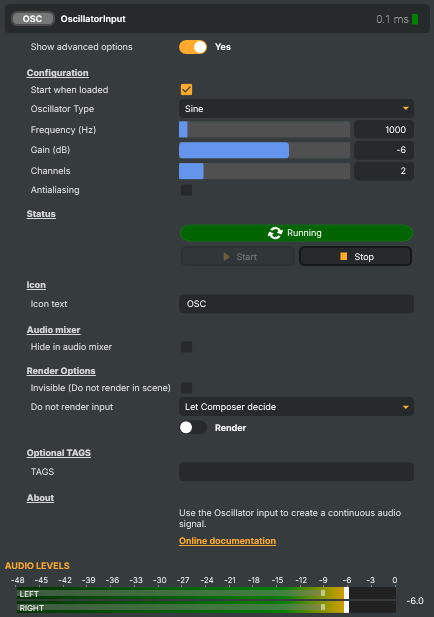
The Oscillator input is an audio signal generator. It produces a continuous test tone — sine, square, triangle, sawtooth, or white noise — at a configurable pitch, level, and channel count. It's the audio counterpart of Test Signal Generator: a known-good source you can drop on a layer to verify the audio chain is working, calibrate levels, line up the mixer, or fill the audio bus while the rest of the project is being built.
Common use cases
- Level calibration — feed a 1 kHz sine at −18 dBFS through the project and verify each downstream meter, target, and physical output reads the expected level. Standard reference for broadcast audio alignment.
- Mix-bus rehearsal — exercise the audio mixer, channel strip processing, and target encoders during project authoring without needing live audio in the studio. Swap the Oscillator for the real source on show day.
- System test — quickly confirm an SRT / RTMP / NDI / Decklink target is actually carrying audio (not just video) by sending a recognisable tone through it.
- Subwoofer / room sweeps — set the waveform to sine and slowly sweep frequency to find room nulls, speaker breakup points, or the cutoff of a downstream EQ.
- Audio-bus placeholder — drop the Oscillator on a scene during rehearsal so audio operators can train against it before the live source is available.
- White noise for masking and testing — set the type to white noise to drive system noise-floor measurements, ducking-operator rehearsals, or audio-routing fault-finding.
The Oscillator is video-less — it has no rendered output for scenes, only an audio bus. Place it on a layer in any scene whose audio you want it to drive. To drive Start / Stop from a script, use ExecuteCommand / ExecuteCommandById against the named commands; the dedicated StartMediaPlayBack / StopMediaPlayBack helpers don't apply because the Oscillator isn't a media-file input.
Oscillator - Settings

| Property | Description |
|---|---|
Show advanced options |
Show or hide the input's advanced settings in the editor UI. [default=false]. |
Configuration
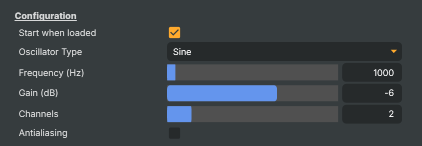
Configuration — pick the waveform and set its frequency, level, and channels.
| Property | Description |
|---|---|
Start when loaded |
Whether the oscillator starts producing audio as soon as the project loads. [default=true]. When true, the input begins playing immediately on load (equivalent to running StartCommand). Disable to require an explicit start, useful when the tone should only begin on operator action or via a script trigger. |
Oscillator Type |
Which waveform to generate. [default=Sine]. Sine is a clean, pure tone — the standard reference signal. Square and Sawtooth have a brighter, buzzier character with rich harmonic content. Triangle sits between sine and square — softer than square but with a touch more bite than sine. WhiteNoise outputs random noise across all frequencies and is useful for system tuning or masking. |
Frequency (Hz) |
Pitch of the tone, in Hz. [min=20, max=20000, default=1000]. 1000 Hz is the standard EBU/SMPTE reference tone used for level alignment. 440 Hz is musical A4 (the tuning pitch). The full range covers the audible band — 20 Hz is the lowest, 20 000 Hz the highest. Ignored when OscillatorType is WhiteNoise, which has no fixed pitch. |
Gain (dB) |
Output level of the tone, in decibels. [min=-60, max=24, default=-6]. 0 dB is full level. Negative values lower the volume; positive values boost it. −20 dB is the common EBU/SMPTE alignment level, and −6 dB leaves comfortable headroom against clipping. Be careful with positive values — anything above 0 dB risks distortion in downstream stages. |
Channels |
(advanced) How many audio channels to produce. [min=1, max=8, default=2]. 1 is mono, 2 is stereo, and higher values are useful for surround or multi-language productions. The same tone is sent to every channel, so this mainly controls how many channels show up downstream — set this to match the channel count expected by the rest of the audio chain. |
Antialiasing |
(advanced) Smooth out unwanted high-frequency noise on the generated tone. [default=false]. Square, Triangle, and Sawtooth waves can produce a slightly harsh, buzzy "stair-step" sound at high frequencies. Enabling this option cleans that up for a more natural result. No audible effect on Sine or WhiteNoise. Costs slightly more processing time. |
Status |
|
PlaybackState |
Current playback state of the oscillator (read-only). Reflects whether the input is Stopped or Running. Driven by StartCommand / StopCommand (or AutoStart at load time). Read this from a script to decide whether the tone is live; the value also drives the running indicator and the enabled state of the Start/Stop buttons. |
Start |
Start generating the tone. |
Stop |
Stop generating the tone. |
Inherits from: AbstractInput, AbstractAudioProcessing, AbstractAudioMetering.
See also: Oscillator in Script Engine Objects.
Shared input properties
Every input — regardless of source type — exposes the following property groups. They are surfaced in the property panel only when Show advanced options is enabled on the input.
Icon
Icon text— short text shown on the input's icon in the Inputs list. Useful as a quick visual label (channel number, mic name, camera position) to tell otherwise-similar inputs apart at a glance. Empty by default; has no effect on rendering or routing.
Audio mixer
Hide in audio mixer— when on, hides the input from the audio mixer view without disabling its audio. Useful for de-cluttering the mixer while keeping the audio routed (e.g. fixed background music, ambient beds, pre-aligned playout). [default=false]
Render Options
Invisible (Do not render in scene)— when on, the input is skipped during rendering and produces no picture on any layer or scene. Audio routing is unaffected. Toggle from a script for cued-in / cued-out behaviour during a show. [default=false]Do not render input— disables the input's internal render entirely (no decode or capture work is done). Stronger than Invisible: that one renders but doesn't display; this one stops the input from doing any work at all. Useful for reducing CPU / network load on heavy sources (e.g. high-bitrate RTMP / SRT streams, large media files) when the input is temporarily not needed. Audio meters are cleared while disabled. [default=false]Do not render inputcontroller — chooses what drives the Do not render input flag.Let Composer decide(the default) hands control to the project-level Render Tuning optimiser, which automatically pauses inputs that aren't used by any active scene.Manual Configurationignores Render Tuning and lets the Do not render input toggle control the flag directly — use this to keep a network source warm even when it's currently off-air, or to take a heavy input down by hand regardless of scene activity. [default=Let Composer decide]
Optional TAGS
TAGS— one or more free-form tag words used to classify this input (typically space- or comma-separated). Picked up by Composer's Smart Search to filter or find inputs by category — e.g.camera,music,interview,sponsor. Has no effect on rendering.
Audio configuration and processing options
For inputs capable of processing audio, additional audio configuration and processing options are available through the audio mixer and the Channel Strip Inspector.
- Audio mixer — monitor levels, adjust gain and pan, mute / solo inputs, and configure auxiliary sends to
Audio Channel Stripsubmix buses, all from a centralised mixer-style interface. - Channel Strip Inspector — advanced per-strip audio processing for the selected input:
- Input trim, stereo remapping, and audio delay
- Channel mapping (8-channel mode unlocks the full MAPPING tab)
- Gate
- Low-cut filter
- Equaliser (5-band parametric)
- Compressor
- Sidechain ducking (a second compressor whose gain reduction is driven by another input's level — e.g. dipping music under a voice-over)
- Limiter
For the full audio signal flow, see Audio processing workflow.