

Batch Processor
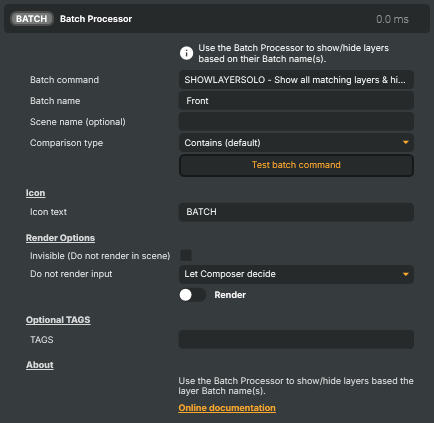
Introduction
The Batch Processor is a virtual input that shows, hides, or solos groups of layers in one shot — driven by the Batch tag set on each layer rather than the layer's name. Tag every layer that belongs to a particular graphics package with the same Batch name, and the Batch Processor can flip the whole group on or off without you wiring up per-layer triggers.
It's the lightest way to build "switch between graphics packages" workflows: lower-third sets, sponsor reels, scoreboard variants, intermission packages — anything where the on-air state is "package A is up; everything else is down."
Common use cases
- Camera switching — give every camera-input layer its own Batch tag (
Cam1,Cam2,Wide,Closeup, …). A singleSHOWLAYERSOLOswaps the live camera without touching any of the graphics overlay layers above it. - Chroma-key setups — group the talent layer, the background plate, the garbage matte, and any related overlays under one Batch tag (e.g.
KeyerSet-Studio); one batch command brings the whole keyer environment on screen, another swaps to a different set (KeyerSet-Outdoor). - Lower-thirds rotations — every lower-third layer tagged
Lower3rd-Talent,Lower3rd-Stats, etc.; one batch command swaps the visible set. - Sponsor / partner logo packages — different sponsor sets per segment, each tagged with a Batch name; one trigger brings the right pack on screen.
- Inserts you flip between by category — results, scoreboards, schedules, brackets — group each category and call
SHOWLAYERSOLOon the one you want. - End-of-segment cleanup —
HIDELAYERagainst a broad Batch tag (e.g.Lower3rd) to clear every overlay at once. - Stream Deck / hotkey driven shows — one button per Batch group, no per-layer plumbing.
How a batch operation works
Every layer can carry a Batch tag (set on the layer's properties). The Batch Processor matches its BatchName against those tags using BatchComparisonType, optionally restricted to SceneName, then runs BatchCommand on every match:
SHOWLAYER— make matching layers visible without touching anything else.HIDELAYER— hide matching layers.SHOWLAYERSOLO— show matching layers and hide every other tagged layer in the affected scene(s). The "switch group" verb.
SceneName is optional — leave it blank to apply across every scene. BatchComparisonType controls how strictly BatchName is matched (Contains is the forgiving default; Equals is exact). See the property table below for the full set of options and their defaults.
Triggering a batch from outside the input
In addition to clicking Test batch command in the property panel or driving ExecuteBatchCommand from a Connector, two paths reach the Batch Processor from outside Composer Desktop.
HTTP API
GET /api/batch/{command}?batch={name}&scene={scene}&comparison={rule}
| Parameter | Position | Values | Notes |
|---|---|---|---|
{command} |
URL path | SHOWLAYER, HIDELAYER, SHOWLAYERSOLO (case-insensitive) |
Required. Maps to the BatchCommand enum. |
batch |
query | any string | Required. Matched against each layer's Batch tag. |
scene |
query | scene name | Optional. Empty / omitted = apply across every scene. |
comparison |
query | EQUALS, STARTSWITH, ENDSWITH (anything else falls back to Contains) |
Optional, case-insensitive. |
The endpoint is fire-and-forget: it returns 200 OK with New batch item registered immediately and the request lands in an internal queue that drains on the next render tick while the project is Running. See the HTTP API → Batch Operations page for the generic endpoint reference.
curl "http://localhost:44433/api/batch/showlayersolo?batch=Lower3rd&scene=Main&comparison=EQUALS"
Script Engine
The Script Engine exposes a single helper for batch commands — CallBatchCommand(command, batchName). It posts to the same /api/batch/ endpoint internally; for simplicity it doesn't expose scene or comparison, so calls from script always apply across every scene with the default Contains rule.
// Show every layer tagged "Sponsors", hide everything else in their scenes
CallBatchCommand("SHOWLAYERSOLO", "Sponsors");

// Hide every layer tagged with anything containing "Lower3rd"
CallBatchCommand("HIDELAYER", "Lower3rd");

// Round-robin through three lower-third packages on a 5-second timer
const groups = ["LowerA", "LowerB", "LowerC"];
let i = 0;
SetScriptEngineTimedCallback(() => {
    CallBatchCommand("SHOWLAYERSOLO", groups[i]);
    i = (i + 1) % groups.length;
}, 5000);
Need finer control — a specific scene or a stricter comparison rule? Drive the Batch Processor input itself from your script: set its BatchName / BatchCommand / SceneName / BatchComparisonType properties via SetPropertyById() (or SetProperty()), then invoke its ExecuteBatchCommand via ExecuteCommandById(). That route exposes every knob the property panel does.
Batch Processor - Settings
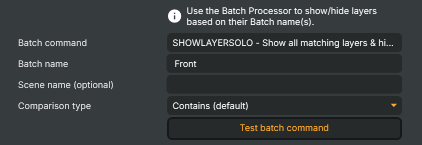
| Property | Description |
|---|---|
Batch command |
What to do with the layers that match BatchName. [default=SHOWLAYERSOLO]. SHOWLAYER makes matching layers visible without touching the others. HIDELAYER hides matching layers. SHOWLAYERSOLO shows the matching layers and hides every other layer in the affected scene(s) — handy for "switch to this group" style transitions. |
Batch name |
The Batch name to match against the layers in the project. When the command runs, every layer whose Batch tag matches this text is affected, using the rule chosen in BatchComparisonType (Contains, Equals, etc.). Set this from a script to switch which group of layers the next command will act on. |
Scene name (optional) |
Optional scene name to limit the command to a single scene. When set, only layers belonging to the named scene are considered. Leave blank to apply the command across every scene in the project. Useful when the same Batch names exist in multiple scenes and you only want to switch one of them. |
Comparison type |
How BatchName is matched against each layer's Batch tag. [default=Contains]. Contains matches when the layer's Batch tag contains the text (forgiving — good default). Equals requires an exact match. BeginsWith matches when the tag starts with the text. Pick a stricter rule to avoid accidentally affecting layers whose names happen to share a substring. |
ExecuteBatchCommand |
Run the configured batch command against the project. Invokable command. Applies the chosen BatchCommand to every layer whose Batch tag matches BatchName according to BatchComparisonType, restricted to SceneName if one is given. This is the action you'd typically trigger from a script or hotkey. |
Test batch command |
Try the batch command from the editor without wiring it up to a trigger. Invokable command. Runs the same command as ExecuteBatchCommand (via the local HTTP API) so you can verify the Batch name, comparison rule, and scene selection are correct before hooking the input into a live workflow. |
Inherits from: AbstractInput, AbstractAudioProcessing, AbstractAudioMetering.
See also: Batch Processor in Script Engine Objects.
Shared input properties
Every input — regardless of source type — exposes the following property groups. They are surfaced in the property panel only when Show advanced options is enabled on the input.
Icon
Icon text— short text shown on the input's icon in the Inputs list. Useful as a quick visual label (channel number, mic name, camera position) to tell otherwise-similar inputs apart at a glance. Empty by default; has no effect on rendering or routing.
Audio mixer
Hide in audio mixer— when on, hides the input from the audio mixer view without disabling its audio. Useful for de-cluttering the mixer while keeping the audio routed (e.g. fixed background music, ambient beds, pre-aligned playout). [default=false]
Render Options
Invisible (Do not render in scene)— when on, the input is skipped during rendering and produces no picture on any layer or scene. Audio routing is unaffected. Toggle from a script for cued-in / cued-out behaviour during a show. [default=false]Do not render input— disables the input's internal render entirely (no decode or capture work is done). Stronger than Invisible: that one renders but doesn't display; this one stops the input from doing any work at all. Useful for reducing CPU / network load on heavy sources (e.g. high-bitrate RTMP / SRT streams, large media files) when the input is temporarily not needed. Audio meters are cleared while disabled. [default=false]Do not render inputcontroller — chooses what drives the Do not render input flag.Let Composer decide(the default) hands control to the project-level Render Tuning optimiser, which automatically pauses inputs that aren't used by any active scene.Manual Configurationignores Render Tuning and lets the Do not render input toggle control the flag directly — use this to keep a network source warm even when it's currently off-air, or to take a heavy input down by hand regardless of scene activity. [default=Let Composer decide]
Optional TAGS
TAGS— one or more free-form tag words used to classify this input (typically space- or comma-separated). Picked up by Composer's Smart Search to filter or find inputs by category — e.g.camera,music,interview,sponsor. Has no effect on rendering.