

Replay Channel
Introduction
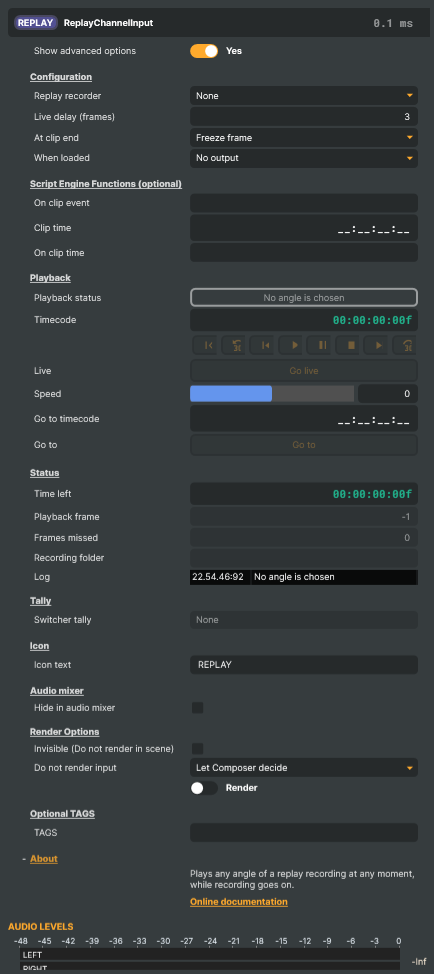
The Replay Channel plays back what the Replay Recorder Targets record, while they go on recording. Choose an angle, and the channel shows that camera's recording at any moment of the session: cue it to a timecode, step through it a frame at a time, roll it at half speed or backwards, and go back to live. Its picture is an input like any other, so it can be put in a scene, keyed, framed or switched to air.
Every Replay Recorder Target stamps a frame with the same time-of-day timecode as every other recorder composing that frame. So a moment found on one camera is the same moment on every other camera and on the program, and choosing another Replay recorder keeps the moment on screen: cue the goal on the wide shot, then look at it from the goal-line camera without searching for it again.
Choosing an angle
An angle is a Replay Recorder Target. Replay recorder lists the project's Replay Recorder Targets, and any recorder there are recordings of that is no longer in the project. The channel plays recordings in either of the recorder's file formats, MXF or MPEG-TS, and the angles of one session can be recorded in different formats: choosing another angle keeps the moment on screen just the same. The channel shows the newest recording of the recorder chosen, so when a new recording session starts, the channel follows it, except while a clip of an earlier session has taken it there (see Clips). Renaming the recorder keeps it chosen, recordings and all. Until a recorder is chosen, the playback buttons are disabled.
What the channel shows once the project is loaded is When loaded, one of the settings Show advanced options reveals. It applies from the first recording of the recorder chosen until the channel is first played, paused, stepped, cued, taken live or given a clip. No output, the default, shows no picture, and whichever of those comes first starts from the moment being recorded. Freeze frame pauses on the newest frame recorded then, and Live plays live. A project opened while Composer is running shows the same as when Composer starts with it: the channel waits for its recorder to record, and the recordings made before the project was opened are reached through clips.
Put the channel in a scene the recorder does not record. In the recorder's own scene, what the channel shows is recorded and shown again a few frames later: the picture feeds back on itself, freezes and grows blocky. The channel shows a warning when it finds itself in that scene, also inside a nested scene, and clears it when it is moved out.
Moving through a recording
Playback status sits above Timecode, with the transport buttons directly below them. The indicator animates green while playing or live, and reverses its animation direction during reverse playback; the status text keeps the playback speed visible. Paused playback and the start or end of a recording show solid amber. With no output, no angle or no recording available, the indicator is dim grey.
- Play plays forward at normal speed, and Speed shuttles from twice normal speed backwards to twice normal speed forwards, through half and quarter speed. A paused channel holds the frame on screen.
- Stop, beside Pause, ends the clip playing and shows no picture, so the channel is transparent in its scene, until it is next played, paused, stepped, cued or taken live. Playing, pausing or stepping goes on from the frame that was on screen when it stopped. While the channel shows no picture, after a stop or as At clip end or When loaded says, setting Speed does not start it: the channel stays as it is, and Play then plays at that speed, so a slow-motion replay can be set up before it is seen. Played or paused before the angle has recorded anything, the channel plays at that speed, or pauses, at live once recording starts.
- The buttons either side of Play, Pause and Stop step back and forward one recorded frame, the next ones out 30 frames, and pause. A frame that was not recorded is stepped over. The first button goes to the first frame recorded.
- Go to timecode and Go to pause on the frame recorded at a time-of-day timecode, written
HH:MM:SS:FF. When that frame was not recorded, the frame before it is shown. The field takes digits only and fills in the colons; a timecode typed only part of the way shows in the accent colour and is not taken until it is complete. - Go live plays the newest frames. Live is a few frames behind the frame being rendered, set by Live delay (frames) under Show advanced options, because the newest frames are still being written; a delay that is too small shows a frame late now and then. Playing forward catches up with live and then stays there. Stepping and going to a timecode can go up to the newest frame recorded.
At the end of a recording that has stopped, or at its start when playing backwards, the channel holds the frame there at the speed set, and Playback status says so. Step back, or play backwards, to move on.
Timecode shows which recorded frame is on screen. Show advanced options adds the readouts for finding a fault: Playback frame, Recording folder, and Frames missed, which counts the frames that came late during playback: above 0 at normal speed means the GPU or the disk cannot keep up. Log lists the recording being played, frames that could not be read, timecodes that could not be gone to, and the warning above.
Clips
A moment worth showing again can be kept as a clip in the project's clip bin: a name, a tag such as Goal or Foul, an in and an out. A clip is a stretch of time, not a copy of the video, so it takes no disk space and can be shown from every angle. It keeps its duration too, and can run past midnight: an out earlier in the day than the in is after midnight, and then the duration says where the clip ends. The channel plays a clip from the frame at its in, from the Replay Recorder Target the clip was cut from, whichever angle it showed before: a clip cut on the goal-line camera plays from the goal-line camera, and the channel then stays on that angle. Choosing another angle while the clip plays shows the same moment from there. While Replay recorder is locked, a clip cut from another recorder does not play. The channel can also cue a clip, paused on its in, or play it backwards. The clip bin and its list of tags are saved with the project. Each clip also gets a thumbnail, its first frame from the angle the channel showed when the clip was saved, which the Replay window shows beside it and the HTTP API serves; thumbnails are kept on the computer that made them, not in the project file.
What the channel does when a clip has played to its end is At clip end: Freeze frame pauses on the clip's last frame; No output shows no picture until the channel is played, stepped, cued or taken live; Next clip plays the clip after it in the clip bin at the same speed, from the recorder that clip was cut from, and after the last clip pauses on its last frame; Return to live goes live.
While a clip plays, Time left, one of the readouts Show advanced options adds, counts down to its end: it shows the clip's duration on its first frame, one frame on its last, and zero once the clip has ended. It counts the clip's recorded time, so at half speed it counts down half as fast, and while the clip is paused it holds.
A Script Engine script can follow a clip as well. Name one of its functions in On clip event, also under Show advanced options, and the channel calls it four times as a clip plays: when the clip's first frame is on screen, when one second of playing is left, when its last frame is on screen, and on the frame after that, once the clip has ended. When Stop ends a clip before that, the function is called once more, to say so. Each call says what happened, with the clip's name, duration, in and out, and how many of its frames are left, so a script can keep a replay graphic on air for exactly as long as the clip runs, take it down when the operator stops the clip, or start a transition back to live a second before the end. Clip time and On clip time call a function once at a set time into every clip, such as two seconds in, counted in the clip's own time so that it falls on the same moment of the replay at any speed. Following a clip from a script and Calling a function at a set time into a clip, further down, have the details and examples.
A clip keeps the recording session it was marked in: the folder, named after the time recording started, that every Replay Recorder Target recording at the same time records into. So a clip plays from its own session's recordings, on any angle recorded in it, also after a new recording has started and after Composer has restarted; the sessions the clip bin refers to are opened from their files when the project is loaded. Playing a clip of an earlier session takes the channel to that session, where stepping, jumping and changing angle stay, until the channel goes live. Clips are saved, tagged and played over the HTTP API, see Replay.
The Replay window
In Composer Desktop, Windows ▸ Replay… opens the Replay window, a replay operator's desk for the channel: its picture, a timeline from the first frame recorded to live, transport, shuttle and jog, a button per angle, and marking, naming, tagging and saving clips and playing them from the clip bin. Everything it does can also be done remotely over the HTTP API described below, so a browser page can do the same.
Remote control
Everything the channel does can be driven over the HTTP API, which is how a replay operator's page or a control surface drives it: see Replay in the HTTP API. Several channels can play at once, each on its own angle and moment.
Sound
While the Replay Channel plays forward at normal speed, live or in a clip, it plays the recorded sound of the angle it shows, in time with the picture. Paused, stepping or jogging, playing backwards, or at any other speed (slow motion or 2x), it is silent, as a replay server is, so no pitched or reversed sound goes to air. A recording made at another frame rate than the project's plays silent too, for the same reason. Sound fades in and out over a few milliseconds where it starts and stops, and after a jump, another angle or the next clip the old sound crossfades into the new over one frame, so neither clicks. A clip played at normal speed plays the sound of its first and last frames as well. A clip cued first and then played moves on from its first frame, as playing from a pause always does, so the cued frame's own sound is not heard.
The channel's sound is in the audio mixer like any input's, with its strip, processing and routing. It is the sound the Replay Recorder Target recorded: the stereo sound of the scene it records.
Related components
- Replay Recorder Target — records the angles the Replay Channel plays.
- Replay Operator — keeps the last few seconds of a layer in memory for an instant replay, without recording anything to disk.
Replay Channel - Settings
Properties marked (
Components) or (AudioMixer) broadcast a livePropertyChangedevent to clients subscribed to that WebSocket channel; a throttled one only on some frames. Live updates over WebSockets below lists them by the name the message carries.

| Property | Description |
|---|---|
Show advanced options |
Show or hide the channel's advanced settings in the editor UI: the settings seldom changed once a project is set up, and the readouts for finding a fault. [default=false]. |
Configuration
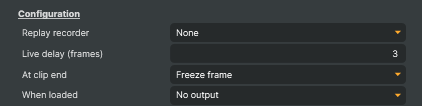
Configuration section — the recorder whose angle is shown and how far behind live the channel plays.
| Property | Description |
|---|---|
Replay recorder (Components) |
The angle shown: one of the project's Replay Recorder Targets, or a recorder there are recordings of that is not in the project. The channel plays the newest recording of the chosen recorder, which it knows by the recorder itself, so renaming the recorder keeps it. Choosing another recorder keeps the moment shown, so the same moment is seen from the other angle. From a script or the HTTP API, set it to a recorder's name or Id; a name nothing has recorded yet is kept, and shown once it is recorded. None chooses no recorder. |
Live delay (frames) (Components) |
(advanced) How far behind the frame being rendered the channel plays when live, in frames [min=2, max=25, default=3]. The newest frames are still being written; too small a delay shows a frame late now and then. |
At clip end (Components) |
What the channel does when a clip has played to its end and its last frame is on screen: pause on that frame, show no picture until the channel is played, stepped, cued or taken live, play the clip after it in the clip bin at the same speed (after the last clip, pause), or go live. |
When loaded (Components) |
(advanced) What the channel shows once the project is loaded, from the first recording of its replay recorder, until it is first played, paused, stepped, cued, taken live or given a clip: no picture, its playhead following live meanwhile, so that whichever is done first starts from the moment being recorded; the newest frame recorded then, paused; or live. A project loaded into a running Composer shows the same as one Composer starts with: the recordings made before it was loaded are not shown, though clips still play from them. |
Script Engine Functions (optional)
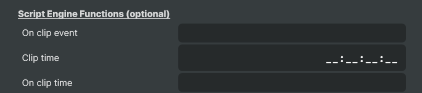
Script Engine Functions (optional) — the script function told how a clip plays.
| Property | Description |
|---|---|
On clip event |
(advanced) Name of a script function to call as a clip plays: when its first frame is on screen, when it has one second left to play at the speed it plays at, when its last frame is on screen, and on the frame after that, once the clip has ended; or, when Stop ends the clip before that, once on the frame after the stop. It is given a JSON text with EventType (FirstFrame, OneSecondLeft, LastFrame, EndOfClip or Stop), the clip's Name, Duration, In and Out as the clip bin has them, its Frames and the FramesLeft of them, the Speed it plays at (0 for a clip cued, negative backwards, when it starts on its out frame and ends on its in frame) and the Channel's name. A clip ended early by a step, a jump, going live or another clip, also by the function itself, calls it no more. An error in the function stops the Script Engine, as any script error does. Leave empty to call nothing. |
Clip time |
(advanced) How far into a clip On clip time is called, HH:MM:SS:FF, counted from the clip's first frame in the clip's recorded time, as its Duration is: drop-frame at 29.97 and 59.94. Speed does not change the moment, so at 0.5x 00:00:02:00 comes four seconds after the first frame, and at 2x one second after. The colons may be left out, ; or . is taken as :, and empty calls nothing. Anything else is refused and leaves it as it was. It is read as a clip is played, so a change applies from the next clip. |
On clip time |
(advanced) Name of a script function to call once a clip has played to Clip time from its first frame: its in, or its out when it plays backwards. It is called once per clip, not while the clip is paused or cued, and not at all when Clip time is as long as the clip's Duration or longer (its last frame is one frame short of that), or when the clip is ended before it: by Stop, a step, a jump, going live or another clip, also by a script function. Another angle chosen meanwhile never takes it to a moment outside the clip. It is given a JSON text with EventType ClipTime, ClipTime (the Clip time it was called at), and the clip's Name, Duration, In, Out, Frames, FramesLeft, Speed and the Channel's name, as On clip event is. An error in the function stops the Script Engine, as any script error does. Leave empty to call nothing. |
Playback
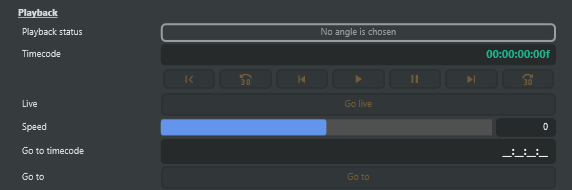
Playback section — playback status and timecode, followed by transport, shuttle and cue controls.
| Property | Description |
|---|---|
GoToStartCommand |
Pauses on the first frame recorded. |
StepBack30Command |
Steps back 30 recorded frames and pauses, at most to the first frame recorded. |
StepBackCommand |
Steps back one recorded frame and pauses. |
PlayCommand |
Plays from the frame shown: forward at 1x, or at the Speed set while the channel showed no picture. Before the channel's recording has a frame, it plays from live once there is one. |
PauseCommand |
Pauses on the frame shown; before the channel's recording has a frame, at live once there is one. |
StopCommand |
Stops: ends a clip playing and shows no picture, so the channel is transparent in its scene, until it is played, paused, stepped, cued or taken live. Playing, pausing or stepping goes on from the frame shown when it stopped. Setting Speed does not play it: Play then plays at that speed. |
StepForwardCommand |
Steps forward one recorded frame and pauses, at most to the newest frame recorded. |
StepForward30Command |
Steps forward 30 recorded frames and pauses, at most to the newest frame recorded. |
Playback status (Components) |
What the channel is doing (read-only): Live, Playing 0.5x, Reverse 1x, Paused, End of recording or Start of recording (playing, at the end or the start of a recording that has stopped), or why there is nothing to show. |
Timecode (Components) |
The time-of-day timecode of the frame on screen (read-only), as every recorder of that moment stamped it; zero when nothing is shown. At 29.97 and 59.94 its frames are counted drop-frame. |
Live |
Goes live: plays at 1x, Live delay (frames) behind the frame being rendered. On a recording that has stopped, pauses on its last frame. |
Speed (Components) |
Playback speed: -2, -1, -0.5, -0.25, 0 (paused), 0.25, 0.5, 1 or 2 [min=-2, max=2]. A value between these is taken to the nearest; negative plays backwards. Playing forward into live goes on at 1x. At the end or the start of a recording that has stopped, its frame there is held at the speed set. While the channel shows no picture (Playback status No output: stopped, or as At clip end or When loaded says) setting it does not play: the channel stays as it is and Play plays at that speed. A speed played at before the channel's recording has a frame, as just after its replay recorder starts, is played from live once there is one. |
Go to timecode |
A time-of-day timecode to go to, HH:MM:SS:FF; Go to pauses on the frame recorded at it. The colons may be left out, ; or . is taken as :, and empty clears it. Anything else is refused and leaves it as it was. |
Go to |
Pauses on the frame recorded at Go to timecode, or on the frame before it when that one was not recorded. Nothing changes when the recording has no frame there. |
Status
Status section — the time left of the clip playing, playback diagnostics and the recording folder.
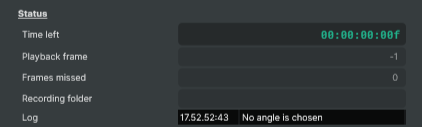
| Property | Description |
|---|---|
Time left (Components) |
(advanced) The time left of the clip playing (read-only): from the frame the channel is on to the frame the clip ends on, both counted, so the clip's duration on its first frame, one frame on its last, and zero once it has ended or when no clip is playing. Playing forward a clip ends on its out frame, backwards on its in frame; paused, it counts towards the end it was played towards, and cued, towards its out. It is the clip's recorded time, which a speed other than 1x plays in more or less time, counted as the clip's duration is: drop-frame at 29.97 and 59.94. |
Playback frame (Components) |
(advanced) The engine frame sequence of the frame on screen (read-only): the number every recorder gave that rendered frame. -1 when nothing is shown. |
Frames missed (Components) |
(advanced) Rendered frames that showed an earlier frame than the playhead while playing, because the frame due was not decoded in time (read-only). Anything above 0 during 1x playback means the GPU or the disk fell behind. |
Recording folder (Components) |
(advanced) The folder of the recording shown (read-only). |
Log |
What the channel did and what went wrong: the recording it plays, reads that failed, jumps it could not make, and a channel recorded by its own recorder. |
Live updates over WebSockets
A client subscribed to the Components or AudioMixer WebSocket channel is sent a PropertyChanged message when one of these properties changes, naming it by the name in the Property column. Streamed properties explains the notes.
| Property | Type | Label | Channel | Notes |
|---|---|---|---|---|
ReplayRecorder |
Guid |
Replay recorder | Components |
|
LiveDelayFrames |
int |
Live delay (frames) | Components |
|
AtClipEnd |
ReplayClipEnd |
At clip end | Components |
|
WhenLoaded |
ReplayLoadedOutput |
When loaded | Components |
|
PlaybackStatus |
string |
Playback status | Components |
Read-only |
Timecode |
TimeCode |
Timecode | Components |
Read-only |
Speed |
double |
Speed | Components |
|
TimeLeft |
TimeCode |
Time left | Components |
Read-only |
Sequence |
long |
Playback frame | Components |
Read-only |
FramesMissed |
int |
Frames missed | Components |
Read-only |
RecordingFolder |
string |
Recording folder | Components |
Read-only |
Like every input, it also streams the properties listed under Every input.
Inherits from: AbstractInput, AbstractAudioProcessing, AbstractAudioMetering, NamedModel.
See also: Replay Channel in Script Engine Objects.
Shared input properties
Every input — regardless of source type — exposes the following property groups. They are surfaced in the property panel only when Show advanced options is enabled on the input.
Icon
Icon text— short text shown on the input's icon in the Inputs list. Useful as a quick visual label (channel number, mic name, camera position) to tell otherwise-similar inputs apart at a glance. Empty by default; has no effect on rendering or routing.
Audio mixer
Hide in audio mixer— when on, hides the input from the audio mixer view without disabling its audio. Useful for de-cluttering the mixer while keeping the audio routed (e.g. fixed background music, ambient beds, pre-aligned playout). [default=false]
Render Options
Invisible (Do not render in scene)— when on, the input is skipped during rendering and produces no picture on any layer or scene. Audio routing is unaffected. Toggle from a script for cued-in / cued-out behaviour during a show. [default=false]Do not render input— disables the input's internal render entirely (no decode or capture work is done). Stronger than Invisible: that one renders but doesn't display; this one stops the input from doing any work at all. Useful for reducing CPU / network load on heavy sources (e.g. high-bitrate RTMP / SRT streams, large media files) when the input is temporarily not needed. Audio meters are cleared while disabled. [default=false]Do not render inputcontroller — chooses what drives the Do not render input flag.Let Composer decide(the default) hands control to the project-level Render Tuning optimiser, which automatically pauses inputs that aren't used by any active scene.Manual Configurationignores Render Tuning and lets the Do not render input toggle control the flag directly — use this to keep a network source warm even when it's currently off-air, or to take a heavy input down by hand regardless of scene activity. [default=Let Composer decide]
Optional TAGS
TAGS— one or more free-form tag words used to classify this input (typically space- or comma-separated). Picked up by Composer's Smart Search to filter or find inputs by category — e.g.camera,music,interview,sponsor. Has no effect on rendering.
Audio configuration and processing options
For inputs capable of processing audio, additional audio configuration and processing options are available through the audio mixer and the Channel Strip Inspector.
- Audio mixer — monitor levels, adjust gain and pan, mute / solo inputs, and configure auxiliary sends to
Audio Channel Stripsubmix buses, all from a centralised mixer-style interface. - Channel Strip Inspector — advanced per-strip audio processing for the selected input:
- Input trim, stereo remapping, and audio delay
- Channel mapping (8-channel mode unlocks the full MAPPING tab)
- Gate (attenuates audio below a threshold to clean up room tone and bleed between phrases)
- Low-cut filter (high-pass filter that rolls off rumble, plosives, and HVAC hum below a chosen cutoff)
- Equaliser (5-band parametric)
- Compressor (narrows dynamic range so the source sits at a steadier level in the mix)
- Sidechain ducking (a second compressor whose gain reduction is driven by another input's level — e.g. dipping music under a voice-over)
- Limiter (brick-wall ceiling that catches peaks to prevent clipping at the end of the chain)
- Automixer (per-mic Use automixer toggle and weighting for gain-sharing across a group of live mics)
- Automixer window — a mixer-style overview of every input with the gain-sharing automixer enabled, with per-mic gain, weight, and bypass plus group-wide envelope and noise-floor overrides from a single panel.
For the full audio signal flow, see Audio processing workflow.
Following a clip from a script
On clip event, under Show advanced options, names a Script Engine function for the channel to call as a clip plays. The function is given one argument, a JSON text. It is called four times for a clip that plays to its end, in the order below, and ends with Stop instead for a clip that is stopped:
EventType |
When |
|---|---|
FirstFrame |
The clip's first frame is on screen: its in, or its out when the clip plays backwards. A clip that is cued, paused on its in, is called as it is cued, with Speed 0. |
OneSecondLeft |
The clip has one second left to play at the speed it plays at: at 50 fps that is 50 frames at normal speed, 25 at half speed and 100 at twice the speed. While the clip is paused or cued it is not called; it is called once the clip plays on. A clip no longer than a second is called right after FirstFrame. |
LastFrame |
The clip has played to its last frame, and that frame is on screen. |
EndOfClip |
The frame after the last frame. The clip has ended, and the channel does what At clip end says: it holds the last frame, shows no picture, plays the next clip or goes live. |
Stop |
Stop ended the clip before its end, playing, paused or cued. It is called on the frame after the stop, the first that shows no picture, and the clip is called no more: neither LastFrame nor EndOfClip follows. |
Stop is the only early end that is called. A clip that is ended by stepping, jumping, Go live or playing another clip is called no more. Playing another clip calls FirstFrame for that clip. With At clip end set to Next clip, the clip that ended is called for EndOfClip before the next clip is called for FirstFrame.
The function may control the channel itself, and the same holds then. A function that stops the clip, takes the channel live or plays another clip when it is called for FirstFrame is not then called for that clip's OneSecondLeft, though both came on the same frame, as they do for a clip no longer than a second; after a stop it is called for Stop. A function that plays another clip from EndOfClip replaces the clip Next clip had gone on to, which is then not called at all.
Besides EventType, the JSON text carries:
Name,Duration,InandOut: the clip as the clip bin has it, the timecodes writtenHH:MM:SS:FF(HH:MM:SS;FFat 29.97 and 59.94).Frames: the number of frames in the clip, its first and last frames included.FramesLeft: how many of those are left from the frame the channel is on, that frame included: all of them atFirstFrame, a second's worth atOneSecondLeft, 1 atLastFrame, 0 atEndOfClip, and atStopas many as the clip had left when it was stopped.Speed: the speed the clip plays at, negative when it plays backwards. ForLastFrameandEndOfClipit is the speed the clip played to its end at, and forStopthe speed it played at when it was stopped.Channel: the name of the Replay Channel, so one function can follow several channels.
A call looks like this:
{"EventType":"OneSecondLeft","Name":"Goal 1","Duration":"00:00:05:00","In":"14:03:12:05","Out":"14:03:17:04","Frames":250,"FramesLeft":50,"Speed":1,"Channel":"Replay 1"}
Keep the function short: the channel's frame is not finished until the function returns. An error in the function is a script error like any other: the Script Engine logs it, with its line, and stops, and no script function is called until the script is loaded again. The channel plays on. This script parses each call. It shows a REPLAY graphic on the program scene from a clip's first frame until the clip has ended or been stopped, starts a wipe one second before the end so the cut back to live is covered, and logs what was played:
var Project = importNamespace('VindralEngine').Project.RunningInstance;

// The program scene, and the layers in it that hold the REPLAY graphic and the wipe back to live.
var programScene = "PGM";
var replayGraphic = "Replay Graphic";
var wipe = "Wipe";

// The Replay Channel's On clip event names this function.
function OnReplayClip(json) {
    var clip = JSON.parse(json);
    switch (clip.EventType) {
        case "FirstFrame":
            Project.ShowLayerByName(programScene, replayGraphic);
            Logger.Info(clip.Channel + " plays " + clip.Name + ", " + clip.In + " to " + clip.Out +
                        " (" + clip.Frames + " frames) at " + clip.Speed + "x");
            break;
        case "OneSecondLeft":
            Project.ShowLayerByName(programScene, wipe);
            break;
        case "LastFrame":
            Logger.Info(clip.Channel + ": the last frame of " + clip.Name + " is on screen");
            break;
        case "EndOfClip":
        case "Stop":
            Project.HideLayerByName(programScene, replayGraphic);
            Project.HideLayerByName(programScene, wipe);
            break;
    }
}
The channel's Time left follows the same clip, and a function can read it as it is called: Project.GetObjectProperty(Project.GetInputByName(clip.Channel), "TimeLeft") shows FramesLeft as a time, so the clip's duration at FirstFrame, one frame at LastFrame and zero at EndOfClip, unless At clip end has gone on to the next clip, whose time left it then is. Time left counts the clip's recorded frames, so at half speed it reads half a second at OneSecondLeft.
Calling a function at a set time into a clip
Clip time and On clip time, also under Show advanced options, call a Script Engine function once a clip has played for a set time. Set Clip time to 00:00:02:00 and name a function in On clip time, and the function is called two seconds into every clip the channel plays, whether it was played from the clip bin, the HTTP API, a script or Next clip.
Clip time is the clip's own recorded time, counted from its first frame the way its Duration is, so it marks the same moment of the replay at any speed: at half speed 00:00:02:00 comes four seconds after the first frame, and at twice the speed one second after. A clip played backwards counts from its out. The time does not run while the clip is paused or cued; a cued clip starts counting once it is played. At twice the speed the channel moves two recorded frames at a time, so the function can be called one frame past the set time; FramesLeft then counts from the frame it was called on. The time is how far the channel is from the clip's first frame, so a clip played forward and then backwards before its Clip time counts back down, and the call comes later or not at all.
The function is called once for each clip, and not at all:
- when Clip time is as long as the clip or longer. The clip's last frame is one frame short of its duration, so a Clip time one frame shorter than the duration is called on that last frame, just before
LastFrame, and a Clip time equal to the duration is never reached. - when the clip ends before its Clip time: Stop, a step, a jump, Go live or another clip, also when a script function makes one of these.
Choosing another angle while a clip plays keeps the count within the clip. When the angle's recording does not cover the moment the clip is at, the channel shows the nearest frame that angle has; one after the clip counts as the clip's last frame, and one before it as nothing played, so the function is never called for a moment outside the clip.
Clip time is read as a clip is played, at the frame rate of its recording, so a change applies from the next clip. A time with more frames than that rate has in a second, 00:00:00:30 at 25 fps, is written to the channel's log, and nothing is called for that clip.
The function is given the same JSON text as On clip event gives, with EventType ClipTime and one more field, ClipTime, the Clip time it was called at:
{"EventType":"ClipTime","Name":"Goal 1","Duration":"00:00:05:00","In":"14:03:12:05","Out":"14:03:17:04","Frames":250,"FramesLeft":150,"Speed":1,"Channel":"Replay 1","ClipTime":"00:00:02:00"}
Since the JSON text says what each call is, one function can be named in both On clip event and On clip time. Calls that come on the same frame come in the order FirstFrame, ClipTime, OneSecondLeft, LastFrame. As with On clip event, keep the function short, and an error in it stops the Script Engine. This script shows the player's name on the program scene two seconds into a replay. To take it down with the REPLAY graphic, add Project.HideLayerByName(programScene, "Player Name"); to the EndOfClip and Stop case of the script above.
var Project = importNamespace('VindralEngine').Project.RunningInstance;

// The Replay Channel's On clip time names this function, and its Clip time is 00:00:02:00.
function OnReplayClipTime(json) {
    var clip = JSON.parse(json);
    Project.ShowLayerByName("PGM", "Player Name");
    Logger.Info(clip.Channel + ": " + clip.Name + " is " + clip.ClipTime + " in, with " + clip.FramesLeft + " frames left");
}