

Replay Recorder Target
Introduction
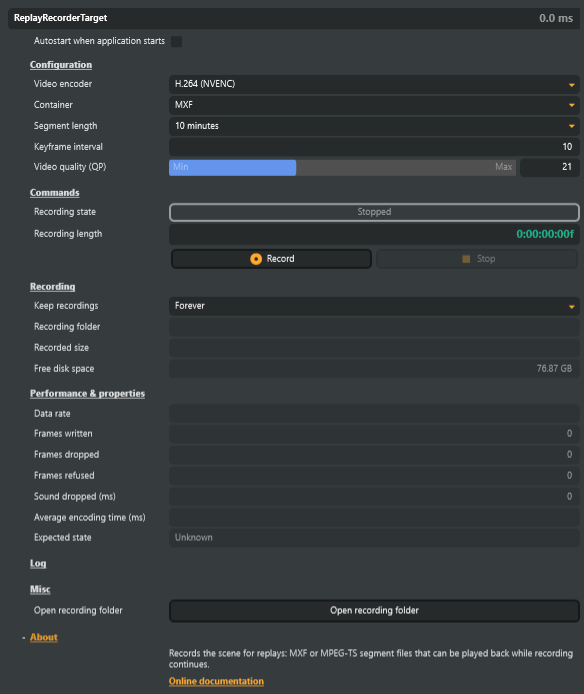
The Replay Recorder Target records a scene for replays and highlights: a recording that can be played back while it is still being written. Put one on each camera's scene and one on the program scene, start them at kick-off, and every angle of the match is on disk for the whole session, readable while recording continues.
It records one continuous GPU encode (H.264 or HEVC on NVENC) as a run of segment files, in MXF or MPEG-TS. Each file starts on a keyframe, so it can be decoded on its own, and every frame is written to disk as soon as it is encoded, so a replay can follow the recording while it grows. No frame is lost between one file and the next.
MXF or MPEG-TS
Container chooses the file format.
- MXF (the default) is the format broadcast editing and playout tools work with. Each file is MXF OP1a with 24-bit PCM stereo sound, and carries the time-of-day timecode of its first frame as its start timecode. Segment length is 1 minute, 5 minutes, 10 minutes (the default), 1 hour, or Unlimited: one file for the whole recording. A file is finished, with its index, when its segment ends, so an unlimited recording is finished only when it stops; if Composer stops unexpectedly, the whole recording is left unfinished. MXF records H.264 only, and only at the frame rates the MXF standard lists, such as 25, 29.97, 50 and 59.94; at any other rate the recorder does not start, and says why.
- MPEG-TS records AAC sound in shorter files: Segment length (s) is 2 to 20 seconds, 10 by default. HEVC is always recorded as MPEG-TS, since MXF cannot carry it: choosing HEVC sets Container to MPEG-TS and keeps it there.
PCM sound takes about 1 GB an hour per angle, where AAC takes about a tenth of that. The Replay Channel plays recordings in either format, also while they are being written, so each recorder can use the format that suits what happens to its recordings afterwards.
Where recordings go
Recordings go to the Replay directory in Settings. Recorders running at the same time share one folder for the session, named after the time the first of them started, and each records into a subfolder named after itself:
Replay/
  2026-10-09 160512/
    PGM/     seg_000000.mxf  seg_000001.mxf  …  index.csv  frames.csv  recording.json
    Cam 1/   …
    Cam 2/   …
Beside the segment files, index.csv lists one line per finished file with its start and end in seconds, frames.csv lists every frame with its timecode, the file it is in and where in that file it starts, added to about once a second while recording, and recording.json describes the recording: the recorder, the exact frame rate, the video codec, the picture size, the file format, and the sound's codec, sample rate and number of channels. With these, a Replay Channel plays a clip from an earlier session again, also after Composer has restarted, so keep a session's folder together and inside the Replay directory while its clips are in use. When every recorder has stopped, the next one to start opens a new session folder. Choose a fast local disk with room for every angle: all-intra at 1080p50 can take tens of gigabytes per camera per hour.
Watching the disk
In the Recording section, Recorded size sits directly above Free disk space, so the recording's size and the room remaining can be checked together.
Each recorder shows how much room is left on the disk recordings go to, before it starts as well, so you can check that there is room for the whole event. While it records, it also shows how much its recording has written so far and how fast it is writing, and the room left comes with an estimate of how long recording can go on. The estimate follows how fast the free space is falling, so it includes other recorders and anything else writing to that disk. Recorders writing at different rates can show slightly different estimates, because each also allows for its own writing. With less than 30 minutes left, the recorder shows a warning and says so in its log, early enough to make room or move to another disk before anything is lost. The warning goes when there is room for 40 minutes or more.
The recorder's log also notes where each recording went and how long and how large it was when it stopped.
Deleting old recordings
Keep recordings sets how long a recorder keeps what it has recorded: 1 day, 1 week, 1 month, or Forever, the default. The time counts from when each recording stopped. Each time the recorder starts or stops recording, it deletes its recordings in the Replay directory that are older than that, without holding up the recording or anything else. The application log lists every file deleted, and the recorder's log notes each recording it deleted.
A recorder deletes only recordings it made itself, so each can keep its angle for as long as it is needed: a program recorder set to Forever keeps everything, while the camera recorders beside it keep a week. Recordings made by a recorder that has since been removed from the project are never deleted. A recording that a Replay Channel is showing is kept until the next start or stop.
Clips are no exception: a clip marked in a recording that has been deleted no longer plays. Choose a setting that covers the time a session's clips are needed, or keep Forever and manage the Replay directory yourself.
Every angle on one timeline
Every Replay Recorder Target stamps a frame with the same time-of-day timecode as every other recorder composing that frame. So a moment found on one camera is at the same timecode on every other camera and on the program.
Keyframes and quality
- Keyframe interval sets how far apart the keyframes are within a file. With 1, every frame is a keyframe (all-intra): jumping to any frame and playing backwards are fastest, at several times the file size. The default of 10 keeps files much smaller and is still quick to jump within.
- Video quality (QP) sets a constant picture quality rather than a bitrate, so busy pictures take more space than calm ones. Its slider runs from Min, QP 10, to Max, QP 40: lower numbers mean better pictures and larger files.
If the GPU or the disk cannot keep up, frames are left out of the recording and counted in Frames dropped, rather than recorded with the wrong picture, and sound is left out the same way and counted in Sound dropped (ms). Frames refused counts frames that reached the recorder but could not be recorded.
How a gap shows depends on who reads the recording:
- The Replay Channel and
frames.csv: a gap never shifts what follows; every frame keeps the time it was rendered at. - An MPEG-TS file in another tool: the same, since each frame carries its own time.
- An MXF file in an editing tool: different, because an MXF file has no time of its own for each frame. A dropped frame is left out, picture and sound together, and the frames after it follow on directly. So each frame after a gap shows a timecode one frame earlier for every frame left out before it, and angles lined up by their start timecode drift apart.
To align MXF angles in an editing tool, check that Frames dropped stayed at 0, or find a frame's real time in frames.csv.
When recording fails
If writing fails, for example because the disk is full or the folder cannot be written to, the recorder stops and shows an error, and its log says why. What it recorded until then stays readable, and Composer and the other recorders carry on. A change in the scene's size stops the recording the same way; start it again to record at the new size.
Related components
- Replay Channel — plays any angle the recorders have recorded, at any moment and speed, while they go on recording.
- File Recorder Target — records a take to a single MP4 file, for archive and editing. Use it when the recording is meant to be played after the event rather than replayed during it.
- Replay Operator — keeps the last few seconds of a layer in memory for an instant replay. The Replay Recorder Target keeps the whole session on disk, for every angle.
Replay Recorder Target - Settings
Properties marked (
Components) or (AudioMixer) broadcast a livePropertyChangedevent to clients subscribed to that WebSocket channel; a throttled one only on some frames. Live updates over WebSockets below lists them by the name the message carries.

| Property | Description |
|---|---|
Autostart when application starts |
Configuration
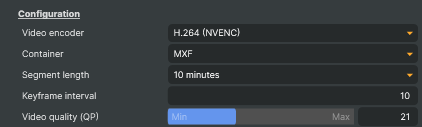
Configuration section — the encoder, file format, segment length, keyframe spacing and picture quality of the recording.
| Property | Description |
|---|---|
Video encoder |
The GPU encoder the recording is made with: H.264 (NVENC) (the default) or HEVC (NVENC). HEVC is recorded as MPEG-TS: choosing it sets Container to MPEG-TS and keeps it there. |
Container |
The file format of the segment files: MXF (the default; OP1a with 24-bit PCM sound, the format broadcast tools work with) or MPEG-TS (with AAC sound). MXF cannot carry HEVC, so with HEVC this is MPEG-TS and cannot be changed. |
Segment length (s) |
Length of each MPEG-TS segment file in seconds [min=2, max=20, default=10]. Shown when Container is MPEG-TS. |
Segment length |
Length of each MXF file: 1 minute, 5 minutes, 10 minutes (the default), 1 hour or Unlimited (one file for the whole recording, finished only when recording stops). Shown when Container is MXF. |
Keyframe interval |
A keyframe every this many frames [min=1, max=50, default=10]. Every segment file also starts on one. 1 makes every frame a keyframe (all-intra): the fastest to jump to any frame and to play backwards, at several times the file size. |
Video quality (QP) |
Picture quality as a constant quantizer [min=10, max=40, default=21]. Lower is better quality and larger files; six steps roughly halve or double the size. A constant quality rather than a bitrate, so busy pictures take more space than calm ones. |
Commands
Commands section — recording state and length, followed by start and stop.

| Property | Description |
|---|---|
Recording state (Components) |
Current recording state: Stopped, Starting, Recording or Stopping. |
Recording length (Components) |
Length of the current recording as a time code (HH:MM:SS:FF, read-only). Updates while recording. |
Record |
Start recording into a new folder for this recorder in the current recording session. |
Stop |
Stop recording. The last segment file is closed; every segment stays readable. |
Recording
Recording section — retention, recording folder, recorded size and the free disk space.

| Property | Description |
|---|---|
Keep recordings |
How long this recorder keeps its recordings, counted from when each one stopped: 1 day, 1 week, 1 month or Forever (the default). Each time recording starts or stops, the recorder deletes its recordings in the Replay directory that are older, on a thread of its own, and logs every file it deletes. Only recordings this recorder made are deleted. One that a Replay Channel is showing is kept until a later start or stop, and clips marked in a deleted recording no longer play. |
Recording folder (Components) |
The folder the current recording is written to (read-only): the session folder, then this recorder's subfolder. |
Recorded size (Components) |
How much the current recording has written to disk, in MB or GB (read-only): every segment file, the one still being written included, picture and sound. Updates about once a second, keeps its final value when the recording stops, and starts again from zero with the next recording. |
Free disk space (Components) |
Free space on the disk recordings go to (read-only), updated about once a second. While nothing records it is the disk of the Replay directory; while recording, the disk of the recording, with about how much recording time that leaves at the rate the disk is filling, other recorders writing to it included. With less than 30 minutes left the recorder shows a warning. |
Performance & properties
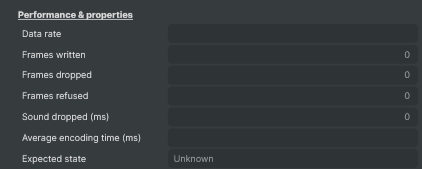
Performance & properties section — how the current recording keeps up: its data rate, the frames and sound written and left out, and the encoding time.
| Property | Description |
|---|---|
Data rate (Components) |
How fast the current recording writes to disk, in MB/s (read-only): over the last few seconds while recording, and averaged over the whole recording once it has stopped. |
Frames written (Components) |
Video frames written to the current recording and listed in its index (read-only). |
Frames dropped (Components) |
Video frames left out of the current recording because the encoder or the disk fell behind (read-only). Each one leaves a gap in the recording's timeline; anything above 0 means the machine cannot keep up with these settings. |
Frames refused (Components) |
Video frames that reached the recorder but were not recorded (read-only): there was no picture to convert, the encoder had no picture free, or a frame came out of order. Like a dropped frame, each leaves a gap. |
Sound dropped (ms) (Components) |
Sound left out of the current recording because the writer fell behind, in milliseconds (read-only). The sound after a gap keeps its time against the picture. |
Average encoding time (ms) |
Average time, in milliseconds, spent encoding and writing each video frame (read-only). It must stay below one frame's duration (20 ms at 50 fps) for the recorder to keep up. |
Log
Log section — the recorder's recent messages.

| Property | Description |
|---|---|
ComponentLog |
The recorder's recent messages (read-only): when each recording started and stopped, why one stopped or could not start, warnings that the recording disk is filling up, and the recordings it deleted because it no longer keeps them. |
Misc
Misc section — convenience command for the recording folder.

| Property | Description |
|---|---|
Open recording folder |
Opens the current (or last) recording folder in Windows Explorer. |
Live updates over WebSockets
A client subscribed to the Components or AudioMixer WebSocket channel is sent a PropertyChanged message when one of these properties changes, naming it by the name in the Property column. Streamed properties explains the notes.
| Property | Type | Label | Channel | Notes |
|---|---|---|---|---|
RecordingState |
RecordingState |
Recording state | Components |
Read-only |
RecordingLength |
TimeCode |
Recording length | Components |
Read-only |
RecordingFolder |
string |
Recording folder | Components |
Read-only |
RecordedSize |
string |
Recorded size | Components |
Read-only |
FreeDiskSpace |
string |
Free disk space | Components |
Read-only |
DataRate |
string |
Data rate | Components |
Read-only |
FramesWritten |
int |
Frames written | Components |
Read-only |
FramesDropped |
int |
Frames dropped | Components |
Read-only |
FramesRefused |
int |
Frames refused | Components |
Read-only |
SoundDropped |
int |
Sound dropped (ms) | Components |
Read-only |
Like every target, it also streams the properties listed under Every target.
Inherits from: AbstractTarget, NamedModel.
See also: Replay Recorder Target in Script Engine Objects.
Starting and stopping from a script
The Record and Stop buttons are the recorder's StartCommand and StopCommand, and a Script Engine script runs them with Project.ExecuteTargetCommand, naming the scene the recorder is on and the recorder itself. It returns true when the command was run, and false when it could not be: the scene or the recorder does not exist, or the button is not available, as Record is while the recorder is recording and Stop is while it is not.
Both commands return at once and finish on their own. A recorder shows Recording a moment after it is started, and Stopped once it has closed its last file.
A recorder can only start once its scene has rendered a picture, because that is where it learns the picture size and frame rate. A start asked for before then does nothing, even though ExecuteTargetCommand returns true. So a script that records from the moment the project starts waits for the first few frames rather than starting in OnProjectInit. To record from start-up without a script, tick Autostart when application starts instead.
This script starts every angle on the fifth frame after the project starts, and logs how much each one has recorded once a minute:
var Project = importNamespace('VindralEngine').Project.RunningInstance;

// The scene each recorder is on, and the recorder's name.
var recorders = [
    { scene: "PGM", recorder: "PGM Recorder" },
    { scene: "Cam 1", recorder: "Cam 1 Recorder" },
    { scene: "Cam 2", recorder: "Cam 2 Recorder" }
];

var frames = 0;

function OnRenderFrame() {
    frames++;
    if (frames == 5) {
        recorders.forEach(function (r) {
            if (!Project.ExecuteTargetCommand(r.scene, r.recorder, "StartCommand"))
                Logger.Warning(r.recorder + " could not be started");
        });
    }
    // Once a minute at 50 fps.
    if (frames % 3000 == 0) {
        recorders.forEach(function (r) {
            var target = Project.GetTargetByName(r.scene, r.recorder);
            Logger.Info(r.recorder + ": " + Project.GetObjectProperty(target, "RecordedSize") +
                        " recorded, " + Project.GetObjectProperty(target, "FreeDiskSpace"));
        });
    }
}
To start and stop recording from outside Composer, add two connectors to the project, named StartRecording and StopRecording, and put the functions below in the same script. The connectors need no actions of their own, since the script does the work. A call to /api/connector/trigger?name=StartRecording or ?name=StopRecording on the HTTP API then runs the commands, and answers with the recorders they were run on:
function OnConnectorStartRecording() {
    return { started: run("StartCommand") };
}

function OnConnectorStopRecording() {
    return { stopped: run("StopCommand") };
}

// Runs a command on every recorder, and returns the names of those it ran on.
function run(command) {
    return recorders
        .filter(function (r) { return Project.ExecuteTargetCommand(r.scene, r.recorder, command); })
        .map(function (r) { return r.recorder; });
}
A recorder that was already recording is left out of started, and one that was not recording is left out of stopped. For one recorder, without a script, the HTTP API's /api/invokecommand runs StartCommand or StopCommand directly.