

HSV Keyer
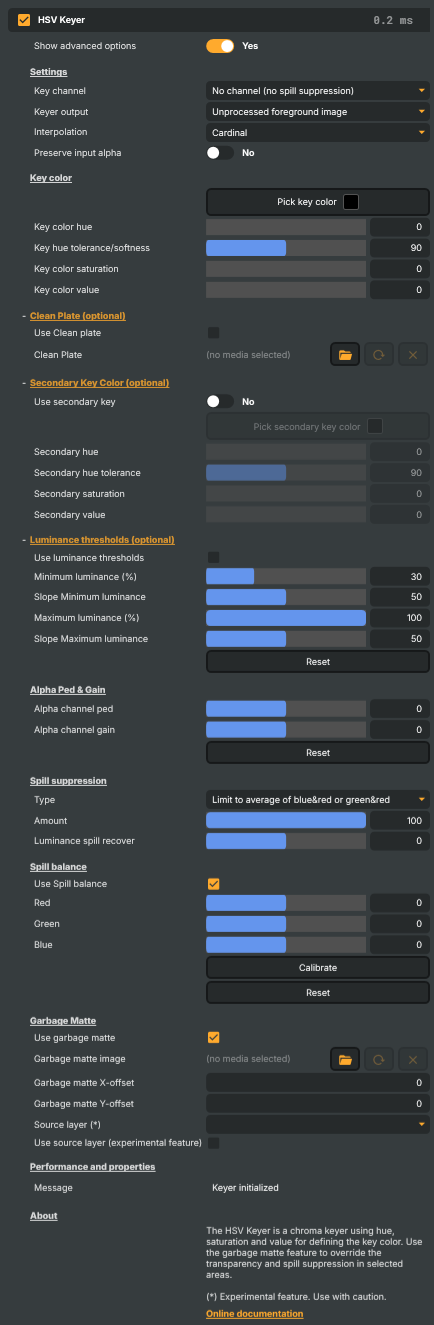
The HSV Keyer is the most commonly used chroma keyer in Composer — the default choice when you need to drop a green or blue screen out of a live shot and reveal whatever sits behind it. It works by analysing each pixel in HSV (hue, saturation, value) colour space, which separates the colour of the screen from how brightly it is lit and how saturated it is. That separation is what makes the operator forgiving on real-world stages where lighting is rarely perfectly even.
Typical uses include:
- Live virtual sets, weather and news studios, and esports broadcasts.
- Replacing a green/blue background with a still image, video file, or another scene.
- Compositing on-air talent over remote feeds in a multi-source production.
- Quick "drop the background" effects in live streaming and creator workflows.
In day-to-day broadcast use the HSV Keyer is the right starting point — reach for the more specialised keyers only when the HSV Keyer cannot give you a clean matte on a particularly tricky source.
How it works
The keyer picks a target hue (the screen colour) and decides which pixels match it within configurable tolerances around the hue, saturation and value axes. Pixels that match are turned transparent in the output; pixels that do not match are kept. Two further controls fine-tune the result:
- Spill suppression removes the green or blue tint that bounces off the screen onto skin, hair, and clothing on the foreground.
- Edge softening / matte controls smooth the boundary between foreground and background so the cut does not look like cardboard.
Because every adjustment is applied per-pixel on the GPU, the operator runs in real time at full broadcast frame rates.
When to pick the HSV Keyer
- You have a clearly coloured screen (green or blue) and reasonably even lighting — the HSV Keyer's accuracy and speed make it the obvious default.
- You want quick set-up: pick the channel, point at the screen colour, and tune from there.
- You need predictable results across a long live show; the operator is well understood and stable in production.
Tips for the best results
- Light the screen as evenly as possible. Shadows and hot spots widen the range of "screen colour" the keyer has to cope with — better to fix it on stage than to widen tolerance until the foreground is eaten.
- Keep the talent off the screen. Distance from the cyclorama reduces spill and makes the matte easier.
- Match the lighting. Foreground lighting that visibly differs from the eventual background gives away the composite even with a perfect key.
- Pick the right key channel. Use Green for green-screen, Blue for blue-screen. None disables spill suppression — useful when you only want the matte and will composite manually.
- Inspect the matte while tuning. Switch the operator's output to Alpha while you adjust hue/saturation/value tolerances; switch back to the composite once the matte is clean.
HSV Keyer - Settings

| Property | Description |
|---|---|
Show advanced options |
Reveals additional fine-tuning controls (interpolation, clean plate, secondary key, luminance, spill balance). Leave off for simple use; turn on for tricky keys. |
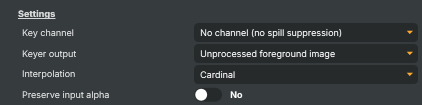
Settings
Settings — top-level key channel, output, and interpolation.
| Property | Description |
|---|---|
Key channel |
KeyChannel — which colour channel the screen is on (Green, Blue, or None). Determines spill suppression behaviour. Pick the channel matching your physical screen so the keyer cleans the correct edges. |
Keyer output |
KeyerOutput — what the operator outputs (Final, Foreground, Alpha, Spill, Garbage, Background, etc.). Switch to Alpha or Spill while tuning to see exactly what the matte and suppression are doing; switch back to Final for the result. |
Interpolation |
(advanced) Interpolation curve at the matte's soft edge (Linear, Cardinal, etc.). Smoother curves give more natural transitions for hair and motion blur; sharper curves keep edges crisp. |
Preserve input alpha |
(advanced) Combine the keyer matte with any existing alpha in the input image so already-transparent regions stay transparent. Enable when the input already has an alpha channel you want to respect (e.g. pre-composited graphics). |
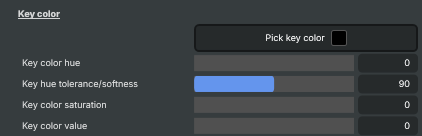
Key color
Key color — define the screen colour by hue, saturation and value, or by picking from the preview.
| Property | Description |
|---|---|
Pick key color |
Open the colour picker to sample the key colour directly from the preview. Fastest way to tune the key — sample several spots on the screen and watch the matte settle. |
Key color hue |
Centre hue of the key colour. [min=0, max=360]. Set to your screen's hue — green is around 120, blue around 240. Picking the colour from the preview is usually faster. |
Key hue tolerance/softness |
How wide a hue range counts as the key colour, with built-in softness. [min=40, max=140, default=90]. Raise to catch a wider band of screen variation; lower to protect coloured foreground details near the screen hue. |
Key color saturation |
Centre saturation of the key colour. [min=0, max=100]. Higher values target vivid screens; lower values target washed-out or pale backdrops. |
Key color value |
Centre brightness of the key colour. [min=0, max=100]. Set close to the actual brightness of your screen for tight keys; widen tolerance for unevenly lit screens. |
Clean Plate (optional)
Clean Plate (optional) — reference image of the empty screen used in place of a static HSV target.

| Property | Description |
|---|---|
Use Clean plate |
(advanced) Use a clean plate (a still photo of the empty screen) as the key reference instead of fixed HSV values. Best when the screen has uneven lighting or hot spots that fixed HSV cannot fully cover. |
Clean Plate |
(advanced) Path to the clean plate image file. Capture with the same camera, lens, exposure and lighting as the live shot. |
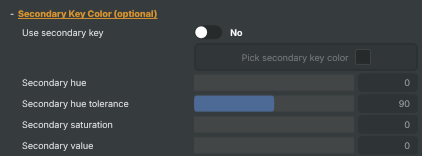
Secondary Key Color (optional)
Secondary Key Color (optional) — a second hue range to remove in addition to the primary key.
| Property | Description |
|---|---|
Use secondary key |
(advanced) Enable a second hue range to key out additional colours. Useful when the background has two distinct colours (e.g. green wall and blue floor) or when set elements need separate handling. |
Pick secondary key color |
(advanced) Open the colour picker to sample the secondary key colour directly from the preview. |
Secondary hue |
(advanced) Centre hue of the secondary key colour. [min=0, max=360]. |
Secondary hue tolerance |
(advanced) How wide a hue range counts as the secondary key, with built-in softness. [min=40, max=140, default=90]. |
Secondary saturation |
(advanced) Centre saturation of the secondary key colour. [min=0, max=100]. |
Secondary value |
(advanced) Centre brightness of the secondary key colour. [min=0, max=100]. |
Luminance thresholds (optional)
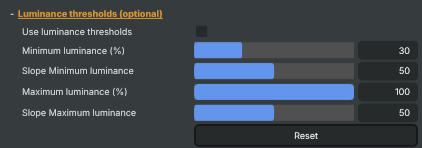
Luminance thresholds (optional) — restrict the key to a brightness range so only matching tones are removed.
| Property | Description |
|---|---|
Use luminance thresholds |
(advanced) Restrict the key to a brightness range so only pixels in that range can become transparent. Useful for protecting bright highlights or dark shadows on the foreground that share the screen's hue. |
Minimum luminance (%) |
(advanced) Pixels darker than this percentage are protected from being keyed out. [min=0, max=100, default=30]. Raise to protect dark foreground areas (shadows, dark hair) from being mistakenly removed. |
Slope Minimum luminance |
(advanced) Width of the soft falloff above the minimum luminance threshold. [min=0, max=100, default=50]. Raise for a gentler transition into the protected dark area; lower for a hard cutoff. |
Maximum luminance (%) |
(advanced) Pixels brighter than this percentage are protected from being keyed out. [min=0, max=100, default=100]. Lower to protect bright highlights (e.g. light hair, reflections) from being mistakenly removed. |
Slope Maximum luminance |
(advanced) Width of the soft falloff below the maximum luminance threshold. [min=0, max=100, default=50]. Raise for a gentler transition out of the protected bright area; lower for a hard cutoff. |
Reset |
(advanced) Reset all luminance threshold settings to their defaults (min=30, max=100, slopes=50). |
Alpha Ped & Gain
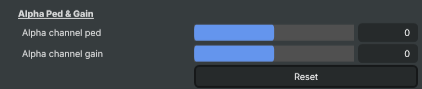
Alpha Ped & Gain — fine-tune matte offset and strength.
| Property | Description |
|---|---|
Alpha channel ped |
Adds a fixed offset (pedestal) to the matte. [min=-255, max=255, default=0]. Positive lifts transparent areas toward opaque; negative pushes them toward fully transparent. |
Alpha channel gain |
Multiplies the matte values to make the foreground more or less opaque. [min=-255, max=255, default=0]. Raise to recover edges that have gone too transparent; lower if foreground starts showing background bleed. |
Reset |
Reset AlphaPed and AlphaGain to their defaults. |
Spill suppression
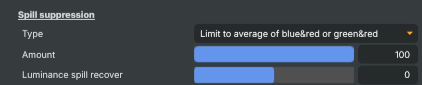
Spill suppression — neutralises residual screen colour on foreground edges.
| Property | Description |
|---|---|
Type |
Algorithm used to neutralise residual screen colour on the foreground (Average, Maximum, Max2, KeyColor). Try alternatives if the default leaves grey edges or shifts skin tones. |
Amount |
Strength of spill suppression on foreground edges. [min=0, max=100, default=100]. Lower if skin or hair starts looking magenta/yellow; raise if green/blue tint is still visible. |
Luminance spill recover |
(advanced) Restores brightness lost during spill suppression. [min=-200, max=200, default=100]. Useful when suppressed edges look unnaturally dark; lower if edges become too bright. |
Spill balance
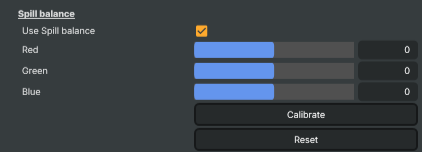
Spill balance — fine-tune the colour written into spill areas via per-channel offsets.
| Property | Description |
|---|---|
Use Spill balance |
(advanced) Enables manual control over the colour written into spill areas via SpillRedBalance, SpillGreenBalance, SpillBlueBalance. Use to push edge colour toward neutral grey or warm skin tones instead of the default neutralised result. |
Red |
(advanced) Red component of the spill replacement colour. [min=-255, max=255, default=0]. |
Green |
(advanced) Green component of the spill replacement colour. [min=-255, max=255, default=0]. Locked when KeyChannel is Green to avoid re-introducing the screen colour. |
Blue |
(advanced) Blue component of the spill replacement colour. [min=-255, max=255, default=0]. Locked when KeyChannel is Blue to avoid re-introducing the screen colour. |
Calibrate |
(advanced) Auto-tune SpillRedBalance, SpillGreenBalance, SpillBlueBalance based on the current key colour and suppression settings. Quick way to get a sensible starting point for spill balance that you can then refine manually. |
Reset |
(advanced) Reset the spill balance offsets to zero. |
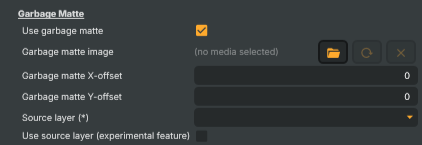
Garbage Matte
Garbage Matte — image or layer used to force regions of the frame fully transparent or fully opaque.
| Property | Description |
|---|---|
Use garbage matte |
Enables the loaded GarbageMatteSourceUrl image. Useful for excluding lighting rigs, microphone booms, or set edges that the keyer would otherwise have to handle. |
Garbage matte image |
Path to the garbage matte image (white = keep, black = remove). Paint over hardware visible in the frame so the keyer never has to consider it. |
Garbage matte X-offset |
Horizontal offset of the garbage matte image, in pixels. Use to nudge a precomposed matte into alignment if the camera has shifted slightly. |
Garbage matte Y-offset |
Vertical offset of the garbage matte image, in pixels. Use to nudge a precomposed matte into alignment if the camera has shifted slightly. |
Source layer (*) |
(advanced) Use another layer's rendered output as a live garbage matte (experimental). Useful when the matte should track changes — e.g. a separate animated mask layer. |
Use source layer (experimental feature) |
(advanced) Enable the experimental layer-based garbage matte (uses GarbageMatteSourceLayer instead of an image file). |
Performance and properties
Performance and properties — runtime status.

| Property | Description |
|---|---|
Message |
Status message about clean plate / garbage matte loading and runtime warnings. |
Inherits from: AbstractOperator, AbstractAudioMetering.
See also: HSV Keyer in Script Engine Objects.
Tutorials
The HSV Keyer is the workhorse keyer in Composer and is exercised by a large number of tutorials — pick whichever scenario is closest to your shot:
- HSV - Dual key colors — keying out two screen colours at once, then layering composite, film grain and vignette over the result.
- HSV keyer - color correction — a 4K branded Black Jack table; shows the keyer alongside a colour-correction stack.
- HSV keyer - female model — dual-output (landscape + portrait) with colour correction, logo overlay, and H.265/HEVC content.
- HSV keyer - garbage matte 4k — dual scene (4K + 1080) with HSV Keyer plus sharpening and colour adjust operators.
- HSV keyer - luminance and garbage matte — a mixed demo combining HSV chroma key with a web-page renderer, connectors, ProRes 4444 content, and multiple operators.
- UHD 4K model — HSV Keyer applied to a 4K still image.
- Water bottle — HSV Keyer demo on content with transparent objects, where the matte has to preserve the transparency.
Tutorials are downloaded on demand from RealSprint via Tutorials → Download tutorials… in Composer Desktop; the full catalogue with thumbnails and minimum-version requirements lives on the Tutorials page.
Related components
The HSV Keyer is the default starting point for chroma keying in Composer. Reach for the components below when its requirements don't quite fit, or when you need to finish off the composite after the matte is clean.
Alternative keyers — pick one of these instead of the HSV Keyer when the shot calls for it:
- IBK 3D Keyer — clean-plate-based image keyer. Holds onto fine hair, sheer fabrics, and contact shadows that an HSV key tends to smear away. Needs a clean plate that matches the live shot, an operator on hand, and is not suitable for unattended 24/7 deployments — but produces a noticeably more detailed matte when conditions are right.
- Difference Matte — also clean-plate-based, but doesn't require a coloured screen. Useful for locked-off camera shots against any backdrop, security-camera extraction, or product shots against a fixed wall.
Compositing companions — drop these in after the HSV Keyer to finish the composite:
- Spill Suppression — a dedicated stand-alone spill suppressor. The HSV Keyer already includes a spill-suppression stage, but the dedicated operator gives you a second pass for shots where the built-in suppression isn't enough.
- Light Wrap — wraps a thin halo of the new background colour around the edges of the keyed foreground so the subject reads as part of the new scene rather than pasted on top of it.