

Histogram
Introduction
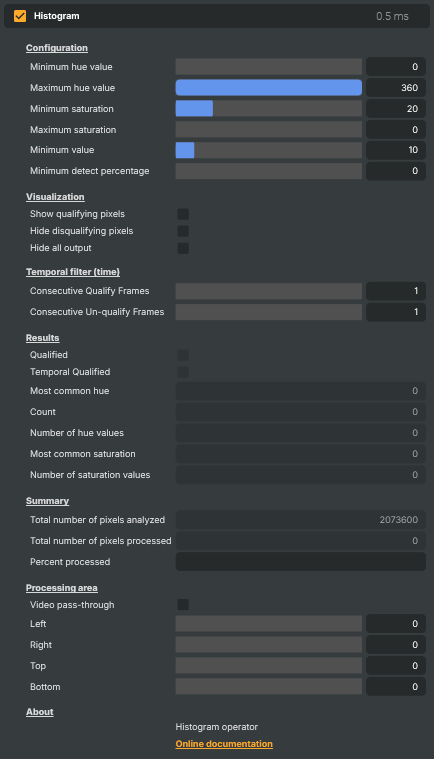
The Histogram operator analyses the colour and brightness distribution of the picture and reports whether a colour you care about is present — and how much of the frame it fills. You define a slice of the colour wheel (a hue range, plus saturation and brightness limits), and the operator continuously measures how many pixels fall inside that window.
Despite the name, this is not a photographic RGB-curve display: it is a colour detector and tracker. Its real job is to turn "is this colour on screen right now?" into a true/false flag and a set of numbers that scripts and automation can react to — while optionally highlighting the matching pixels in the output so you can see exactly what it found.
How it works
The operator examines each pixel in HSV terms — hue (which colour), saturation (how vivid), and value (how bright) — rather than raw red/green/blue. Working in HSV makes it easy to describe a colour the way a person would: "a vivid red, not too dark," regardless of small lighting variations.
A pixel qualifies when it falls inside all of the configured limits at once:
- Hue range — a minimum and maximum position on the colour wheel (0°=red, 60°=yellow, 120°=green, 180°=cyan, 240°=blue, 300°=magenta). Set both ends close together for an exact colour, or widen the range to accept variations. The range can wrap across the wheel for colours like red that straddle 0°.
- Saturation limits — exclude near-grey, washed-out pixels (raise the minimum) or ignore over-saturated ones (set a maximum).
- Minimum brightness — ignore shadows and dark areas so only well-lit colour counts.
Each frame the operator then compares the share of qualifying pixels against the minimum detect percentage: 0 means a single matching pixel is enough, while higher values require the colour to fill a substantial part of the area before the frame counts as a match. The instantaneous result is published as Qualified.
Steadying the trigger
A raw per-frame match flickers on noisy footage or when a colour drifts in and out at the edge of the threshold. The Temporal filter debounces it: the colour must qualify for a configurable number of consecutive frames before Temporal Qualified turns on, and must be absent for a configurable number of frames before it turns off. This is the value most scripts should trigger on — set the qualify count higher to ignore brief glitches, and the un-qualify count higher to ride through momentary drop-outs.
Limiting the area
By default the whole frame is analysed, but the Processing area crop controls (left / right / top / bottom) let you restrict the analysis to a region of interest — for example excluding a lower-third, a scoreboard, or letterbox bars so they don't pollute the measurement. Only the cropped-in region is considered when counting qualifying pixels.
Seeing and reading the result
While dialling in a colour, the Visualization options make the match visible: tint the qualifying pixels so they stand out, hide the disqualifying pixels to leave only the matched colour, or hide all output entirely and use the operator purely as a measurement. Video pass-through outputs the original picture untouched while still analysing it, so the operator can sit silently in a chain as a sensor.
Alongside the trigger flags, the operator reports read-only statistics about the analysed area — the most common hue and saturation, how many distinct hue/saturation values are present, and the total and matching pixel counts (with a percentage). These give scripts a richer picture than a simple yes/no, useful for logging the dominant colour of a feed or judging how varied an image is.
Common use cases
- Colour-cue automation — fire an action when a flag, a coloured light, a vest, or a sponsor colour is shown to the camera, using
Temporal Qualifiedas a debounced trigger. - Team or branding detection — watch for a known team colour or brand palette appearing on screen and switch graphics or overlays accordingly.
- Exposure and content monitoring — track the dominant hue and saturation of a live feed for editorial or QC purposes.
- Region-of-interest sensing — crop to a corner of the frame and react only to colour changes inside that zone (a signal lamp, a status panel, a portion of a set).
- Silent measurement — combine pass-through (or hide-all-output) with the read-only results so the operator reports on the picture without ever altering it.
Histogram - Settings
Configuration
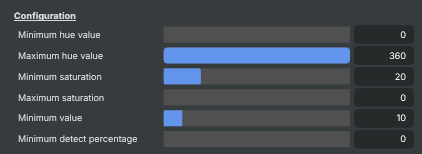
Configuration — define which colours and brightnesses count as qualifying pixels.
| Property | Description |
|---|---|
Minimum hue value |
Lowest hue (in degrees) that counts as a qualifying colour. [min=0, max=360, default=0]. Hue runs around the colour wheel: 0=red, 60=yellow, 120=green, 180=cyan, 240=blue, 300=magenta. Combine with ConfigurationHueValueMax to pick a slice of the wheel. |
Maximum hue value |
Highest hue (in degrees) that counts as a qualifying colour. [min=0, max=360, default=360]. Set the same as ConfigurationHueValueMin for an exact hue match, or widen the range to accept variations. |
Minimum saturation |
Minimum colour saturation (%). [min=0, max=100, default=20]. Pixels less saturated than this are ignored. Raise this to exclude near-grey pixels and only react to vivid colours. |
Maximum saturation |
Maximum colour saturation (%). [min=0, max=100, default=0]. 0 disables the upper limit. Use to exclude over-saturated pixels. |
Minimum value |
Minimum brightness (value, %) of qualifying pixels. [min=0, max=100, default=10]. Pixels darker than this are ignored. Raise this to exclude shadows and only react to well-lit colour. |
Minimum detect percentage |
Percentage of the area that must qualify before Qualified becomes true. [min=0, max=100, default=0]. 0 means any single matching pixel qualifies the frame. Raise this to ignore tiny patches and only fire on substantial coverage (for example, a flag filling a sizeable part of the frame). |
Visualization
Visualization — control how qualifying and non-qualifying pixels appear in the output image.

| Property | Description |
|---|---|
Show qualifying pixels |
Tint qualifying pixels in the output so they stand out. [default=false]. Useful while dialing in the colour range. Turn off in production unless the visualisation is part of the show. |
Hide disqualifying pixels |
Hide pixels that do not qualify, leaving only the matching colour visible. [default=false]. Combine with Show qualifying pixels for a clear "matched-only" look. |
Hide all output |
Hide all visual output and use the operator only as a measurement. [default=false]. The Qualified properties are still updated. Use this when the histogram is just a trigger and shouldn't change the picture. |
Temporal filter (time)
Temporal filter — require qualification across several frames to avoid flicker.

| Property | Description |
|---|---|
Consecutive Qualify Frames |
Number of consecutive frames the colour must qualify before TemporalQualified becomes true. [min=1, max=30, default=1]. Higher values smooth out single-frame glitches but delay the trigger. 1 means react immediately. |
Consecutive Un-qualify Frames |
Number of consecutive frames without a match before TemporalQualified resets to false. [min=1, max=30, default=1]. Higher values keep the trigger high through brief drop-outs. |
Results
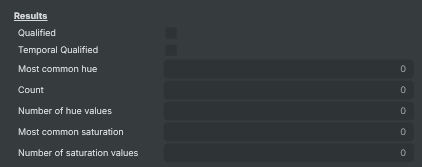
Results — read-only outputs reporting what was found in the most recent frame.
| Property | Description |
|---|---|
Qualified |
True when the current frame matches the configured colour (read-only). Reflects the raw, instantaneous match. Use TemporalQualified for a debounced version. |
Temporal Qualified |
True after enough consecutive frames have qualified (read-only). The recommended trigger for scripts — debounced via ConfigurationMinFramesToQualify/ConfigurationMinFramesToNotQualify. |
Most common hue |
Hue (degrees) that appears most often in the analysed area (read-only). |
Count |
How many pixels share the most common hue (read-only). |
Number of hue values |
Number of distinct hue values present (read-only). A low number suggests a flat colour palette; a high number suggests a busy/varied image. |
Most common saturation |
Saturation level that appears most often, 0–255 (read-only). |
Number of saturation values |
Number of distinct saturation values present (read-only). |
Summary
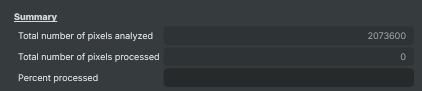
Summary — overall pixel counts for the analysed area.
| Property | Description |
|---|---|
Total number of pixels analyzed |
Total number of pixels considered, before colour filtering (read-only). |
Total number of pixels processed |
Number of pixels that matched the configured colour rules (read-only). |
Percent processed |
Matching pixels as a percentage of the analysed area, formatted as text (read-only). |
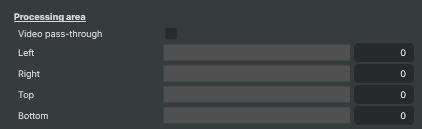
Processing area
Processing area — choose which part of the image is analysed.
| Property | Description |
|---|---|
Video pass-through |
Output the original picture untouched while still analysing it. [default=false]. Useful when the histogram is purely a measurement and the visualization options would interfere with the show. |
Left |
Pixels to ignore from the left of the image. [min=0, max=4096, default=0]. Use to limit analysis to a region of interest, for example excluding lower-thirds, scoreboards or letterbox bars. |
Right |
Pixels to ignore from the right of the image. [min=0, max=4096, default=0]. |
Top |
Pixels to ignore from the top of the image. [min=0, max=4096, default=0]. |
Bottom |
Pixels to ignore from the bottom of the image. [min=0, max=4096, default=0]. |
Inherits from: AbstractOperator, AbstractAudioMetering.
See also: Histogram in Script Engine Objects.