

Difference Matte
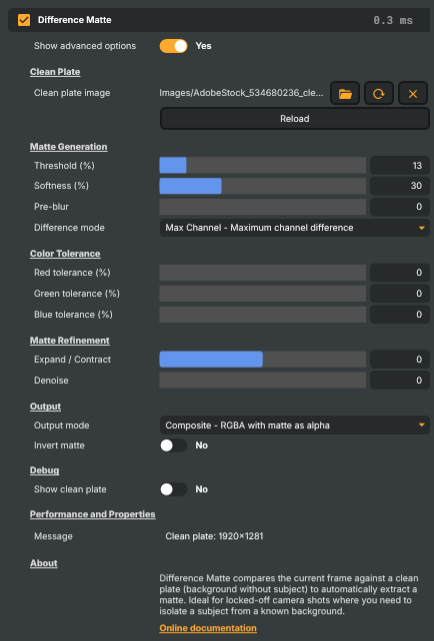
Introduction
The Difference Matte operator is a keyer that doesn't need a coloured screen. Instead of looking for green or blue, it compares each incoming frame against a clean plate — a still photo of the same shot with the subject removed — and treats every pixel that differs from the clean plate as foreground. Anything that matches the clean plate is treated as background and turned transparent.
That makes Difference Matte the right keyer for locked-off camera shots against ordinary backdrops: a presenter against a painted studio wall, a product against a fixed table top, a museum exhibit against its display case, a security-camera frame against the empty room. None of those scenes have a chroma colour to key out, but they do have one thing in common — the background never changes, so a single reference photo is enough to describe it.
What it needs to work
Difference Matte is a simple operator with a strict set of requirements. When they're met, the matte is excellent; when they aren't, the matte falls apart fast.
- A locked-off camera. Any movement — a bumped tripod, a slow PTZ drift, even a vibration from passing traffic — invalidates the clean plate. The operator compares pixels at exact positions, so the slightest re-frame shows up as a halo of false foreground around every static object in the shot.
- Stable lighting. The clean plate must match the live lighting. A passing cloud changing the colour temperature, a fluorescent tube warming up, or sunset moving across the room will all start to leak background into the foreground. For long-running shoots, plan to re-shoot the plate as conditions change.
- A clean plate that matches the live shot. Capture it with the same camera, same lens, same exposure, same white balance, same focus distance as the live feed. Any difference — a different aperture, a swapped lens, a touched exposure dial — defeats the matte.
- A visibly different subject. Difference Matte can't distinguish a subject that closely matches the backdrop. A grey shirt against a grey wall, a brown product on a brown table — those need to be staged with enough contrast that the operator has a real difference to find.
When these conditions hold, Difference Matte gives a clean matte with very little setup — usually just a clean plate path and the Threshold slider.
How it works
Every frame, the operator computes a per-pixel difference between the incoming image and the clean plate, and decides which pixels count as foreground:
- Difference mode picks the maths used to measure how different two pixels are:
- RGB averages the difference across all three channels — a balanced default.
- Luminance ignores hue and looks only at brightness — forgiving of slight colour shifts in the live shot, useful when white-balance drifts over the day.
- Max Channel uses the largest single-channel difference — the most sensitive option, good for catching subtle changes a luminance-only check would miss.
- Threshold decides how much difference counts as foreground. Low values catch every faint change (sensitive); high values ignore noise and small lighting drift.
- Softness controls how the edges of the matte fade from "definitely foreground" to "definitely background" — a feathered transition for natural edges, or a hard cut for poster-style composites.
Two further controls help on noisier or harder shots:
- Pre-blur smooths the input slightly before comparison — raise it if camera noise is producing speckled edges, leave it at 0 for clean low-noise sources.
- Per-channel colour tolerances (Red / Green / Blue) let the operator ignore small drift on one channel at a time. Useful when the live shot's white balance has shifted slightly from the clean plate — give the affected channel a few percent of slack instead of widening the global threshold and losing detail elsewhere.
Refining the matte
Once the basic matte is generated, two refinement controls clean it up:
- Expand / Contract grows or shrinks the matte. Positive values expand it (good for catching faint halos around the subject); negative values contract it (good for choking the matte away from background bleed at the edges).
- Denoise removes small isolated speckles in the matte — raise it if the matte has stray foreground pixels in obviously empty regions; keep it at 0 if the subject has fine wisps (hair, mesh, smoke) that you don't want denoise to eat.
Inspecting the matte
While tuning, switch the Output mode to see exactly what's happening:
- Composite — the live output with transparency applied. The final result.
- Matte Only — the alpha channel on its own. The clearest view for tuning threshold, softness, and refinement.
- Foreground Only — the keyed subject on a transparent background.
- Difference — a visualisation of the per-pixel difference between live and clean plate. Useful for diagnosing why a region of the matte is misbehaving.
A separate Show clean plate debug toggle outputs the loaded clean plate image directly — quick way to confirm the right reference has been loaded before tuning further. Invert matte swaps the foreground and background regions, which is useful when you want to remove a moving subject from a static scene rather than keep them.
Common use cases
- Product shots against a fixed backdrop — a turntable or a tripod, a single backdrop, no chroma screen. Capture the clean plate before placing the product, and Difference Matte takes care of the cut-out.
- Museum and exhibit captures — a static display behind glass against a fixed wall; the matte isolates the exhibit cleanly without painted screens disrupting the gallery.
- Security-camera extraction — a static camera in a corridor or room. Difference Matte can isolate any movement against the empty scene for downstream processing or alerting.
- Presenter against a painted set — when the production doesn't have a chroma screen, but the camera is locked off and the lighting is steady, Difference Matte can do the work of a chroma keyer with no green or blue paint required.
- "Remove the subject" effects — invert the matte to extract the background instead, so a moving subject is replaced by the underlying scene. Useful for clean-plate generation, before-and-after reveals, and reference-frame extraction.
When not to reach for Difference Matte
- Hand-held or moving cameras — pick one of the chroma keyers (HSV Keyer or IBK 3D Keyer) instead; they don't depend on per-pixel alignment.
- Unattended 24/7 deployments — the clean plate goes stale over time as lighting drifts, the camera bumps, or the room temperature shifts. For long-running headless installations, the HSV Keyer's chroma-based approach is far more robust.
- Detailed edges on a chroma-screen shot — when you do have a green or blue screen and need to hold onto fine hair or sheer fabrics, the IBK 3D Keyer is purpose-built for that and will outperform Difference Matte on edge detail.
Difference Matte - Settings

| Property | Description |
|---|---|
Show advanced options |
Reveals additional fine-tuning controls (colour tolerance, refinement, debug). Leave off for simple use; turn on when you need to tune individual channels or matte morphology. |
Clean Plate
Clean Plate — reference image of the empty background that the live frame is compared against.

| Property | Description |
|---|---|
Clean plate image |
Path to the still image of the empty background (no subject). Capture the clean plate with the exact same camera, lens, exposure, and lighting as the live shot. |
Reload |
Reload the clean plate image from disk — use after replacing the file on disk without changing its path. |
Matte Generation
Matte Generation — primary controls that decide how the difference becomes a matte.
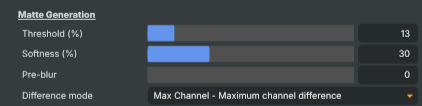
| Property | Description |
|---|---|
Threshold (%) |
Minimum difference required for a pixel to count as foreground. [min=0, max=100, default=10]. Lower to catch subtle differences (more sensitive); raise to ignore camera noise and small lighting changes. |
Softness (%) |
Width of the soft transition around matte edges. [min=0, max=100, default=20]. Raise for natural feathered edges; lower for crisper hard edges. |
Pre-blur |
Smoothing applied before comparison to reduce sensitivity to noise. [min=0, max=10, default=0]. Raise if noisy footage is producing speckled edges; keep at 0 for clean, low-noise sources. |
Difference mode |
How the difference between frames is measured (RGB average, Luminance, Max Channel). Luminance is forgiving of slight colour shifts; Max Channel is most sensitive; RGB is balanced. |
Color Tolerance
Colour Tolerance — per-channel slack to ignore small colour drift between live and clean plate.
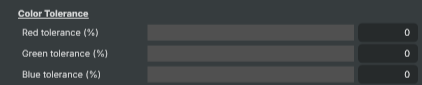
| Property | Description |
|---|---|
Red tolerance (%) |
(advanced) Tolerance for red-channel differences. [min=0, max=50, default=0]. Raise to ignore small red shifts (e.g. warming light); lower to catch every difference. |
Green tolerance (%) |
(advanced) Tolerance for green-channel differences. [min=0, max=50, default=0]. Raise to ignore small green shifts; useful when live lighting drifts slightly from the clean plate. |
Blue tolerance (%) |
(advanced) Tolerance for blue-channel differences. [min=0, max=50, default=0]. Raise to ignore small blue shifts (e.g. cooling light); lower to catch every difference. |
Matte Refinement
Matte Refinement — clean up holes, noise, and edge size after the matte is generated.

| Property | Description |
|---|---|
Expand / Contract |
(advanced) Grows or shrinks the matte. [min=-100, max=100, default=0]. Positive expands (good for catching halos); negative contracts (good for choking edges away from background bleed). |
Denoise |
(advanced) Removes small isolated pixels (matte noise). [min=0, max=10, default=0]. Raise if the matte has speckles or stray pixels; keep at 0 for fine details like wisps of hair. |
Output
Output — what the operator sends downstream.

| Property | Description |
|---|---|
Output mode |
What to output (Composite, Matte Only, Foreground Only, Difference visualisation). Switch to Matte Only or Difference while tuning to inspect the matte; switch back to Composite for the final result. |
Invert matte |
Swap foreground and background regions of the matte. Use when you want to keep the static background and remove the moving subject instead. |
Performance and Properties
Performance and Properties — runtime status.

| Property | Description |
|---|---|
Message |
Status message about clean plate loading and runtime warnings. |
Inherits from: AbstractOperator, AbstractAudioMetering.
See also: Difference Matte in Script Engine Objects.
Tutorials
A ready-made example project demonstrates the Difference Matte in context:
- Difference matte — chroma key using Difference Matte alongside spill suppression, light wrap, and composite layers. The closest match to a "real" production use of this operator, showing how it slots into the wider compositing chain.
Tutorials are downloaded on demand from RealSprint via Tutorials → Download tutorials… in Composer Desktop; the full catalogue with thumbnails and minimum-version requirements lives on the Tutorials page.
Related components
The Difference Matte is one of three keying approaches in Composer. The components below sit on either side of it in the compositing chain.
Alternative keyers — pick one of these instead of the Difference Matte when the shot calls for it:
- HSV Keyer — the default chroma keyer. Reach for it when you have a coloured green or blue screen rather than an arbitrary backdrop — HSV keying is faster to set up and doesn't need a clean plate, so it's the right choice for any standard chroma-key production and the only reasonable choice for unattended 24/7 deployments.
- IBK 3D Keyer — also clean-plate-based, but designed specifically for green or blue screens. Produces a noticeably more detailed matte than the Difference Matte on chroma-key shots, with separate per-channel balance and dedicated spill-suppression stages — at the cost of more controls to tune.
Compositing companions — drop these in after the Difference Matte to finish the composite:
- Spill Suppression — removes residual colour cast from the keyed-out edges. Especially useful if the backdrop reflected light onto the subject in the original shot.
- Light Wrap — wraps a thin halo of the new background colour around the edges of the keyed foreground so the subject reads as part of the new scene rather than pasted on top of it.