

File Recorder Target
Introduction
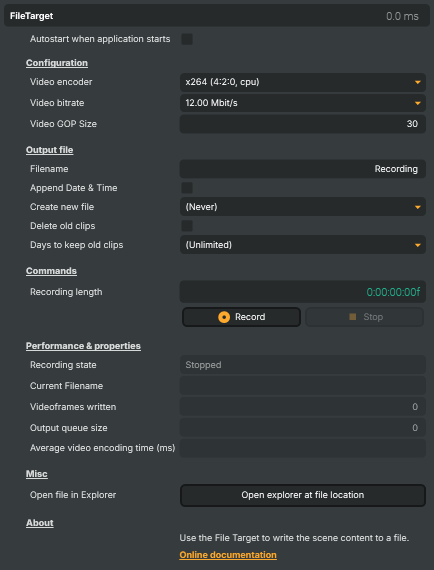
The File Recorder Target records the composed scene to a video file on local disk. It's the standard "keep a copy" target — typically MP4 with H.264 (CPU or NVENC) or HEVC video plus AAC audio, with optional automatic clip rotation, an automatic date-time suffix on filenames, and configurable retention so the recording folder doesn't grow unbounded.
Drop one on a scene to capture an archive of a live broadcast, capture footage for post-production, satisfy compliance / evidence requirements, build a clip library for editing, or just keep a local backup while the same scene is also being streamed live to a RTMP / SRT target.
How files are written
Files land in the Recordings/ folder next to the Composer executable. The target is deliberately conservative about overwriting:
- If the configured filename already exists in the folder, Composer auto-increments with a
_NNNNsuffix (broadcast.mp4→broadcast_0001.mp4→broadcast_0002.mp4, etc.) so previous recordings are never overwritten. - The optional append-date-time flag adds a
_YYYYMMDD-HHMMSSstamp to the filename, useful for running unattended archive jobs that produce one file per show. - The clip interval option splits the recording into multiple files automatically — every 10 seconds, every 1 / 2 / 5 / 10 / 30 / 60 minutes, or every 4 hours. Composer closes the current file cleanly (writes the MP4 trailer / index so it's playable) and opens a fresh one without dropping frames at the seam. Use this for long-running archive jobs where one giant file would be unwieldy.
- The retention option deletes
.mp4files older than a configurable age from theRecordings/folder, so a 24/7 archive recorder doesn't fill the disk.
The file extension on the configured filename drives the container — .mp4 writes MP4 (the default and recommended), .mkv writes Matroska. Pick the codec, target bitrate, and keyframe (GOP) interval explicitly; Composer hands those to the FFmpeg-based muxer it uses internally.
Common use cases
- Archive recording of broadcasts — one File Recorder Target alongside the live streaming targets, running for the full duration of a show, producing a clean MP4 of what went out.
- Post-production review — capture the live output for editorial review, social-media clip-cutting, or downstream qualifying work.
- Evidence and compliance recording — many broadcasters need to retain a local copy of every transmitted hour for regulatory or legal reasons; the retention setting keeps the disk usage bounded.
- Clip library for editing — record continuously with a 30 / 60-minute clip interval, hand the resulting file set to an editorial team that picks moments for highlights.
- Local backup while streaming — if the streaming target's network drops out, the local file recording keeps going; the operator can re-upload from disk afterwards.
- Playback testing — record a known good output once, replay it from a Video File Input on a second host to drive a downstream chain without needing the live source.
Encoder paths
- NVENC (GPU encoding) — H.264 / HEVC encoded on dedicated NVIDIA encoder silicon. Doesn't compete with the GPU's general compute, doesn't burn CPU, and substantially cheaper than the software path on busy production hosts. The right default whenever an NVENC-capable card is present.
- x264 (CPU encoding) — software H.264 encoder. Tunable, available everywhere, but uses CPU cycles that scale with resolution / frame rate. Reach for it on hosts without NVENC, or when you specifically want x264's quality / preset surface.
Driving from outside
Every command (Start, Stop, Open Recordings folder) is invokable from the property panel, the HTTP API (/api/invokecommand?targetname=File+Recorder&command=StartCommand), a Connector, or the Script Engine via ExecuteCommand / ExecuteCommandById. The current filename, recording duration, and frame count are surfaced as readable properties so dashboards and scripts can monitor the recording without polling the disk.
Related components
- FFmpeg Target — the power-user alternative when File Recorder Target's container / codec / parameter set isn't enough. Hands a raw FFmpeg command line; you assume responsibility for getting the arguments right.
File Recorder Target - Settings

| Property | Description |
|---|---|
Autostart when application starts |
Configuration
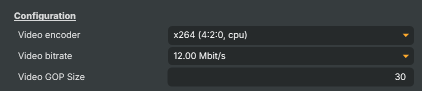
Configuration section — encoder, bitrate and GOP settings that control video quality and file size.
| Property | Description |
|---|---|
Video encoder |
Which video encoder to use for the recorded file. libx264 is software-encoded H.264 — broadest compatibility, but slower and CPU-heavy. h264_nvenc and hevc_nvenc use the GPU's hardware encoder and are far cheaper to run during a live show. hevc_nvenc_lossless produces a visually lossless master at the cost of a much larger file; OutputVideoBitrate and VideoGopSize are not used in that mode. |
Video bitrate |
Target video bitrate in bits per second. Higher bitrate gives better picture quality at the cost of larger files and more disk I/O. As a rough guide: 6–8 Mbit/s is comfortable for 1080p sports/news, 12–20 Mbit/s for high-motion 1080p archive, and 30 Mbit/s+ for 4K. Ignored when FileVideoEncoderId is set to hevc_nvenc_lossless. |
Video GOP Size |
Distance between keyframes (full frames) in the encoded video. [min=10, max=300, default=30]. Smaller values make seeking and editing more accurate but slightly increase file size; larger values give the best compression for static content. 30 is a good general default at 30 fps (≈ one keyframe per second). Ignored when FileVideoEncoderId is set to hevc_nvenc_lossless. |
Output file
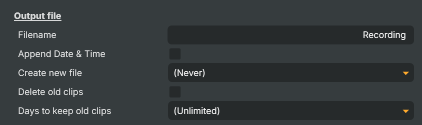
Output file section — file name, naming options, clip splitting and retention.
| Property | Description |
|---|---|
| Filename | Base name of the file written to the Recordings folder. The extension determines the container format (e.g. .mp4, .mkv, .mov); if no extension is supplied, .mp4 is assumed. If a file with the same name already exists, a _0001, _0002, … suffix is appended automatically so existing recordings are never overwritten. Avoid characters that are invalid in Windows file names (\ / : * ? " | | Append Date & Time| When true, the current date and time is appended to the filename in the formYYYY-MM-DD HHMMSS, producing unique file names per recording session. Recommended for long-running installations and unattended recording so files can easily be sorted chronologically. | | [Create new file](/docs/datatypes-enums#newfileinterval) | Maximum length of each clip before a new file is started automatically. Set to Neverto keep recording into a single file until you stop manually. Splitting into shorter clips keeps file sizes manageable, makes failed-write recovery less painful, and is useful for chunked uploads or rolling archives. | |Delete old clips| When true, old.mp4files in theRecordingsfolder are deleted automatically based onKeepRecordingDays. Use this for unattended 24/7 recording so the disk does not fill up. Only files in the Recordings folder are touched; nothing outside that folder is affected. | | [Days to keep old clips](/docs/datatypes-enums#recordingdays) | Number of days to keep old recordings on disk before they are deleted. Only used when DeleteOldClips` is enabled. Set this with disk capacity in mind — pick a window that comfortably fits within the available free space at your chosen bitrate. |
Commands
Commands section — start, stop and live recording length readout.

| Property | Description |
|---|---|
Recording length |
Time code of the current recording in HH:MM:SS:FF (hours:minutes:seconds:frames). Updates while recording. Useful in scripts to enforce a hard maximum duration or to flag long recordings. |
Record |
Begin recording to disk using the current encoder, bitrate and filename settings. Equivalent to clicking the Record button in the UI. |
Stop |
Stop the current recording and finalise (close) the file so it can be played back. Always call this before shutting down to avoid leaving an incomplete file. |
Performance & properties
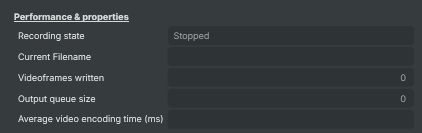
Performance & properties section — live read-outs for current recording status, file name and encoder timing.
| Property | Description |
|---|---|
Recording state |
Current recording state: Stopped, Starting, Recording or Stopping. Useful to check from scripts before issuing StartCommand / StopCommand and to confirm that a recording actually began. |
Current Filename |
Name of the file currently being written (read-only). Reflects any auto-appended date/time or _NNNN suffix that was applied. Use this in scripts to know exactly which file holds the current take. |
Videoframes written |
Total number of video frames written to the current file (read-only). Increments live during recording. Useful as a sanity check that the encoder is keeping up with the source frame rate. |
Output queue size |
Number of frames currently waiting to be written to disk (read-only, debug). A value that keeps growing means the disk or encoder cannot keep up with the source — lower the bitrate, switch to a faster encoder, or check that the destination drive is fast enough. |
Average video encoding time (ms) |
Average time, in milliseconds, spent encoding each video frame (read-only, debug). At 30 fps the encoder must finish each frame in under 33 ms to keep up; sustained values above that range mean the encoder is too slow for the chosen settings. |
Misc
Misc section — convenience commands for the recordings folder.

| Property | Description |
|---|---|
Open file in Explorer |
Opens the Recordings folder in Windows Explorer so you can review or move the captured files. |
Inherits from: AbstractTarget.