

AES67 Input
Introduction
The AES67 Input receives uncompressed PCM audio over the network — the receive-side counterpart to the AES67 Target. It joins an AES67 RTP multicast stream and brings the audio into Composer as a normal audio input, so you can take professional Audio-over-IP (AoIP) feeds — including AES67-compatible Dante sources — straight into a scene. It carries audio only, no video.
Use it to ingest a studio AoIP feed, to receive a mix from another Composer instance over AES67, or to loop a Composer AES67 Target back into the same project for testing.
What is AES67?
AES67 is the open standard for carrying uncompressed digital audio over a standard IP network: 24-bit (L24) or 16-bit (L16) PCM at 48 kHz, sent as RTP packets to a multicast group, typically packetized in 1 ms chunks for low latency. See the AES67 Target for the sending side.
Configuration
Because AES67 RTP describes only a channel count (not a layout), the input cannot auto-detect the format — set these to match the sender:
- Multicast address and Port — the group and port the stream is sent to (e.g.
239.69.0.1:5004). - Bit depth —
L24orL16, matching the sender. - Channels — number of channels in the stream (1–8).
- Buffer (ms) — how much audio to buffer before playback starts. Higher absorbs more network jitter; lower reduces latency.
The incoming stream is buffered and reclocked to Composer's render cadence. The Status section reports buffered audio, packets received, underruns, and the SSRC of the stream it locked onto so you can confirm the feed is live and healthy.
Notes
- The sender and receiver must be on the same network; for cross-subnet delivery the sender's multicast TTL must be high enough to reach this host.
- One stream per input. If more than one source is sending to the same multicast address and port, the input locks onto the first stream it receives and ignores the rest, so a stray sender sharing the group cannot mix into the audio or inflate the buffer. Give each stream its own multicast address to be sure you are receiving the intended feed.
- This input pairs naturally with the AES67 Target for an out→in loopback, which is a convenient way to validate an AES67 output end-to-end.
AES67 Input - Settings

| Property | Description |
|---|---|
Show advanced options |
Reveals advanced/expert properties in the panel. Off by default — flip to On to see fields like the jitter buffer size. |
Configuration
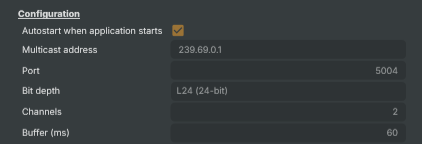
Configuration — multicast source the stream is received from. Must match the sender.
| Property | Description |
|---|---|
Autostart when application starts |
When On, the input starts receiving automatically when the project loads. |
Multicast address |
The IPv4 multicast group to receive from (224.0.0.0–239.255.255.255). Must match the sender. Can only be changed before the input starts. |
Port |
UDP port the stream is received on (default 5004). Must match the sender. |
Bit depth |
PCM bit depth of the incoming stream. Must match the sender (L24 or L16). |
Channels |
Number of audio channels in the incoming stream (1–8). Must match the sender — AES67 RTP carries only a channel count, so this cannot be auto-detected. |
Buffer (ms) |
(advanced) Amount of audio to buffer before playback starts, in milliseconds (default 60). Higher values absorb more network jitter at the cost of latency. |
Status
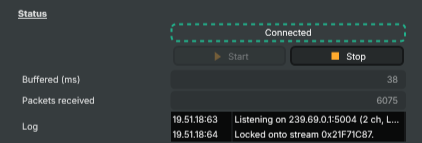
Status — connection state, controls and read-only receive statistics.
| Property | Description |
|---|---|
ConnectionStatus |
Current connection state (Disconnected, Connected). Read-only. |
Start |
Begins receiving the multicast stream. |
Stop |
Stops receiving and releases the multicast socket. |
Buffered (ms) |
Current amount of buffered audio, in milliseconds (read-only). Hovers near the configured buffer size while streaming; 0 means no audio is arriving. |
Packets received |
Total RTP packets received since the input started (read-only). |
Log |
Recent log lines from the input — start, stop, stream-locked and error events (read-only). A short history of the most recent AES67 events, useful for diagnosing why the input failed to start or why no audio is arriving. |
Inherits from: AbstractInput, AbstractAudioProcessing, AbstractAudioMetering, NamedModel.
See also: AES67 Input in Script Engine Objects.
Shared input properties
Every input — regardless of source type — exposes the following property groups. They are surfaced in the property panel only when Show advanced options is enabled on the input.
Icon
Icon text— short text shown on the input's icon in the Inputs list. Useful as a quick visual label (channel number, mic name, camera position) to tell otherwise-similar inputs apart at a glance. Empty by default; has no effect on rendering or routing.
Audio mixer
Hide in audio mixer— when on, hides the input from the audio mixer view without disabling its audio. Useful for de-cluttering the mixer while keeping the audio routed (e.g. fixed background music, ambient beds, pre-aligned playout). [default=false]
Render Options
Invisible (Do not render in scene)— when on, the input is skipped during rendering and produces no picture on any layer or scene. Audio routing is unaffected. Toggle from a script for cued-in / cued-out behaviour during a show. [default=false]Do not render input— disables the input's internal render entirely (no decode or capture work is done). Stronger than Invisible: that one renders but doesn't display; this one stops the input from doing any work at all. Useful for reducing CPU / network load on heavy sources (e.g. high-bitrate RTMP / SRT streams, large media files) when the input is temporarily not needed. Audio meters are cleared while disabled. [default=false]Do not render inputcontroller — chooses what drives the Do not render input flag.Let Composer decide(the default) hands control to the project-level Render Tuning optimiser, which automatically pauses inputs that aren't used by any active scene.Manual Configurationignores Render Tuning and lets the Do not render input toggle control the flag directly — use this to keep a network source warm even when it's currently off-air, or to take a heavy input down by hand regardless of scene activity. [default=Let Composer decide]
Optional TAGS
TAGS— one or more free-form tag words used to classify this input (typically space- or comma-separated). Picked up by Composer's Smart Search to filter or find inputs by category — e.g.camera,music,interview,sponsor. Has no effect on rendering.
Audio configuration and processing options
For inputs capable of processing audio, additional audio configuration and processing options are available through the audio mixer and the Channel Strip Inspector.
- Audio mixer — monitor levels, adjust gain and pan, mute / solo inputs, and configure auxiliary sends to
Audio Channel Stripsubmix buses, all from a centralised mixer-style interface. - Channel Strip Inspector — advanced per-strip audio processing for the selected input:
- Input trim, stereo remapping, and audio delay
- Channel mapping (8-channel mode unlocks the full MAPPING tab)
- Gate (attenuates audio below a threshold to clean up room tone and bleed between phrases)
- Low-cut filter (high-pass filter that rolls off rumble, plosives, and HVAC hum below a chosen cutoff)
- Equaliser (5-band parametric)
- Compressor (narrows dynamic range so the source sits at a steadier level in the mix)
- Sidechain ducking (a second compressor whose gain reduction is driven by another input's level — e.g. dipping music under a voice-over)
- Limiter (brick-wall ceiling that catches peaks to prevent clipping at the end of the chain)
- Automixer (per-mic Use automixer toggle and weighting for gain-sharing across a group of live mics)
- Automixer window — a mixer-style overview of every input with the gain-sharing automixer enabled, with per-mic gain, weight, and bypass plus group-wide envelope and noise-floor overrides from a single panel.
For the full audio signal flow, see Audio processing workflow.
Related components
- AES67 Target — the sending side. Pair it with this input for an out→in loopback or to send a Composer mix onto an AES67 network.
- Audio Channel Strip input — a virtual audio bus for routing and sub-mixing the audio you bring in over AES67.
- SRT input — receive-side for compressed audio + video over unmanaged or internet networks, when uncompressed multicast isn't an option.
- NDI input — receive-side for audio and video together on the studio LAN.