

SRT input
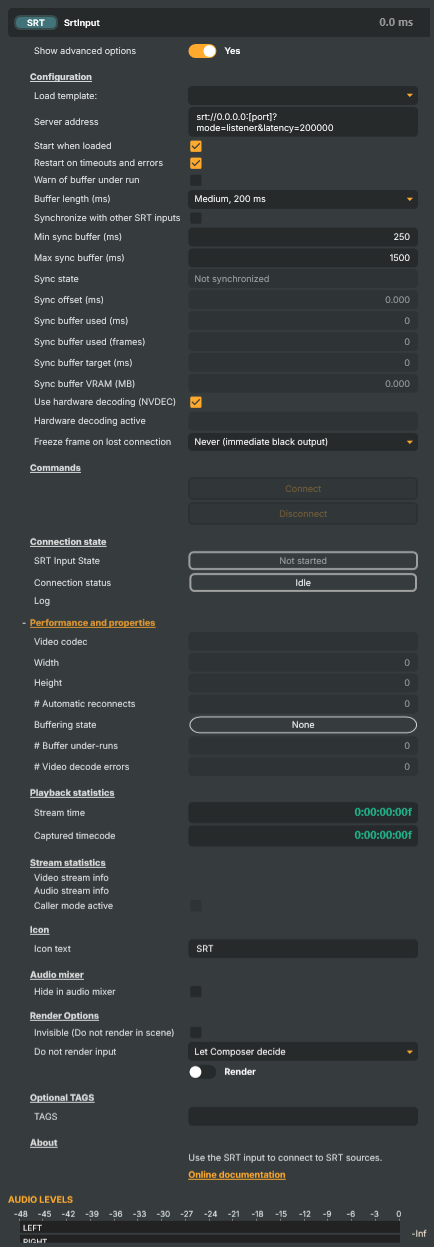
Introduction
The SRT input receives a live video and audio stream over SRT (Secure Reliable Transport) — the broadcast-industry standard for delivering live contribution feeds over IP networks Composer doesn't own. SRT layers packet-loss recovery, retransmission, and accurate timestamping on top of UDP, so a feed survives the kind of packet drop and jitter that would simply collapse an RTMP stream. Reach for SRT whenever the link crosses the public internet, a 4G / 5G uplink, a hotel or venue network, or any other path you can't fully control.
Both connection directions are supported:
- Listener mode (
mode=listener) — Composer binds locally and waits for a remote encoder to dial in. The most common deployment when a contribution encoder is on the road and Composer is the destination. - Caller mode (
mode=caller) — Composer dials a remote SRT source and pulls the stream. Useful when the source lives behind a firewall that doesn't accept inbound, or when pulling from a managed SRT relay.
For the inverse direction — pushing a Composer-rendered scene out over SRT — see the SRT Target. For studio-LAN-only contribution where mDNS auto-discovery and absolute minimum latency matter, the NDI input is a better fit; for managed-network ingestion from legacy encoders, the RTMP input is simpler.
Why SRT for contribution
SRT is purpose-built for live contribution over networks Composer doesn't own. Compared to RTMP it delivers:
- Bounded, configurable latency — the receiver waits a fixed
latencybudget (typically 120–500 ms) for retransmits before delivering the frame, so glass-to-glass delay stays predictable even when the network gets noisy. - Loss recovery that actually works on bumpy links — retransmission and forward-error-correction keep the feed up where RTMP would drop within seconds.
- Native AES-128 / AES-256 encryption via a
passphraseURL parameter — no TLS terminator or VPN required. - Stream identifiers for multi-tenant / managed-ingest scenarios via the
streamidparameter — many cloud SRT ingests require it.
For a stable studio-LAN delivery from a known encoder, RTMP is still simpler. For everything else outside the studio, SRT is the safer bet.
Codec support and hardware decoding
The input handles H.264, HEVC, and AV1 video alongside AAC audio — the codecs SRT contribution chains carry in practice. With a supported NVIDIA GPU, NVDEC (hardware decoding) takes the per-frame cost off the CPU; for codecs the card can't accelerate (or hosts without an NVDEC GPU), the input transparently falls back to multi-threaded software decoding. AV1 NVDEC requires a card with the right silicon — Ada Lovelace / RTX 40-series and newer.
The exact codec / resolution combinations a card can accelerate are documented in NVIDIA's compatibility matrix.
Timecode
When the incoming stream carries an embedded SMPTE timecode, the input reads it back frame-by-frame and surfaces it as the read-only Captured timecode property — useful for logging, synchronising multiple feeds, or driving downstream automation from the source's own timeline. This is distinct from Stream time, which simply counts elapsed time since the connection went live; Captured timecode reflects the timecode the sender stamped into the picture. It uses the same name as the Decklink capture input's captured timecode, so the two behave alike.
Captured timecode stays empty when the feed carries none. In practice most H.264 contribution chains don't embed a timecode; feeds from an SRT Target sending HEVC with timecode embedding enabled will populate it.
Reading timecode requires software decoding. Turn Hardware decoding off on this input to read the embedded timecode — the NVIDIA hardware decoder does not expose the timecode metadata, so with hardware decoding enabled the Captured timecode stays empty even when the stream carries one.
The value is also exposed via the HTTP API for dashboards.
Synchronizing several SRT cameras
For remote production where several cameras are genlocked to a shared clock — so every stream carries the same embedded timecode for the same instant — Composer can present them all frame-aligned, even though SRT network latency differs per camera and drifts over time. Turn on Synchronize with other SRT inputs on each camera's SRT input and they join a single studio sync group: Composer holds the fast feeds back in a deeper buffer and releases every camera on the same source timecode, keeping each camera's audio locked to its own video.
- Opt-in, off by default — only inputs with Synchronize enabled join the group; everything else is unaffected.
- Latency follows the slowest camera — the group runs at the delay of its most-delayed feed (bounded by Max sync buffer). This is inherent to aligning feeds that arrive at different times.
- Congestion policy (a project setting): Hold sync keeps everyone aligned by growing latency when one link congests; Low latency keeps latency and lets a congested camera briefly freeze and re-lock.
- Watch it live in the SRT Synchronization window (Tools menu) or via the HTTP API
/api/srtsync/status— per-camera lock state, offset, and buffer use, plus group lock and latency.
Send the timecode as SMPTE ST 2038 for the smoothest sync. Synchronization locks on each stream's embedded timecode. If the sender carries it as a SMPTE ST 2038 ancillary stream (the SRT Target's Timecode transport = "SMPTE ST 2038 ancillary"), the receivers can lock on it with hardware (NVDEC) decoding on — no configuration needed. The older video SEI (S12M) timecode path also works, but NVDEC can't read SEI, so for SEI you must turn Use hardware decoding off on the synchronized inputs. If a stream carries no embedded timecode at all, synchronization falls back to a weaker PTS/cadence estimate and raises a warning.
Common use cases
- Remote venue uplinks — a stand at a sports venue, a conference, or an outside-broadcast truck pushing a programme feed back to base over a public network or a 4G/5G bond.
- Cross-facility point-to-point links — two facilities (or a Composer and a hardware encoder) glued together over the open internet without provisioning dedicated lines.
- Cloud-to-studio contribution — pull a feed from a cloud encoder / SRT relay back into Composer for compositing, monitoring, or recompositing into a downstream chain.
- Multi-language broadcasts — when the contribution stream carries multiple AAC programs (international + commentary mixes), the audio bus exposes each stream for routing in the Channel Strip Inspector.
- Encrypted contribution — when the source side requires AES encryption (rights-managed feeds, sensitive content), the same
passphraseis configured here to decrypt incoming traffic. - Backup / dual-uplink ingest — run a primary and a backup SRT input pointing at the same encoder via different paths; the freeze-frame handling keeps the picture live during a brief switchover.
Resilience
Connection management is built in: AutoStart brings the input live when the project loads; AutoRestart re-establishes the listener / caller after errors; SrtBufferLength (Short / Medium / Long) trades latency against jitter tolerance. On signal loss the input optionally holds the last good frame rather than going to black, giving an operator time to react before viewers see the drop. Connection-state, reconnect counter, packet statistics, and a per-input log are surfaced as readable properties for dashboards and the HTTP API.
A small set of configuration templates ships with the input — pick a known-good baseline (typical listener, typical caller, encrypted listener) from the dropdown and the relevant fields populate so you can edit from a working starting point rather than building the URL from scratch.
SRT input - Settings
Properties marked (
Components) or (AudioMixer) broadcast a livePropertyChangedevent to clients subscribed to that WebSocket channel.

| Property | Description |
|---|---|
Show advanced options |
Show or hide the input's advanced settings in the editor UI. [default=false]. |
Configuration
Configuration — server URL, decoder, buffer length, and resilience options.
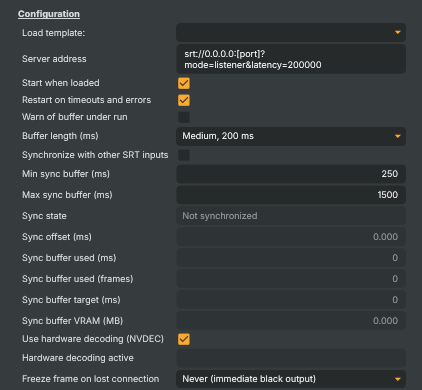
| Property | Description |
|---|---|
Load template: |
Pre-built configuration template that fills in ListenerAddress for you. Custom keeps whatever you've typed. The other choices set ListenerAddress to a ready-made local-loopback URL — Localhost9000caller for connecting out to a source on localhost:9000, Localhost9000listener for receiving a push to localhost:9000. |
Server address |
SRT URL the input connects to or listens on. [default=local listener on any interface]. A full SRT URL such as srt://host:port?mode=caller&latency=200000 (reach out to a remote source) or srt://0.0.0.0:port?mode=listener&latency=200000 (wait for a remote encoder to push the stream into Composer). Supports the standard SRT query parameters — mode, latency, passphrase, streamid, etc. — directly in the URL. The macro @@LocalIP() can be used in place of an IP address and will be substituted with the host machine's local IP address at connect time. Useful for portable project files that should work on any machine without manual IP edits — for example srt://@@LocalIP():9000?mode=caller&latency=200000. |
Start when loaded |
Whether the input starts as soon as the project loads. [default=true]. When true, the input invokes its start logic immediately on load (equivalent to running StartListenerCommand). Disable to require an explicit start, useful when the source should only come live on operator action or via a script trigger. |
Restart on timeouts and errors |
Whether the input automatically restarts after a timeout or error. [default=true]. When true, the input keeps trying to recover when the connection drops, the source times out, or a recoverable error occurs. Useful for long-running productions where the source may briefly drop. Disable for one-shot connects that should not auto-recover. |
Warn of buffer under run |
Whether to log a warning when the video or audio buffer drains to zero. [default=false]. Buffer under-runs typically cause visible stalls or audible drop-outs, so flagging them in the log helps diagnose network or pacing issues. Disable to keep the log quieter when occasional drains are expected. |
Reconnect interval |
How long to wait before trying a failed or dropped connection again. [default=5 seconds]. Applies when a connection is refused, fails, or drops after it was established. It does NOT apply to a listener waiting for its first connection: an input in mode=listener is waiting to be connected TO, and goes on waiting for as long as the project runs, whatever this is set to. (Never) leaves the input down after a failure until it is connected by hand, the same as turning Restart on timeouts and errors off — either switch stops a caller after its first failed attempt, and neither one ends a listener's wait. |
Buffer length (ms) |
(advanced) How much video and audio is buffered ahead of playback. [default=Medium]. Choose between Short, Medium, and Long. A longer buffer absorbs more network jitter and keeps playback steady on bumpy links, at the cost of more added latency. A shorter buffer is tighter on latency but more sensitive to network hiccups. |
Synchronize with other SRT inputs (Components) |
Synchronize this SRT input with other synchronized SRT inputs. [default=false]. Off by default. When enabled, this input joins the shared studio sync group: all synchronized SRT inputs are held frame-aligned on the same embedded timecode, so genlocked cameras arriving with different network latency are presented on the same output frame. Enabling this deepens the receive buffer (see Max sync buffer (ms)) to absorb the inter-stream latency spread, which adds latency equal to the slowest stream. Requires the sources to share a genlock/timecode. |
Min sync buffer (ms) |
(advanced) Minimum receive buffer kept while synchronizing, in milliseconds. [min=100, max=2000, default=250]. A floor on the sync buffer so a briefly-fast link still keeps headroom to absorb the next jitter spike. |
Max sync buffer (ms) |
(advanced) Maximum receive buffer used while synchronizing, in milliseconds. [min=250, max=3000, default=1500]. The ceiling on hold-back buffering — the largest inter-stream latency spread the group can absorb and still stay synchronized. Larger values tolerate bigger spreads at the cost of more memory (decoded frames are buffered) and more latency. If the real spread exceeds this, the group cannot lock and a warning is raised. |
Sync state (Components) |
Live synchronization state of this input relative to the studio group (read-only). Not synchronized, Locking, Locked, Out of sync, or Locked (fallback). |
Sync offset (ms) (Components) |
How far this input is running ahead of / behind the group target, in milliseconds (read-only). 0 when perfectly aligned. Positive = this input is ahead of the group; negative = behind. |
Sync buffer used (ms) (Components) |
How much hold-back buffer this input is currently using, in milliseconds (read-only). Rises with the inter-stream latency spread; a proxy for this input's memory pressure while syncing. |
Sync buffer used (frames) (Components) |
How many video frames this input is currently holding back for synchronization (read-only). |
Sync buffer target (ms) (Components) |
The target buffer depth this input is buffering toward while synchronizing, in milliseconds (read-only). |
Sync buffer VRAM (MB) (Components) |
Estimated GPU memory the synchronization hold-back buffer is currently using, in megabytes (read-only). Approximated from the buffered frame count and the video resolution (~1.5 bytes/pixel for the NV12 decoder output). A direct read on this input's memory pressure while synchronizing many high-latency streams. |
Use hardware decoding (NVDEC) |
Use hardware-accelerated decoding (NVDEC) when the incoming codec supports it. [default=true]. When true, video decoding runs on dedicated NVIDIA decoder silicon, freeing the CPU and typically allowing more concurrent video inputs at higher resolutions. Falls back to software decoding for codecs the card can't accelerate. See HardwareDecodingUsed to confirm which path was actually selected. |
Hardware decoding active |
Which decoder is currently active for the incoming stream (read-only). Reflects whether NVDEC (hardware) or a software decoder is in use. Useful from a script to confirm hardware decoding actually engaged for the incoming codec, since UseHardwareDecoding is a preference and the actual path depends on what the card supports. |
Freeze frame on lost connection |
What to show on screen when the SRT connection is lost. Choose how the input behaves while it has no source — for example freezing on the last good frame for a configurable time, or going to black immediately. Useful for choosing between a graceful "hold on screen" look and an obvious "we lost the source" indicator. |
Commands
Commands — start and stop the SRT input.

| Property | Description |
|---|---|
Connect |
Start the SRT input. |
Disconnect |
Stop the SRT input. |
Connection state
Connection state — overall input state and the underlying SRT socket status, plus the recent log.

| Property | Description |
|---|---|
SRT Input State |
Overall state of the SRT input (read-only). High-level state combining the connection status and buffering — typically NotStarted, Starting, Running, Stopping, or an error variant. Driven indirectly by StartListenerCommand / StopListenerCommand and AutoStart at load time. Read this from a script to decide whether the stream is live; it also drives the running indicator and the enabled state of the start/stop buttons. |
Connection status |
(advanced) Detailed connection state of the underlying SRT socket (read-only). Reflects the low-level listener/caller status — for example whether the socket is listening, connecting, connected, stopping, or closed. Most scripts can use the higher-level SrtInputStreamState instead; this is mainly useful for detailed troubleshooting. |
Log |
Recent log lines from the input — connect, disconnect, restart, and error events (read-only). A short history of the most recent SRT events, useful for diagnosing why a connection failed or why the input restarted. |
Camera identity
Per-frame camera identity carried in the stream.
| Property | Description |
|---|---|
Source camera |
The camera whose picture is in the frames arriving now, as the sender named it (read-only). Empty when the stream carries no identity. A Vindral Multicam Encoder stamps every coded frame with the camera that produced it, and this is that record joined to the frame it describes rather than to the newest one. What reads it inside the render pass is CameraBackgroundSelector, through CudaBgraImage.SourceTag; this property is for a person watching, and for a test. |
Observe frame identity |
Record each decoded frame's dominant colour alongside the camera identity attached to that same frame, readable from FrameIdentitySamples. Off by default. For proving that the picture changes on the same frame as the identity. Costs a hue histogram over each frame while it is on, so leave it off in production unless that is the question being asked. |
Frame identity samples |
The frames observed while ObserveFrameIdentity is on, oldest first, as index:pts:camera:uid:hue:saturation:value separated by ; (read-only). Emptied whenever the diagnostic is switched either way. index counts every frame observed since that window began, so a reader can tell a complete run from one with holes in it. hue is in degrees, saturation and value in percent; all three zero means no pixel had a stable hue, which is not the same as red. uid escapes %, : and ; as %25, %3A, %3B. |
Performance and properties
Performance and properties — runtime stats from the live SRT stream.
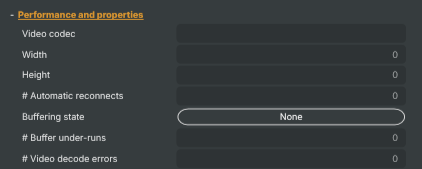
| Property | Description |
|---|---|
Video codec |
(advanced) Friendly name of the incoming video codec (e.g. "hevc", "h264"), taken from the negotiated stream (read-only). Empty until the source has been negotiated. |
Width |
Width of the video frames currently being received, in pixels (read-only). |
Height |
Height of the video frames currently being received, in pixels (read-only). |
# Connection attempts |
(advanced) Total number of connection attempts made since the input was started, failed ones included (read-only). A number that climbs while the input never reaches Started means the endpoint is refusing or unreachable. libsrt reports its handshake rejections on stderr, which on Linux reaches journald and never the Composer log, so this is the Composer-side evidence that a connection is being attempted and refused. |
# Automatic reconnects |
Total number of automatic reconnects performed since the input was started (read-only). A rapidly growing counter is a strong signal that the network path or source is unstable. Resets only on full input dispose / re-create. |
Buffering state |
(advanced) Whether the input is currently filling its receive buffer (read-only). Buffering means the input is waiting for enough data before it starts producing frames; Streaming means it's running normally. Sustained buffering states indicate the network can't keep up with the configured SrtBufferLength. |
# Buffer under-runs |
Number of times the video or audio buffer drained to zero (read-only). Each occurrence typically lines up with a visible stall or audible drop-out. A growing counter is a strong signal the network can't keep up with the configured SrtBufferLength. |
# Video decode errors |
(advanced) Total number of video decode errors observed since the input was started (read-only). Should stay at 0 during healthy reception. Non-zero values indicate corrupted packets, codec mismatches, or other decode-time problems. |
Playback statistics
Playback statistics — per-frame timestamps and stream-time diagnostics.

| Property | Description |
|---|---|
Stream time |
Time elapsed since the stream started, as a time code (read-only). Counts up from 0:00:00:00 when the connection becomes live and resets on each new connection. Useful for displaying the stream's running duration. |
Captured timecode |
SMPTE timecode embedded in the incoming stream, read back frame-by-frame (read-only). This is the source's own timecode — unlike StreamTime, which counts elapsed time since this connection went live. Null when the stream carries no embedded timecode. In-stream SEI/S12M timecode is typically only present on HEVC (software-decode) sources, but SMPTE ST 2038 ancillary timecode is read codec-agnostically, so H.264 sources that carry it also report a timecode. Named to match the Blackmagic input's captured timecode for cross-input consistency. |
Stream statistics
Stream statistics — metadata about the incoming video and audio streams.

| Property | Description |
|---|---|
Video stream info |
(advanced) Metadata about the incoming video stream (read-only). A dictionary with technical details about the video — codec, resolution, frame rate, bit rate, and so on. Available once the source has been negotiated. |
Audio stream info |
(advanced) Metadata about the incoming audio stream (read-only). A dictionary with technical details about the audio — codec, sample rate, channel count, bit rate, and so on. Available once the source has been negotiated. |
Caller mode active |
(advanced) Whether the input is currently running in SRT caller mode (read-only). True when ListenerAddress is configured with mode=caller (Composer reaches out to a remote SRT source). False when in mode=listener (Composer waits for a remote encoder to push the stream in). |
Inherits from: AbstractInput, AbstractAudioProcessing, AbstractAudioMetering, NamedModel.
See also: SRT input in Script Engine Objects.
Shared input properties
Every input — regardless of source type — exposes the following property groups. They are surfaced in the property panel only when Show advanced options is enabled on the input.
Icon
Icon text— short text shown on the input's icon in the Inputs list. Useful as a quick visual label (channel number, mic name, camera position) to tell otherwise-similar inputs apart at a glance. Empty by default; has no effect on rendering or routing.
Audio mixer
Hide in audio mixer— when on, hides the input from the audio mixer view without disabling its audio. Useful for de-cluttering the mixer while keeping the audio routed (e.g. fixed background music, ambient beds, pre-aligned playout). [default=false]
Render Options
Invisible (Do not render in scene)— when on, the input is skipped during rendering and produces no picture on any layer or scene. Audio routing is unaffected. Toggle from a script for cued-in / cued-out behaviour during a show. [default=false]Do not render input— disables the input's internal render entirely (no decode or capture work is done). Stronger than Invisible: that one renders but doesn't display; this one stops the input from doing any work at all. Useful for reducing CPU / network load on heavy sources (e.g. high-bitrate RTMP / SRT streams, large media files) when the input is temporarily not needed. Audio meters are cleared while disabled. [default=false]Do not render inputcontroller — chooses what drives the Do not render input flag.Let Composer decide(the default) hands control to the project-level Render Tuning optimiser, which automatically pauses inputs that aren't used by any active scene.Manual Configurationignores Render Tuning and lets the Do not render input toggle control the flag directly — use this to keep a network source warm even when it's currently off-air, or to take a heavy input down by hand regardless of scene activity. [default=Let Composer decide]
Optional TAGS
TAGS— one or more free-form tag words used to classify this input (typically space- or comma-separated). Picked up by Composer's Smart Search to filter or find inputs by category — e.g.camera,music,interview,sponsor. Has no effect on rendering.
Audio configuration and processing options
For inputs capable of processing audio, additional audio configuration and processing options are available through the audio mixer and the Channel Strip Inspector.
- Audio mixer — monitor levels, adjust gain and pan, mute / solo inputs, and configure auxiliary sends to
Audio Channel Stripsubmix buses, all from a centralised mixer-style interface. - Channel Strip Inspector — advanced per-strip audio processing for the selected input:
- Input trim, stereo remapping, and audio delay
- Channel mapping (8-channel mode unlocks the full MAPPING tab)
- Gate (attenuates audio below a threshold to clean up room tone and bleed between phrases)
- Low-cut filter (high-pass filter that rolls off rumble, plosives, and HVAC hum below a chosen cutoff)
- Equaliser (5-band parametric)
- Compressor (narrows dynamic range so the source sits at a steadier level in the mix)
- Sidechain ducking (a second compressor whose gain reduction is driven by another input's level — e.g. dipping music under a voice-over)
- Limiter (brick-wall ceiling that catches peaks to prevent clipping at the end of the chain)
- Automixer (per-mic Use automixer toggle and weighting for gain-sharing across a group of live mics)
- Automixer window — a mixer-style overview of every input with the gain-sharing automixer enabled, with per-mic gain, weight, and bypass plus group-wide envelope and noise-floor overrides from a single panel.
For the full audio signal flow, see Audio processing workflow.
Related components
- SRT Target — the sender-side counterpart. Use it when Composer is the source of an SRT stream rather than the receiver.
- SRT input — 16 channel audio — variant for projects whose audio bus is wider than 8 channels; same protocol surface, extended channel mapping.
- MoQ input — pick this for sub-second-latency contribution from a Vindral CDN channel or other MoQ-native source; QUIC-based and connection-migration-tolerant where SRT's UDP path isn't.
- MoQ Target — the MoQ sender-side. Use it when publishing a Composer scene into the Vindral CDN over MoQ rather than to an SRT receiver.
- RTMP input — pick this for managed-network ingestion from RTMP-only encoders; simpler protocol, less robust on bumpy links.
- RTMP Target — the RTMP sender-side. Use it to push a Composer scene out to a CDN, RTMP origin, or third-party live platform.
- NDI input — pick this for studio-LAN contribution; mDNS auto-discovery and lower latency than SRT, but not designed to traverse the public internet.
- NDI Target — the NDI sender-side. Use it to publish a Composer scene to other NDI-aware tools on the same studio LAN.