

Automixer window
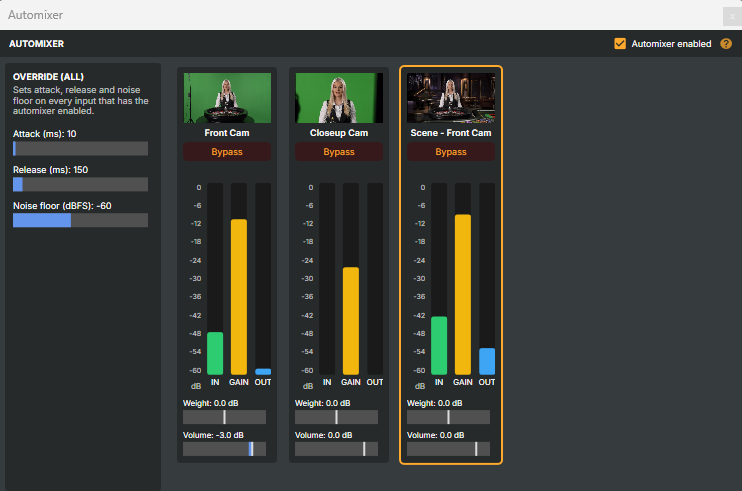
The Automixer window is a single, mixer-style overview of every input that currently has the gain-sharing automixer switched on. Where the Channel Strip Inspector's AUTOMIX tab configures one mic at a time, this window gathers the whole group in one place — one vertical strip per participating mic — so you can watch the gain sharing work live and ride the group from a single panel.
It is the natural companion to the automixer when you run a panel, round-table, courtroom, or conference floor: each talker that has Use automixer enabled appears here automatically, and you see at a glance who is open and who is being faded down.
Opening the window
In the Audio mixer layout, click the Automixer button in the top-right corner of the AUDIO MIXER panel header, next to the Channel Strip Inspector:

The window opens as a floating tool window that stays available while you work elsewhere in Composer; click the icon again (or reopen it) to bring it back to the front.
Master switch
The Automixer enabled checkbox in the window header is the global master on/off for the automixer across every input at once. Turning it off bypasses the gain sharing for all mics without changing each input's own Use automixer toggle, so you can drop the whole group back to plain open mics and re-arm it later without losing your per-mic setup. While it is off, the override panel and the strips are disabled.
Override (all mics)
The OVERRIDE (ALL) panel on the left sets the envelope and noise-floor behaviour on every automix-enabled input in one move — useful for dialling in the group's feel without visiting each channel strip:
| Control | What it does | Range |
|---|---|---|
Attack (ms) |
How quickly mics fade up when they become the active talker, applied to all members. | 1 to 500 ms |
Release (ms) |
How quickly mics fade back down once someone else takes over, applied to all members. | 10 to 2000 ms |
Noise floor (dBFS) |
The level below which a mic is treated as silent for gain sharing, applied to all members. | −90 to −20 dBFS |
The panel opens showing the values of the first mic in the group; changing any control pushes that value to every member.
Per-mic strips
Each mic with the automixer enabled gets its own strip. Click a strip to select that input (it gains the orange outline, the same selection you see in the Audio mixer).
| Element | What it shows |
|---|---|
| Thumbnail & name | A live preview and the input's name, so you can tell the strips apart at a glance. |
Bypass |
Takes this mic out of the gain share: its audio passes through at unity and it no longer counts toward the group, while the others keep sharing among themselves. |
IN meter |
The input level feeding the automixer, before the automix gain (dBFS). |
GAIN meter |
The automix gain currently applied to this mic — at the top it is fully open (the active talker, or the only mic in the group); lower means it is being faded down under the others. |
OUT meter |
The resulting output level after the automix gain has been applied (dBFS). |
Weight |
The mic's relative weight within the group, in dB. 0 dB is neutral; raise it to bias the share toward an important host/chair mic, lower it to keep a mic in the background. (−18 to +18 dB) |
Volume |
The input's output volume — the same as its channel fader. 0 dB is unity. (−60 to +12 dB) |
The three meters share one −60 to 0 dB scale, so you can read input, gain, and output against each other directly: as a talker rises, its GAIN bar climbs toward the top while the others drop.
When no mics are in the group
If no input has the automixer enabled, the window shows a reminder instead of strips: open a channel strip's AUTOMIX tab and turn on Use automixer on each mic you want to share gain. See the Channel Strip Inspector for the per-mic automixer settings.
Note
The Automixer window closes automatically when you enter performance mode, and can be reopened after you exit it.