

NDI input
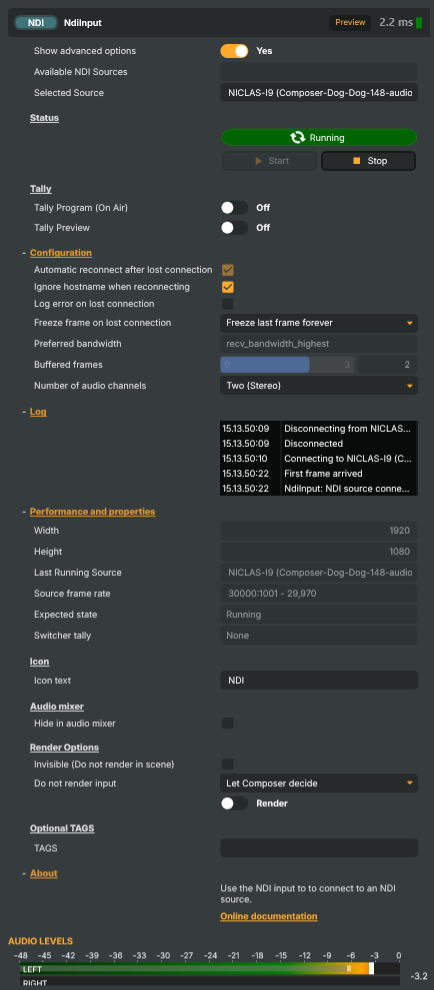
Introduction
The NDI input receives a live video and audio stream from another NDI source on the local network — a camera, encoder, vision switcher, software production tool, or another Composer instance — and presents it inside Composer like any other input. Drop it on a layer and it composites, mixes, and routes through targets exactly the same way a Decklink capture or a video file would; the IP-network plumbing is hidden behind an automatic source picker.
What is NDI?
NDI (Network Device Interface) is the de-facto IP-based video transport for broadcast and live production. It was designed by NewTek (now part of Vizrt) and has become a near-universal way of moving studio-quality video and audio between machines on a normal Ethernet LAN — no SDI cables, no purpose-built capture cards in every receiver, no manual signal routing.
What makes NDI useful in a Composer studio:
- Low latency over a regular gigabit / 10 G Ethernet network — NDI's full-bandwidth mode keeps end-to-end delay in the low-frame range, comparable to baseband SDI for most workflows. The reduced-bandwidth NDI HX variants trade a few extra frames of latency for an order of magnitude less bandwidth, useful over cellular / WAN links.
- Automatic discovery — every NDI source on the same broadcast domain advertises itself via mDNS, so receivers can enumerate available sources without manual IP / port configuration. Composer's source picker is just a live view of that announcement table.
- Bidirectional metadata + tally — NDI carries small out-of-band signals alongside the video, including tally (red for Program, green for Preview). Composer feeds that back upstream so a remote NDI camera or software source can light its on-air indicator.
- Universal tooling — every modern broadcast tool speaks NDI: vMix, OBS, Wirecast, vision mixers, hardware cameras with NDI ports, software output from NLE timelines. Composer fits into that ecosystem natively.
- Free testing utilities — NewTek / Vizrt ship the NDI Tools bundle for free, including a Test Pattern Generator, Studio Monitor (a software receiver / monitor), Webcam Input (for converting a webcam to NDI), Scan Converter (any region of a screen as NDI), and more. Useful for validating a Composer NDI receiver / sender without needing a second physical machine.
For a deeper protocol-level reference (codecs, bandwidth modes, network requirements), see ndi.video.
Common use cases
- Multi-machine production — one host runs Composer for graphics + compositing, another host runs vision-mixing software, a third runs talkback / playout. Cameras and intermediate stages flow between them as NDI streams over the studio LAN.
- Software-camera ingest — bring in a laptop screen, a webcam, a remote Zoom / Teams call (via Vizrt's call connectors) as just another NDI source. No capture card needed.
- Cross-tool compatibility — receive feeds from any NDI-speaking switcher / encoder / camera regardless of vendor; NDI is the lingua franca that lets the brands interoperate.
- Composer-to-Composer hand-off — one Composer instance produces a multi-camera-mix + graphics rendering, another receives that as a single NDI source for additional downstream branding / re-encoding.
- Remote contribution from a VPN-connected machine — NDI HX over a managed VPN is a common low-friction way to bring a remote feed into a studio without building a dedicated SRT chain.
- Confidence monitoring during commissioning — pair the NDI input with the Test Pattern Generator from NDI Tools to verify the receive path end-to-end before a camera is connected.
Multichannel audio
NDI streams can carry more than a stereo pair, and the NDI input can bring in up to eight discrete audio channels. Turn on Show advanced options, then set Number of audio channels to Eight to receive a full multichannel feed (for example independent language or commentary tracks); leave it at Two (Stereo) to take just the first pair. The channels are carried as independent tracks — Composer does not decode surround formats such as 5.1 or 7.1. If the source sends fewer channels than you select, the missing channels come through silent; if it sends more, the extra channels are ignored. The Received Audio Channels readout shows how many channels the source is actually sending, and the channel count is written to the log each time a source connects — handy for confirming an upstream device is really delivering the multichannel layout you expect.
Smooth playback
A sending device and Composer each keep their own time. Even when both are set to the same frame rate, the two clocks are never in perfect step — they differ by a tiny fraction, and the network delivers frames slightly unevenly on top of that. Left alone, the picture occasionally repeats or skips a single frame at unpredictable moments.
Buffered frames is how you control that. It holds a small number of frames in reserve before they are shown, giving the input room to ride out the difference. The default of 2 suits almost every setup and is a good place to leave it. The trade-off is delay: each frame of reserve adds one frame of latency — about 33 ms in a 29.97 fps project, 20 ms at 50 fps. Sound is held back by the same amount, so there is no offset between picture and sound for you to dial in by hand at any setting.
- Raise it to
3if frames arrive unevenly — a busy network, a wireless link, or a sending device under heavy load. - Set it to
0for the lowest delay the input can achieve. There is then no reserve to draw on, so repeated and skipped frames are no longer smoothed over, and the audio retiming described below is switched off with it. Worth choosing only when latency matters more than smoothness.
Keeping sound and picture together over a long show
The same clock difference applies to sound, and it is the one that shows up on a long production. A device whose 48 kHz is physically 48 001 samples per second sends Composer one extra sample every twenty seconds — imperceptible on its own, but it accumulates, and over half an hour it is enough to pull sound and picture visibly apart on a close-up of someone speaking.
Composer measures that difference from its own audio buffer and resamples the incoming sound by exactly as much, continuously. The adjustment is a fraction of a tenth of a percent — far too small to hear as a change in pitch — and nothing is dropped or inserted to achieve it, so there is no click and no gap. Once it has settled, sound and picture stay where they started for as long as the connection lasts.
There is nothing to configure. Audio clock drift (ppm), in the debug properties, reports what was measured:
- A few tens either way is completely normal — that is simply what two separate crystals do, and it needs no action.
0for the first few minutes of a connection is expected. The difference is small enough that it takes several minutes of listening to measure it accurately, and Composer will not guess.- Pinned near 1000 means the source is drifting further than resampling can correct — a sample rate set wrongly on the sending device rather than an ordinary clock difference. Composer falls back to dropping or rebuilding a little audio to keep sync, which is occasionally audible, so it is worth checking the sending device's audio settings.
This needs a reserve to measure against, so it is active whenever Buffered frames is 1 or more, and off at 0.
For the steadiest picture, set the sending device to the same frame rate as your Composer project. If the two don't match, Composer keeps receiving and notes it in the log rather than dropping the feed, but frames have to be repeated or discarded to fit, and no amount of buffering removes that.
Using an NDI source as the sync source
An NDI input can also drive the whole project: pick it as the preferred source in Project options → Sync source and Composer renders at the pace frames arrive from that sender instead of at its own clock. This input then no longer has to be fitted to a separate clock, and every other input and target follows the sender's timing instead. The sender must run at the project frame rate. If the stream stops, or its frame rate changes, Composer falls back to the system clock and switches back once the stream returns at the right rate.
When the picture still stutters
Two readouts under Performance and properties tell you where the problem is:
- Source frame rate — the frame rate the sending device says it is using.
- Measured frame rate — the frame rate its frames are actually arriving at.
These should agree. If a source reports 29.97 but measures 30.00, the sending device is mislabelled: it claims one rate and sends another. The difference looks tiny, but it costs a repeated or skipped frame roughly every half-minute, and the fix is on the sending device, not in Composer. Composer writes a note to the log when it detects this, so it is worth checking the log before chasing the problem elsewhere.
Driving from outside
Every command (Start, Stop) is invokable from the property panel, the HTTP API (/api/invokecommand?targetname=NDI+Input&command=StartCommand), a Connector, or the Script Engine via ExecuteCommand / ExecuteCommandById. The selected source name and current playback state are surfaced as readable properties so dashboards and scripts can confirm the upstream feed is live without polling the network directly.
NDI input - Settings

| Property | Description |
|---|---|
Show advanced options |
Show or hide the input's advanced settings in the editor UI. [default=false]. |
Available NDI Sources |
Picker for NDI sources currently advertised on the local network. Updates automatically as sources come and go. Selecting one populates SelectedSource with the source's full name. Useful for choosing between multiple available feeds in the editor — scripts that drive the input headlessly typically set SelectedSource directly. |
Selected Source |
Full name of the NDI source the input is configured to receive. In NDI's standard MACHINE-NAME (Stream Name) format. Set this from a script to switch to a different NDI source — the input will connect on the next start, or immediately if already running and AutoReconnect is enabled. Required before StartCommand will run. |
Status
Status — current playback state and the start/stop commands.

| Property | Description |
|---|---|
PlaybackState |
Current playback state of the NDI receiver (read-only). Reflects whether the receiver is Stopped, Starting, Running, or in an error state. Driven indirectly by StartCommand and StopCommand. Read this from a script to decide whether the stream is live; it also drives the running indicator and the enabled state of the Start/Stop buttons. |
Start |
Start receiving the selected NDI source. |
Stop |
Stop receiving the NDI source. |
Tally
Tally — signal back to the upstream NDI source whether it's on Program or Preview.

| Property | Description |
|---|---|
Tally Program (On Air) |
(advanced) Whether the upstream NDI source is told it's on the Program (on-air) output. [default=false]. When true, this input notifies the source that its feed is currently live — typically causing a red tally light on the camera or encoder. Set from a script driving a switcher workflow so the talent / operator knows which camera is live. |
Tally Preview |
(advanced) Whether the upstream NDI source is told it's on the Preview (next) output. [default=false]. When true, this input notifies the source that its feed is queued to go live — typically causing a green tally light on the camera or encoder. |
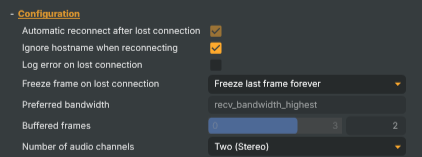
Configuration
Configuration — reconnect behaviour and bandwidth/quality preference.
| Property | Description |
|---|---|
Automatic reconnect after lost connection |
Whether the input automatically reconnects when the source disappears. [default=true]. When true, a lost source leaves the input in Restarting rather than stopping it: it waits for the configured source to reappear on the network and resumes receiving without manual intervention. When false, the input stops. Useful when the upstream camera or encoder may briefly drop off the network during a production. |
Ignore hostname when reconnecting |
Whether reconnect matches by stream name only, ignoring the host machine name. [default=true]. NDI sources are normally identified by MACHINE-NAME (Stream Name). With this on, the input reconnects to a stream with the same name even if it now comes from a different machine — handy when a source is moved between encoders or workstations. Disable for strict reconnects that require the exact same machine. |
Log error on lost connection |
Whether a lost connection is logged as an error or as a warning. [default=true (error)]. When true, a dropped NDI source produces an error-level log entry — useful in productions where a missing feed is critical. Disable to log it as a softer warning when the source is expected to come and go. |
Freeze frame on lost connection |
(advanced) What the input shows once it is no longer receiving. [default=Forever]. Applies whenever the input is not running: after the source is lost, while it waits to reconnect, and after it is stopped. Forever keeps the last received frame on screen until the input receives again. Never switches to black output at once, and the timed options hold the last frame for that long first. Audio is silenced at once regardless of this setting. |
Preferred bandwidth |
(advanced) Quality / bandwidth trade-off when receiving the stream. [default=highest]. Highest requests the full-quality stream from the source. Lowest requests a low-bitrate thumbnail-style stream that's cheap to receive and decode — useful for monitoring many sources at once or running on constrained networks. The available levels depend on what the source publishes. |
Buffered frames |
(advanced) How many frames to hold in reserve before rendering them. [default=2]. The sending device and this machine run on separate clocks, so their frame rates are never exactly equal. This reserve gives the input room to absorb that difference and the network's jitter, spending it as a single repeated or dropped frame now and then instead of an unpredictable stutter. Each frame of reserve adds one frame of latency - about 33 ms in a 29.97 project, 20 ms at 50 fps. Audio is held to the same reserve, so there is no fixed offset between picture and sound to compensate for at any setting. The two devices' audio clocks still run at slightly different speeds, as independent clocks do, which would slowly pull sound and picture apart over a long show; the input measures the difference and resamples the incoming audio to match this machine, which is inaudible and drops nothing. AudioDriftPpm reports what it measured. 2 suits almost every setup. Raise it to 3 for a busy or wireless network where frames arrive unevenly. Set it to 0 for the lowest latency the input can achieve, at the cost of uncorrected repeated and dropped frames whenever the two clocks disagree, and of the audio retiming, which needs a reserve to measure against - only worth it when latency matters more than smoothness. |
Number of audio channels |
(advanced) Number of audio channels to bring in from the NDI source. [default=Two (Stereo)]. Two takes the first two channels of the incoming stream as a stereo pair. Eight brings in up to eight discrete, independent audio channels. If the source sends fewer channels than selected, the missing channels are silent; if it sends more, the extra channels are ignored. The channel count actually detected on the wire is reported by ReceivedAudioChannels. |
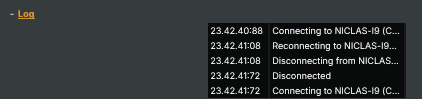
Log
Log — recent NDI events from the input.
| Property | Description |
|---|---|
ComponentLog |
Recent log lines from the input — connect, disconnect, reconnect, and error events (read-only). A short history of the most recent NDI events, useful for diagnosing why a source disappeared, why a reconnect attempt failed, or why the receiver couldn't start. |
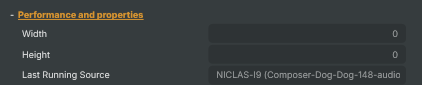
Performance and properties
Performance and properties — runtime stats about the live NDI stream.
| Property | Description |
|---|---|
Width |
Width of the video frames currently being received, in pixels (read-only). |
Height |
Height of the video frames currently being received, in pixels (read-only). |
Last Running Source |
Name of the NDI source the input most recently received frames from (read-only). Survives a disconnect, so it shows what was last working even when the source has dropped off the network. Used internally as the target for automatic reconnect. |
Source frame rate |
Frame rate the NDI source says it is sending, for example "29.97 (30000/1001)" (read-only). This is the rate declared in the stream, not a measurement - compare it with MeasuredFrameRate to see whether the source actually keeps to it. |
Inherits from: AbstractInput, AbstractAudioProcessing, AbstractAudioMetering, NamedModel.
See also: NDI input in Script Engine Objects.
Shared input properties
Every input — regardless of source type — exposes the following property groups. They are surfaced in the property panel only when Show advanced options is enabled on the input.
Icon
Icon text— short text shown on the input's icon in the Inputs list. Useful as a quick visual label (channel number, mic name, camera position) to tell otherwise-similar inputs apart at a glance. Empty by default; has no effect on rendering or routing.
Audio mixer
Hide in audio mixer— when on, hides the input from the audio mixer view without disabling its audio. Useful for de-cluttering the mixer while keeping the audio routed (e.g. fixed background music, ambient beds, pre-aligned playout). [default=false]
Render Options
Invisible (Do not render in scene)— when on, the input is skipped during rendering and produces no picture on any layer or scene. Audio routing is unaffected. Toggle from a script for cued-in / cued-out behaviour during a show. [default=false]Do not render input— disables the input's internal render entirely (no decode or capture work is done). Stronger than Invisible: that one renders but doesn't display; this one stops the input from doing any work at all. Useful for reducing CPU / network load on heavy sources (e.g. high-bitrate RTMP / SRT streams, large media files) when the input is temporarily not needed. Audio meters are cleared while disabled. [default=false]Do not render inputcontroller — chooses what drives the Do not render input flag.Let Composer decide(the default) hands control to the project-level Render Tuning optimiser, which automatically pauses inputs that aren't used by any active scene.Manual Configurationignores Render Tuning and lets the Do not render input toggle control the flag directly — use this to keep a network source warm even when it's currently off-air, or to take a heavy input down by hand regardless of scene activity. [default=Let Composer decide]
Optional TAGS
TAGS— one or more free-form tag words used to classify this input (typically space- or comma-separated). Picked up by Composer's Smart Search to filter or find inputs by category — e.g.camera,music,interview,sponsor. Has no effect on rendering.
Audio configuration and processing options
For inputs capable of processing audio, additional audio configuration and processing options are available through the audio mixer and the Channel Strip Inspector.
- Audio mixer — monitor levels, adjust gain and pan, mute / solo inputs, and configure auxiliary sends to
Audio Channel Stripsubmix buses, all from a centralised mixer-style interface. - Channel Strip Inspector — advanced per-strip audio processing for the selected input:
- Input trim, stereo remapping, and audio delay
- Channel mapping (8-channel mode unlocks the full MAPPING tab)
- Gate (attenuates audio below a threshold to clean up room tone and bleed between phrases)
- Low-cut filter (high-pass filter that rolls off rumble, plosives, and HVAC hum below a chosen cutoff)
- Equaliser (5-band parametric)
- Compressor (narrows dynamic range so the source sits at a steadier level in the mix)
- Sidechain ducking (a second compressor whose gain reduction is driven by another input's level — e.g. dipping music under a voice-over)
- Limiter (brick-wall ceiling that catches peaks to prevent clipping at the end of the chain)
- Automixer (per-mic Use automixer toggle and weighting for gain-sharing across a group of live mics)
- Automixer window — a mixer-style overview of every input with the gain-sharing automixer enabled, with per-mic gain, weight, and bypass plus group-wide envelope and noise-floor overrides from a single panel.
For the full audio signal flow, see Audio processing workflow.
Related components
- NDI Target — the sender-side counterpart. Use it when Composer publishes a scene to other NDI-aware tools rather than receiving one.
- SRT input — pick this when the contribution path leaves the studio LAN; SRT survives the kind of packet loss that breaks NDI, with bounded latency and optional encryption.
- SRT Target — the SRT sender-side for outbound contribution over unmanaged networks.
- RTMP input — pick this for managed-network ingestion from RTMP-only encoders; works across the public internet where NDI doesn't.
- RTMP Target — the RTMP sender-side. Use it to push a Composer scene out to a CDN or RTMP origin.
- MoQ input — pick this for sub-second-latency contribution from a Vindral CDN channel or other MoQ-native source.
- MoQ Target — the MoQ sender-side. Use it to publish a Composer scene into the Vindral CDN over MoQ.
- BlackMagic DeckLink Capture v3 — when the upstream signal is on baseband SDI / HDMI rather than NDI; same overall role in the project, different transport.