

A/V Sync Sender
Introduction
The A/V Sync Sender is one half of a measuring instrument. It generates a reference signal whose picture and sound both carry the same frame number, so an A/V Sync Receiver placed further down the chain can work out how far apart they have drifted.
Send it anywhere you want to check — out through a target and back in through an input, down a local layer chain, or across to another machine — and the receiver at the far end will tell you, in frames and in milliseconds, whether the sound is still with the picture.
Both halves of every frame are written together, in one pass, from the same frame number. Picture and sound therefore leave this component in exact step by construction, which is what makes the reading meaningful: anything the receiver measures was introduced somewhere between here and there.
How the signal works
The sender cycles through nine states, one per frame, and stamps each state onto both media at once:
| State | Picture | Sound (left / right) |
|---|---|---|
| 0 | Black | silent |
| 1 | 50% white | left, full, low tone |
| 2 | 100% white | right, full, low tone |
| 3 | Red | both, full, low tone |
| 4 | Green | left, half, high tone |
| 5 | Blue | right, half, high tone |
| 6 | Yellow | both, half, high tone |
| 7 | Cyan | left, half, low tone |
| 8 | Magenta | right, full, high tone |
The states are chosen for survivability rather than for looks. Every picture is a flat field — the most robust thing a codec can carry — and the nine colours sit as far apart from one another as the colour cube allows, so compression, chroma sub-sampling and level shifts have to be severe before one can be mistaken for another. The tones are likewise an octave and 6 dB apart, so neither the pitch nor the level decision is ever marginal.
Because the cycle is nine frames long, the pair can express an offset of up to four frames either way. A larger error wraps around and cannot be told from a smaller one of the opposite sign.
Configuration
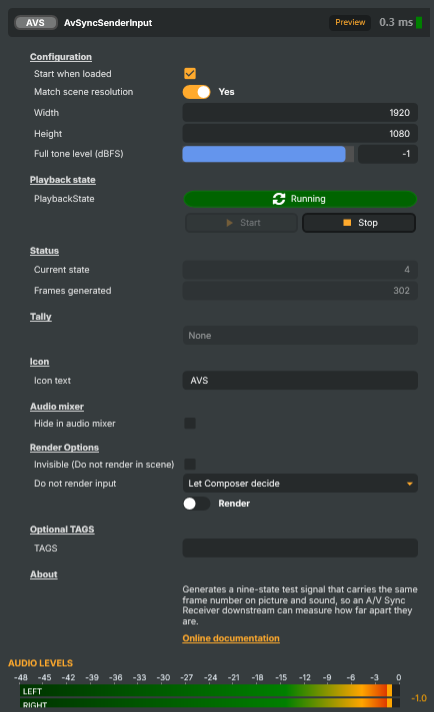
- Start when loaded — whether the sender begins producing output as soon as the project loads. On by default; turn it off to require an explicit start from the property panel or a script.
- Match scene resolution — on by default, and best left on. The picture is sized automatically to cover the scene. A source smaller than the scene is composited at its native size, leaving scene background showing around it — and a receiver reading the finished composite would then be averaging part of that background along with the test picture, which is enough to stop the states being identifiable.
- Width / Height — the size of the generated picture, used only when Match scene resolution is off. The field is flat, so its size costs almost nothing.
- Full tone level (dBFS) — the level of a "full" tone; the half-level states sit 6 dB below it. The default of −1 dBFS backs off just below full scale so a nominally-full tone does not clip an encoder on the way out. Lowering it does not upset the measurement: the receiver judges levels relative to the loudest channel it can see, not against an absolute number.
Live readouts
- Current state — the state number, 0–8, stamped onto the most recent frame. Both the picture and the sound of that frame carry this number.
- Frames generated — how many frames have been produced since the last start.
Common use cases
- Checking a round trip preserves sync — send the signal out through a target and back in through the matching input, put a receiver on the returning layer, and read the offset. On a transport that carries linear audio and near-lossless video, anything other than zero is a real defect rather than an artefact of the measurement.
- Regression-testing the engine itself — put a sender and a receiver in the same project and assert the offset stays at zero. Because the two halves leave the sender in exact step, any drift that appears is the pipeline's, not the signal's.
- Verifying a lip-sync correction actually corrects — apply a known audio delay to an input and confirm the receiver reports exactly that many frames. This is the quickest way to prove a delay control is doing what it claims, in the units it claims.
- Commissioning a new contribution path — before a show, run the signal end to end and watch the receiver's decode rates. A path that decodes every frame is carrying the media cleanly; a path that intermittently fails to decode is dropping or repeating frames.
- Comparing two routes — feed the same sender to two different targets and read a receiver on each. The difference between the two offsets is the difference the routes introduce.
Things worth knowing
- The sender is only half of the instrument; it does nothing useful on its own. Pair it with an A/V Sync Receiver wherever you want the reading taken.
- The frame rate must be the same at both ends. If the transport repeats or drops frames, the receiver sees duplicated or skipped states — which shows up as a falling decode rate rather than as a wrong answer.
- Stopping the sender is a clean way to check the far end is honest. It leaves its last picture standing and goes silent, and a receiver that keeps reporting a confident reading of that is not measuring anything. A correct one notices the signal has stopped moving and drops out of lock.
- The signal is deliberately harsh to look at and listen to. It is a measuring instrument, not something to put to air.
A/V Sync Sender - Settings
Properties marked (
Components) or (AudioMixer) broadcast a livePropertyChangedevent to clients subscribed to that WebSocket channel.
Configuration
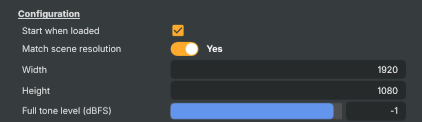
Configuration - output size and signal levels.
| Property | Description |
|---|---|
Start when loaded |
Whether the sender starts producing output as soon as the project loads. [default=true]. |
Match scene resolution |
Whether the picture is sized automatically to cover the scene. [default=true]. A source smaller than the scene is composited at its native size, leaving scene background around it - and a receiver measures an area of the frame, so any background caught in that area drags every colour towards black and the states stop being identifiable. The black state still matches, which shows up as a decode rate of about one in nine. Leaving this on avoids the whole problem. Turn it off to drive Width and Height yourself. |
Width |
Width of the generated picture, in pixels. [min=16, max=8192, default=1280]. Ignored while MatchSceneResolution is on. The field is flat, so its size costs almost nothing. |
Height |
Height of the generated picture, in pixels. [min=16, max=8192, default=720]. Ignored while MatchSceneResolution is on. |
Full tone level (dBFS) |
(advanced) Level of a "full" tone, in dBFS. [min=-20, max=0, default=-1]. The half-level states sit 6 dB below this. The default backs off 1 dB from full scale so a nominally-full tone does not clip an encoder on the way out; the receiver judges levels relative to the loudest channel it sees, so lowering this does not upset the measurement. |
Playback state
Playback state - whether the sender is running.

| Property | Description |
|---|---|
PlaybackState |
Current playback state of the sender (read-only). Reflects whether the input is Stopped or Running. Set indirectly via StartCommand / StopCommand, or by AutoStart at load time. |
Start |
Begin generating the test signal. Invokable command. Transitions PlaybackState to Running and restarts the state cycle from a clean phase. No-op if already running. |
Stop |
Stop generating the test signal. Invokable command. Transitions PlaybackState to Stopped and silences the audio, so a receiver downstream drops out of lock rather than holding its last reading. |
Status
Status - what the sender is currently emitting.

| Property | Description |
|---|---|
Current state (Components) |
The state number stamped onto the most recent frame, 0-8 (read-only). Both the picture and the sound of that frame carry this number. |
Frames generated (Components) |
Number of frames generated since the last start (read-only). |
Inherits from: AbstractInput, AbstractAudioProcessing, AbstractAudioMetering, NamedModel.
See also: A/V Sync Sender in Script Engine Objects.
Shared input properties
Every input — regardless of source type — exposes the following property groups. They are surfaced in the property panel only when Show advanced options is enabled on the input.
Icon
Icon text— short text shown on the input's icon in the Inputs list. Useful as a quick visual label (channel number, mic name, camera position) to tell otherwise-similar inputs apart at a glance. Empty by default; has no effect on rendering or routing.
Audio mixer
Hide in audio mixer— when on, hides the input from the audio mixer view without disabling its audio. Useful for de-cluttering the mixer while keeping the audio routed (e.g. fixed background music, ambient beds, pre-aligned playout). [default=false]
Render Options
Invisible (Do not render in scene)— when on, the input is skipped during rendering and produces no picture on any layer or scene. Audio routing is unaffected. Toggle from a script for cued-in / cued-out behaviour during a show. [default=false]Do not render input— disables the input's internal render entirely (no decode or capture work is done). Stronger than Invisible: that one renders but doesn't display; this one stops the input from doing any work at all. Useful for reducing CPU / network load on heavy sources (e.g. high-bitrate RTMP / SRT streams, large media files) when the input is temporarily not needed. Audio meters are cleared while disabled. [default=false]Do not render inputcontroller — chooses what drives the Do not render input flag.Let Composer decide(the default) hands control to the project-level Render Tuning optimiser, which automatically pauses inputs that aren't used by any active scene.Manual Configurationignores Render Tuning and lets the Do not render input toggle control the flag directly — use this to keep a network source warm even when it's currently off-air, or to take a heavy input down by hand regardless of scene activity. [default=Let Composer decide]
Optional TAGS
TAGS— one or more free-form tag words used to classify this input (typically space- or comma-separated). Picked up by Composer's Smart Search to filter or find inputs by category — e.g.camera,music,interview,sponsor. Has no effect on rendering.
Audio configuration and processing options
For inputs capable of processing audio, additional audio configuration and processing options are available through the audio mixer and the Channel Strip Inspector.
- Audio mixer — monitor levels, adjust gain and pan, mute / solo inputs, and configure auxiliary sends to
Audio Channel Stripsubmix buses, all from a centralised mixer-style interface. - Channel Strip Inspector — advanced per-strip audio processing for the selected input:
- Input trim, stereo remapping, and audio delay
- Channel mapping (8-channel mode unlocks the full MAPPING tab)
- Gate (attenuates audio below a threshold to clean up room tone and bleed between phrases)
- Low-cut filter (high-pass filter that rolls off rumble, plosives, and HVAC hum below a chosen cutoff)
- Equaliser (5-band parametric)
- Compressor (narrows dynamic range so the source sits at a steadier level in the mix)
- Sidechain ducking (a second compressor whose gain reduction is driven by another input's level — e.g. dipping music under a voice-over)
- Limiter (brick-wall ceiling that catches peaks to prevent clipping at the end of the chain)
- Automixer (per-mic Use automixer toggle and weighting for gain-sharing across a group of live mics)
- Automixer window — a mixer-style overview of every input with the gain-sharing automixer enabled, with per-mic gain, weight, and bypass plus group-wide envelope and noise-floor overrides from a single panel.
For the full audio signal flow, see Audio processing workflow.