

Installing on Windows
Composer ships as two separate Windows installers, one for Desktop and one for Runtime. Both target the same parent directory, and you can install them on the same machine if you want to develop and run side by side.
| Installer | Default install path | Purpose |
|---|---|---|
Vindral Composer Setup.exe |
C:\Program Files\RealSprint AB\Vindral Composer\Desktop |
Desktop authoring application |
Vindral Composer Runtime Setup.exe |
C:\Program Files\RealSprint AB\Vindral Composer\Runtime |
Headless runtime |
Both installers must be run as Administrator — Composer needs to write its initial settings.xml and back up apikeys.json to a system-protected location, and the install will fail or behave unpredictably without elevation.
Prerequisites
Composer relies on a small stack of NVIDIA and FFmpeg components that are not bundled in the installers; install them before launching Composer for the first time.
- NVIDIA driver ≥ 590 — required for CUDA 13 on Windows. Newer drivers are fine; check nvidia.com for the latest.
- CUDA Toolkit 13 — install from the NVIDIA Developer site.
- .NET 9 Desktop Runtime — required by Composer Desktop. Download from Microsoft's .NET site.
- DirectX runtime — comes with modern Windows; reinstall via Microsoft's
dxwebsetup.exeif Composer reports a DirectX initialisation failure. - FFmpeg 6.1 (RealSprint patched build) — Composer ships with a patched FFmpeg 6.1 from R1 2024 onwards. The installer offers to download and install it for you when it can't find an existing copy. See the FFmpeg setup section below for details.
- CUDA Toolkit 12.4 — required for the Object Detection and Image Classification operators.
- CUDA Toolkit 13 — required for the Speech to Text operator (its speech engine targets CUDA 13, separately from the CUDA 12.4 used above).
- cuDNN 9.4 — required only if you use the Object Detection or Image Classification operators. See the Object Detection / Image Classification section below for setup steps.
- TensorRT 10.12 — optional; accelerates Object Detection inference.
FFmpeg setup
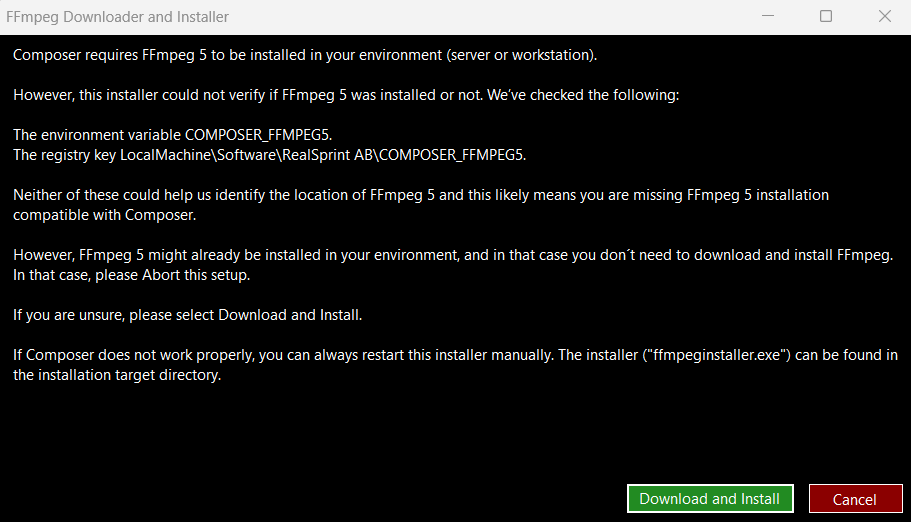
Composer's FFmpeg lives at C:\Program Files\FFmpeg\6p\bin\ by default. If the installer can't find it, it offers to download and install:

The installer downloads the patched build and unpacks it:
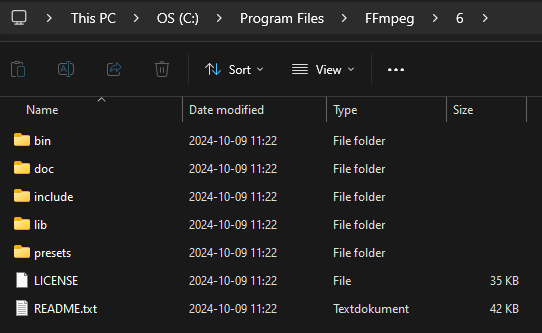
After installation, the bin/ folder should look like this:
Composer locates FFmpeg through the COMPOSER_FFMPEG6p environment variable (preferred) or, failing that, a Windows registry entry written by the installer. If you install FFmpeg to a non-default location, set COMPOSER_FFMPEG6p manually to the path of the bin/ folder.
Object Detection / Image Classification
Download and install the following from NVIDIA's official website.
cuDNN 9.4 — after installing, add the cuDNN DLL folder to the system
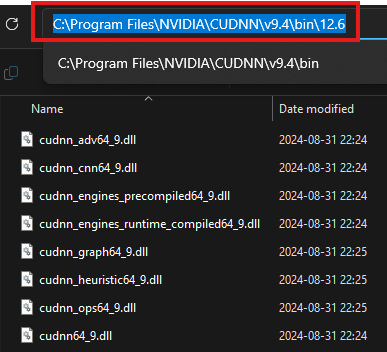
PATH:- Open File Explorer and navigate to the folder containing the cuDNN DLLs. The typical path looks like this:
C:\Program Files\NVIDIA\CUDNN\v9.4\bin\v12.6Copy the folder path from the address bar:
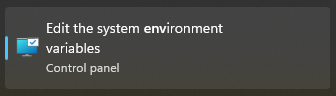
Open Edit the system environment variables from the Start menu:
Click Environment Variables…:
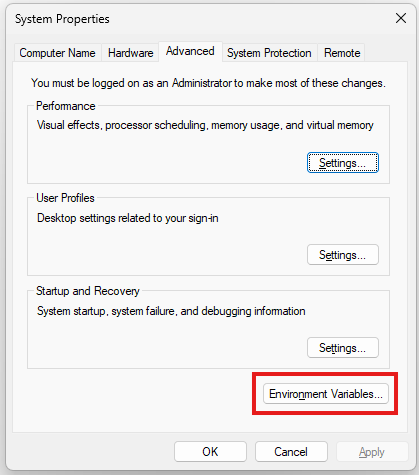
Under System variables, select
Pathand click Edit…:
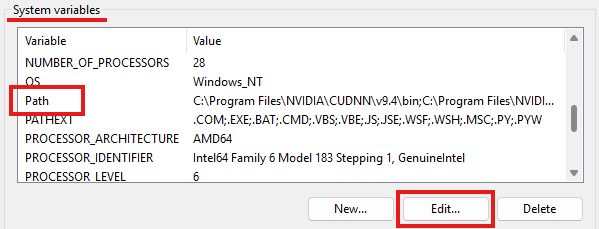
Click New and paste the cuDNN folder path:

Reboot your system for the changes to take effect.
- Open File Explorer and navigate to the folder containing the cuDNN DLLs. The typical path looks like this:
TensorRT
Optional for Object Detection only. TensorRT is an NVIDIA acceleration library that makes AI models run faster on your GPU. Requires the CUDA Toolkit and cuDNN above.
Go to the TensorRT download page — then:
Click Download Now. An NVIDIA account is required.
Select TensorRT 10 and accept the terms and conditions.
Download the TensorRT 10.12 Windows ZIP package for CUDA 12.x.
Unzip the archive to a folder on your system.
Open the extracted TensorRT folder, navigate into the
libsubfolder, and copy its full path from the address bar.Add this folder path to the system
Pathvariable using steps 3–6 from the cuDNN instructions above.
Reboot your system for the changes to take effect.
Common startup errors
If Composer Desktop fails to launch, check for a missing prerequisite:
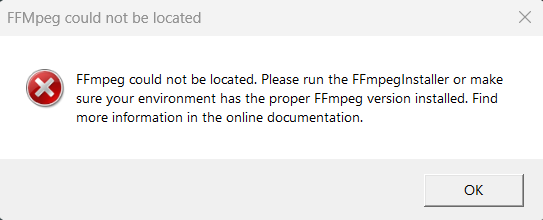
For Composer Runtime, the equivalent failure is a stack trace in the runtime log:

The most common causes are an out-of-date NVIDIA driver, a missing CUDA toolkit, or COMPOSER_FFMPEG6p pointing at a stale or non-existent path. See Operations & Tuning for log-file locations and how to package logs for support.