

Windows Audio Capture Input
Introduction
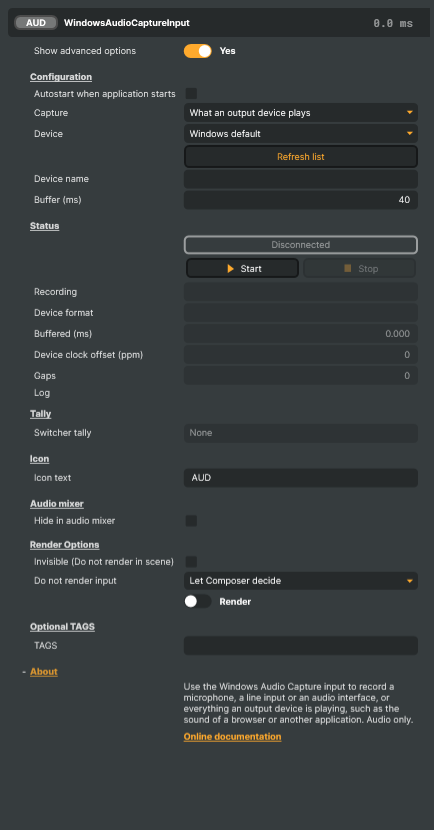
The Windows Audio Capture Input brings sound from the audio devices Windows itself knows about into Composer. It records either of two things:
- A recording device — a microphone, a line input, a headset, or an audio interface that has no ASIO driver. If a device appears under Recording in Windows' sound settings, this input can record it.
- What an output device plays — everything any application is sending to a set of speakers, headphones or a virtual audio cable. A browser playing a stream, a video call, a media player: whatever you would hear on that device arrives in Composer as a live source.
It carries audio only and is available on Windows only.
Whatever the device delivers — 44.1 kHz or 48 kHz, mono, stereo or surround — the input hands Composer 48 kHz. A stereo device fills channels 1 and 2; a mono microphone is placed on both, so it sits in the middle of a stereo mix rather than on the left of it.
Choosing what to record
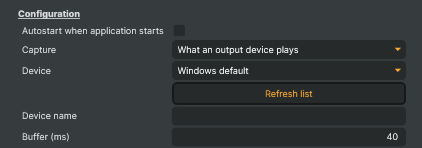
Set Capture to Recording device or What an output device plays, then pick from Device. The list shows the devices of that kind that are connected right now and keeps itself up to date, so a device plugged in after you added the input appears on its own; Refresh list re-reads it immediately.
Windows default is always first in the list. It records whichever device Windows is using as its default, and follows it: change the default in Windows' sound settings and the input moves to the new device without being restarted.
A chosen device is remembered by its name, as Windows shows it. That keeps a saved project working on another machine with the same hardware, where the device has the same name but not the same identity. The name does not have to be complete: the input uses an exact match if there is one, and otherwise the first device whose name contains what you entered, so a short part of the name keeps working when Windows adds a number to it.
Recording what an output device plays
This is the way to put another application's sound on air without cables or extra software: point the application at an output device, and point this input at the same one.
Do not let Composer's own audio play on the device you are recording. If Composer's audio preview — or anything else that plays Composer's output — uses the same speakers this input records, the input records Composer's output too and feeds it back in, which is heard as an echo that builds on itself. Preview on a different device, or record a device that only carries the sound you want, such as a virtual audio cable dedicated to that application.
Everything playing on the device is recorded, mixed together. Notification sounds and other applications playing on the same device come along too, so a dedicated device is also the way to keep them out.
The device does not have to be playing for the input to run. While nothing is playing, the input delivers silence; when sound starts, it is there. To make that seamless, the input keeps the device running by playing silence of its own to it, which is why Composer can appear among the applications in Windows' volume mixer while this input is recording. It adds nothing you can hear.
While it runs
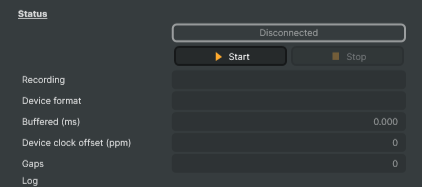
The Status section shows the device being recorded and the format it delivers.
A sound card runs on its own clock, not Composer's, and no two clocks agree exactly. Left alone, that difference would make the sound drift slowly behind the picture, or run out every so often and click. The input holds a small reserve of sound and adjusts it continuously and inaudibly, so the delay stays where it was set for as long as the input runs. Buffer (ms) is that reserve, and it is the delay this input adds; the default suits most machines. Raise it if the sound breaks up on a busy machine. The advanced status values show how much is held in reserve, how far the device's clock runs from Composer's, and how many times — ideally never — the sound has run out.
If the device disappears — a USB device unplugged, a device disabled, or another application taking it for itself — the input says so in its Log and keeps looking for it. It starts recording again on its own when the device returns.
Whenever sound is lost — the device went away, the sound ran out and a moment of silence was played, or sound had to be discarded — the input also shows a warning sign in the input list, with the reason. The sign stays after the problem has passed, so something that happened in the night is still there in the morning; click it to clear it, or start the input again. A device that simply was not connected yet when the input started is the exception: that warning clears itself once recording begins, because nothing was lost.
Notes
- The settings are fixed while the input is running. Stop it to choose another device or change the buffer, then start it again.
- A device that another application has taken for itself cannot be recorded until that application lets go. Some professional audio applications do this. The input waits for the device and says so in its log.
- Bluetooth headsets switch to a low-quality mode while their microphone is in use. That is the headset's behaviour, not the input's, and it applies to anything recording from one.
- Recording is read-only: the input never changes a device's settings or volume.
Windows Audio Capture Input - Settings

| Property | Description |
|---|---|
Show advanced options |
Show or hide the input's advanced settings in the editor UI. [default=false]. |
Configuration
Configuration - what to record.
| Property | Description |
|---|---|
Autostart when application starts |
When On, the input starts recording automatically when the project loads. [default=false]. |
Capture |
Whether to record a recording device, or everything an output device is playing. [default=OutputDevice]. Fixed while the input is running. |
Device |
Picker listing the devices of the chosen kind that are connected right now, after Windows default, which follows whichever device Windows uses by default. The list re-reads itself every few seconds, so a device plugged in after the input was added turns up on its own; RefreshDevicesCommand re-reads it immediately. Choosing an entry writes DeviceName, which is the value saved with the project. |
Refresh list |
Re-reads the list of connected devices immediately, without waiting for the automatic refresh. |
Device name |
Name of the device to record, as Windows shows it. Empty follows the Windows default device. An exact name wins, ignoring case; failing that the first device whose name contains this text is used, so a short part of a name keeps working when Windows adds a number to it. A device is remembered by name rather than by its Windows identifier because the identifier differs from one machine to the next. Fixed while the input is running. |
Buffer (ms) |
(advanced) Sound held in reserve, in milliseconds, to ride out timing differences between the device and Composer. [min=10, max=1000, default=40]. This is the delay the input adds. Raise it if the sound breaks up on a busy machine. Fixed while the input is running. |
Status
Status - recording state, controls and read-only statistics.
| Property | Description |
|---|---|
ConnectionStatus |
Current recording state (Disconnected, Connecting, Connected). Read-only. Connecting means the input is running but has not opened its device yet - the device is missing, or another application has it to itself. The input keeps trying and starts recording when it can. |
Start |
Starts recording the selected device. |
Stop |
Stops recording and releases the device. |
Recording |
Full name of the device being recorded (read-only). Empty while no device is open. |
Device format |
The sample rate and number of channels the device delivers (read-only). Whatever they are, the input delivers 48 kHz to the project; a mono device is placed on channels 1 and 2 both. |
Buffered (ms) |
(advanced) Sound currently held in reserve, in milliseconds (read-only). It settles close to BufferMs once recording is under way. |
Device clock offset (ppm) |
(advanced) How far the device's clock runs from Composer's, in parts per million (read-only). The input retimes the sound by this much so the buffer stays where it was set. A few tens either way is normal for any sound card. |
Gaps |
(advanced) Times the sound ran out since the input started, so a moment of silence was played while the reserve refilled (read-only). It should stay at nought; a climbing count means the buffer is too small for this machine, or the device stopped delivering. Each gap also raises the input's warning. |
Log |
Recent status, information and error messages from the input (read-only). |
Live updates over WebSockets
This input has no streamed properties of its own. A client subscribed to the Components or AudioMixer WebSocket channel is sent the ones every input has, listed under Every input.
Inherits from: AbstractInput, AbstractAudioProcessing, AbstractAudioMetering, NamedModel.
See also: Windows Audio Capture Input in Script Engine Objects.
Shared input properties
Every input — regardless of source type — exposes the following property groups. They are surfaced in the property panel only when Show advanced options is enabled on the input.
Icon
Icon text— short text shown on the input's icon in the Inputs list. Useful as a quick visual label (channel number, mic name, camera position) to tell otherwise-similar inputs apart at a glance. Empty by default; has no effect on rendering or routing.
Audio mixer
Hide in audio mixer— when on, hides the input from the audio mixer view without disabling its audio. Useful for de-cluttering the mixer while keeping the audio routed (e.g. fixed background music, ambient beds, pre-aligned playout). [default=false]
Render Options
Invisible (Do not render in scene)— when on, the input is skipped during rendering and produces no picture on any layer or scene. Audio routing is unaffected. Toggle from a script for cued-in / cued-out behaviour during a show. [default=false]Do not render input— disables the input's internal render entirely (no decode or capture work is done). Stronger than Invisible: that one renders but doesn't display; this one stops the input from doing any work at all. Useful for reducing CPU / network load on heavy sources (e.g. high-bitrate RTMP / SRT streams, large media files) when the input is temporarily not needed. Audio meters are cleared while disabled. [default=false]Do not render inputcontroller — chooses what drives the Do not render input flag.Let Composer decide(the default) hands control to the project-level Render Tuning optimiser, which automatically pauses inputs that aren't used by any active scene.Manual Configurationignores Render Tuning and lets the Do not render input toggle control the flag directly — use this to keep a network source warm even when it's currently off-air, or to take a heavy input down by hand regardless of scene activity. [default=Let Composer decide]
Optional TAGS
TAGS— one or more free-form tag words used to classify this input (typically space- or comma-separated). Picked up by Composer's Smart Search to filter or find inputs by category — e.g.camera,music,interview,sponsor. Has no effect on rendering.
Audio configuration and processing options
For inputs capable of processing audio, additional audio configuration and processing options are available through the audio mixer and the Channel Strip Inspector.
- Audio mixer — monitor levels, adjust gain and pan, mute / solo inputs, and configure auxiliary sends to
Audio Channel Stripsubmix buses, all from a centralised mixer-style interface. - Channel Strip Inspector — advanced per-strip audio processing for the selected input:
- Input trim, stereo remapping, and audio delay
- Channel mapping (8-channel mode unlocks the full MAPPING tab)
- Gate (attenuates audio below a threshold to clean up room tone and bleed between phrases)
- Low-cut filter (high-pass filter that rolls off rumble, plosives, and HVAC hum below a chosen cutoff)
- Equaliser (5-band parametric)
- Compressor (narrows dynamic range so the source sits at a steadier level in the mix)
- Sidechain ducking (a second compressor whose gain reduction is driven by another input's level — e.g. dipping music under a voice-over)
- Limiter (brick-wall ceiling that catches peaks to prevent clipping at the end of the chain)
- Automixer (per-mic Use automixer toggle and weighting for gain-sharing across a group of live mics)
- Automixer window — a mixer-style overview of every input with the gain-sharing automixer enabled, with per-mic gain, weight, and bypass plus group-wide envelope and noise-floor overrides from a single panel.
For the full audio signal flow, see Audio processing workflow.