

Web Page (Chromium, cross-platform)
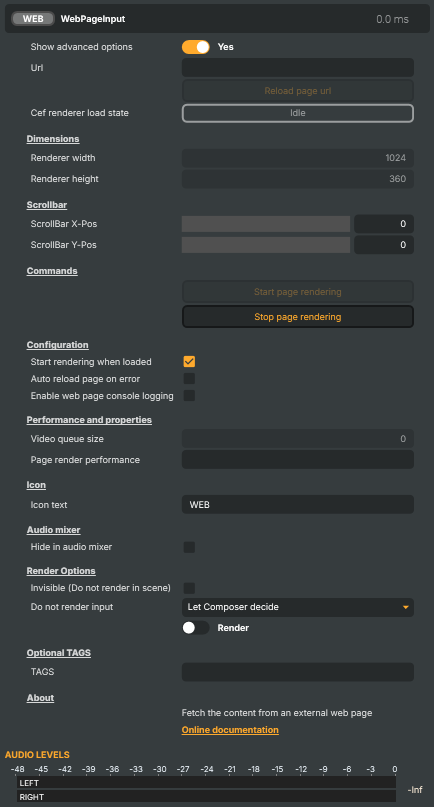
Renders a live web page as a video source using a Chromium-based browser engine. Point it at any HTTP/HTTPS URL — a graphics overlay system, a scoreboard, a real-time dashboard, a social-media feed, or any other browser-renderable content — and Composer captures the page as a video layer it can mix with the rest of the project. Includes auto-start on load, automatic reload on error, configurable resolution, edge-padding tweaks for clean captures, and a free-form pass-through for Chromium command-line switches. Cross-platform (Windows, Linux). Note: this input does not capture audio from the page — it produces a video-only signal. Use a dedicated audio input alongside it if the production needs sound.
Web Page (Chromium, cross-platform) - Settings
| Property | Description |
|---|---|
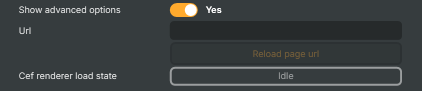
Show advanced options |
Show or hide the input's advanced settings in the editor UI. [default=false]. |
Url |
HTTP or HTTPS URL of the web page to render. Set to any standard web URL. Changing this from a script lets you swap the rendered page at runtime — handy for cycling through dashboards, scoreboards, or status pages. |
Browser state |
Current browser state (read-only). Reflects whether the browser is Idle, loading, or actively rendering. Driven indirectly by StartCommand, StopCommand, ReloadCommand, and the AutoStart behaviour at load time. Read this from a script to decide whether the page is live. |
Load result |
Outcome of the most recent page load — Completed, Failed, or Stopped (read-only). Completed means the page finished loading successfully; Failed means it didn't (network error, bad URL, etc.); Stopped means the load was cancelled. Useful from a script to react to load failures. |
Commands
Commands — action buttons and the recent log.

| Property | Description |
|---|---|
Start page rendering |
Start loading the URL and rendering the page. |
Reload page url |
Reload the current page. |
Stop page rendering |
Stop rendering the page. |
Save to disk |
Save the most recently rendered frame to disk as an image file. |
Log |
Recent log lines from the input — load, navigation, and error events (read-only). A short rolling history of significant events from the browser. Useful for diagnosing why a page failed to load or why the renderer stopped. |
Configuration
Configuration — load-time and rendering options.

| Property | Description |
|---|---|
Start rendering when loaded |
Whether the input starts rendering as soon as the project loads. [default=false]. When true, the input invokes its start logic immediately on load (equivalent to running StartCommand). Disable to require an explicit start, useful when the page should only come live on operator action or via a script trigger. |
Auto reload page on error |
(advanced) Whether the page is automatically reloaded after a load error. [default=false]. When true, a failed load is retried automatically. Useful when the source server may be temporarily unavailable. Disable for one-shot loads that should not retry. |
Un-multiply RGB |
(advanced) Whether to convert pre-multiplied colours from the browser to straight (un-multiplied) colours. [default=false]. Browsers typically deliver pixels with the colour values already multiplied by the alpha channel. Composer expects straight colours for its compositing, so enable this when transparent regions of the page look incorrectly tinted or darkened. Leave off for fully opaque pages where it makes no visible difference. |
Chromium Switches
Chromium Switches — pass command-line options through to the browser engine for advanced tweaking.
| Property | Description |
|---|---|
Switches |
(advanced) Space-separated list of Chromium command-line options to pass to the browser engine. Forwarded directly to Chromium when the input starts. Useful for diagnosing rendering issues or tweaking GPU/compositing behaviour — for example --disable-gpu --disable-gpu-compositing. Leave empty for the standard configuration. |
Performance and properties
Performance and properties — runtime stats from the browser.

| Property | Description |
|---|---|
Renderer width |
Width of the rendered page, in pixels. [min=32, max=4096, default=1024]. Acts like the browser's viewport width. Pages adapt their layout to this size, so set it to match how you want the page to render. |
Renderer height |
Height of the rendered page, in pixels. [min=32, max=4096, default=800]. Acts like the browser's viewport height. Pages adapt their layout to this size, so set it to match how you want the page to render. |
Edge padding (px) |
(advanced) Extra pixels rendered around the edges and then cropped, to hide rendering artefacts. [min=0, max=32, default=0]. On some pages the edges of the rendered image can show subtle artefacts caused by browser scaling. Increasing this captures a slightly larger area and then crops it back to the configured size, hiding those edge artefacts. Most pages don't need it. |
Auto compensate page padding |
(advanced) Whether to automatically add CSS padding to the page so its layout still fits inside the visible area when EdgePaddingPx is non-zero. [default=false]. Only relevant when EdgePaddingPx is set above 0. Without this on, the extra capture area can clip page content; with it on, Composer injects a small CSS padding into the page to keep the visible content centred and unclipped. |
Inherits from: AbstractInput, AbstractAudioProcessing, AbstractAudioMetering.
See also: Web Page (Chromium, cross-platform) in Script Engine Objects.
Shared input properties
Every input — regardless of source type — exposes the following property groups. They are surfaced in the property panel only when Show advanced options is enabled on the input.
Icon
Icon text— short text shown on the input's icon in the Inputs list. Useful as a quick visual label (channel number, mic name, camera position) to tell otherwise-similar inputs apart at a glance. Empty by default; has no effect on rendering or routing.
Audio mixer
Hide in audio mixer— when on, hides the input from the audio mixer view without disabling its audio. Useful for de-cluttering the mixer while keeping the audio routed (e.g. fixed background music, ambient beds, pre-aligned playout). [default=false]
Render Options
Invisible (Do not render in scene)— when on, the input is skipped during rendering and produces no picture on any layer or scene. Audio routing is unaffected. Toggle from a script for cued-in / cued-out behaviour during a show. [default=false]Do not render input— disables the input's internal render entirely (no decode or capture work is done). Stronger than Invisible: that one renders but doesn't display; this one stops the input from doing any work at all. Useful for reducing CPU / network load on heavy sources (e.g. high-bitrate RTMP / SRT streams, large media files) when the input is temporarily not needed. Audio meters are cleared while disabled. [default=false]Do not render inputcontroller — chooses what drives the Do not render input flag.Let Composer decide(the default) hands control to the project-level Render Tuning optimiser, which automatically pauses inputs that aren't used by any active scene.Manual Configurationignores Render Tuning and lets the Do not render input toggle control the flag directly — use this to keep a network source warm even when it's currently off-air, or to take a heavy input down by hand regardless of scene activity. [default=Let Composer decide]
Optional TAGS
TAGS— one or more free-form tag words used to classify this input (typically space- or comma-separated). Picked up by Composer's Smart Search to filter or find inputs by category — e.g.camera,music,interview,sponsor. Has no effect on rendering.
Audio configuration and processing options
For inputs capable of processing audio, additional audio configuration and processing options are available through the audio mixer and the Channel Strip Inspector.
- Audio mixer — monitor levels, adjust gain and pan, mute / solo inputs, and configure auxiliary sends to
Audio Channel Stripsubmix buses, all from a centralised mixer-style interface. - Channel Strip Inspector — advanced per-strip audio processing for the selected input:
- Input trim, stereo remapping, and audio delay
- Channel mapping (8-channel mode unlocks the full MAPPING tab)
- Gate
- Low-cut filter
- Equaliser (5-band parametric)
- Compressor
- Sidechain ducking (a second compressor whose gain reduction is driven by another input's level — e.g. dipping music under a voice-over)
- Limiter
For the full audio signal flow, see Audio processing workflow.