

Audio
The Audio tab gathers the host-wide audio defaults: how many channels new projects mix in, how the audio meters behave (peak vs. RMS, hold time, dB floor), the local-monitoring backend Composer uses for the Audio Preview output, and the precision of audio values pushed over WebSockets.
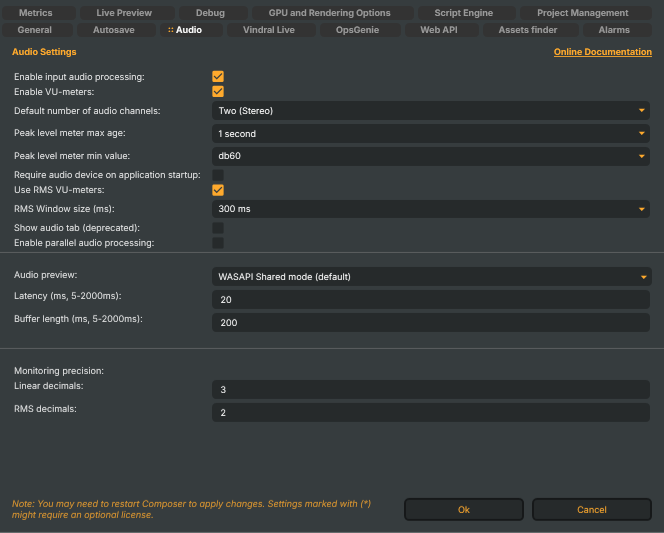
These options apply Composer-wide. Per-input audio processing (gain, gate, compressor, EQ, limiter, channel mapping) lives on the input itself via the Channel Strip Inspector; per-project audio mode and effects-graph behaviour lives on the project's audio mixer — see Audio mixer and Audio processing workflow in the User Guide.
Meters and channel defaults
- Enable input audio processing (
EnableInputAudioProcessing) — master switch for the per-input audio effects chain (trim, stereo remap, delay, low-cut, gate, EQ, compressor, limiter, metering). When on (default), each input runs the chain every frame. When off, the per-input DSP pipeline is skipped: raw decoded audio still mixes through, but no per-input effects are applied and VU meters go silent. Use to reduce CPU on projects with many audio-capable inputs that don't need effects. Default: on. Runtime-mutable via/api/settings/set. - Enable VU-meters (
EnableVuMeters) — master switch for VU-meter rendering across the Desktop UI (per-input meters, per-strip mixer meters, master meter). Turning this off lightens UI rendering load on hosts where audio meters aren't needed. Default: on. - Default number of audio channels (
NumberOfAudioChannels) — channel count used for new projects. Choices: Two (Stereo) or Eight. Eight unlocks the full MAPPING tab in the Channel Strip Inspector and allows up to 8-channel surround / stem workflows. The setting only affects newly created projects; existing projects retain their saved channel count. Default: Two (Stereo). - Peak level meter max age (
StereoPeakLevelMaxAge) — how long a peak indicator on the meter holds its previous high before decaying back. Choices: 1 / 5 / 10 / 30 / 60 seconds, 5 minutes, 10 minutes. Longer holds make brief overshoots easier to notice. Default: 1 second. - Peak level meter min value (
AudioPeakDbMinLevel) — the dB floor the meter draws to (anything quieter clamps to "off"). Choices: −120, −96, −72, −60, −48, −24 dB. A lower floor (e.g. −120) gives more visible scale for quiet content; a higher floor (e.g. −24) compresses the visible range to where loud broadcast content actually lives. Default: −48 dB. - Require audio device on application startup (
RequireAudioDevice) — when on, Composer refuses to start if it can't open an audio output device for monitoring. Useful on hosts where missing audio hardware should be a hard error rather than silently fall through to no monitoring. Default: off. - Use RMS VU-meters (
UseRmsAudioMeters) — when on, meters display RMS (energy-based) levels instead of instantaneous peak. RMS gives a more perceptually meaningful loudness reading, especially for speech. Default: on. - RMS Window size (ms) (
RmsWindowSizeMs) — averaging window for the RMS meter. Choices: 100 / 200 / 300 / 400 / 500 / 600 / 1000 ms. Shorter windows respond faster but read closer to peak; longer windows are smoother but lag transients. Honoured only when Use RMS VU-meters is on. Default: 300 ms. - Show audio tab (deprecated) (
ShowAudioTab) — legacy toggle for an older audio-tab UI; retained for compatibility. Don't enable on new projects — it has no effect on the current Audio mixer / Channel Strip Inspector workflow. - Enable parallel audio processing (
EnableParallelAudioProcessing) — when on, per-input audio effect chains run in parallel across CPU cores rather than serially on a single thread. Recommended for projects with many audio-capable inputs and heavy effect chains. Default: off. Runtime-mutable via/api/settings/set.
Audio Preview
The Audio Preview is Composer Desktop's local-monitoring output — the path that drives the operator's headphone / studio-monitor mix when a strip's Listen button is engaged in the audio mixer. It's distinct from the audio sent to Targets.
- Audio preview (
AP_AudioPreviewBackend) — Windows audio API used by the preview output:- Autoselect — pick the best available backend (ASIO if a driver is present, then WASAPI Exclusive, then WASAPI Shared).
- ASIO — lowest-latency option; requires an ASIO driver on the host. Most professional audio interfaces ship one.
- WASAPI Exclusive mode — bypasses Windows' shared mixer; good latency but no other application can use the device while Composer holds it.
- WASAPI Shared mode (default) — works alongside other applications on the same device; standard for development workstations and demo setups.
- Latency (ms, 5–2000ms) (
AP_AudioPreviewLatencysMs) — target round-trip latency from the engine to the audio device. Lower values reduce monitoring lag but increase CPU load and risk of buffer underruns. Clamped to 5–2000 ms; default 20 ms. - Buffer length (ms, 5–2000ms) (
AP_AudioPreviewBufferSizeMs) — size of the audio output buffer in front of the device driver. A larger buffer absorbs scheduling jitter at the cost of added latency. Clamped to 5–2000 ms; default 200 ms.
Latency and buffer length are independent knobs; if you hear glitches on a low-latency setting, raise Buffer length before raising Latency.
Monitoring precision
These two values control the precision of audio level readings pushed to subscribed WebSocket clients (AudioMixerSummary messages). Smaller numbers mean smaller payloads and less network bandwidth — useful when many remote dashboards subscribe to the same Composer.
- Linear decimals (
WebSocketMsgAudioDecimals) — number of decimals retained for linear (peak) audio values. Clamped to 1–9; default 3. - RMS decimals (
WebSocketMsgAudioRmsDecimals) — same, for RMS values. Clamped to 1–9; default 2.