

Autosave
The Autosave tab controls Composer's project-snapshot safety net: how often a project is auto-snapshotted to disk, how many history copies are retained, and how long they're kept. Autosave is independent of File → Save (which writes to the project's working file) and independent of the Backup directory option on the General tab (which copies the working file before each manual save). Use Autosave when you want to be able to roll back to any historical state of a project, not just the last manual save.
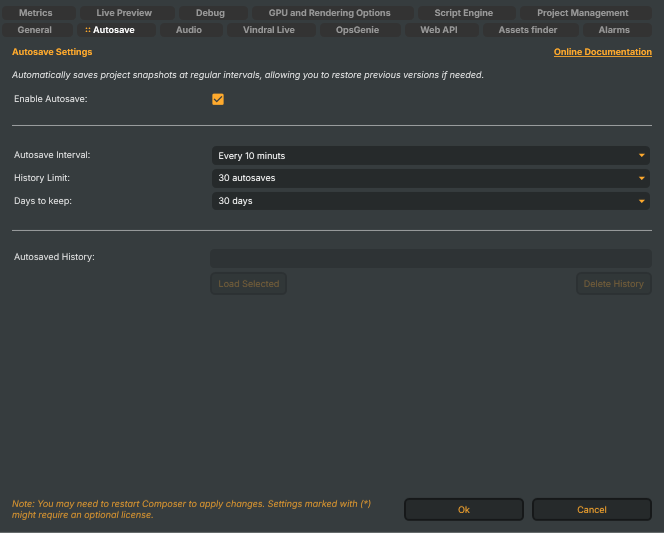
Automatically saves project snapshots at regular intervals, allowing you to restore previous versions if needed.
Where autosaves are stored
Autosave files land in <application-folder>/Projects/Autosave/ with the filename pattern <projectname>.<timestamp>.prj. One folder serves every project on this Composer host; each project's own snapshots are name-prefixed.
Enabling autosave
- Enable Autosave (
EnableAutosave) — master switch for the autosave loop. When off, the three options below are greyed out and no snapshots are written. Default: on.
Cadence and retention
These three combos decide how often new history entries are written, how many are kept per project, and how long they survive.
- Autosave Interval (
AutosaveIntervalMinutes) — how often a snapshot is written while the project is open. Choices: every 1 / 3 / 5 / 10 / 15 / 20 / 30 minutes. Default: every 10 minutes. Shorter intervals catch more in-progress edits but accumulate history fast. - History Limit (
AutosaveHistoryLimit) — maximum number of history entries kept per project. When the cap is hit, the oldest entry is pruned as a new one is written. Choices: 3, 5, 10, 15, 20, 30, 50, 80, 100. Default: 30. - Days to keep (
AutosaveRetentionDays) — secondary age-based cap. Entries older than this are purged regardless of the History Limit. Choices: 30, 60, 90 days. Default: 30 days.
The History Limit and Days-to-keep caps are independent — whichever fires first prunes the entry. With the defaults (30 entries, 30 days, every 10 minutes), an actively-open project keeps roughly five hours of recent history.
Restoring from history
The bottom group of the tab is the restore UI; it operates on the project that's currently open in Composer Desktop.
- Autosaved History dropdown — lists every history entry for the current project, populated from
<application-folder>/Projects/Autosave/<projectname>.*.prj. Disabled (greyed) when no history exists for the open project. - Load Selected — opens the chosen history entry in place of the current working state. Composer keeps a record of the most recent restore so the operator can see what was loaded last; the bar to the right of the button reads "Restored autosave: <filename>" after a successful load.
- Delete History — wipes every history entry for the current project from the autosave folder. Use only when you're certain you don't need any of the snapshots; the action is not undoable.
The runtime fields backing this UI (
AutosavedHistoryFiles,SelectedHistoryFile,PreviousRestoredAutosave,HasHistoryFiles) are persisted-state, not user-configurable — see the settings.xml reference appendix for details.