

Exposure & Gamma
Introduction
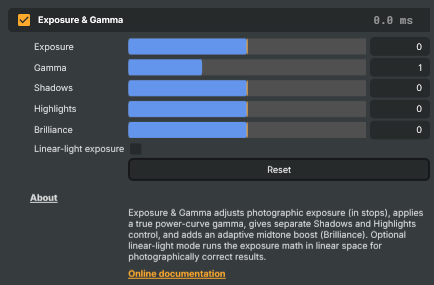
The Exposure & Gamma operator is a focused tonal-control tool — the five-knob "photographic" subset of a full colour grader. It bundles photographic Exposure (in stops), a true power-curve Gamma, separate Shadows and Highlights lifts, and an adaptive Brilliance boost in the style of Apple Photos. An optional Linear-light exposure toggle runs the exposure step in linear space for photographically correct stacking with other operators.
Use it to match exposure across cameras in a multi-camera shoot, to tame a flat-looking log or HDR-mapped source, to recover bright skies that are about to clip, or to add a clean, slightly cinematic "pop" to footage without reaching for the full Color Adjust or Color Curves operators. For colour-cast removal in a specific tonal range reach for Color Shift instead.
How it works
Each slider operates on a different part of the tonal range, and they are applied in a fixed order so the result is predictable:
- Exposure (
-2…+2stops) multiplies the signal by2^stops. +1 doubles the brightness; -1 halves it. This is the most "global" control — it moves the whole image up or down on the brightness axis. Pushed positive it eventually clips highlights to pure white; pushed negative it crushes shadows to black. - Gamma (
0.1…3.0, default1.0) applies a realout = in^(1/gamma)power curve in display space. Values above 1.0 brighten midtones (flatter, lifted look). Values below 1.0 darken midtones (more contrasty, moodier look). Unlike the bipolar "Gamma" slider on Color Adjust, this is a mathematically standard gamma curve, which makes it predictable when you are calibrating a feed. - Shadows (
-100…+100) is a soft lift weighted toward dark values: it moves the bottom of the curve while leaving midtones and highlights mostly intact. Positive opens up the shadows (useful when crushed blacks are hiding detail). Negative deepens them for a richer look. - Highlights (
-100…+100) is the mirror of Shadows, weighted toward bright values. Positive brightens the top of the curve. Negative pulls bright pixels down — the classic "highlight recovery" move for skies, lamps and specular reflections that are on the verge of clipping. - Brilliance (
-100…+100) is an adaptive midtone boost: a bell-shaped lift that touches blacks and whites only weakly and concentrates its effect on shadow-midtones. Positive gives the picture a gentle "pop" without flattening highlights. Negative softens midtone contrast for a flatter, moodier feel.
Linear-light exposure changes how the Exposure step is computed. With the toggle off (the default), Exposure multiplies the gamma-encoded display-space pixel — fast, and visually fine for moderate adjustments. With the toggle on, the pixel is first un-gamma'd to linear light, multiplied by 2^stops, then re-gamma'd back to display space. The result is photographically correct (a +1 stop adjustment really doubles the light reaching the sensor) and stacks cleanly with other linear-aware processing. Leave it off for casual grading; turn it on when accurate exposure matching matters, particularly when several Exposure & Gamma instances feed each other.
Reset zeroes all five sliders back to their defaults and switches Linear-light off.
Common use cases
- Camera matching — when two cameras read slightly differently exposed, nudge the brighter one's Exposure down (or the darker one's up) until grey patches match. Follow with a small Gamma tweak for midtone agreement.
- Recovering clipped highlights — pull Highlights negative on a feed where bright skies or studio lamps are blowing out. Combine with a small Exposure down to get more dynamic range back without darkening everything.
- Opening crushed shadows — push Shadows positive on a high-contrast source to reveal detail in dark areas. A small negative Brilliance can keep the result from looking too flat afterwards.
- Taming flat log/HDR-mapped sources — log sources arrive low-contrast by design. A small Gamma below 1.0 plus a positive Brilliance restores contrast without crushing the shadows or clipping the highlights.
- Adding cinematic punch — a touch of positive Brilliance with Highlights slightly negative gives a clean, contemporary look without changing colour balance.
- Precise exposure compensation — when an operator further down the chain expects light to behave linearly (e.g. you're feeding a linear-light blend or LUT), turn Linear-light exposure on so a
+1stop really is one stop of light.
Notes on positioning the operator
Exposure & Gamma is typically placed early in the operator chain — after the input source but before any keyer, blur, masking or compositing step. Keyers in particular are easier to dial in when the picture feeding them is already at the brightness and contrast you want. If you need both exposure correction and per-channel colour balance, place Exposure & Gamma first and follow it with Color Adjust or Color Shift for the chromatic work.
If you find yourself stacking several Exposure & Gamma instances (for example, one for global exposure and a second for a local mask), turning Linear-light exposure on in both instances keeps the sum of their stops mathematically correct.
Exposure & Gamma - Settings
| Property | Description |
|---|---|
Exposure |
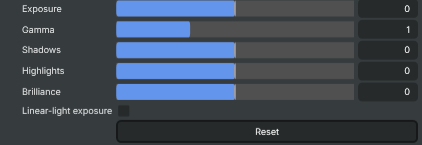
Photographic exposure in stops — each +1 doubles the light, each -1 halves it. [min=-2, max=2, default=0]. 0 leaves the image untouched. +1 brightens the whole image by one stop (×2), +2 by two stops (×4). Negative values darken in the same proportions. Pushed too far in the positive direction, highlights will clip to pure white. |
Gamma |
True power-curve gamma applied after exposure. [min=0.1, max=3.0, default=1.0]. 1.0 leaves the image untouched. Values above 1.0 brighten midtones (image looks lighter and flatter); values below 1.0 darken midtones (image looks more contrasty). Unlike the ColorAdjust operator's bipolar Gamma slider, this is a real out = in^(1/gamma) curve. |
Shadows |
Lifts or crushes shadow values, weighted toward the dark end of the range. [min=-100, max=100, default=0]. 0 leaves the image untouched. Positive values open up the shadows (useful for recovering detail in dark areas of a high-contrast scene). Negative values deepen shadows for a punchier, more contrasty look. |
Highlights |
Brightens or recovers highlight values, weighted toward the bright end of the range. [min=-100, max=100, default=0]. 0 leaves the image untouched. Positive values brighten highlights further. Negative values pull highlights down ("highlight recovery") — useful when the source is at risk of clipping bright skies, lamps or specular reflections. |
Brilliance |
Adaptive midtone boost in the style of Apple Photos' "Brilliance". [min=-100, max=100, default=0]. 0 leaves the image untouched. Positive values lift shadow-midtones and add a gentle punch in the midtones while leaving highlights largely intact — useful for adding life to flat footage. Negative values pull midtones down for a flatter, more muted look. |
Linear-light exposure |
When enabled, the Exposure adjustment is performed in linear-light space (sRGB → linear → ×2^stops → sRGB). Off by default — exposure is applied directly in gamma-encoded display space, which is faster and visually similar for moderate adjustments. Turn on for photographically correct exposure stacking, especially when the operator feeds into further linear-light processing. |
Reset |
Reset all controls to their defaults: Exposure=0, Gamma=1.0, Shadows=0, Highlights=0, Brilliance=0, Linear-light=off. |
Inherits from: AbstractOperator, AbstractAudioMetering.
See also: Exposure & Gamma in Script Engine Objects.