

OpsGenie
Deprecation notice. Atlassian is sunsetting OpsGenie as a standalone product. New OpsGenie purchases and trials closed on 2025-06-04, the JSM-bundled version was turned off in October 2025, and full end of support is 2027-04-05 — after which all OpsGenie data is permanently deleted. Atlassian's recommended migration paths are Jira Service Management (for IT operations / on-call) or Compass (for DevOps). Existing Composer installations can keep using the OpsGenie integration until the EOS date, but new deployments should plan for a different alerting backend. See Atlassian's Migrate from Opsgenie page for details. RealSprint will retire this tab once a replacement integration ships.
The OpsGenie tab configures Composer's outbound integration with OpsGenie (Atlassian's alert and incident-response platform). When enabled, Composer posts an alert to OpsGenie whenever a fatal / error log entry is emitted or the alarm system fires; OpsGenie then fans the alert out to Slack, SMS, email, or whatever escalation chain your team has configured. For the end-to-end integration overview — alert payloads, OpsGenie-side configuration, and example screenshots — see Operations & Tuning → OpsGenie.
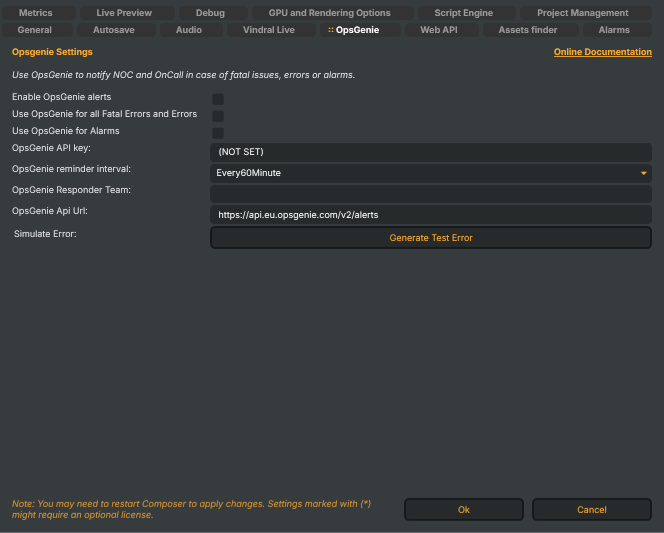
Use OpsGenie to notify NOC and OnCall in case of fatal issues, errors or alarms.
OpsGenie is licensed and supported by Atlassian, not RealSprint. RealSprint provides only the Composer-side configuration on this tab; questions about the OpsGenie tier, alert routing, or escalation policy go to Atlassian.
What gets sent to OpsGenie
Two independent triggers can post alerts. They're enabled separately so you can route, say, the alarm system to OpsGenie while keeping per-incident error noise off it (or vice versa).
- Enable OpsGenie alerts (
OpsGenieEnabled) — master switch. When off, Composer won't post anything to OpsGenie regardless of the two flags below. Default: off. - Use OpsGenie for all Fatal Errors and Errors (
OpsGenieEnabledForFatalAndErrors) — when on, every log entry of severityerrororfatalis forwarded as a fresh OpsGenie alert. Honoured only when Enable OpsGenie alerts is on. Default: on. - Use OpsGenie for Alarms (
OpsGenieEnabledAlarms) — when on, the alarm system (see the Alarms tab) forwards each alarm trigger as an OpsGenie alert. Honoured only when Enable OpsGenie alerts is on. Default: off.
Authentication and routing
- OpsGenie API key (
OpsGenieKey) — the API integration key issued by OpsGenie. Generate one in OpsGenie under Configuration → Integrations → API Integration. The key is integration-scoped, not user-scoped — a personal API key won't work. The default(NOT SET)placeholder makes a missing key obvious in the UI. - OpsGenie reminder interval (
OpsGenieInterval) — how often Composer re-posts an unacknowledged alert as a reminder. Choices: Never, every 2 / 5 / 10 / 30 / 60 minutes. Reminders fire only while the alert remains open in OpsGenie; once acknowledged, the loop stops. Default: every 60 minutes. - OpsGenie Responder Team (
OpsGenieResponderTeam) — name of the OpsGenie team that should be paged. Empty = use the integration's default routing as configured in OpsGenie itself. - OpsGenie Api Url (
OpsGenieApiUrl) — REST endpoint OpsGenie alerts are POSTed to. Default:https://api.eu.opsgenie.com/v2/alerts(EU region). For US-region OpsGenie tenants, usehttps://api.opsgenie.com/v2/alerts. Override only when pointing Composer at a non-standard OpsGenie deployment.
Verifying the integration
- Simulate Error → Generate Test Error — fires a synthetic error through Composer's normal log path so you can confirm the OpsGenie integration end-to-end (key valid, network reachable, team routing correct) without waiting for a real failure. The alert lands in OpsGenie tagged like any other Composer alert.
Troubleshooting
If clicking Generate Test Error doesn't produce an alert in OpsGenie:
- Check the network path — the Composer host must be able to reach the configured OpsGenie Api Url on TCP/443. Run
curl -I <api-url>from the host. - Check the key type — confirm the key was generated for an API Integration, not a user-level personal API key. Personal keys lack the
alert:createpermission. - Check the integration is enabled in OpsGenie's Configured Integrations list. A disabled integration silently drops incoming alerts.
- Check the responder team name matches an existing team in OpsGenie. A misspelled team name causes the alert to be created but unrouted.