

Image Classification
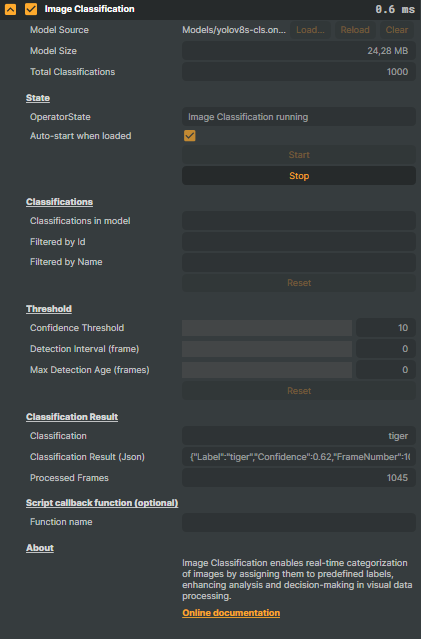
Image Classification is an advanced AI feature that analyzes images and video frames to identify and categorize objects based on their visual characteristics. Instead of detecting and localizing objects within an image, this feature assigns labels to the entire image or specific frames in a video stream, helping users classify content with high accuracy.
This feature can be applied to a wide range of use cases, including but not limited to:
- Real-Time Decision Making: Instantly classify frames in live video streams to trigger actions or alerts.
- Content Organization: Automatically sort and categorize images based on their contents.
- Quality Control: Identify defects or anomalies in manufacturing and production processes.
- Automated Tagging: Enhance searchability by assigning relevant labels to images in large datasets.
These are just a few examples — you can use Image Classification in any scenario where automated image analysis and labeling provide value. Whether for automation, monitoring, or data analysis, this feature offers flexibility to suit your specific needs.
YOLO Models and Compatibility
Composer allows you to use YOLO models for Image Classification, giving you the flexibility to choose pre-trained models or train your own to fit your specific needs. By leveraging state-of-the-art deep learning models, you can fine-tune the classification process for optimal accuracy.
Requirements for models:
- Composer supports YOLO classification models: YOLOv8, v9, v10, v11, v12, v26.
Models must be exported to ONNX with the matching opset version number:
opset
17→ YOLOv8-YOLOv12
opset18→ YOLOv26Export from CLI:
yolo export model=path/to/[your_model].pt format=onnx opset=[opset_version]Export from Python:
from ultralytics import YOLO
model = YOLO("path/to/[your_model].pt")
model.export(format="onnx", opset=[opset_version])
For details on exporting YOLO models to ONNX, refer to the YOLO documentation
ℹ️ Licensing for User-Supplied Models
- Commercial use of user-supplied YOLO models trained with Ultralytics tooling requires an Ultralytics Enterprise License.
- Composer does not provide or manage Ultralytics licenses. For details, see Ultralytics Licensing.
ℹ️ System Requirements
The Image Classification feature requires CUDA Toolkit 12.4 & cuDNN 9.4 on both Windows and Linux.
Image Classification - Settings
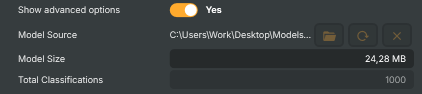
| Property | Description |
|---|---|
Show advanced options |
Whether to reveal advanced configuration in the editor. [default=false]. Toggle on to show options like classification filters and the script callback fields. |
Model Source |
Path to the AI model file (.onnx) used for image classification. Pick a classification-type model — detection or segmentation models won't work and will surface a warning. Loading a new model reinitialises the operator and resets the available classifications list. |
Model Size |
Size of the loaded model file, formatted as a string (read-only). |
Total Classifications |
Number of distinct labels the loaded model can classify (read-only). Reflects what the model was trained on — for example, a generic image-net model reports around 1000 labels, while a specialised model may report only a handful. |
State
State — operator running state and start/stop controls.
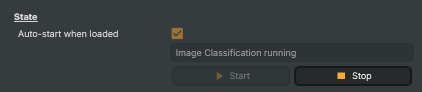
| Property | Description |
|---|---|
Auto-start when loaded |
Whether to start classifying automatically once the model finishes loading. [default=false]. Saves a manual click when the project is loaded fresh; turn off if you want to start classification only on demand from a script or button press. |
OperatorState |
Current state of the operator (read-only). Reports whether the model is loading, ready, running, stopped, or in an error state. |
StartCommand |
Begin classifying incoming frames. Available once a valid classification model is loaded. |
StopCommand |
Stop classifying incoming frames. |
Classifications
Classifications — labels the model can predict, plus filters narrowing what the operator reports.
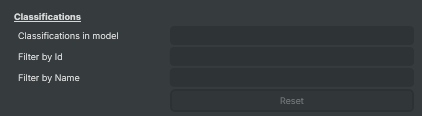
| Property | Description |
|---|---|
Classifications in model |
(advanced) Read-only list of every label the loaded model can predict. Useful for picking which class IDs or names to put in the filter fields. |
Filter by Id |
(advanced) Comma-separated list of class IDs to keep — everything else is ignored. Use this to narrow the operator's output to just the labels you care about (for example only "0,1" if your model puts your two classes of interest there). Leave empty to accept all classes. |
Filter by Name |
(advanced) Comma-separated list of class names to keep — everything else is ignored. Easier to read than IDs when you know the labels (for example "cat,dog,bird"). Leave empty to accept all classes. Combine with FilteredClassesById for fine control. |
ResetFiltersCommand |
(advanced) Clear both class filters so all classes are reported again. |
Threshold
Threshold — accuracy/sensitivity controls and how often classification runs.
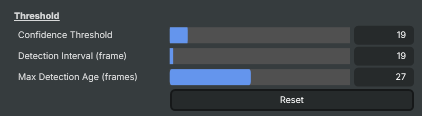
| Property | Description |
|---|---|
Confidence Threshold |
Minimum confidence (in percent) a classification must score to be reported. [min=10, max=100, default=10]. Raise to suppress weak guesses — only highly confident predictions get through. Lower to surface marginal predictions, at the cost of more false positives. |
Detection Interval (frame) |
Run classification only every Nth frame. [min=0, max=1000, default=0 (every frame)]. Set to 0 to classify every frame for the most responsive results. Higher values reduce overall load by only running the model occasionally and reusing the previous answer in between — useful when scenes change slowly and you want to keep capacity free for other operators in the project. |
Max Detection Age (frames) |
How many frames the last good classification stays valid if a later frame fails to classify. [min=0, max=60, default=0]. Higher values smooth over occasional misses by holding the last result; lower values react faster to genuine changes but show empty results during brief glitches. |
ResetThresholdCommand |
Reset all settings to their defaults (confidence, detection interval, max detection age). |
Classification Result
Classification Result — what the model thinks the current frame is.
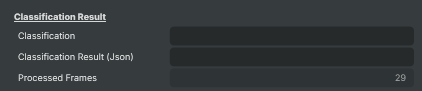
| Property | Description |
|---|---|
Classification |
The single best label predicted for the most recent frame (read-only). Empty when no classification passes the confidence threshold or filters. Updated each time a frame is classified — once per frame at default settings. |
Classification Result (Json) |
Most recent classification as a JSON string with label, confidence, frame number, and timestamp (read-only). Convenient payload for scripts and external systems — feed this directly into a callback function and parse fields on the receiving side. |
Processed Frames |
Total number of frames the operator has classified since it started (read-only). |
Script callback function (optional)
Script callback function — invoke a Script Engine function whenever a new classification arrives.

| Property | Description |
|---|---|
Function name |
(advanced) Name of a Script Engine function to call each time classification updates. Receives the JSON payload from ClassificationJson. Leave empty to disable. Useful for triggering scene switches, overlays, or alerts based on what the camera sees. |
Inherits from: AbstractOperator, AbstractAudioMetering.