

Audio Recorder
Introduction
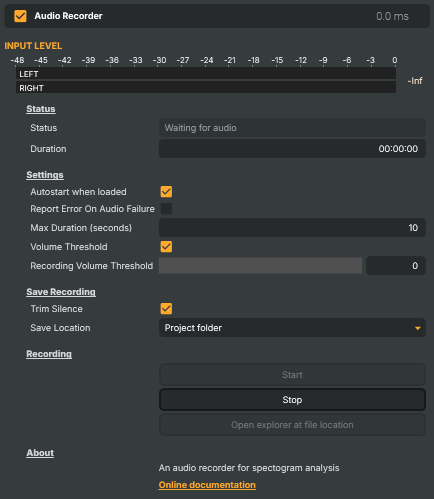
The Audio Recorder operator captures the audio signal that passes through it and writes it to a WAV file on disk. It sits in the audio operator chain like any other audio processor, but its job is filing rather than shaping — drop it on an input or a scene and you have a recording of whatever audio is flowing past at that point in the pipeline.
The recorder can run continuously, stop automatically after a configured duration, or wait silently until the signal level rises above a chosen threshold and only then begin capturing. Combined with autostart-on-load, that last mode turns a Composer project into an unattended recording rig: open the project, walk away, and the recorder lights up the moment something worth keeping reaches it.
Recording behavior
- Autostart when loaded — recording arms itself when the project opens. Pair with the volume threshold for hands-off operation.
- Volume Threshold — when enabled, the recorder listens but does not actually capture until the signal level exceeds the configured
VolumeThreshold(0–100). Below the threshold it waits; the moment the threshold is crossed, capture begins. Disable for "always-on" recording that starts the instant Start is pressed. - Max Duration (seconds) — caps the length of a single recording session. Leave empty for no time limit; useful as a safety stop on unattended setups, or to produce fixed-length captures (e.g. 60-second voice memos).
- Trim Silence — strips leading and trailing silence from the saved file. Tidies up threshold-triggered captures where there's typically a small gap before the talker actually starts speaking and a tail after they stop. Disable to keep the recording exactly as captured.
- Report Error On Audio Failure — when a recording session ends without any audio having been received, the operator logs an error rather than quietly saving an empty file. Useful diagnostic for unattended rigs: a silent capture almost always means the source is broken (mic unplugged, route wrong, upstream input dead) rather than "nothing happened".
Saving
Files are saved as .wav to the configured Save Location (project folder or another path you choose). Composer needs write permission to whatever location you pick, and enough free space for the longest session you expect — WAV is uncompressed.
The Open folder command opens the save location in the operating-system file browser so the captured files can be played back, copied, or handed off to a downstream editing or transcription workflow without leaving Composer.
Common use cases
- Live commentary capture — record the host mic feed for archive, transcript generation, or rebroadcast as a podcast.
- Interview audio for editing — capture a clean voice track per guest in a multi-participant session, with silence trimmed at both ends so the file is ready to drop into an editor.
- Post-show review takes — record a quick comment or correction track immediately after the show goes off-air, while it's all still fresh.
- Evidence / compliance recording — automated capture of broadcast audio for audit logging, with the error-on-silence reporting that catches a dead source before anyone notices.
- Unattended threshold-triggered recording — voice-activated capture for studios that don't always have an operator present; the recorder waits silently and writes only the bits that have actual audio in them.
Driving from outside
The standard set: Start recording, Stop recording, Open folder. All invokable from the property panel, the HTTP API (/api/invokecommand?targetname=Audio+Recorder&command=StartRecordingCommand), a Connector, or the Script Engine via ExecuteCommand / ExecuteCommandById. Live status — current state (idle / listening / recording / saving) and the running duration of the current take — is surfaced as readable properties for dashboards and scripts that need to chain actions around the recording lifecycle.
Audio Recorder - Settings
Status
Status — current state of the recorder and elapsed recording time.

| Property | Description |
|---|---|
Status |
Current operator state (read-only). Reflects whether the recorder is idle, listening for the volume threshold, actively recording, or saving. Useful from a script for chaining actions (e.g. log a message when recording starts, or send an alert when it stops unexpectedly). |
Duration |
Length of the current recording, formatted as HH:MM:SS (read-only). Updates while recording is in progress. |
Settings
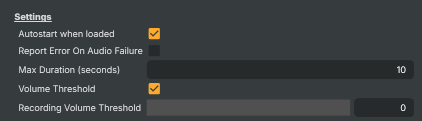
Settings — when to start, when to stop, and any auto-trigger conditions.
| Property | Description |
|---|---|
Autostart when loaded |
When true, the recorder starts automatically when the project loads. [default=true]. Combined with VolumeThresholdCheckBox, this gives unattended capture: load the project and walk away — recording begins as soon as audio is detected. |
Report Error On Audio Failure |
When true, raises an error in the log if no audio is received during a recording session. [default=false]. Useful for unattended setups where a silent recording usually means something upstream is broken (mic disconnected, source down, routing issue) rather than "nothing happened to record". |
Max Duration (seconds) |
Maximum recording length in seconds — the recorder stops automatically once this is reached. Leave empty for no time limit (recording continues until manually stopped). Useful for fixed-length captures (e.g. 60-second voice memos) and as a safety cap on unattended recordings. |
Volume Threshold |
When true, recording only starts once the input level rises above VolumeThreshold. [default=true]. Avoids capturing long stretches of silence — the recorder waits, listening, and triggers when actual sound is detected. Disable for "always-on" recording that starts the instant the recorder is started. |
Recording Volume Threshold |
Volume level (0–100) above which the recorder triggers. [min=0, max=100, default=0]. Only used when VolumeThresholdCheckBox is true. Higher values require a louder signal before recording starts, helping ignore room noise or hum. Low values trigger on faint sound — useful when the source is quiet to begin with. |
Save Recording
Save Recording — how and where the captured audio is written to disk.

| Property | Description |
|---|---|
Trim Silence |
When true, silence at the start and end of the recording is removed before saving. [default=true]. Tidies up the file when triggering on volume threshold — typically there's a small gap before the talker actually starts speaking, and a tail after they stop. Disable to keep the recording exactly as captured. |
Save Location |
Folder that recorded files are written to. Pick a location that has enough free space for long recordings, and that the process running Composer has permission to write to. |
Recording
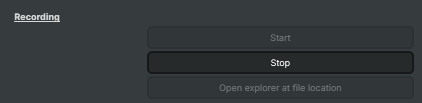
Recording — start, stop, and access saved files.
| Property | Description |
|---|---|
StartRecordingCommand |
Start recording. If VolumeThresholdCheckBox is enabled, the recorder waits for the threshold to be crossed before actually capturing. |
StopRecordingCommand |
Stop recording and save the captured audio to a file in SaveFolder. |
OpenFolderCommand |
Open the save folder in the operating system's file browser, so the recorded files can be played back, copied, or shared. |
Inherits from: AbstractAudioOperator, AbstractOperator, AbstractAudioMetering.
See also: Audio Recorder in Script Engine Objects.