

Performance mode
Performance Mode is a Desktop-only feature that hides every UI element except the program preview and a continuous performance-statistics overlay. It exists for live operation: once you've authored a project and the show is running, the editor chrome (panel headers, knob graphics, scene tabs, mixer fader markings) is just GPU work that doesn't help the operator and competes with the rendering pipeline for cycles.
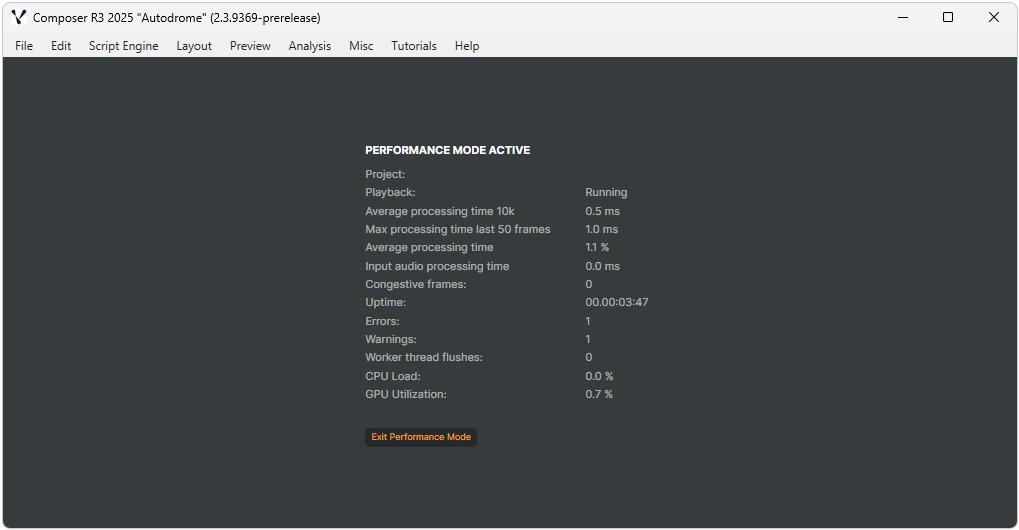
When triggered, Performance Mode collapses all panels and disables thumbnail rendering across the UI. The result is a much smaller GPU footprint with the same compositing and target output running underneath — useful when running close to the GPU's limits or on lower-end hardware.
Activation
Three ways to enter Performance Mode:
- Inactivity timeout — Composer auto-enters Performance Mode after a configurable number of seconds of UI inactivity. Set the timeout in Settings → Performance → Lock workstation after (sec).
- Manual — Misc → Lock Application menu item.
- Keyboard shortcut —
ALT+M, release, thenL.
Any UI activity (mouse move, click, keystroke) exits Performance Mode immediately.
Tuning tips
For more comprehensive performance tuning beyond Performance Mode — hardware sizing, GPU clock locking, encoder choice, scene-level optimisation — see Performance and optimization and Tuning for maximum performance in the Operations manual.