

Performance and optimization
Tuning is about giving Composer the resources it needs; optimization is about making sure your project doesn't waste them.
The four resources to budget
Every render tick must complete inside the project's frame budget (16.67 ms at 60 fps, 33.33 ms at 30 fps). Composer competes for four resources during that window:
- CPU — input demuxing, audio processing, target encoding, render-loop orchestration.
- Memory — bandwidth used to move pixels between capture cards, system RAM, and GPU.
- GPU — compositing, scaling, blending, operator passes, AI inference.
- PCIe bus — pixels moving from CPU memory to GPU memory and back, capture-card DMA, encoder readback.
Aim to keep all four below 80–90% of frame budget at the busiest point of your show. Above that you're one packet-loss spike or one encoder hiccup away from a dropped frame.
Cost rules of thumb
- Doubling frame rate (30 → 60 fps) roughly doubles processing demand.
- Doubling each spatial dimension (HD → UHD = 2× width × 2× height) quadruples demand.
- Each scene, layer, and operator adds load. Remove unused layers and operators — even muted operators run their pre-/post-passes.
- Video files cost far more than still images — a one-second video loop is much more expensive than the same artwork as a PNG.
- Encoder choice matters. NVENC for hardware-accelerated H.264 / H.265 encoding; libx264 only when you need its quality presets and have CPU headroom for them.
Windows 11 — disable hardware-accelerated GPU scheduling
Windows 11 ships with Hardware-accelerated GPU scheduling on by default. Some NVENC workloads drop frames with this enabled. If you see encoder-side stuttering on a Windows 11 host, disable the toggle:
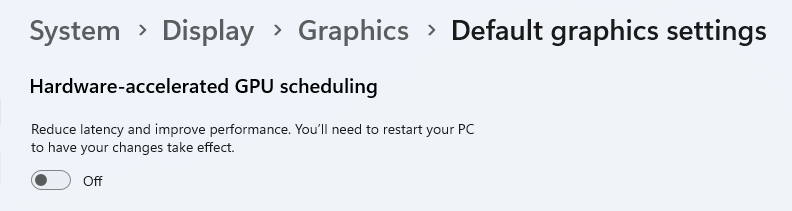
Settings → System → Display → Graphics → Default graphics settings → flip Hardware-accelerated GPU scheduling to off and reboot.