

Assets finder
The Assets finder tab controls how Composer locates referenced media when a project is loaded. Projects record paths to image, video, audio, LUT, and model files; if a recorded path no longer resolves on this host (the project moved between machines, a drive letter changed, the media library was reorganised) the assets finder kicks in and tries a configurable list of fallback locations before reporting the asset as missing.
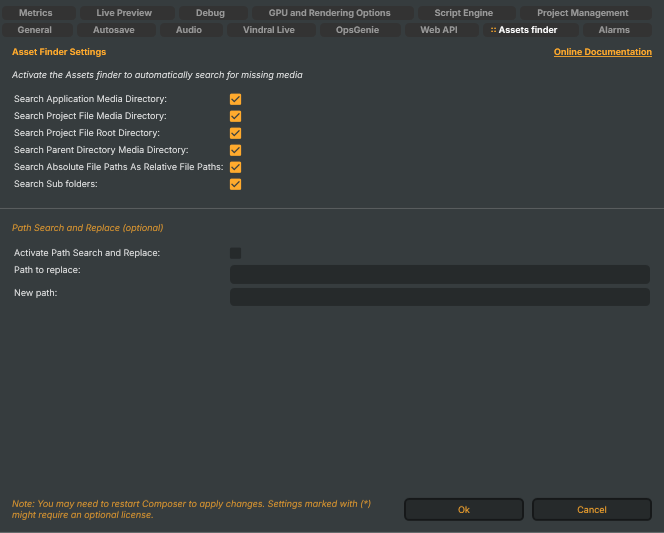
Activate the Assets finder to automatically search for missing media.
How resolution works
For every media file a project references, Composer resolves the path in this order and stops at the first hit:
- The recorded path, used exactly as stored. If the file is there, no searching happens — the settings below never come into play.
- Path Search and Replace — a prefix rewrite, applied to absolute paths only, when it is switched on (see below).
- The search locations — each enabled location from the list below, tried in order.
- If nothing matches, the asset is reported missing.
Because the finder will accept a file found in a different place than the one recorded — including a same-named file in another folder — resolution is forgiving by design. If you instead need strict "this exact file or nothing" behaviour, turn off the locations you don't want rather than relying on the order.
Search locations
Each toggle adds one place to look. All are on by default.
- Search Application Media Directory (
SearchApplicationMediaDirectory) — the Media directory set on the General tab, plus itsVideo/,Images/,Audio/, andModels/subfolders. - Search Project File Media Directory (
SearchProjectFileMediaDirectory) — aMedia/subfolder next to the project file. Useful for projects that keep their media in aMedia/folder alongside the.prj. - Search Project File Root Directory (
SearchProjectFileRootDirectory) — the project file's own folder, plus itsImages/,Video/, andMedia/subfolders. Catches the common case where media sits next to the.prj. - Search Parent Directory Media Directory (
SearchParentDirectoryMediaDirectory) — one level above the project's folder, and aMedia/subfolder there. Useful when many sibling project folders share a media library one level up. - Search Absolute File Paths As Relative File Paths (
SearchAbsoluteFilePathsAsRelativeFilePaths) — lets the locations above also catch absolute references, not just relative ones. When a project authored asD:\Media\foo.mp4opens on a host with a different drive layout, the finder retriesfoo.mp4against each enabled location. With this off, an absolute path that doesn't resolve is reported missing immediately. - Search Sub folders (
SearchCustomSubFolders) — preserves a file's nested folder position when an entire project tree is relocated. Composer records where the project originally lived (in an.aslfile saved next to it); with this on, the finder works out where an unresolved file sat relative to the old project folder and looks for it at the same relative position under the new one. This is what re-finds files tucked inside category subfolders after a move — it does not blindly scan every subfolder of every location.
Path Search and Replace (optional)
When the search locations don't cover your case — for example a project that hard-codes \\nas-old\share\… paths that now live at \\nas-new\share\… — this targeted rewrite swaps one path prefix for another. It runs early (step 2 above), before the search locations, and applies only to absolute paths.
- Activate Path Search and Replace (
PathFinderActive) — master switch. When off, the rewrite is skipped regardless of the values below. Default: off. - Path to replace (
PathFinderOriginalPath) — the path prefix to match (case-insensitive). - New path (
PathFinderNewPath) — the prefix substituted in its place. It must point to a folder that exists on this host; if it doesn't, the rewrite is skipped.
Both fields must be filled for the rewrite to run. Composer replaces the matching prefix, normalises the slashes for the current operating system, and checks whether that exact file now exists — it does not feed the rewritten path back through the search locations.
The rewrite is a single host-wide pair, applied to every asset Composer resolves on this host. Use it when one drive-letter or share migration cleanly explains every missing file. For messier cases, prefer fixing the recorded paths in the project itself, or staging the media on the host at the original path.