

Regional Contrast
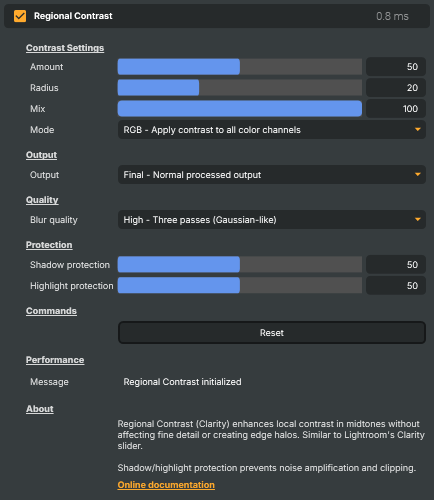
The Regional Contrast operator lifts the midtone contrast of an image to add punch and depth, without sharpening fine detail and without producing the harsh edges a regular sharpener tends to leave behind. Photo-editing tools usually call this same effect clarity.
It works by comparing each pixel to the average tone of a small surrounding region and gently nudging the contrast inside that region. The result is an image that feels three-dimensional and "crisper" while edges and fine textures stay natural.
When to use it
- Giving interview and talking-head shots more presence on a flat-lit set.
- Lifting hazy, low-contrast outdoor footage shot in overcast or grey conditions.
- Adding depth and texture to landscape and architectural plates.
- Making product shots pop without an obvious sharpening look.
- Punching up sports highlights for a richer, more energetic feel.
How to tune it
- Amount — overall strength.
0is a no-op; mid values (40–60) suit most broadcast material; higher values produce a stylised, dramatic look. - Radius — the size of the region each pixel is compared against. Small values emphasise local texture; larger values affect broader tonal areas and add a sense of depth without sharpening detail.
- Mix — blend between the original (
0) and the full effect (100). Useful for pulling the look back to taste once Amount and Radius are set.
Shadow and Highlight protection settings keep dark areas clean and prevent bright areas from clipping when the effect is pushed hard.
Regional Contrast - Settings
Contrast Settings
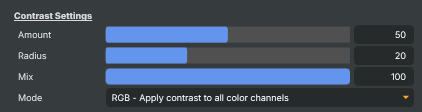
Contrast Settings — main strength, region size and blend controls.
| Property | Description |
|---|---|
Amount |
Strength of the contrast boost. [min=0, max=100, default=50]. 0 leaves the picture flat. Mid values (40-60) give a natural lift suitable for most broadcast material. Higher values produce a punchier, more dramatic look that suits stylised content but can start to look gritty. |
Radius |
Size of the area each pixel is compared against, in pixels. [min=5, max=50, default=20]. Smaller values affect very local regions and emphasise fine texture; larger values affect broader tonal areas and add an overall sense of depth without sharpening detail. |
Mix |
Blend between the original and the processed image. [min=0, max=100, default=100]. 0 shows the untouched source, 100 shows the full effect. Useful for dialling the look back to taste after setting Amount and Radius. |
Mode |
How colour is treated. RGB applies the contrast boost to all colour channels, which can also slightly increase saturation. Luminance applies the boost to brightness only and keeps the original colour, which is usually safer for skin tones and broadcast. |
Output
Output — choose what is shown for monitoring and fine-tuning.

| Property | Description |
|---|---|
Output |
What is shown in the output. Final is the normal processed picture. The other modes are diagnostic: Difference Only shows just the contrast detail being added, Blurred shows the smoothed reference image, and Original bypasses the operator entirely. |
Quality
Quality — controls how smooth the underlying contrast calculation is.

| Property | Description |
|---|---|
Blur quality |
(advanced) Quality of the blur used to drive the effect. Fast is the cheapest and gives a slightly boxy look. Normal is a good balance for live use. High produces the smoothest, most natural result and is recommended for finished material when performance allows. |
Protection
Protection — keeps the effect from misbehaving in the darkest and brightest areas.

| Property | Description |
|---|---|
Shadow protection |
(advanced) How much the effect is held back in dark areas. [min=0, max=100, default=50]. Higher values keep shadows clean and stop noise or grain from being amplified. Lower values let the effect work fully in the dark parts of the picture. |
Highlight protection |
(advanced) How much the effect is held back in bright areas. [min=0, max=100, default=50]. Higher values stop highlights from clipping to white. Lower values let the effect push the brightest tones harder. |
Commands
Commands — actions that can be triggered manually.

| Property | Description |
|---|---|
Reset |
Reset all settings to their defaults (Amount 50, Radius 20, Mix 100, Mode RGB, Output Final, Quality High, Shadow/Highlight protection 50). |
Performance
Performance — status messages from the operator.

| Property | Description |
|---|---|
Message |
Status message from the operator (read-only, debug). |
Inherits from: AbstractOperator, AbstractAudioMetering.
See also: Regional Contrast in Script Engine Objects.