

QR Code
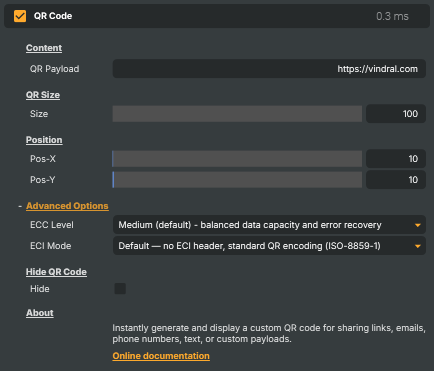
The QR Code operator lets you instantly generate and display QR codes directly inside your live production. It's a simple, seamless way to share links, promotions, login pages, bonus codes, or any other type of information with your viewers in real time — whether you're guiding players to a registration page, sending the audience to a sponsor's website, or enabling fast mobile interaction during a show.
Because the QR code is generated inside the software, you never need to upload images or reach for external tools — everything updates instantly as you type. That makes the operator ideal for time-sensitive broadcasts, marketing campaigns, and dynamic experiences where the content on screen needs to change frequently, often, and on cue.
What is a QR code?
A QR code ("Quick Response code") is a two-dimensional barcode — a square grid of black and white modules that encodes data optically. Where a traditional one-dimensional barcode stores a few dozen digits in a single row of stripes, a QR code packs hundreds or thousands of characters into a two-dimensional matrix that a camera can read from any angle in a fraction of a second.
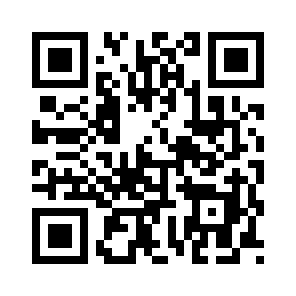
The format was invented in 1994 by Denso Wave, a subsidiary of the Japanese automotive supplier Denso, to track parts on Toyota assembly lines. The three large square "finder" patterns in the corners let a scanner lock onto the code at any rotation, while the rest of the grid carries the payload and a built-in error-correction code that lets the message be recovered even when part of the image is scratched, dirty, or partially obscured.
For more background see:
What you can encode
QR codes are payload-agnostic — anything that fits in a string can go in. The most common uses are:
- Web links —
https://...URLs are by far the most common payload. Phones recognise them automatically and offer to open the link. - Email addresses — a
mailto:name@example.compayload opens a pre-addressed message in the viewer's mail app. - Phone numbers —
tel:+46701234567lets viewers tap to call. - Wi-Fi credentials, vCard contact details, calendar invitations — when formatted with the standard
WIFI:,BEGIN:VCARD, orBEGIN:VEVENTschemas, most phone cameras will recognise them and offer to join the network, save the contact, or add the event. - Plain text or JSON — for custom workflows, second-screen apps, or in-house tools that read the code themselves.
Longer payloads need a larger QR code (more modules) or a lower error-correction level. The operator surfaces a warning when the chosen payload doesn't fit at the current settings.
Example use cases
- Displaying promotional links during live streams and broadcasts.
- Guiding players to mobile registration or login pages.
- Sharing bonus codes, event information, or support links on cue.
- Enabling quick access to companion apps or interactive experiences.
- Driving viewers to a second-screen experience, voting form, or live poll during a show.
- Updating QR content automatically using backend-driven workflows such as the Script Engine or Connector APIs.
How it works on screen
The operator draws the generated QR code as an overlay on top of the incoming layer. Three property groups control how it looks:
- Content — the payload to encode, plus a live warning if it can't fit at the current settings.
- QR Size — the on-screen size in pixels (square). Bigger sizes scan reliably from further away; smaller sizes are good when only a corner of the frame is available.
- Position — the X / Y pixel offset of the code's top-left corner. Values are automatically clamped so the code stays inside the layer.
Two advanced options fine-tune the encoding itself:
- ECC Level (Error-Correction Code level) — how much redundancy is built into the code.
Lowpacks the most data;Hightolerates more glare, partial obstruction, or low-quality cameras at the cost of holding less.Mediumis a sensible default. - ECI Mode (Extended Channel Interpretation) — the character encoding used for the payload.
Defaultworks for ASCII URLs and English text;Iso8859_1covers most Western European characters,Iso8859_2covers Eastern European scripts, andUtf8enables full Unicode for non-Latin alphabets and emoji.
A Hide toggle lets the code disappear from the output without removing the operator from the chain — handy for showing the code only during specific segments of a show. The payload, position, and visibility can all be changed at runtime from the Script Engine or driven externally through a Connector API, so the QR can appear on cue, update as the programme moves between topics, or follow a backend-driven workflow without anyone having to touch the desktop.
It's fast, flexible, and fully integrated — a powerful way to bridge your live video with any online destination.
Practical tips
- Test before you go live. Scan the rendered code with the phone model and camera app your audience is most likely to use. Some payloads (long URLs, non-ASCII text) can need a higher ECC level or a larger size to scan reliably.
- Leave a quiet zone. Avoid placing the code right up against a busy background; a few pixels of clear space around the edges dramatically improves scan rates.
- Pick a size that matches the viewing distance. A QR code on a desktop monitor only needs to be a couple of hundred pixels; a code on a big-screen broadcast meant to be scanned from a sofa needs to be much larger.
- Use a higher ECC level when the code may be partially covered (e.g. by a station bug or a lower-third graphic) or when the broadcast goes through aggressive compression that could blur the edges of the modules.
QR Code - Settings
Content
Content — what the QR code encodes.

| Property | Description |
|---|---|
QR Payload |
What the QR code encodes — typically a URL, but any text works. Common payloads include https://... URLs, mailto:... addresses, tel:... phone numbers, structured JSON, or plain text. Long payloads may require a higher EccLevel to fit; InfoNote shows a warning when the content cannot be encoded at the current settings. |
QR Size
QR Size — how large the QR code is drawn on screen.

| Property | Description |
|---|---|
Size |
Width and height of the QR code in pixels (always square). [min=100, max=2160, default=100]. Must be even — odd values are rounded down to keep the code square. Bigger sizes scan reliably from further away; smaller sizes are good when you only have a corner of the screen to spare. |
Position
Position — where on the layer the QR code is placed.

| Property | Description |
|---|---|
Pos-X |
Horizontal position of the QR code's top-left corner, in pixels. [default=10]. 0 places the code flush against the left edge. Automatically clamped so the code stays inside the layer at the current Size. |
Pos-Y |
Vertical position of the QR code's top-left corner, in pixels. [default=10]. 0 places the code flush against the top edge. Automatically clamped so the code stays inside the layer at the current Size. |
Advanced Options
Advanced Options — encoding settings that affect readability and character support.

| Property | Description |
|---|---|
ECC Level |
How much redundancy is built into the QR code. [default=Medium]. Low packs the most data per code but is least tolerant of damage. Medium (~15% recovery) is a good default. Quartile (~25%) and High (~30%) tolerate more glare, partial obstruction, or low-quality cameras at the cost of holding less data. |
ECI Mode |
Character encoding for text payloads. [default=Default]. Default works for plain ASCII URLs and English text. Use Iso8859_1 for most Western European characters, Iso8859_2 for Eastern European (Polish, Czech, Hungarian, etc.), and Utf8 for full Unicode support including non-Latin scripts. |
Hide QR Code
Hide QR Code — show or hide the code on the output.

| Property | Description |
|---|---|
Hide |
When true, the QR code is not drawn — the input passes through unchanged. [default=false]. Convenient for showing the code only during certain segments of a show. Toggle from a script to make the QR appear on cue rather than removing the operator entirely. |
Inherits from: AbstractOperator, AbstractAudioMetering.
See also: QR Code in Script Engine Objects.