

Min/Max Filter
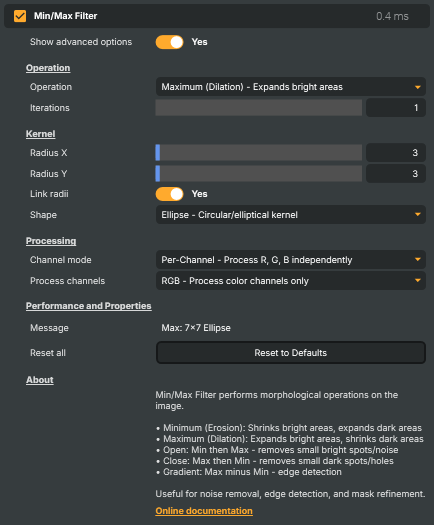
Applies a morphological filter that thickens (dilates) or thins (erodes) the image based on brightness, plus combinations that clean up small specks and detect edges. Useful for cleaning up speckle noise in keyer masks, growing or shrinking alpha edges, removing thin bright lines or small dust spots, accentuating bright shapes for stylised looks, and producing simple edge outlines via the Gradient mode. Differs from blur — this operator picks the brightest or darkest neighbour pixel rather than averaging, so edges stay sharp.
Min/Max Filter - Settings

| Property | Description |
|---|---|
Show advanced options |
Operation
Operation — choose which morphological operation to apply.

| Property | Description |
|---|---|
Operation |
Which morphological operation to apply. [default=Maximum]. Minimum (Erosion) shrinks bright areas / grows dark areas. Maximum (Dilation) does the opposite. Open (Min then Max) removes small bright specks. Close (Max then Min) fills small dark holes. Gradient (Max minus Min) outputs edge outlines. |
Iterations |
How many times to repeat the operation. [min=1, max=10, default=1]. More iterations push the effect further (e.g. thicker dilation, more aggressive cleanup). Iterating with a small radius often looks smoother than one big-radius pass. |
Kernel
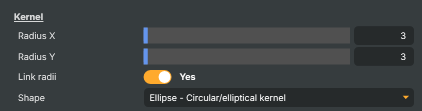
Kernel — size and shape of the neighbourhood the filter examines around each pixel.
| Property | Description |
|---|---|
Radius X |
Horizontal radius of the filter neighbourhood, in pixels. [min=1, max=100, default=3]. Larger values produce a stronger thickening or thinning effect along the horizontal axis. |
Radius Y |
Vertical radius of the filter neighbourhood, in pixels. [min=1, max=100, default=3]. Larger values produce a stronger effect along the vertical axis. Ignored when LinkRadii is on — RadiusX is used for both axes. |
Link radii |
Tie horizontal and vertical radius together. [default=Yes]. When on, RadiusY automatically follows RadiusX for a uniform effect. Turn off to stretch the effect (e.g. only horizontally) for stylised directional looks. |
Shape |
Shape of the filter neighbourhood. [default=Ellipse]. Box gives blocky, rectangular edges. Ellipse keeps shapes rounded and natural-looking. Cross and Diamond produce more stylised, geometric results. |
Processing
Processing — how channels are treated when picking the output pixel.

| Property | Description |
|---|---|
Channel mode |
(advanced) How colour channels are picked. [default=Per-Channel]. Per-Channel: red, green, blue are filtered independently — can shift colours. Luminance: picks the brightest/darkest whole pixel as a unit, preserving original colours. |
Process channels |
(advanced) Which channels are processed. [default=RGB]. RGB leaves alpha untouched. RGBA filters everything including transparency. Alpha-only is great for cleaning up or growing keyer masks without affecting colour. |
Performance and Properties
Performance and Properties — status messages and reset action.

| Property | Description |
|---|---|
Message |
Most recent status message from the operator (read-only, debug). |
Reset all |
Reset all settings to their defaults (Maximum operation, radius 3, ellipse, RGB per-channel). |
Inherits from: AbstractOperator, AbstractAudioMetering.
See also: Min/Max Filter in Script Engine Objects.