

Gaussian Blur
Introduction
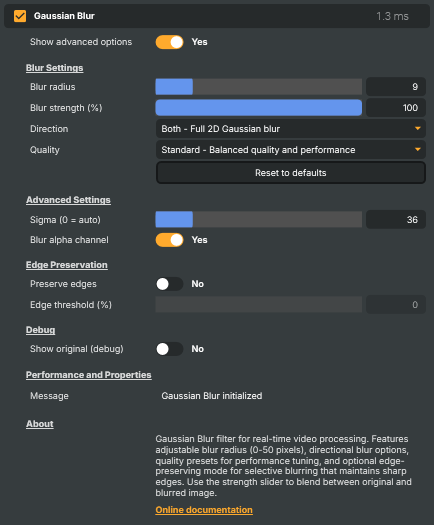
The Gaussian Blur operator is a real-time video effect that applies a smooth, natural blur to the picture. It is commonly used for softening video, creating depth-of-field effects, blurring backgrounds, anonymising sensitive content, and preparing footage for compositing.
Overview
Gaussian blur is one of the most widely used blur algorithms in image and video processing. It works by averaging each pixel with its surrounding neighbours, weighted by a Gaussian (bell curve) distribution. This produces a natural, smooth blur — the same look you find in photo editors and high-end broadcast graphics, but applied live to every frame.
In Composer the operator is GPU-accelerated, which keeps it fast enough to run in real time at full broadcast resolutions, even at high blur radii or when stacked with other effects on the same layer.
Common use cases
- Privacy and anonymisation — blurring faces, license plates, screens, or other sensitive on-screen information.
- Skin softening and detail reduction — gently smoothing footage to reduce fine detail or imperfections.
- Depth-of-field effects — simulating focus pulls and shallow-focus looks.
- Background blurring — softening a background plate behind overlays, lower thirds, or talent.
- Motion blur — using directional blur to suggest movement or speed.
- Stylistic looks and transitions — dreamy, glow-like, or out-of-focus aesthetics, animated over time for reveals and fades.
- Pre-processing for compositing — smoothing noisy footage before keying, tracking, or further effects.
- Noise and grain reduction — taming high-frequency detail prior to compression or downstream processing.
What you can control
Without diving into individual properties, the operator gives you control over four broad areas:
- Strength of the blur — how soft, and how much of the original image is preserved.
- Direction — full 2D blur, or restricted to horizontal-only or vertical-only for motion-blur-style effects.
- Quality vs. performance — presets that trade visual quality for GPU cost so the operator scales from lightweight previews to high-end output.
- Edge-aware mode — an optional bilateral-style behaviour that softens flat regions while keeping strong edges crisp.
A small set of advanced options is also available for fine-tuning sigma, alpha-channel behaviour, and debugging.
Gaussian Blur - Settings

| Property | Description |
|---|---|
Show advanced options |
Show or hide the operator's advanced settings in the editor UI. [default=false]. |
Blur Settings
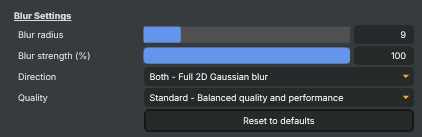
Blur Settings — the main controls that shape the look of the blur.
| Property | Description |
|---|---|
Blur radius |
Blur radius in pixels. [min=0, max=50, default=5]. Controls how far the blur reaches: each output pixel is averaged with its neighbours up to this many pixels away in every blurred direction. 0 disables the blur (passthrough); larger values produce a softer, more diffuse result at higher processing cost. Very large values can become expensive on high-resolution frames. |
Blur strength (%) |
Blur strength as a percentage. [min=0, max=100, default=100]. Linear blend factor between the original frame (0) and the fully blurred frame (100). Use intermediate values for a partial-blur "veiling" effect, or to animate the blur in and out at a fixed radius. The blur is still computed at the configured radius — this only controls how strongly it is mixed with the original image. |
Direction |
Blur direction. [default=Both]. Selects which axes the blur is applied along: Both runs a full 2D blur, HorizontalOnly smears the image left/right only, and VerticalOnly smears it up/down only. The single-direction modes are roughly half the cost of Both and are useful for motion-blur-style streaks or interlace-style softening. |
Quality |
Blur quality preset. [default=Standard]. Trades processing cost against visual quality. Fast is the cheapest and is suited for live work or high-resolution frames where headroom matters; Standard is the recommended default; High produces the smoothest, cleanest blur and is best for offline renders, archival output, or large radii where banding would otherwise be visible. |
Reset to defaults |
Reset all blur settings to their defaults. Invokable command. Restores BlurRadius=5, BlurStrength=100, Direction=Both, Quality=Standard, Sigma=0 (auto), BlurAlpha=false, PreserveEdges=false, and EdgeThreshold=20. Useful from scripts that want a known starting state before applying a new look, or as a one-shot recovery after experimentation. |
Advanced Settings
Advanced Settings — finer control over blur shape and alpha handling.

| Property | Description |
|---|---|
Sigma (0 = auto) |
(advanced) Gaussian sigma (softness). [min=0, max=200, default=0]. The slider value is internally divided by 10, giving an effective sigma range of 0.0–20.0. 0 means "auto" — sigma is chosen automatically from BlurRadius for a clean, balanced blur. Override this to decouple softness from radius: a higher sigma at the same radius gives a flatter, softer look, while a lower sigma produces a tighter, more concentrated blur. Most users can leave this at 0 and only adjust BlurRadius. |
Blur alpha channel |
(advanced) Whether to blur the alpha channel as well as RGB. [default=false]. When false, only the colour channels are blurred and the original alpha is preserved untouched — keeping mask/key edges crisp. Set true to soften alpha along with colour, which is what you usually want for keyed sources, feathered mattes, or composited graphics where hard alpha edges would otherwise show through the blur. |
Edge Preservation
Edge Preservation — keep strong edges sharp while softening flat regions.

| Property | Description |
|---|---|
Preserve edges |
(advanced) Enable edge-aware blurring. [default=false]. When enabled, the blur softens flat regions of the image while keeping strong edges sharp, instead of softening everything uniformly. This preserves crisp boundaries (text, contours, eyes) while still smoothing surfaces — handy for skin smoothing or denoise-style looks. Has a noticeably higher processing cost than a plain blur. Toggling this also controls visibility of EdgeThreshold, which only takes effect while edge preservation is on. |
Edge threshold (%) |
(advanced) Edge threshold for edge-preserving mode, as a percentage. [min=0, max=100, default=20]. Only used when PreserveEdges is true. Sets the maximum luminance difference (in normalised 0–1 units after division by 100) at which two pixels are still considered part of the same surface and allowed to blur together. Lower values protect more edges (sharper, less smoothing); higher values let more contrast bleed through and approach a plain Gaussian. Tune in tandem with BlurRadius — a large radius with a tight threshold gives a strong "smoothed but detailed" look. |
Debug
Debug — diagnostic toggles for comparing or troubleshooting the effect.

| Property | Description |
|---|---|
Show original (debug) |
(advanced) Bypass the blur and pass the original image through unchanged. [default=false]. Diagnostic toggle. When true, the operator outputs the source frame as-is, letting you A/B-compare blurred vs. original without removing the operator from the chain or losing downstream wiring. Leave false for normal operation. |
Performance and Properties
Performance and Properties — runtime status from the operator.

| Property | Description |
|---|---|
Message |
Most recent status/info message emitted by the operator. Read-only style status line surfaced to the UI and to scripts. The operator writes here when settings change via hotkeys (F1–F8), when ResetBlurCmd runs, and at initialization. Useful from a script to mirror operator state into another component or a dashboard. |
Inherits from: AbstractOperator, AbstractAudioMetering.
See also: Gaussian Blur in Script Engine Objects.