

Film Grain
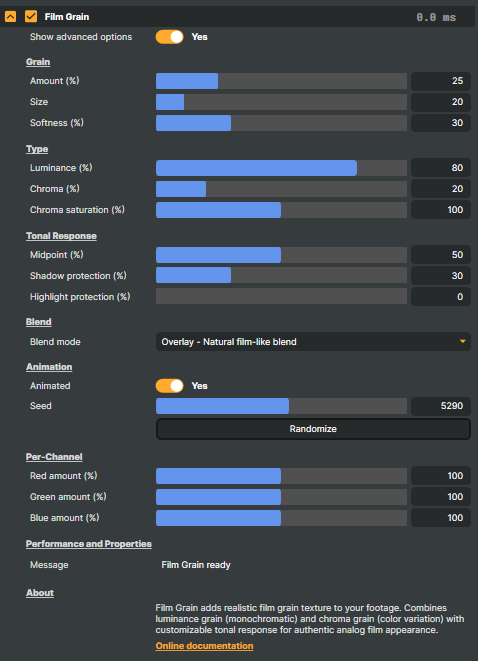
The Film Grain operator lays an analog-film grain texture on top of digital footage. The effect mimics the photographic noise that comes from silver-halide crystals in traditional film emulsions — the subtle, ever-shifting texture that gives celluloid its organic, "alive" quality even on a still frame.
Use it to:
- Give clean digital footage a cinematic, film-like surface.
- Hide the over-cleanliness of computer-generated content (motion graphics, 3D inserts, virtual sets).
- Match grain across cameras with very different sensors so a multi-source production reads as one consistent look.
- Add texture to flat, posterised, or banded areas (skies, gradients, shadow regions) where digital compression artefacts otherwise show up.
- Style retro / vintage / period playback graphics with the noise of the era they reference.
Because every adjustment is applied per-pixel on the GPU, the operator runs in real time at full broadcast frame rates, so the grain can be authored live on a stream rather than baked in offline.
Two kinds of grain
Real film grain has two ingredients, and the operator exposes both as separate amounts so you can dial in the look you want:
- Luminance grain — brightness variation only. The same noise pattern is applied to all three colour channels at once, giving the classic monochromatic, salt-and-pepper texture associated with black-and-white stock and most general-purpose film.
- Chroma grain — colour variation. Each RGB channel gets its own independent noise, producing the coloured speckle that's characteristic of colour film (and especially obvious on high-ISO or push-processed stocks).
Real film typically has noticeably more luminance than chroma grain, so the operator's defaults reflect that — heavy on luminance, a light dusting of chroma. Push the chroma amount up for a more aggressive vintage colour-noise look, or down to zero for a clean monochromatic dust.
Quick start
The operator has a lot of controls, but a usable result usually only needs two of them. Start here:
- Add Film Grain from the Special Effects group.
- Set Amount to control the overall intensity:
- 15–30 % — subtle, just-enough-to-read-as-film.
- 40–60 % — pronounced, hand-shot or push-processed feel.
- 80 %+ — very noisy, clearly stylised.
- Set Size to match the film stock you're imitating:
- Small values (~10) — fine grain, similar to a low-ISO daylight stock (ISO 100 / 200).
- Mid values (~30–50) — standard 35 mm film.
- Large values (~70+) — coarse, chunky grain typical of ISO 800–3200 push-processed or 16 mm stock.
That's enough for most shots. Reach for the rest of the panel when you want finer control.
Going further
The operator exposes a handful of advanced controls for productions that need a specific look:
- Softness — blurs grain edges. Crisp grain (low values) reads as digital noise; softer grain (higher values) reads as film.
- Tonal Response — distribute grain unevenly across the brightness range. The defaults follow how real film behaves: peak grain in the midtones, less in deep shadows, and a clean response at the very top end. Shadow protection and Highlight protection let you keep blacks or highlights cleaner than the rest of the image.
- Blend mode — how grain mixes with the underlying image. Overlay is the natural film-style default; Soft Light is subtler; Add brightens the picture (creates a glow); Linear is a simple straight blend that gives a flatter, dustier look.
- Animation — turn animated grain off if you want a static texture (useful for stills, frozen frames, or when motion in the grain is distracting). When animation is on, Seed drives the random pattern — match seeds across cuts to keep the grain consistent, or randomise it for a fresh look.
- Per-Channel amounts — bias grain strength independently in red, green, and blue to mimic the quirks of specific film stocks (warmer reds, cooler blues, etc.).
Film Grain - Settings

| Property | Description |
|---|---|
Show advanced options |
Grain
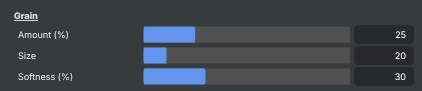
Grain — overall amount, particle size, and edge softness.
| Property | Description |
|---|---|
Amount (%) |
Overall grain intensity, percent. [min=0, max=100, default=25]. 0 disables grain. 15-30 gives a subtle filmic feel. 50+ produces a pronounced, noisy look reminiscent of high-ISO or push-processed film. |
Size |
Grain particle size. [min=10, max=100, default=20]. Lower values resemble fine-grain low-ISO film. Higher values resemble coarse, chunky grain typical of high-speed or pushed stocks. |
Softness (%) |
Softness of grain edges, percent. [min=0, max=100, default=30]. 0 keeps grain crisp and sharp. Higher values blur grain particles for a softer, more natural film appearance. |
Type
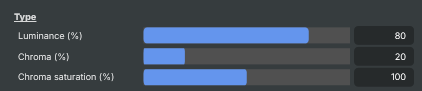
Type — split between brightness (luminance) grain and colour (chroma) grain.
| Property | Description |
|---|---|
Luminance (%) |
Luminance grain amount, percent. [min=0, max=100, default=80]. Same noise pattern applied to all colour channels, producing classic black-and-white film grain. Higher values give a more obvious brightness-only texture. |
Chroma (%) |
Chroma (colour) grain amount, percent. [min=0, max=100, default=20]. Different noise per colour channel, producing the colourful speckle of colour film. Keep low for subtle organic feel; raise for stronger vintage colour-noise look. |
Chroma saturation (%) |
(advanced) Saturation of the chroma grain, percent. [min=0, max=200, default=100]. 100 keeps colour grain at natural saturation. Lower values make the colour speckle more pastel; higher values exaggerate the colour shifts for a noisier, more vivid feel. |
Tonal Response
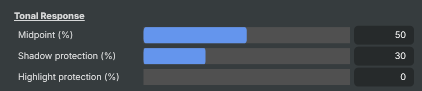
Tonal Response — control how grain varies between shadows, midtones, and highlights.
| Property | Description |
|---|---|
Midpoint (%) |
(advanced) Brightness level where grain is strongest, percent. [min=0, max=100, default=50]. 50 puts peak grain in midtones (the typical film look). Move lower to bias grain into shadows, higher to push it into highlights. |
Shadow protection (%) |
(advanced) Reduce grain in dark areas, percent. [min=0, max=100, default=30]. Real film typically shows less grain in deep shadows. Higher values keep blacks cleaner; 0 lets grain extend fully into shadow regions. |
Highlight protection (%) |
(advanced) Reduce grain in bright areas, percent. [min=0, max=100, default=0]. Useful for keeping highlights and skies clean while still grainy in midtones and shadows. |
Blend
Blend — how grain combines with the underlying image.

| Property | Description |
|---|---|
Blend mode |
(advanced) How grain mixes with the image. [default=Overlay]. Overlay = natural film-style mix. Soft Light = subtler. Add = grain brightens the image (more glow). Linear = simple straight blend, gives a flatter, dustier look. |
Animation
Animation — control whether grain crawls between frames or stays static.

| Property | Description |
|---|---|
Animated |
Whether the grain pattern changes each frame. [default=Yes]. Yes gives the lively crawling grain typical of moving film. No freezes the grain so it stays put on the image — useful for stylised stills or to avoid distracting motion. |
Seed |
Random seed that determines the exact grain pattern. [min=0, max=9999, default=random]. Two layers using the same seed produce the same grain — useful for matching grain across cuts. Change the seed for a fresh random pattern. |
Randomize |
Pick a new random seed, giving a fresh grain pattern. |
Per-Channel
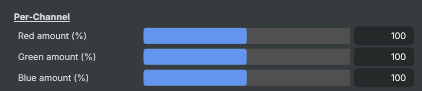
Per-Channel — fine-tune grain strength independently in red, green, and blue.
| Property | Description |
|---|---|
Red amount (%) |
(advanced) Grain amount in the red channel, percent. [min=0, max=200, default=100]. 100 is normal. Lower or raise to bias chroma noise toward warmer tones, simulating quirks of specific film stocks. |
Green amount (%) |
(advanced) Grain amount in the green channel, percent. [min=0, max=200, default=100]. 100 is normal. Adjust to weight grain toward or away from green tones. |
Blue amount (%) |
(advanced) Grain amount in the blue channel, percent. [min=0, max=200, default=100]. 100 is normal. Older colour film often had stronger blue-channel grain — raise this for a more authentic vintage look. |
Performance and Properties
Performance and Properties — status messages from the operator.

| Property | Description |
|---|---|
Message |
Most recent status message from the operator (read-only, debug). |
Inherits from: AbstractOperator, AbstractAudioMetering.
See also: Film Grain in Script Engine Objects.