

GPU and Rendering Options
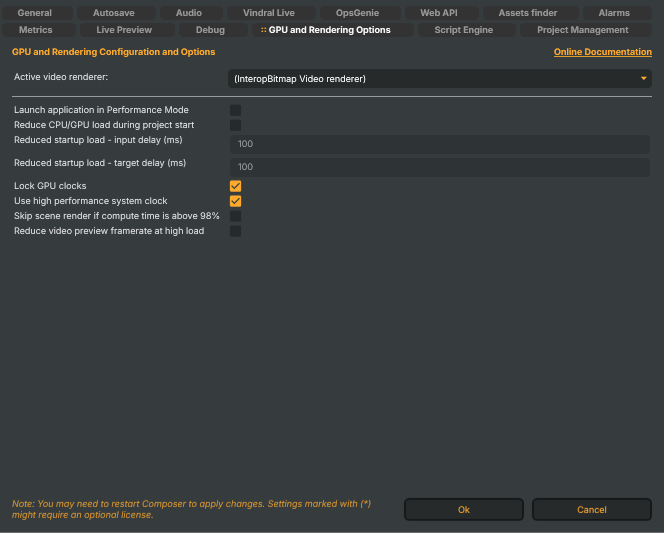
The GPU and Rendering Options tab gathers the host-wide rendering and performance knobs: which video renderer Composer Desktop uses for its preview pane, how the application stages startup load to avoid spiking the GPU, the GPU-clock and system-clock locking that smooths frame-time variance, and the protective behaviours that kick in when compute time runs hot.
For the broader production-tuning guide (BIOS / OS / hardware sizing) that pairs with these options, see Operations & Tuning → Tuning for maximum performance.
Active video renderer
- Active video renderer — the rendering backend Composer Desktop uses to display the video preview in the main window. The dropdown lists the renderers available on this host (typically InteropBitmap Video renderer, the default). This selection is bound to a Desktop view-model and persisted alongside the other settings; it isn't represented as a single property on the
Settingsclass. If the preview shows artefacts or fails to render on a specific GPU / driver combination, switching renderers here is the first thing to try.
Performance mode and startup staging
These options keep Composer responsive during the moments the system is busiest — startup, project load, and reconnect cycles after a network blip.
- Launch application in Performance Mode (
LaunchInPerformanceMode) — when on, Composer starts with a reduced UI surface to free CPU and GPU cycles for the rendering pipeline. Useful on production hosts that don't need the full Desktop UI but still want to run Composer Desktop rather than the headless Runtime. Default: off. - Reduce CPU/GPU load during project start (
ReducedStartupLoad) — when on, project inputs and targets are started with a small delay between each rather than all at once. Smooths the spike of decoder / encoder initialisation across a few seconds, lowering the chance of a frame-time stall during the first second of playback. Default: off. - Reduced startup load - input delay (ms) (
ReducedStartupLoadInputDelayMs) — pause inserted between starting consecutive inputs when Reduce CPU/GPU load during project start is on. Clamped to 20–500; default 100 ms. Higher = smoother startup, slower time-to-first-frame. - Reduced startup load - target delay (ms) (
ReducedStartupLoadTargetDelayMs) — same, between starting consecutive targets. Clamped to 20–500; default 100 ms.
Clock locking
Both clock-locking options trade a small idle-power increase for substantially smoother frame timings. Recommended on production hosts running 24/7.
- Lock GPU clocks (
LockGPUClocks) — when on, GPU memory and graphics clocks are locked at their maximum frequency. Without locking, the GPU's power-state machine drops clocks during low-load periods then takes 100s of milliseconds to ramp back up — long enough to drop a frame on a 60 fps target. Default: on. - Use high performance system clock (
UseHighPerformanceClock) — when on, Composer uses Windows' high-resolution timer for frame scheduling. Lower jitter than the default system clock; slightly higher idle CPU load. Default: on.
Overload protection
These two options kick in when the system can't keep up with the configured frame rate, choosing what to drop rather than letting frame budget overflow propagate.
- Skip scene render if compute time is above 98% (
SkipRenderFrameOnHighComputeTime) — when on and the project's average processing time crosses 98% of frame budget, Composer skips rendering individual scenes for the next frame instead of trying to push through and risk a frame-time spike. Default: off — keep off unless you've measured a recurring overrun and would rather lose a frame than catch up across multiple frames. - Reduce video preview framerate at high load (
ReduceVideoPreviewFrameRateOnHighLoad) — when on, the Desktop preview window's frame rate is halved while the system load exceeds 80%. Frees a chunk of GPU cycles for the actual rendering pipeline at the cost of a less smooth preview while the host is hot. Default: off.