

Blackmagic Decklink Target v4
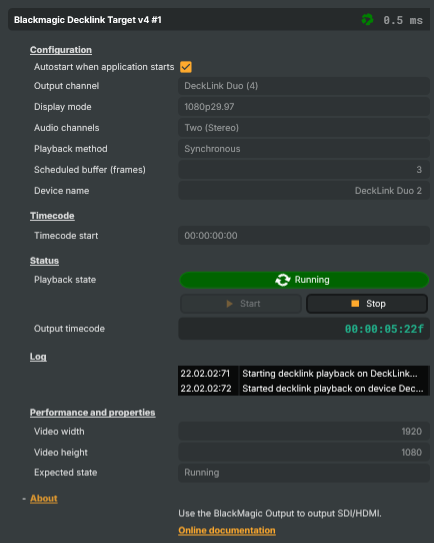
Introduction
The Blackmagic Decklink Target v4 sends the composed scene out through a Blackmagic Decklink card over SDI or HDMI — to a vision mixer, studio monitor, broadcast recorder, IRD / encoder hand-off point, or any other professional piece of kit on the SDI/HDMI side of the production chain. It's the inverse of the BlackMagic DeckLink Capture v3 input: same family of cards, same (card, channel) selection model, same multi-card support — but the data flows the other way.
The v4 generation supersedes the original target, v2, and v3 (all still ship for backwards compatibility but are hidden from the docs); new projects should always use v4. When the sound has to stay in step with the picture — anything an audience hears — see Playback method below.
Multiple Decklink cards on one host
Composer fully supports running multiple Decklink cards in the same host, with as many output targets as the cards collectively expose channels. Each Decklink Target binds to a single (card, channel) pair selected from the dropdowns in the property panel; drop another instance on the scene for each additional channel you need to drive. Composer enumerates every Decklink-recognised channel on the host at startup, regardless of how many physical cards back them.
Practical guidance for multi-card output setups:
- Mind the PCIe budget. Each Decklink card consumes lanes; multi-card hosts on consumer-class CPUs run out of lanes faster than you'd expect, and the motherboard then silently downgrades the GPU's slot from x16 to x8, cutting the bandwidth available for cudaMemcpy frame transfers and showing up as dropped frames under load. See Operations & Tuning → PCIe bandwidth considerations for lane budgets per card and slot-allocation advice.
- Pick a card that gives you channels per slot. A Decklink Quad 2 (4 × 3G-SDI), Quad HDMI Recorder (4 × HDMI 2.0), or Decklink Duo 2 yields multiple channels per single PCIe slot — substantially better lane economics than a stack of single-channel cards.
- Set a capture as the sync source in Project options → Sync source when running both Decklink inputs and outputs in the same project. Taking the sync from a genlocked DeckLink Capture v3 input keeps capture and playout on the same render tick.
- Composer Runtime supports the same multi-card setup headlessly — projects move between Desktop and Runtime without changes. For a production playout host with several output cards, the Runtime is typically the right deployment target.
Common use cases
- Program output to a vision mixer — clean program feed from Composer's compositor into the studio's SDI router or vision mixer, alongside camera feeds.
- Studio confidence monitor — a downstream-of-everything hardware-decoder feed for an operator's monitor, showing exactly what's going to air.
- Master-control hand-off — provide a finished mixed feed to a master-control room, IRD, or downstream encoder rack over baseband.
- Recorder feed — drive an SDI recorder for an archive copy of the live program output.
- Multi-language broadcasts — the 8-channel audio mode unlocks the Channel Strip Inspector's MAPPING tab, useful for embedded multi-language audio over SDI to downstream distribution.
- Backup chain — run the SDI output in parallel with RTMP / SRT targets so a network-side outage doesn't take the studio chain off air.
Playback method
Playback method decides how each frame's picture and sound reach the card.
Synchronous, the default, sends every frame to the card the moment Composer has rendered it, so the delay through the target is as short as it can be. When the project runs on the system clock — the default sync source — the computer's clock and the card's own clock never tick at exactly the same rate. The card keeps the picture in step by now and then showing a frame twice or leaving one out, but the sound gets no such correction: over time it can end up playing noticeably behind the picture, and it keeps drifting slowly.
Scheduled hands each frame's picture and sound to the card together, a few frames ahead, and the card plays them from its own clock, so the sound no longer drifts against the picture however long the output runs. The difference between the two clocks is taken up in whole frames instead: every so often the target leaves out or repeats one frame, picture and sound together — typically a few times an hour, each heard as a brief step in the sound. If rendering stalls for longer than the buffer can cover, the target skips ahead to catch up rather than falling behind.
A known limitation: with a Decklink output cabled back into a Decklink input, a constant offset of up to about one and a half frames, sound late, can remain with Scheduled playback. It is set when playback starts and does not change while it runs; its cause is still being investigated.
The price is delay. Scheduled playback keeps about Scheduled buffer frames in hand — 3 by default, which is 120 ms at 25 fps and 100 ms at 29.97. Because the two clocks differ, that delay slowly grows or shrinks by up to a frame and a half before the target skips or repeats a frame to bring it back; sound and picture move together throughout. Fewer frames means less delay, but less room to ride out a moment when rendering falls behind.
- Choose Scheduled when the sound must not wander against the picture over a long run — a programme feed or a recorder — and the project runs on the system clock.
- Keep Synchronous when the shortest possible delay matters more than the sound, for example a picture-only confidence monitor, or to leave an existing setup exactly as it was.
Both settings are under Settings below, and both are locked while the target is running.
Output timecode
The target embeds an RP188 LTC timecode on the SDI output, so a downstream recorder, switcher or logging system reads the same frame numbering Composer is playing out. Timecode start decides where counting begins: at 00:00:00:00, reset each time playback starts, or at the time of day, latched from the wall clock when playback starts and counted up frame by frame from there — genlocked to the output rather than re-read from the clock each frame. The timecode being sent is shown as Output timecode under Status, directly below the Start and Stop buttons.
How closely Time of day keeps up with the clock afterwards depends on the frame rate of the selected display mode:
| Display-mode frame rate | How well the timecode tracks the clock |
|---|---|
| 24, 25, 30, 50, 60 | Exact, indefinitely. |
| 29.97, 59.94 | Correct to within about 70 ms. Drop-frame counting is applied automatically and corrects in two-frame steps once a minute, so the reading sits slightly either side of true between corrections. |
| 23.98 | Does not track the clock. It runs about 0.1 % slow — roughly 43 seconds behind by midday and 86 seconds by the end of the day. |
At 23.98 this is inherent to SMPTE timecode, not a setting you can change: timecode labels 24 frames for every second of 23.98 material, and there is no drop-frame scheme defined for that rate to make up the difference. Treat a Time of day timecode at 23.98 as a running counter rather than a clock reading — the target says as much in its log when playback starts — and pick an integer frame rate if the downstream equipment needs the timecode to agree with the clock.
Driving from outside
Every command (Start, Stop) is invokable from the property panel, the HTTP API (/api/invokecommand?targetname=Decklink+Target&command=StartCommand), a Connector, or the Script Engine via ExecuteCommand / ExecuteCommandById. The current device name and runtime statistics are surfaced as readable properties so dashboards and scripts can monitor the output without polling the SDI side directly.
Related components
- BlackMagic DeckLink Capture v3 — the input counterpart. Use it on the same host to receive SDI / HDMI signals; the same multi-card guidance applies.
Blackmagic Decklink Target v4 - Settings
Configuration
Configuration — pick the Decklink output, display mode, and audio channel count.
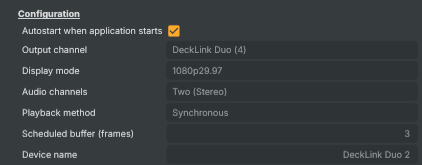
| Property | Description |
|---|---|
Autostart when application starts |
Whether the target starts automatically as soon as the project loads. [default=false]. When true, the target invokes its start logic immediately on load (equivalent to running StartCommand). Make sure DecklinkOutputChannel and DisplayMode are configured first — otherwise startup will fail and the target will sit idle. |
Output channel |
Which physical Decklink output port to send video and audio to. Selects one of the available Decklink output channels detected on the system. A card may expose multiple channels (e.g. SDI 1, SDI 2, HDMI), and only one target instance can drive each channel at a time. Must be set before StartCommand will run; clearing this disables playback. Locked while playback is starting or running — stop the target before changing it. |
Display mode |
Resolution and frame rate the target negotiates with the Decklink card. Selects the display mode advertised over SDI/HDMI — for example 1080p50, 1080i59.94, or 2160p30. The list contains only the modes that match both the selected DecklinkOutputChannel's capabilities and the current project frame rate. After changing the project frame rate (in Performance and project options), re-lock the frame rate to refresh this dropdown — until the lock is re-engaged it still shows the modes for the previous frame rate. Pick a mode that matches the downstream equipment (switcher, monitor, recorder) to avoid frame-rate conversion or "no signal" errors. Locked while playback is starting or running. |
Audio channels |
(advanced) Number of audio channels to embed alongside the video signal. [default=Two]. Two (stereo) is the standard choice for most workflows. Eight enables 8-channel embedded audio output, used for multi-language broadcasts (each language pair on its own channel pair), surround sound, or split-feed productions. The selected value must be supported by the chosen output channel and respected by downstream equipment. Locked while playback is starting or running. |
Playback method |
(advanced) How each frame's picture and sound are handed to the card. [default=Synchronous]. Synchronous sends each frame the moment it is rendered, for the lowest delay. When the project runs on the system clock, the computer's clock and the card's never run at exactly the same rate, and over time the sound can drift behind or ahead of the picture. Scheduled hands picture and sound to the card together, ScheduledBufferFrames ahead, and plays them from the card's own clock so the sound does not drift against the picture. It adds about that many frames of delay, and absorbs the difference between the two clocks by now and then skipping or repeating a whole frame, picture and sound together. Locked while playback is starting or running. |
Scheduled buffer (frames) |
(advanced) How many frames ahead of the card a Scheduled output keeps its picture and sound. [min=2, max=8, default=3]. This is the delay Scheduled playback adds: at 25 fps, 3 frames is 120 ms. Fewer frames means less delay but less room to ride out a moment when rendering falls behind; when it does, the output skips ahead to catch up rather than drifting. Has no effect when PlaybackMethod is Synchronous. Locked while playback is starting or running. |
Device name |
Friendly name of the Decklink device currently in use (read-only). Reflects the model/identifier reported by the Decklink driver for the selected DecklinkOutputChannel (for example "DeckLink 8K Pro (1)"). Useful from scripts to confirm the right card was picked when more than one Decklink device is installed, or to surface the device label in a status overlay. |
Timecode
Timecode — how the embedded RP188 LTC output timecode is generated.

| Property | Description |
|---|---|
Timecode start |
(advanced) Where the embedded RP188 LTC output timecode starts counting from. [default=00:00:00:00]. 00:00:00:00 resets the timecode to zero each time playback starts and counts up by frame. Time of day latches the wall-clock time of day when playback starts and then counts up by frame from there (genlocked to the output, not re-read each frame). Drop-frame is applied automatically for 29.97 / 59.94. How closely Time of day then keeps up with the clock depends on the display mode's frame rate: at 24 / 25 / 30 / 50 / 60 it is exact; at 29.97 / 59.94 it is correct to within about 70 ms, because drop-frame counting corrects in two-frame steps once a minute; at 23.98 it cannot track the clock at all and runs about 0.1% slow (roughly 43 seconds behind by midday, 86 seconds by the end of the day), because timecode labels 24 frames per second of 23.98 material and SMPTE defines no drop-frame scheme for that rate. At 23.98 the value is a running counter, not a clock reading. Locked while playback is starting or running. |
Status
Status — current playback state, the start/stop commands and the output timecode.
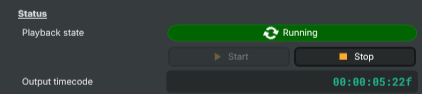
| Property | Description |
|---|---|
Playback state |
Current playback state of the target (read-only). Reflects whether the target is Stopped, Starting, Running, Stopping, or Restarting. Driven indirectly by StartCommand / StopCommand, by AutoStart at load time, and by internal restart logic on configuration changes. Scripts should read this to decide whether the SDI/HDMI signal is live; the value also drives the running indicator and the enabled state of the Start/Stop buttons. |
Start |
Begin sending video and audio to the selected Decklink output. Invokable command. Opens the chosen DecklinkOutputChannel at the configured DisplayMode and AudioChannels, locks those settings, and starts streaming the scene to the card. Disabled until a valid output channel is selected. No-op if the target is already starting or running. |
Stop |
Stop sending video and audio to the Decklink output. Invokable command. Tears down the active output, releases the Decklink channel back to the system, and unlocks DecklinkOutputChannel, DisplayMode, and AudioChannels so they can be reconfigured. No-op if the target is already stopped. |
Output timecode |
RP188 LTC timecode currently embedded on the Decklink output (read-only). Starts from the configured TimecodeStartTime (00:00:00:00 or time of day) when playback starts and advances at the negotiated display mode's frame rate. Auto-detects drop-frame for 29.97 / 59.94 and uses non-drop for 24 / 25 / 30 / 50 / 60. Useful for slating recordings or driving downstream automation that expects RP188. |
Log
Log — recent info, warning and error messages emitted by the target.

| Property | Description |
|---|---|
ComponentLog |
Per-component log buffer — recent info/warning/error messages emitted by the target (start, stop, configuration changes, playback errors). |
Performance and properties
Performance and properties — runtime stats and capture diagnostics.
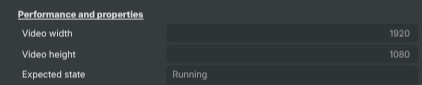
| Property | Description |
|---|---|
Video width |
Width of the video signal currently sent to the Decklink output, in pixels (read-only). Reflects the resolution implied by the negotiated DisplayMode (e.g. 1920 for 1080p, 3840 for 2160p). 0 while playback is stopped. Useful from scripts to confirm the card opened at the expected resolution before driving downstream behaviour. |
Video height |
Height of the video signal currently sent to the Decklink output, in pixels (read-only). Reflects the vertical resolution implied by the negotiated DisplayMode (e.g. 1080 for 1080p, 2160 for 2160p). 0 while playback is stopped. |
Inherits from: AbstractTarget, NamedModel.
See also: Blackmagic Decklink Target v4 in Script Engine Objects.
Several DeckLink cards in one computer
A DeckLink card with several connectors, or several cards of the same model, appears in Output channel as DeckLink Duo (1), DeckLink Duo (2) and so on. Those numbers follow the order the driver finds the devices in, so adding, removing or moving a card can renumber them, and the target then plays out on a different card than the one it was set up with.
Give each device a label of its own in Blackmagic Desktop Video Setup. The device list then shows the labels, and a project remembers each target by its label rather than by a number. Telling identical DeckLink cards apart walks through setting the labels on Windows and Linux, and what to do with projects saved before the cards were labelled.